
Do you want to know how to Fix HTTP 400 Bad request error? you have come to the right place!
The HTTP 400 Bad Request error is a common issue that can disrupt your WordPress website’s functionality and user experience.
It typically indicates that the server cannot process the request due to a client error.
This can happen for various reasons, such as corrupted cookies, incorrect URLs, or server-side problems.
What is an HTTP 400 Bad Request error?
The HTTP 400 Bad Request error is a client-side error indicating that the server cannot process the request due to a malformed or invalid syntax. In the context of a WordPress website, it typically arises during page loading or when submitting a form.
When a 400 Bad Request error occurs, users may encounter a blank page or a message indicating that the request could not be understood.
This error can stem from various issues, such as incorrect URL input, invalid characters in the URL, or problems with cookies and cached data in the browser.
What are the common causes of a 400 Bad Request error in WordPress?
Common causes include:
- Corrupted request cookies.
- Incorrect URL formatting.
- Issues with plugins or themes.
- File upload size exceeding server limits.
- Browser cache or outdated cookies.
- Server misconfiguration.
How to avoid HTTP 400 Bad Request errors on your WordPress website
To avoid HTTP 400 Bad Request errors on your WordPress website, follow these steps:
- Ensure URLs Are Correct: Always double-check URLs for accuracy.
- Optimize Server Settings: Configure your server settings appropriately.
- Keep WordPress Updated: Regularly update WordPress core, themes, and plugins.
- Use Valid Input: Ensure all forms and API requests have valid data.
- Avoid Invalid File Uploads: Check file types and sizes before uploading.
- Clear Browser Cache Regularly: Regularly clear your browser’s cache and cookies.
Quick view
Here are seven ways to troubleshoot and resolve the issue:
| Clear Browser Cache and Cookies: | Clear your browser’s cache and cookies to eliminate any corrupted data that might be causing the issue. |
| Check the URL: | Ensure that the URL you are trying to access is correct and properly formatted. |
| Disable Plugins: | Temporarily disable all installed plugins to see if one of them is causing the error. If the issue resolves, reactivate them one by one to identify the culprit. |
| Switch to a Default Theme: | Change your active theme to a default WordPress theme (like Twenty Twenty-One) to determine if your theme is causing the problem. |
| Check .htaccess File: | Access your site’s .htaccess file through FTP or your hosting provider’s file manager and check for any incorrect rules. You can rename the file to reset it and see if the error persists. |
| Increase File Upload Size: | Modify your php.ini file or .htaccess file to increase the file upload size limit. This can help if you’re experiencing the error when uploading files. |
| Contact Hosting Provider: | If none of the above solutions work, reach out to your hosting provider to check for server-side issues or misconfigurations. |
How to Fix HTTP 400 Bad Request Error in a WordPress Website
Here are seven effective ways to fix your WordPress website’s HTTP 400 Bad Request error.
1. Clear Your Browser Cache and Cookies
One of the simplest and most common solutions is to clear your browser’s cache and cookies. Over time, these stored data can become corrupted, leading to a 400 Bad Request error.
- Google Chrome: Go to Settings > Privacy and Security > Clear browsing data. Select “Cookies and other site data” and “Cached images and files,” then click “Clear data.”
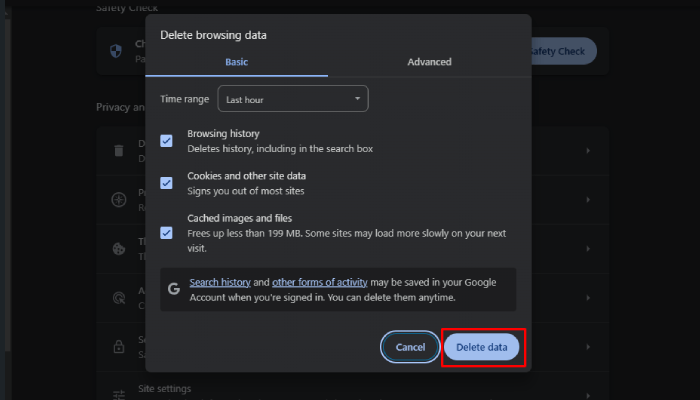
- Mozilla Firefox: Go to Options > Privacy & Security > Cookies and Site Data. Click “Clear Data” and select “Cookies and Site Data” and “Cached Web Content,” then click “Clear.”
2. Check the URL for Errors
Sometimes, a simple typo in the URL can cause a 400 Bad Request error. Double-check the URL for any mistakes, such as incorrect syntax, missing characters, or unnecessary spaces. Correct the URL and try accessing the page again.
3. Deactivate Browser Extensions
Certain browser extensions can interfere with website requests and cause errors. Disable all your browser extensions and try accessing your website again. If the error is resolved, reactivate the extensions one by one to identify the culprit.
- Google Chrome: Go to Settings > Extensions. Toggle off all extensions.
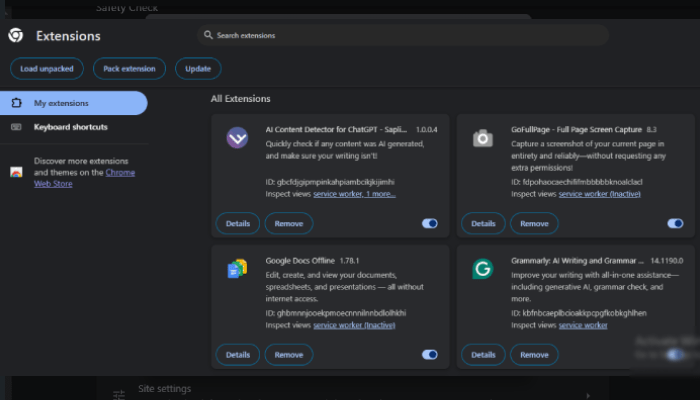
- Mozilla Firefox: Go to Add-ons > Extensions. Disable all extensions.
4. Deactivate WordPress Plugins
Deactivate all your WordPress plugins and check if the error persists. If the error is resolved, reactivate the plugins one by one to identify the problematic one.
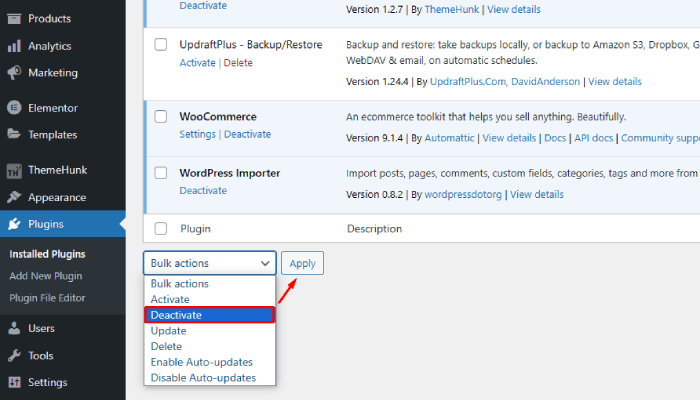
- WordPress Dashboard: Go to Plugins > Installed Plugins. Select all plugins, choose “Deactivate” from the bulk actions menu, and click “Apply.”
5. Check Your WordPress .htaccess File
The .htaccess file can become corrupted and cause a 400 Bad Request error. To fix this, rename your existing .htaccess file and create a new one.
- Connect to your website via FTP or use the File Manager in your hosting control panel.
- Rename the .htaccess file to .htaccess_old.
- Create a new .htaccess file and add the default WordPress .htaccess code.
6. Flush DNS Cache
Flushing your DNS cache can help resolve connectivity issues and fix the 400 Bad Request error. The process varies depending on your operating system.
- Windows: Open Command Prompt and type ipconfig /flushdns, then press Enter.
- macOS: Open Terminal and type sudo killall -HUP mDNSResponder, then press Enter.
7. Contact Hosting Provider
If none of the previously mentioned solutions are effective, please get in touch with your hosting provider to investigate server-side issues or misconfigurations.
Your hosting provider can often provide insights into potential server-side problems that may be affecting your site’s performance. They have tools and access to logs that you might not be able to view, allowing them to diagnose issues related to server load, network connectivity, or configuration errors.
Be prepared to provide them with detailed information about the problems you are experiencing, including any error messages, recent changes made to your site, and the exact circumstances under which the issues occur. This will help them investigate more efficiently.
FAQ
Q: Will switching themes affect my website’s content?
Ans: Switching themes will change how your website looks and behaves but will not affect the actual content (posts, pages) stored in your WordPress database. However, certain theme-specific features might be lost.
Q: How do I check file upload size limits?
Ans: You can check your file upload limits by creating a PHP info file or by reviewing the settings in your hosting control panel. The upload_max_filesize directive in the php.ini file indicates your current limits.
Conclusion
The HTTP 400 Bad Request error can be frustrating, but it is usually fixable with some troubleshooting.
By following these methods, you can identify and resolve the issue, ensuring your WordPress website runs smoothly. Regular maintenance and updates can also help prevent such errors in the future.
If you find this article helpful, do share it with your friends. If you have any questions regarding this, do not hesitate to comment below. We will help you to solve your problem. Thanks for reading this blog.
Please Subscribe to our YouTube Channel, we also upload great content there, and also Do Follow us on Facebook and Twitter.
Read more:


