
Overview ➣ An image comparison slider is a useful tool that enables users to compare two images side by side by moving a slider. This functionality is commonly used for displaying before-and-after changes, product comparisons, and design improvements, making it a must-have feature for photography, eCommerce, and creative websites.
Do you want to learn how to create an image comparison slider in WordPress? You’ve come to the right place!
In this simple tutorial, I will demonstrate how to easily create an image comparison in WordPress.
An image comparison slider is a great feature that allows users to compare two images side by side by sliding a slider.
It’s particularly handy for before-and-after demonstrations, product comparisons, and emphasizing design changes.
In this tutorial, we will guide you on how to make an image comparison slider in WordPress with the Elemento Addons for Elementor.

What is an image comparison slider in WordPress?
An image comparison slider allows users to compare two images by sliding between them. It is commonly used to showcase before-and-after images for design, photography, medical, and e-commerce websites.
Why should I use an image comparison slider?
An image comparison slider increases user engagement by providing a visual representation of the differences between two images.
It can help demonstrate transformations, edits, product enhancements, or other comparisons.
How to Make an Image Comparison Slider in WordPress
Step 1: Install and Activate the Elemento Addons for Elementor
Before installation, ensure that both WooCommerce and Elementor are activated in your dashboard.
Download the Plugin: Visit the Elemento Addons Plugin page and download the plugin.

Go to your WordPress dashboard → Plugins → Add New → Upload Plugin.
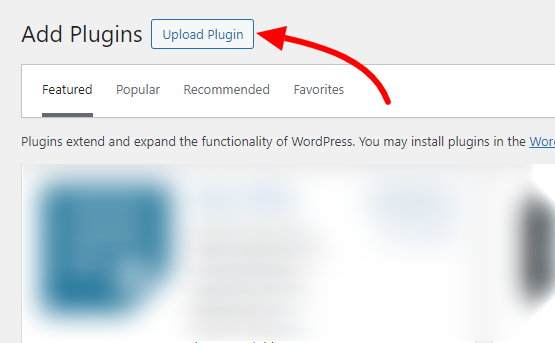
Upload the downloaded file and click “Install Now.”

Once installed, click “Activate” to enable the plugin.
To Install Elemento Addons please watch below video tutorial:
Step 2: Create or Edit a Page with Elementor:

Go to Pages > Add New if you’re starting fresh, or Edit an existing page or add a slider to any page as needed.

Click Edit with Elementor to launch the Elementor page builder.
Step 3: Add the Image Comparison Widget

In the Elementor editor, look for Elemento Addons widgets in the sidebar, or search for Image Comparison in the widget panel.
Drag and drop the Image Comparison widget anywhere on the page.
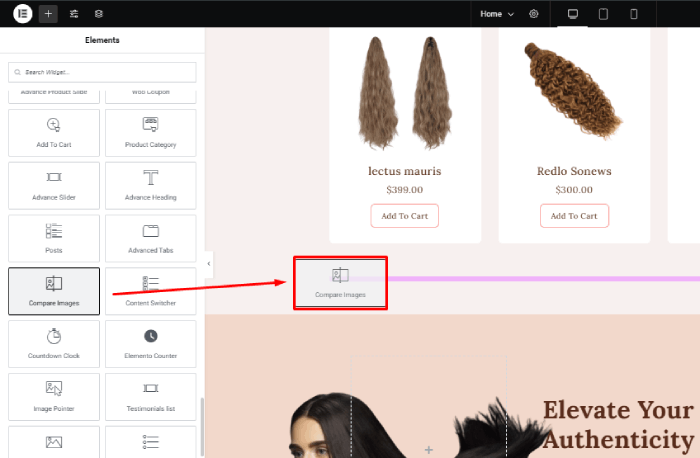
Step 4: Upload Your Images
Here, you can see the newly added Image Comparison Widget in the image below.
Use the left sidebar to edit the Compare Images section by adding Images in the Image section.
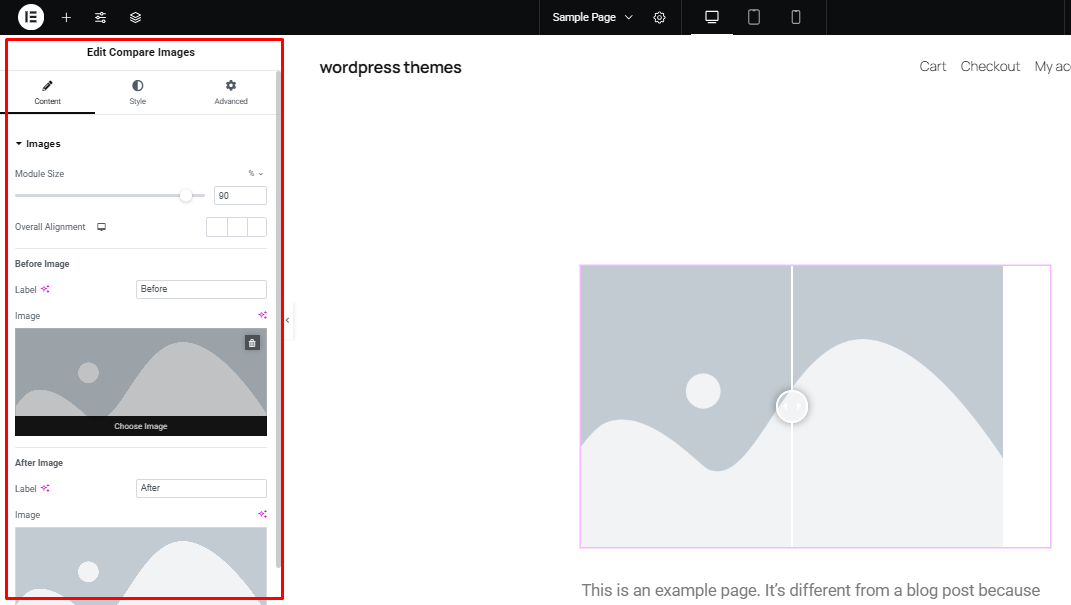
I have included sample images for your reference.
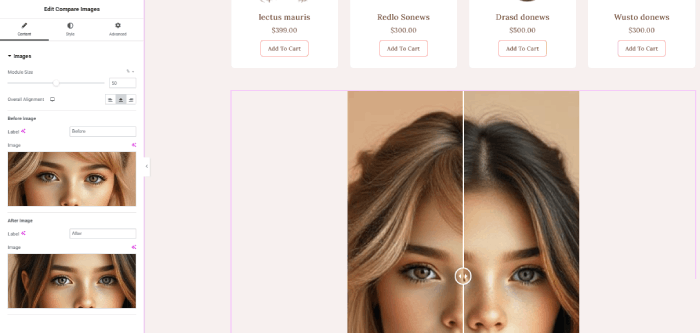
Step 5: Customize the Slider
You can edit and customize the settings using the left sidebar.
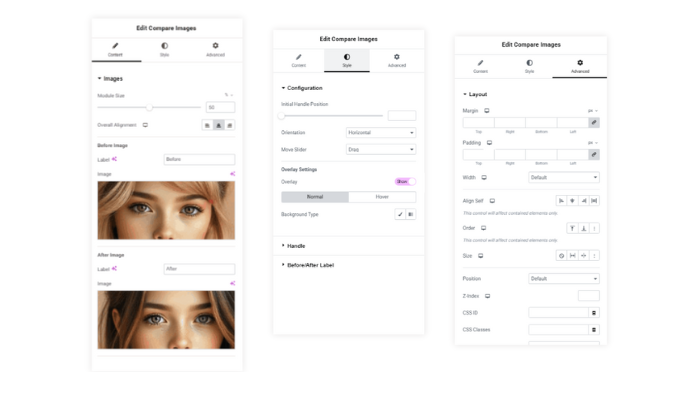
You can modify and personalize the settings using the menu on the left side.
Step 6: Publish the Page
Once you’re satisfied with your settings, click Publish to make your image comparison slider live.
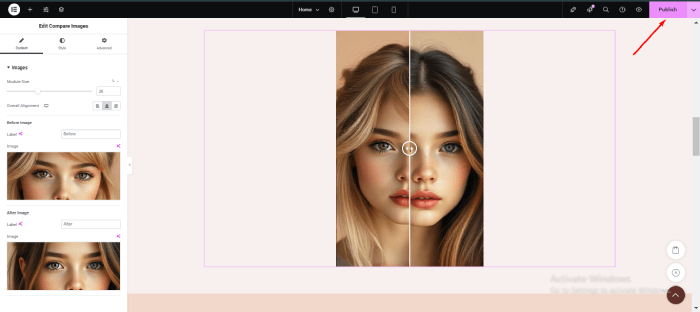
When you are happy with your adjustments, click “Publish” to make your image comparison slider visible to others.
You can view the page by clicking on the “View Page”.
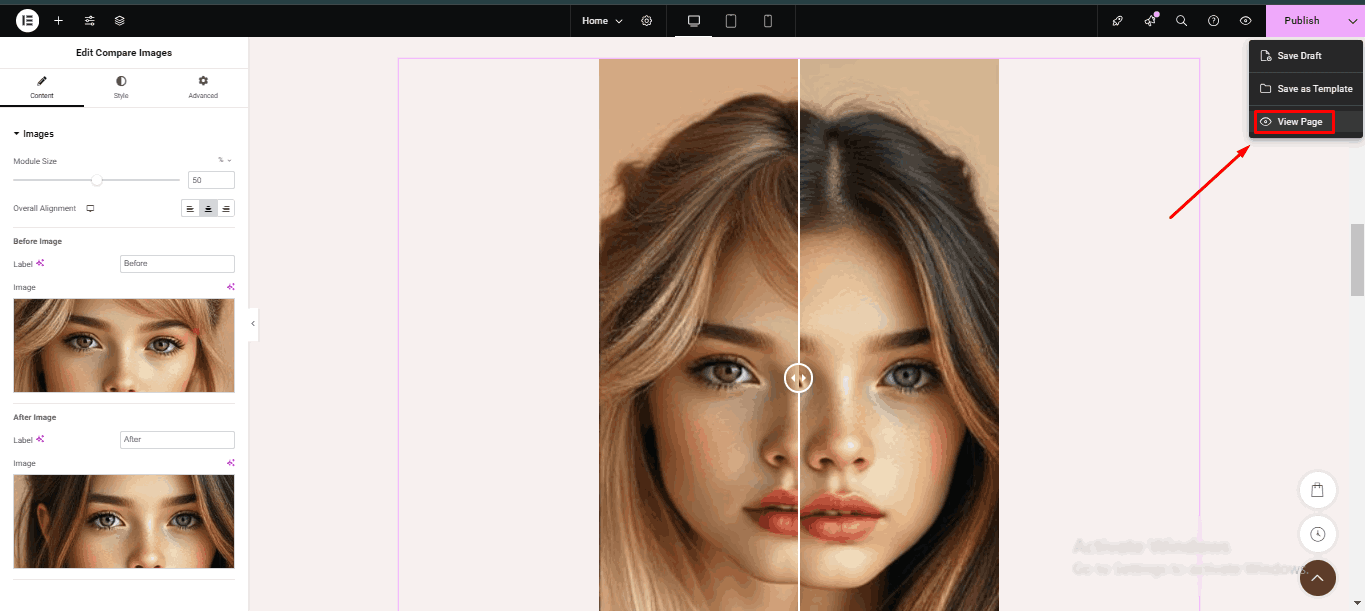
You can view the live image comparison slider on your side.

Shop Mania WooCommerce Theme
Are you searching for a beautiful, feature-packed theme to enhance your WooCommerce store?

We highly recommend the Shop Mania theme for a seamless and visually appealing shopping experience.
Its sleek design, easy customization options, and WooCommerce compatibility make Shop Mania a great choice for stores aiming to enhance customer satisfaction and boost conversions. You can check it out here.
Features of Shop Mania:
- Ready-to-Import Sites: Easily import demo sites and customize them to fit your store’s needs.
- Multiple Product Cart Templates: Choose from five high-quality cart templates to match your store’s design.
- Quick View: Allow users to preview product details without leaving the current page.
- Off-Canvas Sidebar: Display additional products and widgets without cluttering the homepage.
- Floating Cart: Enhance user experience with a convenient floating shopping cart.
- Product Hover Effects: Includes zoom, fade, image swap, and slide effects for interactive product displays.
- Mobile Header Styles: Optimized header designs tailored for a seamless mobile experience.
- Customizable Single Product Layouts: Flexible gallery layouts, including grid and slider options.
- Advanced Checkout & Cart Styles: Personalized checkout and cart pages for a smooth, distraction-free experience.
FAQ
Q: Do image comparison sliders affect website speed?
Ans: Minimal impact occurs if you use a lightweight plugin and optimize images.
Q: Will the slider work with any WordPress theme?
Ans: Image comparison slider plugins are compatible with popular WordPress themes, but it’s always best to check plugin documentation for compatibility.
Q: How do I troubleshoot issues with my image comparison slider?
Ans: If your slider is not working properly:
1. Ensure the plugin is updated.
2. Check for conflicts with other plugins.
3. Clear the cache and refresh your website.
4. Try disabling and re-enabling the plugin.
Final Thoughts
Including an image comparison slider in a WordPress site is very easy with Elemento Addons for Elementor to make it more visually appealing.
If you have a photography website, an online store, or a design portfolio, this add-on can aid in presenting your content in an effective manner.
Do you have any questions about how to use this add-on? Let us know in the comments below!
If you find this article helpful, share it with your friends. If you have any questions, leave a comment below, and we’ll be happy to assist you. Thank you for reading!
Please subscribe to our YouTube channel; we also upload great content there. Also, Do Follow us on Facebook and Twitter
More helpful reads:


