
Do you want to know How to Add Reviews and Testimonials to Your WooCommerce Store? you have come to the right place!
In this blog, we’ll explore how you can add reviews and testimonials to your store.
WooCommerce Reviews and testimonials for customers are effective ways to gain trust and credibility for your store.
Also, they can guide other customers into purchasing more products, increasing the sales and good name of the business.
This article will help you how to add reviews and testimonials for your WooCommerce store so that everything runs smoothly for you and your shoppers.
Want to build trust and credibility and know how to add reviews and testimonials? Stay tuned.
Reviews and testimonials help potential buyers make informed decisions and can increase conversion rates by showcasing real experiences from other customers.
When buyers can read about the real-life experiences of others, they gain valuable perspectives that assist them in making informed purchasing decisions.
When potential customers see positive feedback, they are more likely to feel confident
Add Reviews and Testimonials to WooCommerce Store (Step-by-Step Guide)
Enable Reviews in WooCommerce
Step 1. Go to your WordPress dashboard.
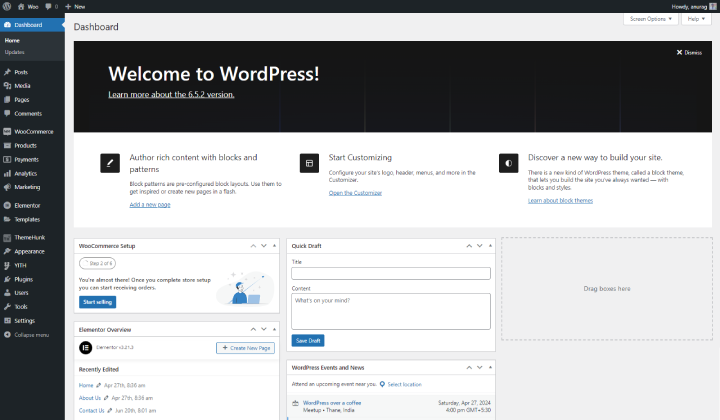
To get to your WordPress dashboard, open your web browser and type your website’s address using /wp-admin at the end.
Log in with your username and password. After logging in, you’ll see the dashboard, where you can manage your site.
Step 2. Go to WooCommerce > Settings > Options.

In your WordPress Admin Dashboard, click “WooCommerce” in the sidebar and select Settings to access configuration options.
From there, navigate between tabs for various settings related to your store.
Step 3. Navigate “Product” and scroll down.
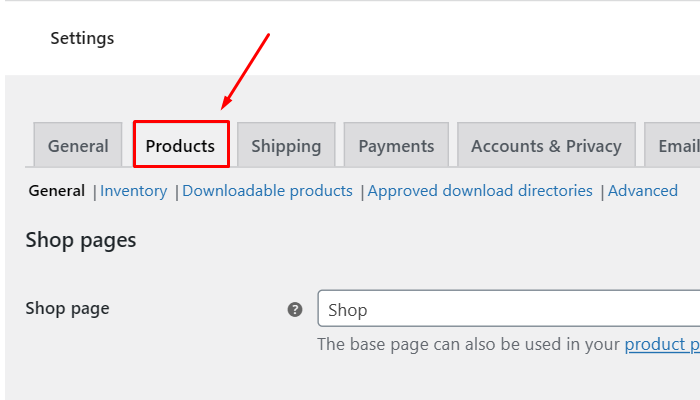
Click on the Products tab in the WooCommerce settings. Then, scroll down to view additional options related to product management.
Step 4. Check the “Enable Product Review” option. And then “Save changes”.
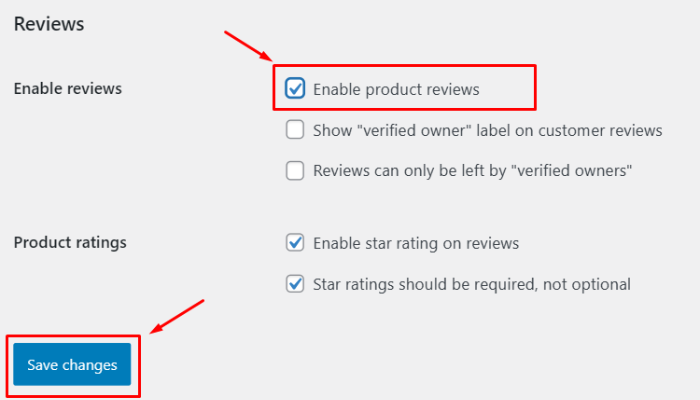
Check the box for “Enable Product Reviews” to allow customers to leave reviews on your products. After making this selection, click “Save Changes” to apply the update
This allows customers to leave reviews directly on product pages.

Enabling product reviews allows customers to share their feedback and experiences directly on the product pages.
This feature can enhance customer trust and provide valuable insights to potential buyers.
Further Customization
To enhance the appeal of your reviews section, consider using WooCommerce themes that provide stylish layouts designed to showcase customer feedback.
You can also add functionality with plugins such as WooCommerce Product Reviews Pro, which allows for advanced features like images and video uploads in reviews, enriching the overall experience for your customers.
Moreover, it’s essential to moderate reviews to ensure only authentic and appropriate content is visible.
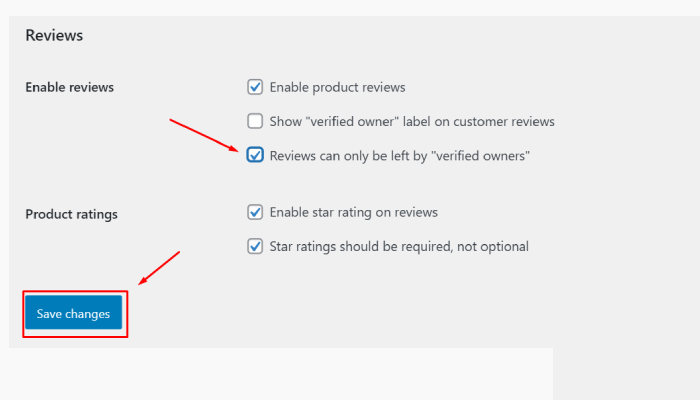
You can do this by Navigating to WooCommerce > Settings > Products > Reviews and enabling the option that allows reviews only from verified owners, helping to prevent spam and maintain the integrity of your reviews.
Adding Testimonials with Elemento Addon
Testimonials are broader than product reviews and often highlight the overall experience with your brand.
Several plugins make it easy to showcase testimonials on your WooCommerce store’s popular options like Elemento Addons plugin.
Step 1: Install and Activate Elemento Addons
- Download and install the Elemento Addons plugin.
- Activate the plugin after installation.
You can refer to this video below:
Step 2: Open Elementor Editor
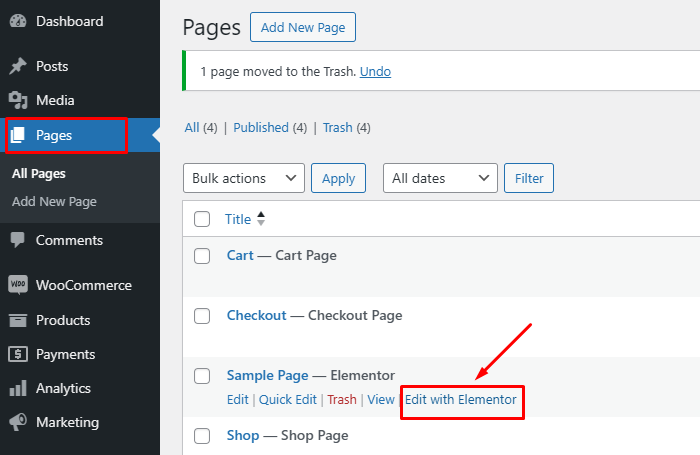
- Go to your WordPress dashboard.
- Navigate to the page or post where you want to add testimonials and click Edit with Elementor.
Step 3: Add the Testimonial Widget

- In the Elementor editor, look for the “Testimonial” widget provided by the Elemento Addons.
- Drag and drop the widget into your desired section of the page.
Step 4: Customize Your Testimonials
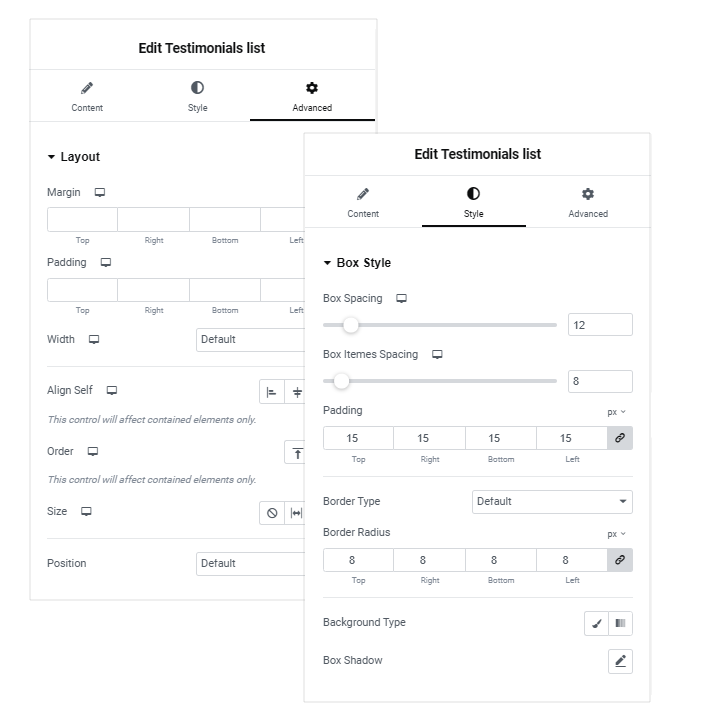
- Content: Enter customer reviews, names, and titles in the widget settings.
- Style Options: Customize the layout, colors, and typography to align with your brand’s style.
- Layouts: Elemento Addons provide various pre-designed layouts for testimonials, letting you select from styles such as grids, carousels, or sliders.
Step 5: Adjust Advanced Settings

- Use the advanced settings to fine-tune the appearance, such as margins, padding, or animation effects.
- Add hover effects or adjust responsiveness for mobile, tablet, and desktop views.
Step 6: Publish Your Changes
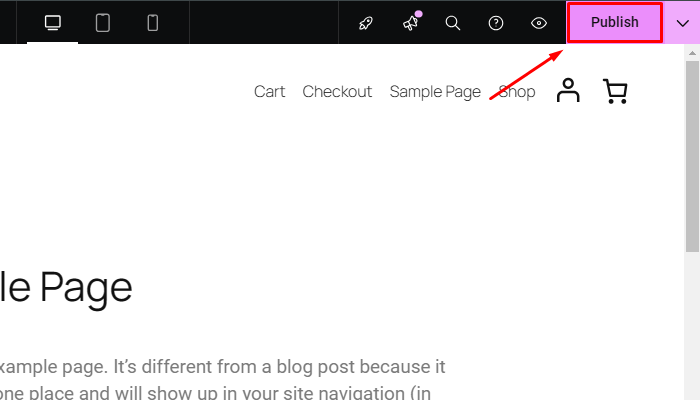
- After configuring the widget, click Update to save your changes.
- Preview the page to ensure the testimonials appear as expected.
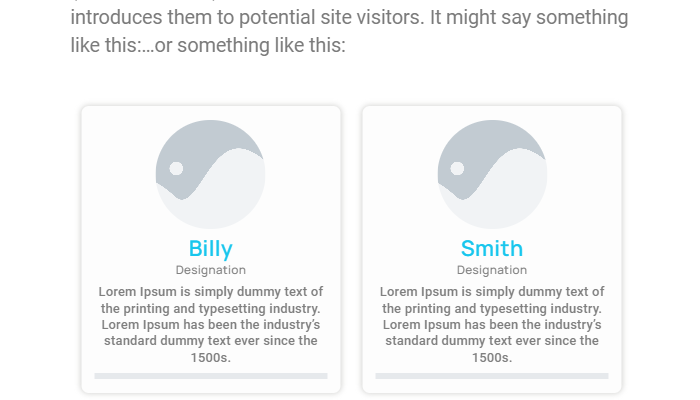
Testimonials are successfully Added.
FAQ
Q: Can I customize the review form?
Ans: Yes, using custom code or plugins, you can modify the review form fields (like adding a star rating system or photos) to better fit your brand.
Q: Is it possible to import existing reviews into WooCommerce?
Ans: You can use plugins that support CSV import or tools designed to migrate reviews from other platforms into WooCommerce. Make sure to back up your store before doing imports.
Q: Do reviews impact SEO?
Ans: Yes, reviews can positively influence your SEO. Search engines favor fresh, user-generated content like reviews, which can help improve your store’s visibility and ranking.
Conclusion
Adding reviews and testimonials to your WooCommerce store is a simple yet effective way to enhance, improve SEO, and increase sales.
By leveraging WooCommerce’s built-in features, plugins, and best practices, you can create a compelling and trustworthy shopping experience for your customers.
Positive feedback not only builds trust but also encourages potential buyers to make informed decisions.
It helps people feel connected and confident that they are picking a trustworthy product or service, ultimately enhancing their overall experience and satisfaction with their choices.
I hope this article provides you with the correct guidance on how to add reviews and testimonials.
If you find this article helpful, please share it with your friends. If you have any questions, do not hesitate to comment below. We will help you solve your problem. Thanks for reading this blog.
Please Subscribe to our YouTube Channel, we also upload great content there and also Do Follow us on Facebook and Twitter
Discover more articles:


