For using Elemento Addons, please make sure you’re using an Elementor-compatible Theme. These add-ons only work with Elementor.
Elemento Addons is the ultimate elements library for Elementor WordPress Page Builder. Premium elements with stunning design and endless customization options.
Install Elemento Addons
To install Elemento Addons, please watch below video tutorial:
Header
You can create and replace the theme’s default header with the help of Elemento Header. It allows you to create a custom header and add it to your site.
Open your WordPress Dashboard
Navigate to Elemento Addons > Header and Footer
Click on Add New Template
Fill in the boxes as per your need
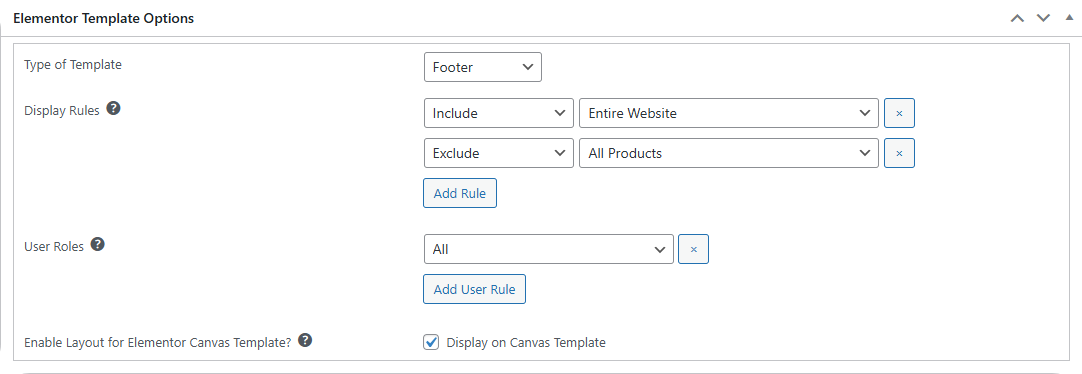
Here you can see different options, which are significantly important while creating a template. Let’s understand them.
Type of Template – Here, you need to select which template you are creating for. You can see options for Header, Footer, and Section.
Display Rules – In the 1st box, you need to select between Include and Exclude. It is for the next box. For example, in the above image, in the first box, Include, and in the second box, Entire Website is selected. It means this template will appear on the Entire site except the Product pages, as it is in the exclude rule. If you want to add more rules then simply click on the button below the rule that says Add Rule.
User Roles – Here, you need to select the users’ role to whom the template will come to the attention of.
Enable Layout for Elementor Canvas Template? – You can tick this box if you want to show this template on the Canvas pages that do not show a header and footer.
After all these settings, you can save your template.
Designing the template
Click on the Edit with Elementor button
Create a header with the help of Elementor.
Below is the header created with Elementor
Save the template and go back.
Preview your website
You can see our header has replaced the default one
Footer
Let’s see how you can create a footer template with the help of the Elemento Addons plugin.
Open your WordPress dashboard
Go to Elemento Addon and click on Header and Footer
Click on Add New Template
Fill in the details
Type of Template – Here you will get 3 options, Header, Footer, and Section. Select the template you are making for.
Display rules – In the first box, you have to select between Include and Exclude. Then you need to select the field where you want to apply the rules. You can add multiple Rules by clicking on the button, Add Rule.
User Roles – Select the role of user you want to show the template to.
Enable Layout for Elementor Canvas Template? – Select this option if you want to show the template on the Canvas pages also.
After all this, save the settings. Now click on Edit with Elementor.
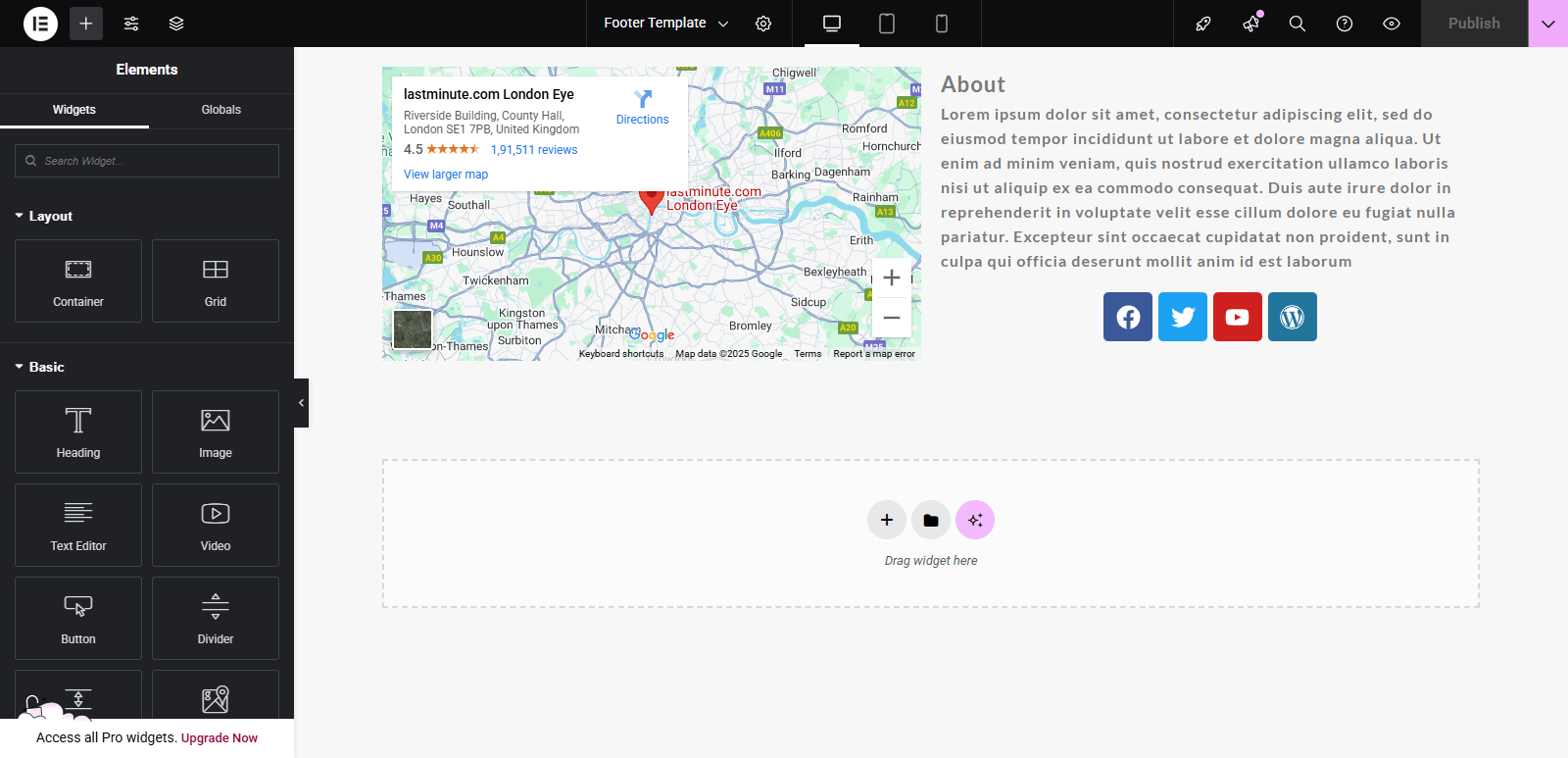
You will be redirected to the Elementor page, where you can design the footer with the help of Elementor widgets.
Having finished the design, save the page and go back.
Now preview the page. You can see the footer has replaced the previous one.
Advance Heading
Using Advance headings, you can create amazing heading designs for your content. Watch this video for more details.
Countdown
Using the Countdown extension, you can show a timer for any special occasion or sale on your website. Watch this video for more details.
Product Slider
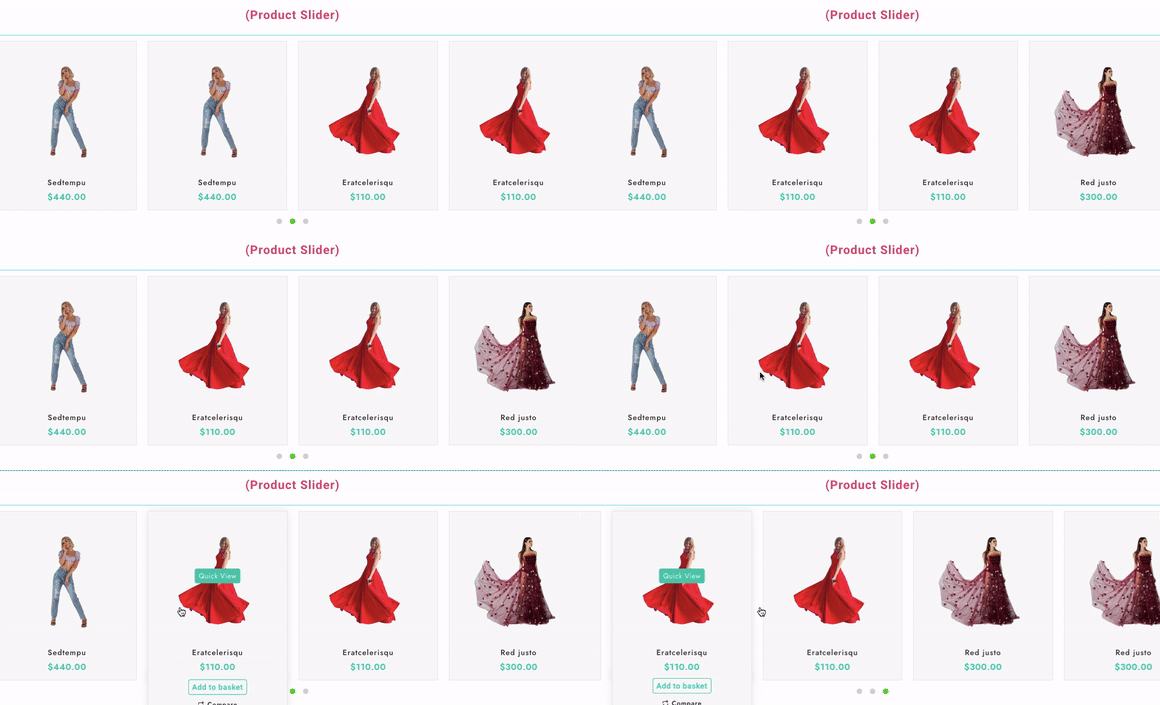
A product slider can be used to display products in the slider. You can create a beautiful product slider with this feature.
Read the features below to customize the product slider.
(Content)
Product Settings-
Select Product Category- Here you can select multiple product categories that you want to show on the slider.
Number of Products- You can select how many products you want to display on the slider.
Choose Option- Here you can select the display of products on the basis of Recent, Random, and Featured products.
Slider Settings-
Number of Columns- You can select how many columns you want to display on the slider.
Number of Rows- You can select how many Rows you want to display on the slider, you can select up to 2 rows.
AutoPlay- Enable/Disable autoplay of slider.
Infinity loop- Select infinity loop.
Slider Controls- Select the controls of the slider, like dots and arrows.
(Style)
Product Box Style- Customize the product box styling, like- color, border, etc. Product Title- Select the typography & colors of the title.
Price- Select typography, color, and sale price color of price.
Sale text- Customize Sale texts, typography, color, and margin.
Quick View- Customize typography and colors.
Rating Style- customize font size and color.
Add to Cart- Enable or disable the cart icon, typography, font size, and colors of the add to cart button.
Wishlist & Compare- select font size and color.
Elemento Products
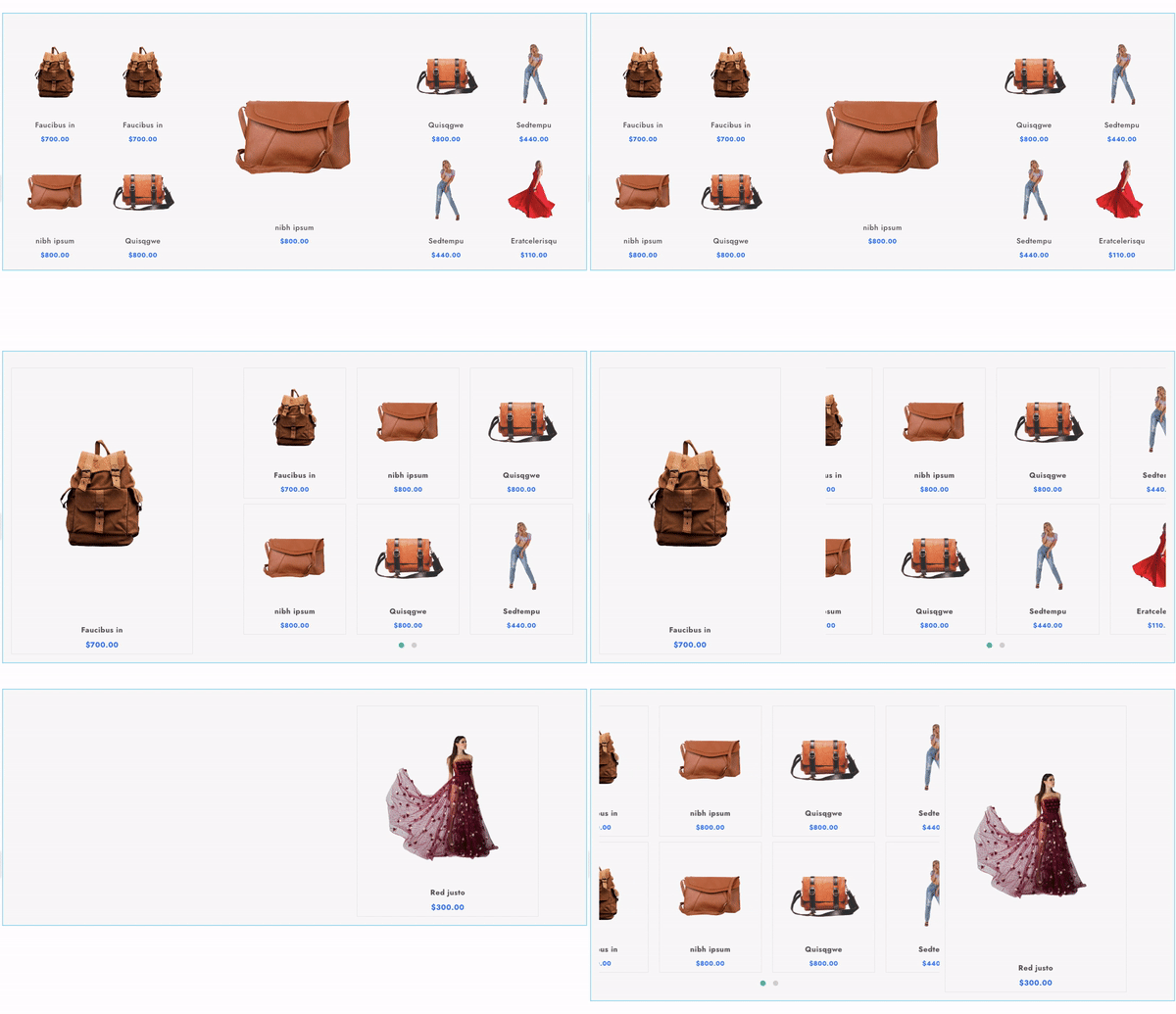
In Elemento Products feature, you can display products in various formats by selecting section layouts and various product layouts, as you can see in the image below.
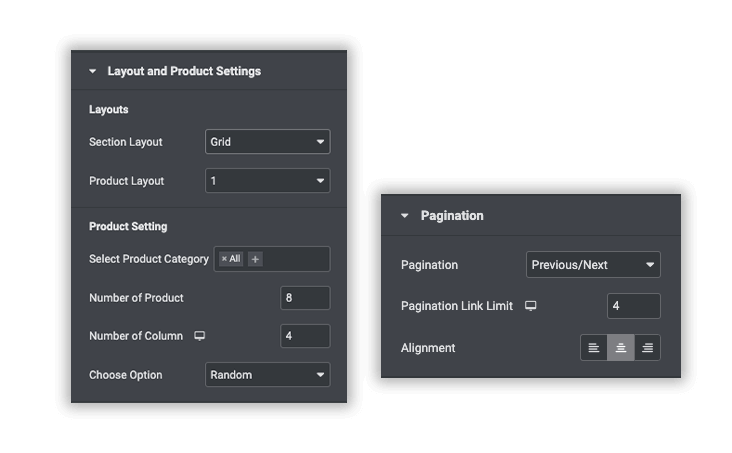
Layout and Products Settings
Layouts
Section Layouts- In this, you can select the section layout on per per-grid or slider basis. As you can see in the image below.
Product Layout- you can select up to 5 types of product layouts to display your products, as you can see in the image below.
Product Setting
Select product category- Here you can select multiple product categories that you want to display in the products section.
Number of Products- select how many products you want to display.
Number of columns- Select how many columns you want to display.
Choose Option- Select the product display options on the basis of recent, random, and featured products.
Pagination
Pagination- select the pagination style from Numbers, Previous/Next, (Numbers + Previous/Next)
Pagination Link Limit- Select the limit of pagination.
Alignment- Select the alignment
Style
Section Title- Customize the section title.
Product Box Style- customize the product box styling, like border and color.
Product Title- Customize the typography and color of the product title.
Price- Enable/Disable the price section, and customize typography and colors.
Sale Text- Customize sale text.
Rating Style- Customize the rating styling like font, color, and alignment.
Icon (Quick View)- Customize the icon styling of the quick view section.
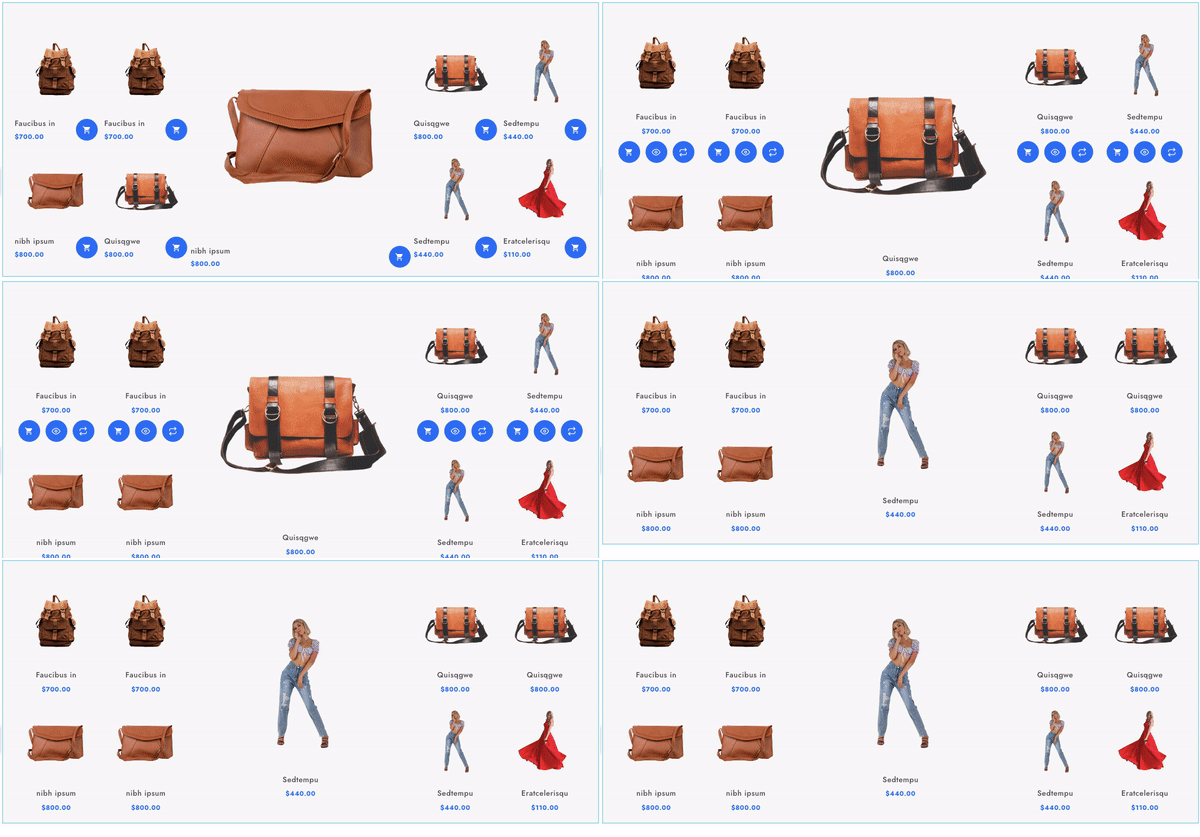
Elemento Big Products
In Elemento Big Products, you can display products on the basis of various styles.
Section Title
Enable/Disable- You can Enable/Disable the section title.
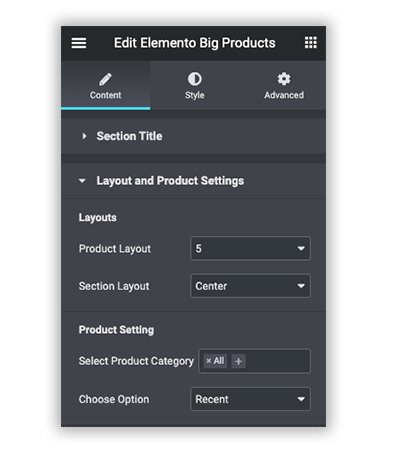
Layout and Product Settings
Layouts
Product Layout- You can choose up to 5 types of beautiful product layouts to display. As you can see in the image below.
Section Layout- Here you can customize the product section layouts. As you can see in the image below.
Product Setting
Select Product Category- You can select multiple product categories to display.
Choose Option- Select the Recent, Random, and Featured products.
Style
Section Title- Customize the section title.
Container Style- customize the product box styling, like border and color.
Product Title- Customize the typography and color of the product title.
Price- Enable/Disable the price section, and customize typography and colors.
Sale Text- Customize sale text.
Rating Style- Customize the rating styling like font, color, and alignment.
Icon setting- Customize the icon styling.
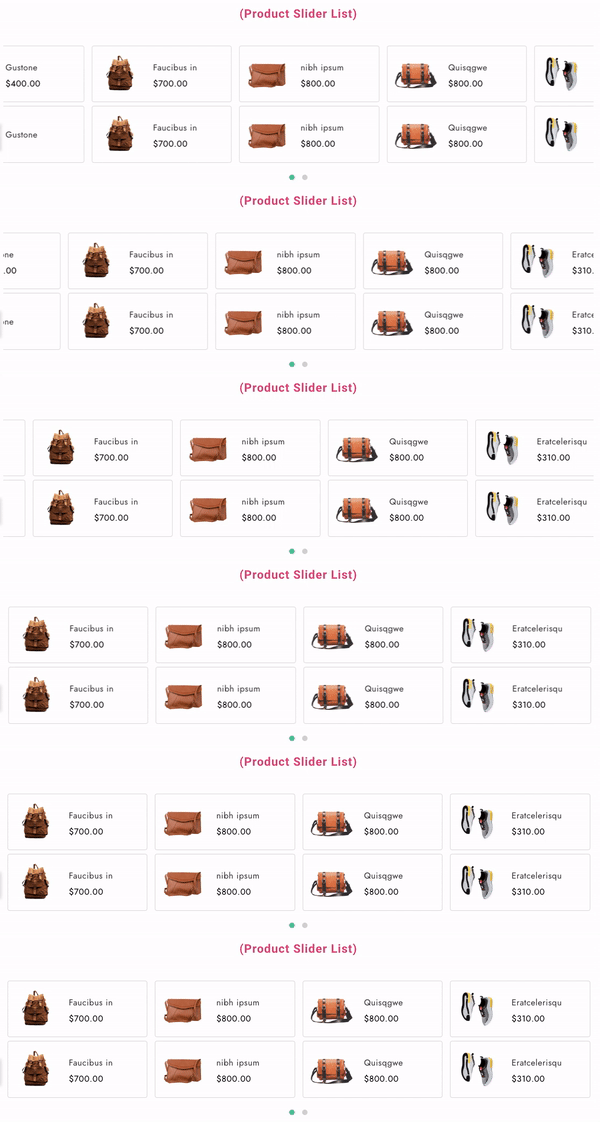
Product Slider list
In the Product Slider list, you can display products as product list sliders. As you can see in the image below.
Content Settings
Product Title- Enter product title.
Select Product Category- Here you can select multiple product categories.
Choose Option- Select recent, random, and featured products to display on the list slider.
Number of Products- select how many products you want to display on the list slider.
Sort Product Elements- You can drag and drop sorting of Product elements like- Title, Rating, and Price.
Slider Settings
Number of Columns- Select how many columns you want to display.
Number of Rows- Select up to 2 rows on the product slider list.
AutoPlay- Enable/Disable AutoPlay.
Slider Speed- Select the speed of the product list slider.
Autoplay Slide Direction- Select the slider direction from Right and Left.
Infinite Loop- Enable or Disable infinity loop.
Slider Controls- Select the slider controls styling from Dots, arrow, and (Dots+Arrow)
Style
Section Title- Customize the section title.
Slide Container- Select border type
Product Title- Customize the typography and color of the product title.
Rating Style- Customize the rating styling like font, color, and alignment.
Price- Enable/Disable the price section, and customize typography and colors.
Navigation Category- Enable disable, and change the color of the navigation category.
Sale Text- Customize sale text.
Slider Navigation and Dots Setting- Customize the navigation and post styling.
Vertical Product List
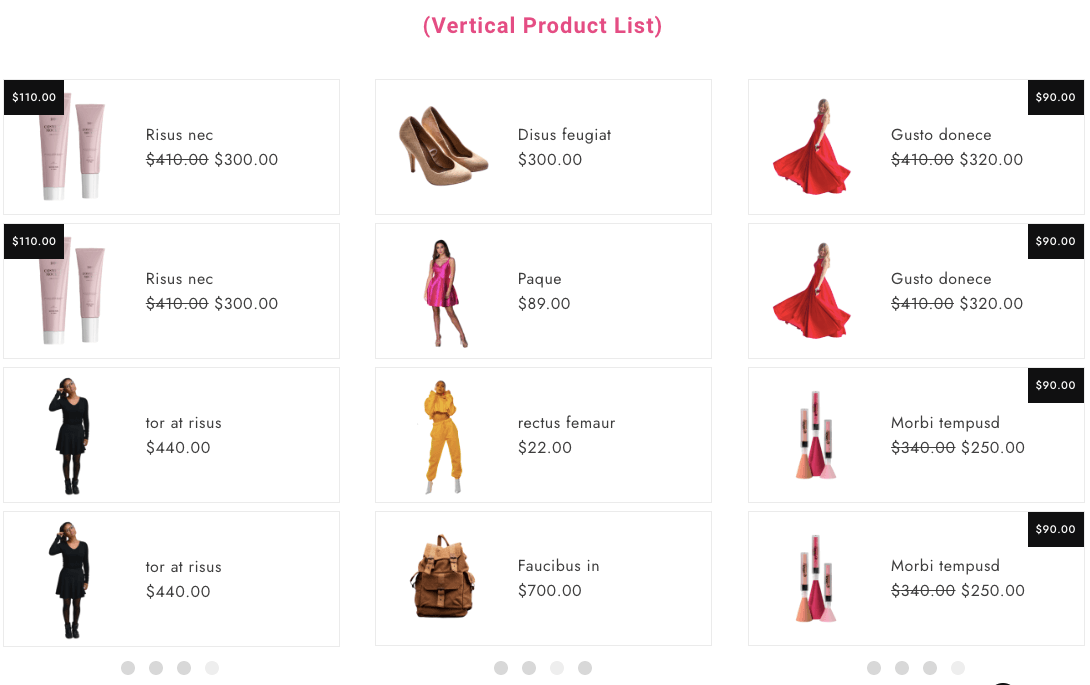
In the Vertical Product List section, you can display products in a list format, and there are various customizations you can do.
You can customize the vertical product list section with these awesome features.
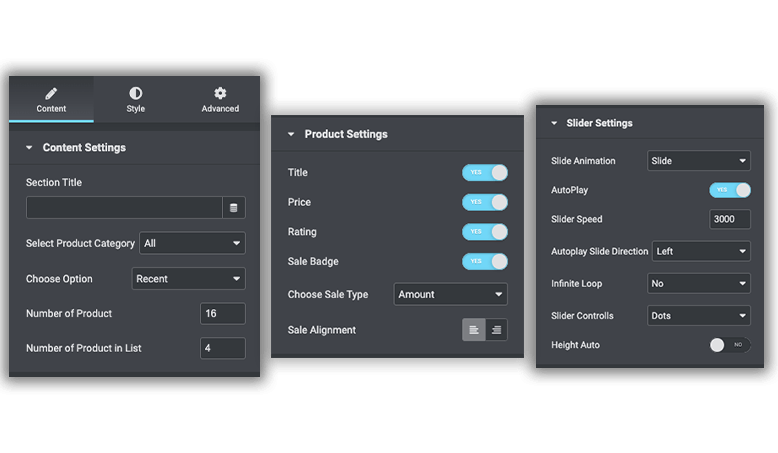
Content Settings
Section Title- Enter section title.
Select Product Category- you can select a single category you want to show on the list.
Choose Option- select the recent, random, and featured products.
Number of Products- Select how many products you want to display.
Number of Products in List- Select the number of products list you want to display.
Product Settings
Title- Enable/Disable.
Price- Enable/Disable.
Rating- Enable/Disable.
Sale Badge- Enable/Disable.
Choose Sale Type- select the sale type from Amount or text.
Sale Alignment- customize alignment of sale.
Slider Settings
Slide Animation- select the animation of the slider.
AutoPlay- Enable/ Disable.
Slider Speed- select the speed of the slider.
Autoplay Slide Direction- select slide direction from Right and left.
Slider Controls- select slider controls from, Dots, arrow, or (Dots+Arrow)
Height Auto- Enable/Disable
Style
Section Title- customize the section title.
Product List Content- customize product list content.
Product Title- customize the typography and color of the product title.
Price- Enable/Disable the price section, and customize typography and colors.
Rating- Customize the rating styling like font, color, and alignment.
Sale Badge- Customize the sale badge.
Slider Navigation- Customize the slider navigation settings.
Slider Pagination- customize pagination styling.
Advance Product
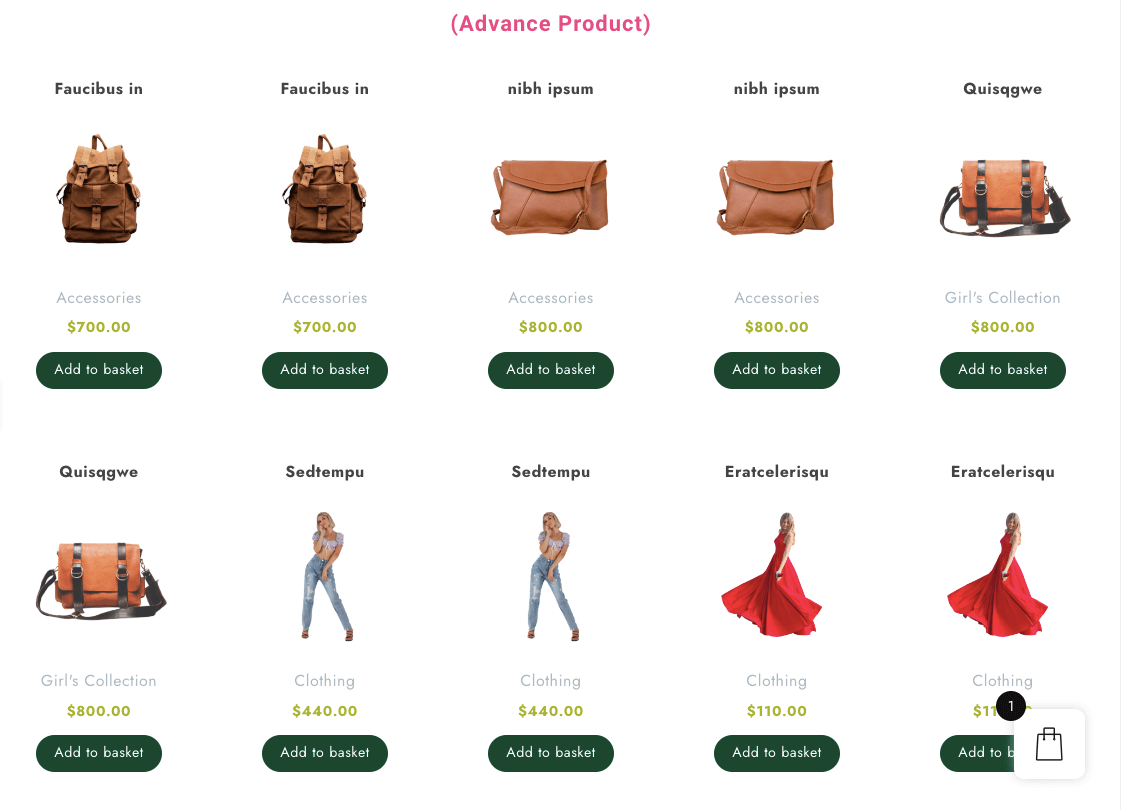
In the Advance Product section, you can display products in a grid format, and also you can change the ordering of the Product elements like Image, Category, Title, Rating, etc.
You can customize the advance product list section with these awesome features.
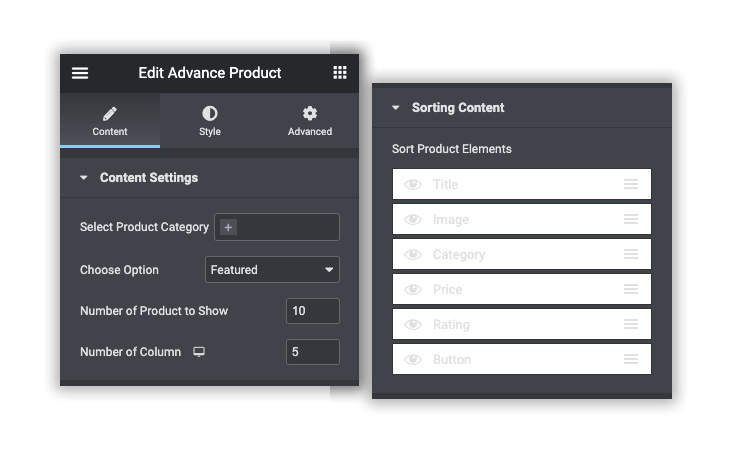
Content Settings
Select Product Category- You can select multiple product categories from here to display products.
Choose Option- select the recent, random, and featured products.
Number of Products to Show- From here you can select how many products you want to display.
Number of Column- Here you can select up to 5 columns to display your products.
Shorting Content
You can short product elements as per your need and desire. Just drag up and down to move any section of the product elements.
Style
Product Style- customize product styling
Product Title- customize the typography and color of the product title.
Price- Enable/Disable the price section, and customize typography and colors.
Rating- Customize the rating styling like font, color, and alignment.
Sale Badge- Customize the sale badge.
Slider Navigation- Customize the slider navigation settings.
Loader- select background type and color.
Tab Style- enable/disable tab menu, and customize its typography & color.
Add To Cart Style- customize add to card button.
Pagination- customize pagination styling.
Quickview, Wishlist, Compare- Enable/Disable Quickview, Wishlist, and Compare also make more customization.
We use cookies on our website to give you the most relevant experience by remembering your preferences and repeat visits. By clicking “Accept”, you consent to the use of ALL the cookies.
This website uses cookies to improve your experience while you navigate through the website. Out of these, the cookies that are categorized as necessary are stored on your browser as they are essential for the working of basic functionalities of the website. We also use third-party cookies that help us analyze and understand how you use this website. These cookies will be stored in your browser only with your consent. You also have the option to opt-out of these cookies. But opting out of some of these cookies may affect your browsing experience.
Necessary cookies are absolutely essential for the website to function properly. This category only includes cookies that ensures basic functionalities and security features of the website. These cookies do not store any personal information.
Any cookies that may not be particularly necessary for the website to function and is used specifically to collect user personal data via analytics, ads, other embedded contents are termed as non-necessary cookies. It is mandatory to procure user consent prior to running these cookies on your website.