Th Advance Product Search Plugin is a Super fast Ajax live search for searching your Product, page and post.
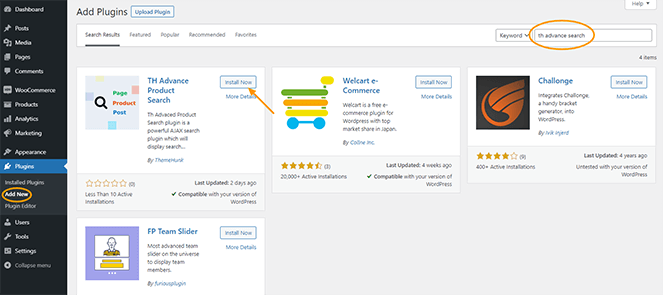
Step 1: Go to your Wp Dashboard > Wp Admin Plugins > Add New. Then in the search box, enter the name “Th Advance Product Search”. Plugin will appear. Then click on the ‘Install Now’ button.
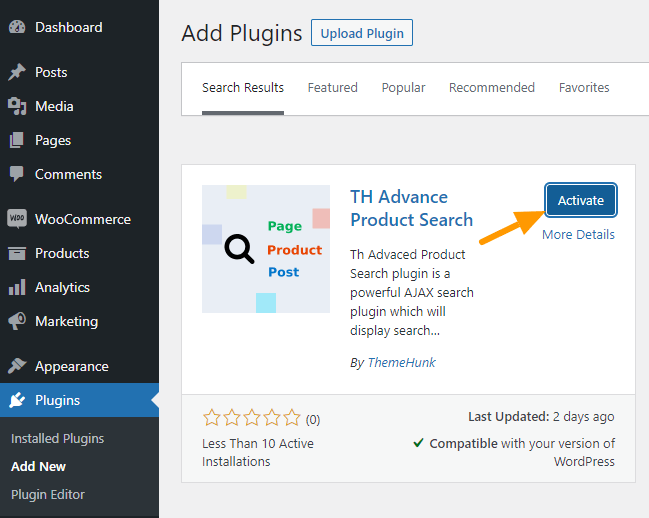
Step 2: After the installation is completed, click on the ‘Activate’ button and “Th Advance Product Search” will be activated.
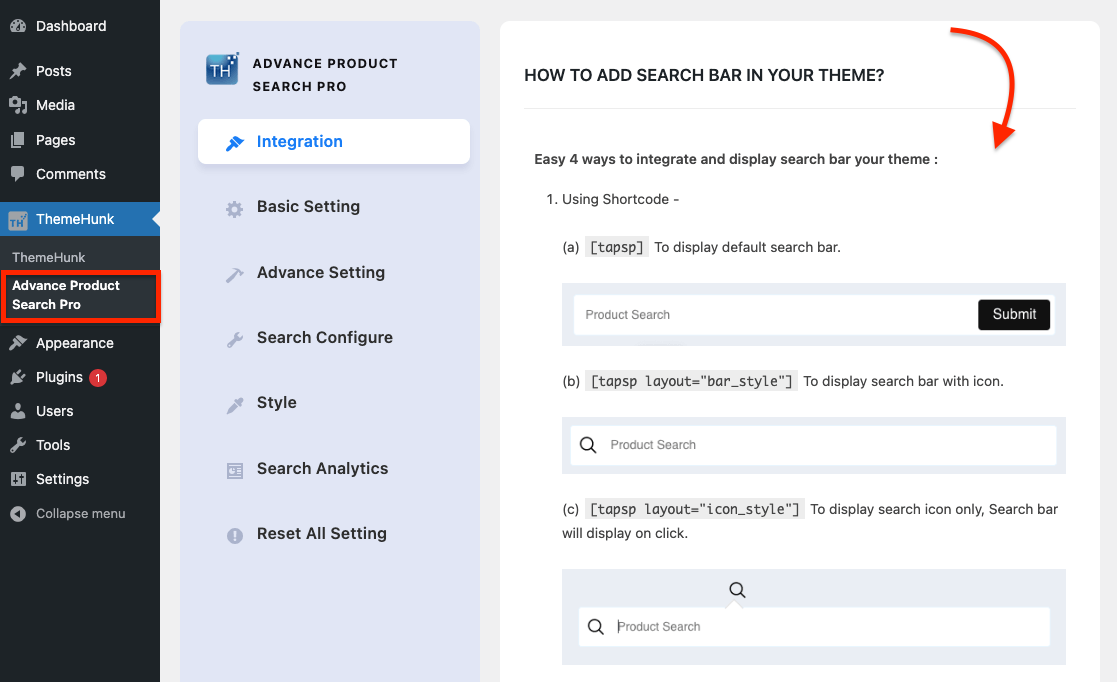
Step 3: After activating “Th Advance Product Search” in your dashboard, you can see the “Themehunk” tab on the right side. Under it you’ll find Th Advance Product Search tab, click on it. Now you can start customizing it.
Plugin Installation ( Pro Version )
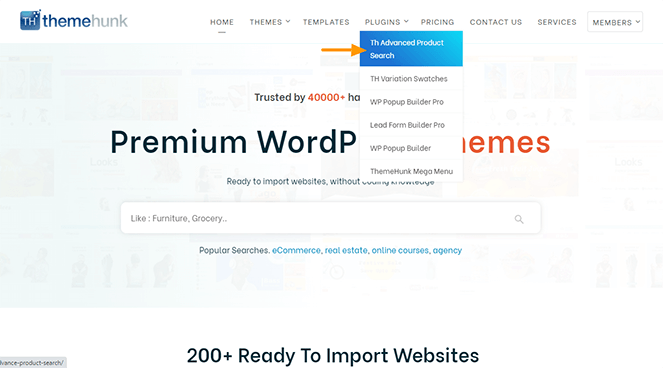
Step 1: Navigate to the ThemeHunk homepage, You will see “Plugins” menus on the top, when you hover over it you’ll see Th Advance Product Search, click on it.
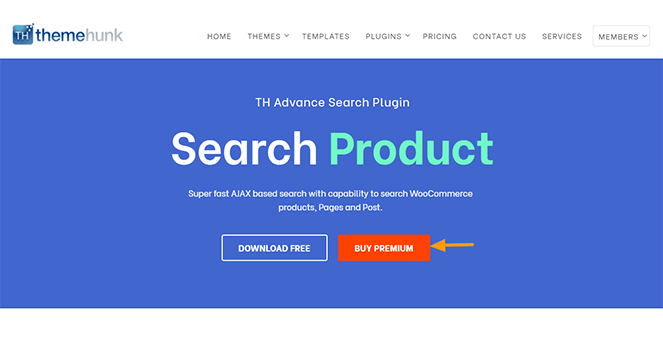
Step 2: Afterwards, just simply hit the ‘Buy Premium’ button and it will directly take you to the ‘Pricing‘ section of Th Advance Product Search Pro Plugin.
Step 3: Now choose your desired plan from here and hit the button Buy Now from the desired table.
Step 4: Purchase your plugin from here, and fill in all the required details. Login to your member’s area. Your pro plugin has been added to your member’s area dashboard.
Step 5: You’ll see a Th Advance Product Search Pro plugin zip file in your Member’s area. Download the zip file of the plugin.
Step 6: Now, Open your WP Dashboard > Plugins > Add New > Upload the Plugin Zip file and Activate it.
You can See “Th Advance Product Search Pro” panel in your dashboard.
How to Integrate Search Bar in your Theme.
Using Shortcode
You can easily add Th Advance Product Search to your website with a shortcode. There are a few configurations possible: For adding a Search bar you can use Shortcodes, widgets, or add code in your PHP file.
To display the default search bar.
To display the search bar with an icon.
To display the search icon only, the Search bar will display on click.
To display the search bar on PC and the search icon in mobile view.
Using Widget
You can add a Search bar using the widget given in your widget panel.
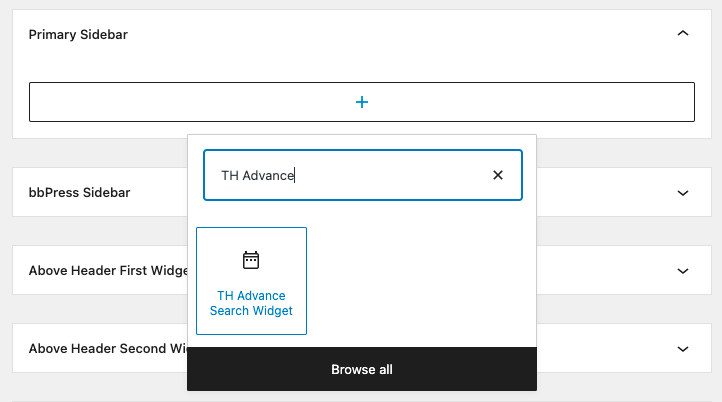
Go to the Widget panel, search, and choose “TH Advance Search Widget“. Now add this search to any widget area.
Using PHP
You can add a Search bar using PHP.
<?php echo do_shortcode('


'); ?>
Add this php code to the desired location in any php file. The search display style depends on the shortcode you are using in the php code.
Add Th Advance Product Search to Menu
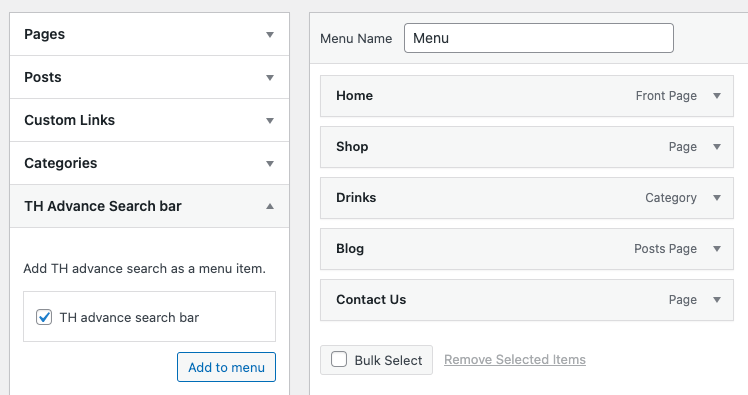
Go to Appearance -> Menus, choose the menu you want to insert TH Advance Search Bar to, add TH Advance Search Bar to the menu, and save the changes. You can also change the layout of the search bar.
Basic Setting
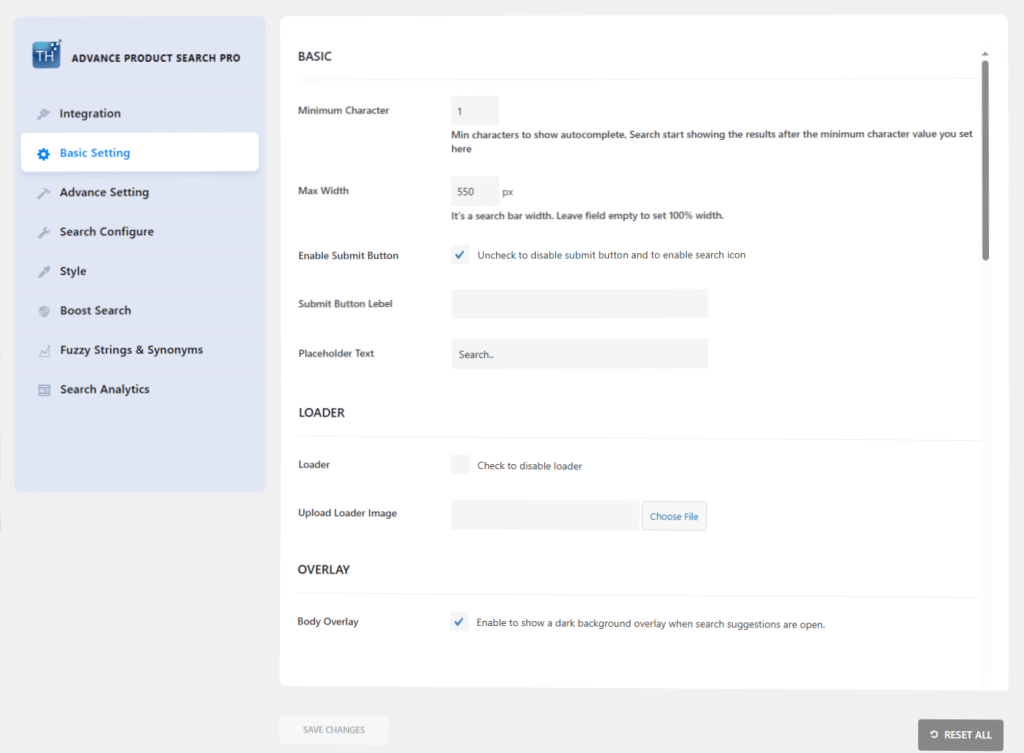
For the Basic setting, Go to Th advance Product search > Basic setting.
Minimum Character – You can add the minimum character which will be shown in your autocomplete search.
Max Width – You can add the Maximum width of your search box, if you leave it blank it will take 100% width.
Enable Submit Button – By clicking the box you can enable or disable the Submit button from your search box.
Submit Button Label – You can add the Submit button label text here.
Placeholder Text – You can add the Placeholder text here.
Loader – You can Disable or enable the Loader from your search box.
Upload Loader Image – ( Pro ) – You can upload a Preloader image here.
Overlay – When you enable this overlay, a dark layer appears in the background of the search result.
This is how the Search will appear with an overlay in the background.
Search Type Setting
With this plugin, you’ll get Three different Search types – Product Search, Post search & Pages Search.
Product Search
To add Product Search go to Th Search > Advanced Search > Search Autocomplete Settings > Select Search Type > Product. Now you can search site Products along with their categories.
Enable Product Image – You can Enable or disable the Product image from the Search Suggestion box.
Enable Product price – You can Enable or disable Product price.
Enable Product Description – You can Enable or disable Product description.
Enable Product SKU – You can Enable or disable Product SKU.
Exclude Product- Using this option you can Exclude Products by SKU ID separated by “, “
Post Search
To add Product Search go to Th Search > Advanced Search > Search Autocomplete Settings > Select Search Type > Post. You can display your site post along with their description & category.
Enable Post Image – You can Enable or disable post image from the Search Suggestion box.
Enable Post Description – You can Enable or disable post description from the Search Suggestion box.
Page Search
To add Product Search go to Th Search > Advanced Search > Search Autocomplete Settings > Select Search Type > Page. You can display your site page along with its description & image.
Enable Page Image – You can Enable or disable post image from the Search Suggestion box.
Enable Page Description – You can Enable or disable post description from the Search Suggestion box.
Search Type Setting ( Pro )
With the Pro version, you’ll get Three different Search types – Product Search, Post search & Pages Search. You’re free to choose all three search types.
Product Search
To add Product Search go to Th Search > Advanced Search > Search Autocomplete Settings > Select Search Type > Product. Now you can search site Products along with their categories.
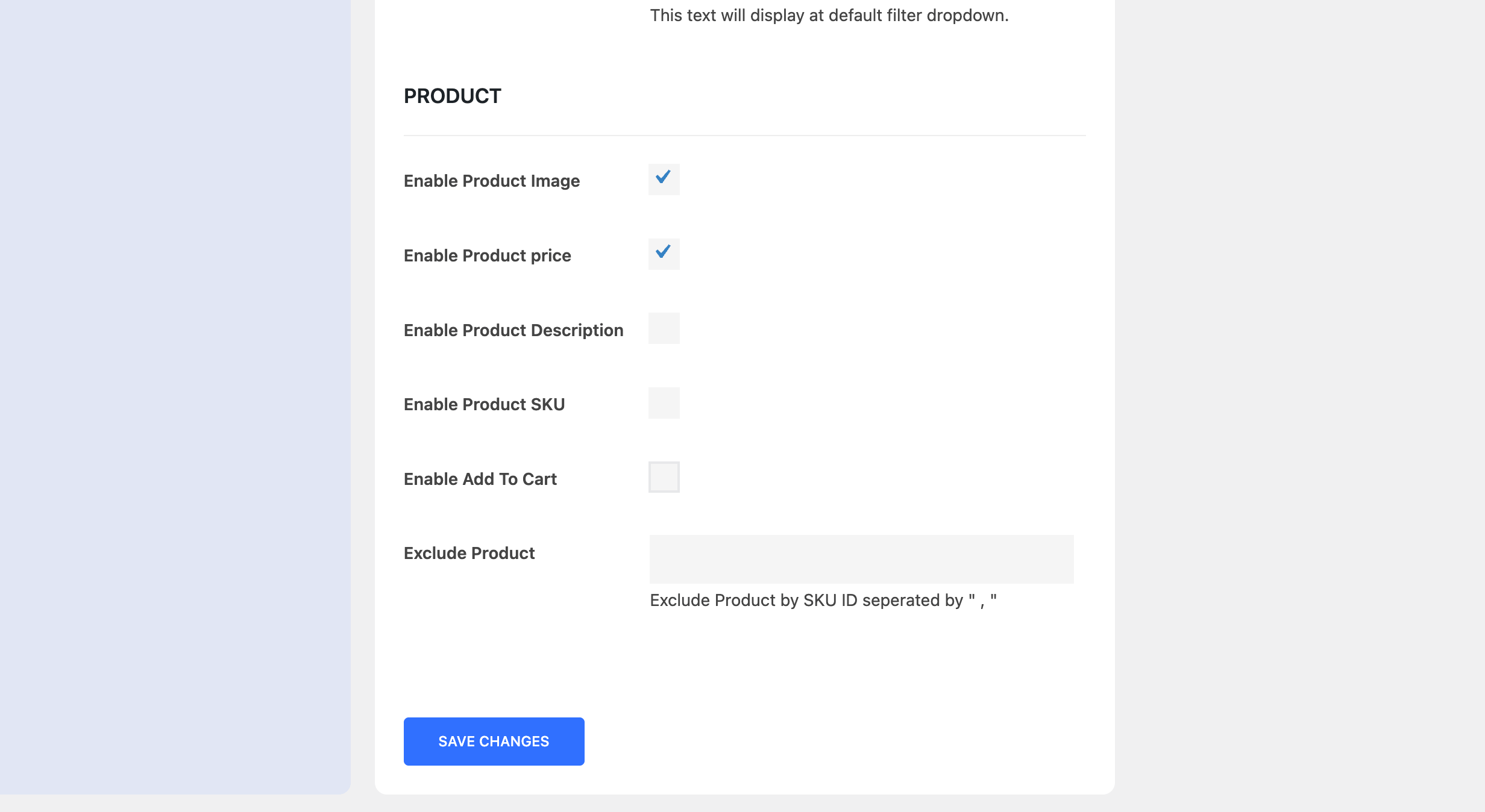
Enable Product Image – You can Enable or disable the Product image from the Search Suggestion box.
Enable Product price – You can Enable or disable Product price.
Enable Product Description – You can Enable or disable Product description.
Enable Product SKU – You can Enable or disable Product SKU.
Enable Add To Cart – You can Enable or disable Add to cart button from the search box. You can directly add your product to the cart.
Exclude Product- Using this option you can Exclude Products by SKU ID separated by “, “
Post Search
To add Product Search go to Th Search > Advanced Search > Search Autocomplete Settings > Select Search Type > Post. You can display your site post along with their description & category.
Enable Post Image – You can Enable or disable post image from the Search Suggestion box.
Enable Post Description – You can Enable or disable post description from the Search Suggestion box.
Page Search
To add Product Search go to Th Search > Advanced Search > Search Autocomplete Settings > Select Search Type > Page . You can display your site page along with its description & image. Enable Page Image – You can Enable or disable post image from the Search Suggestion box. Enable Page Description – You can Enable or disable post description from Search Suggestion box.
Boost Search
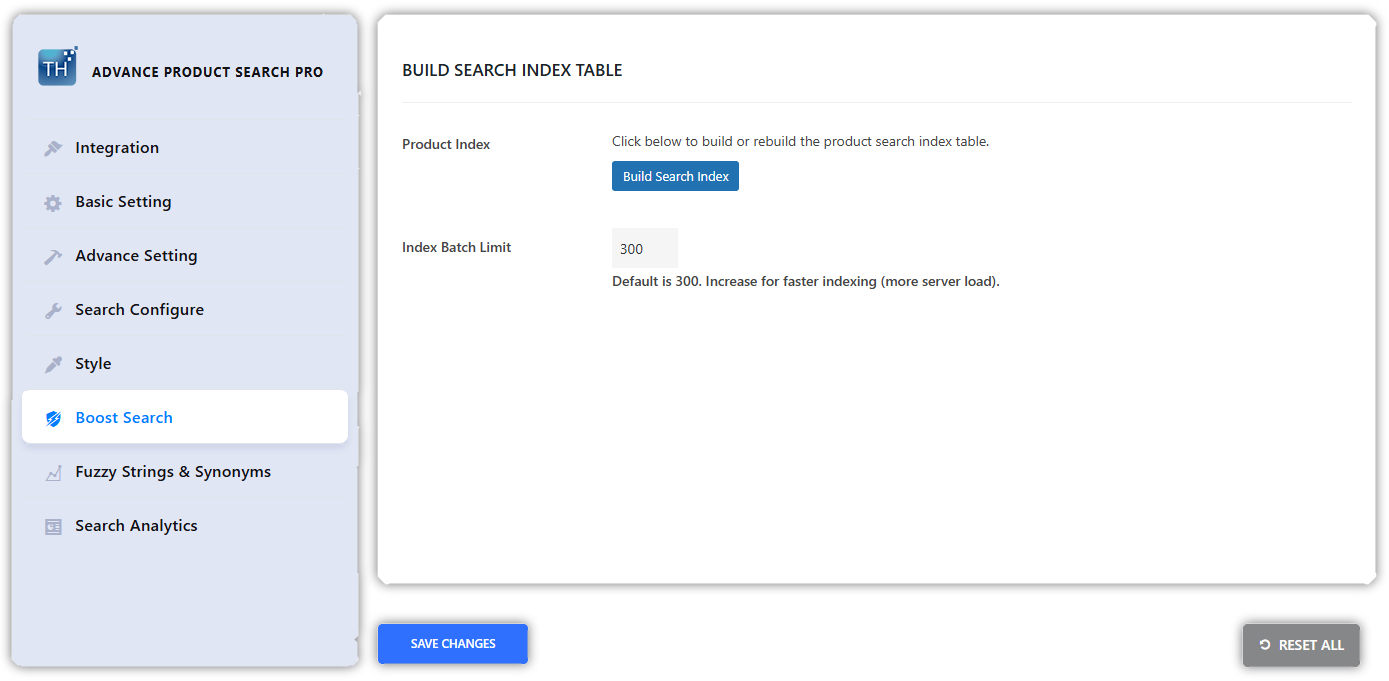
This feature is incredible as it increases the speed of the search. You can make the search faster by building a Search Index Table, ultimately providing a smooth experience to users.
This generates an optimized database table with all of your products in a normalized and structured format. It queries this highly optimized index table and shows lightning-fast results.
There is a Batch limit, which is the limit of products to be tabled. You can increase the limit, but be reminded larger the limit, the more server load. You can rebuild the Search Index after one another.
Fuzzy String And Synonyms
Fuzzy String is a very important feature that an ecommerce website must have. It helps to show result even if the spelling is not correct.
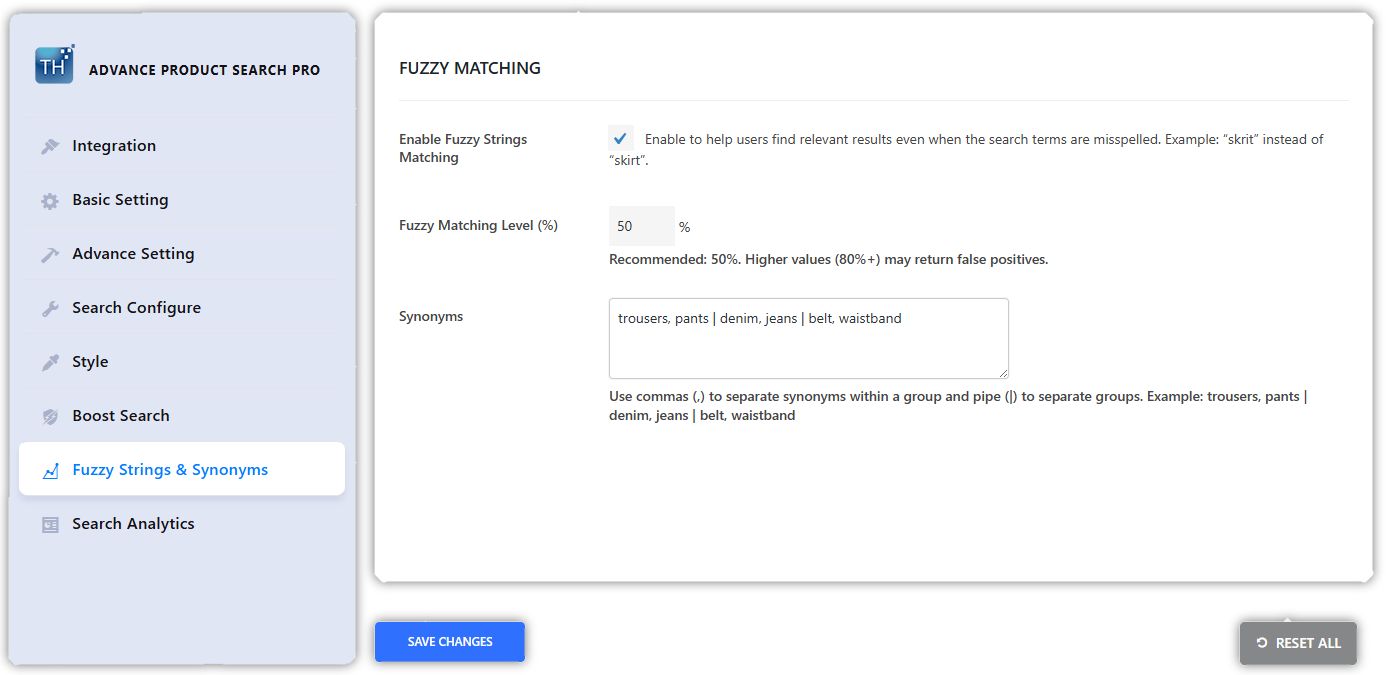
You just need to enable this feature
Fuzzy Matching Level (%) – This means this percentage of the spelling should be matched with the desired result. Let’s take an example, here, by default 50% is set. Which means if the searched spelling is matched 50% then it will show the result. If you set this value to 100% then users need to write the exact spelling.
Synonym – You need to make groups of words separated by a pipe (|). As you can see in the image, there is a first group of Trousers and Pants. So, if product A contains the word Trouser but a user searches for Pant then the search result will show Product A.
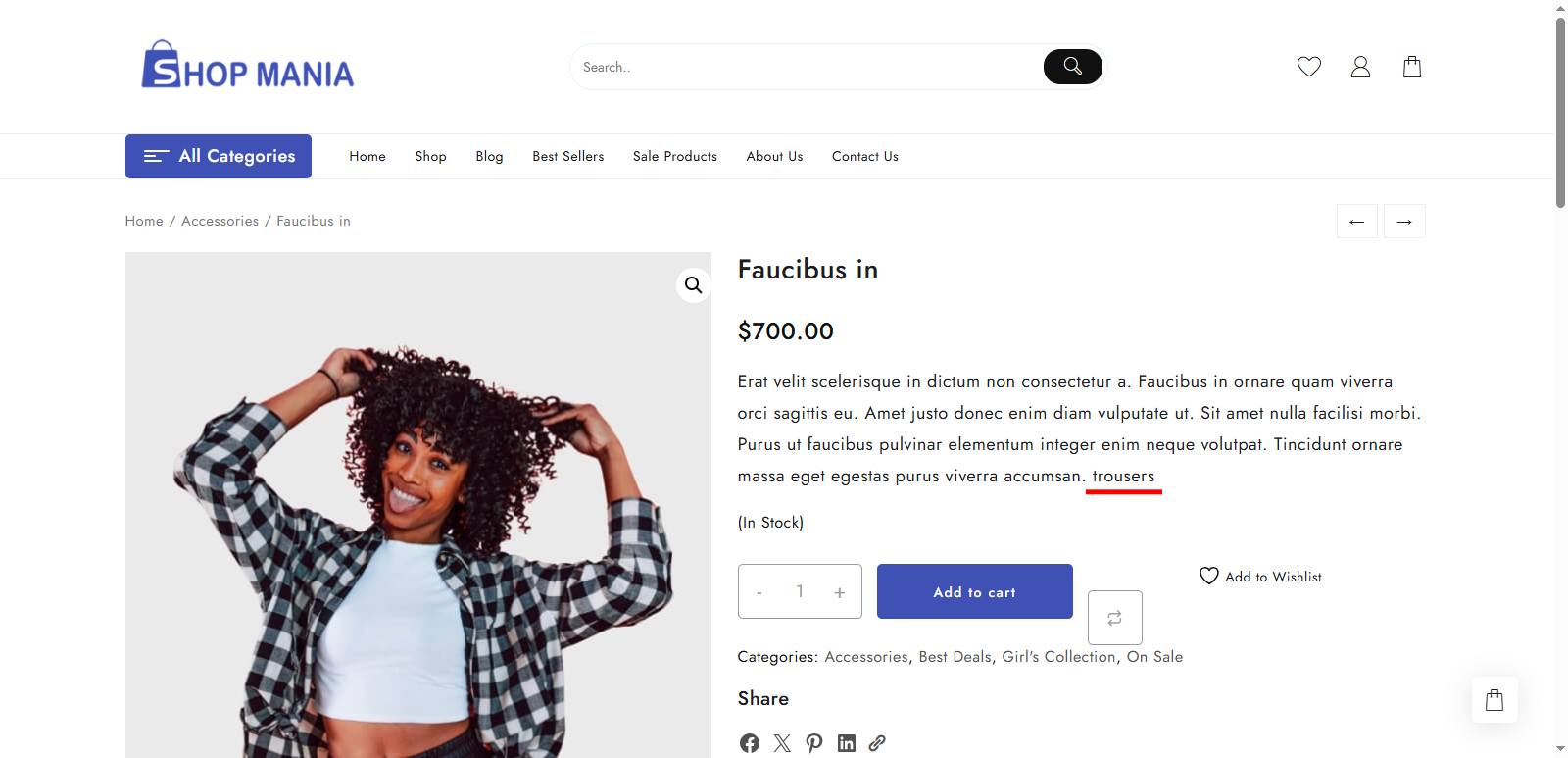
Let’s understand this with an example. There is a product with the word ‘Trousers‘ in its description.
So when I search Paint (wrong spelling of Pants), it is showing the product in the results. Because it has its synonym (Trouser) in its description.
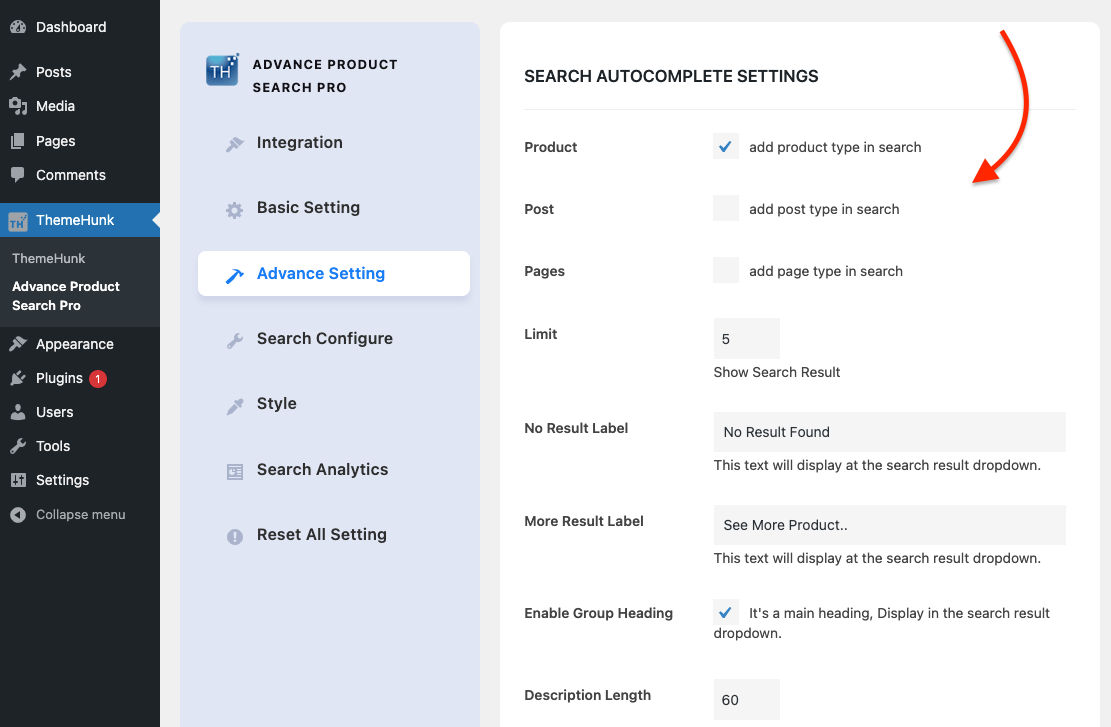
Search Autocomplete Setting
Go to Th Search > Advanced Search > Search Autocomplete Settings.
Select Search Type – From this option, you choose the Search type Product, post & pages.
Limit – This option is useful for setting up the limit of products, posts or pages in your search box suggestion.
No Result Label – You can add text here, This text will display at the search result dropdown.
More Result Label – You can add text here, This text will display at the search result dropdown.
Enable Group Heading – You can enable or disable group heading from here.
Description Length – From this option, you can limit searched item description length. Count value in words.
Search Configure Setting ( Pro )
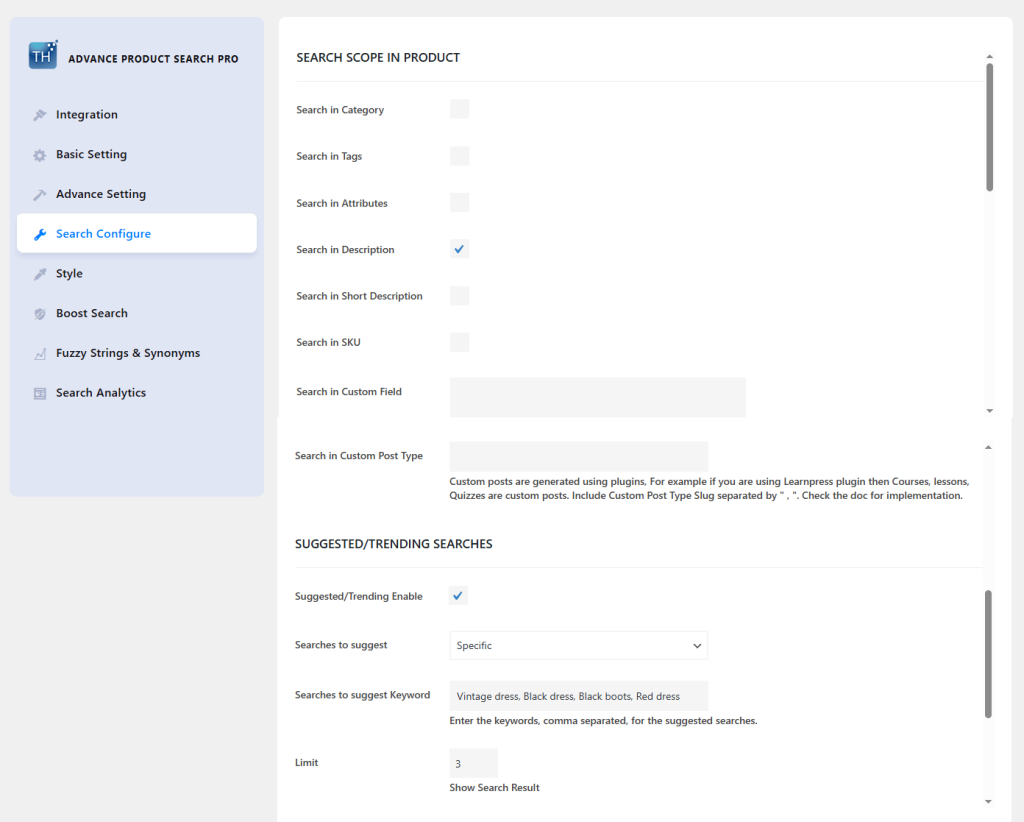
Go to Th Search > Advanced Search > Search configure > Search scope in Product.
From this setting, you can search your products using Categories, Tags, Attributes, Descriptions, Short Descriptions, and SKU ids.
Just check the desired options, this will enable search scope in your products.
Highlight in Product – Check the box and search Sale Product, Featured Product, and Stock products in your search box.
Suggested / Trending Searches
Enable this button to enhance the users’ experience in search.
Searches to suggest – There are two options you get to select, Specific and Popular.
Searches to suggest Keyword – If Specific is selected, you need to write the Keywords here that will appear when the user clicks on the search box. As shown in the example below
If you select Popular, then the trending searches will be shown in the search.
Highlight in Product
If you select these options, then products will be highlighted in searches. An example is given below.
Search Style Setting
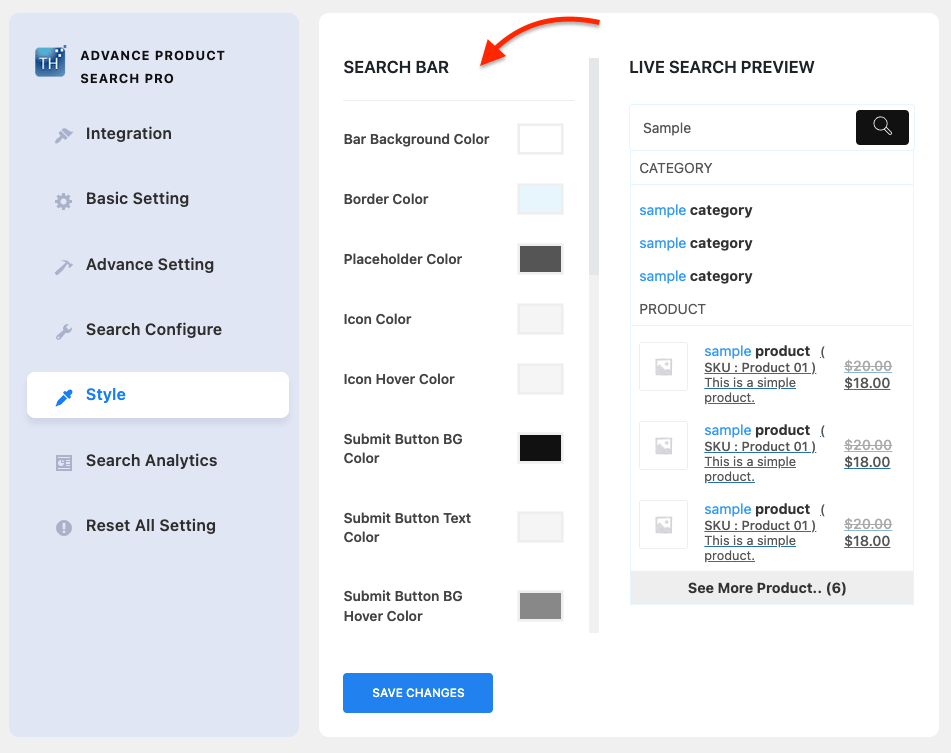
To add color to your site search, just go to Dashboard > Th Search > Style.
Search Bar
Bar Background Color – Pick a color for your Search bar background from here.
Border Color – You can pick the color for the Search bar border.
Placeholder Color – You can pick the color of the Placeholder text.
Submit Button BG Color – You can pick the color for the background of submit button.
Submit Button Text Color – You can pick the color of the text of submit button.
Submit Button BG Hover Color – You can pick the color for the background hover color of submit button.
Submit Button Text Hover Color – You can pick the color for the hover text color of submit button.
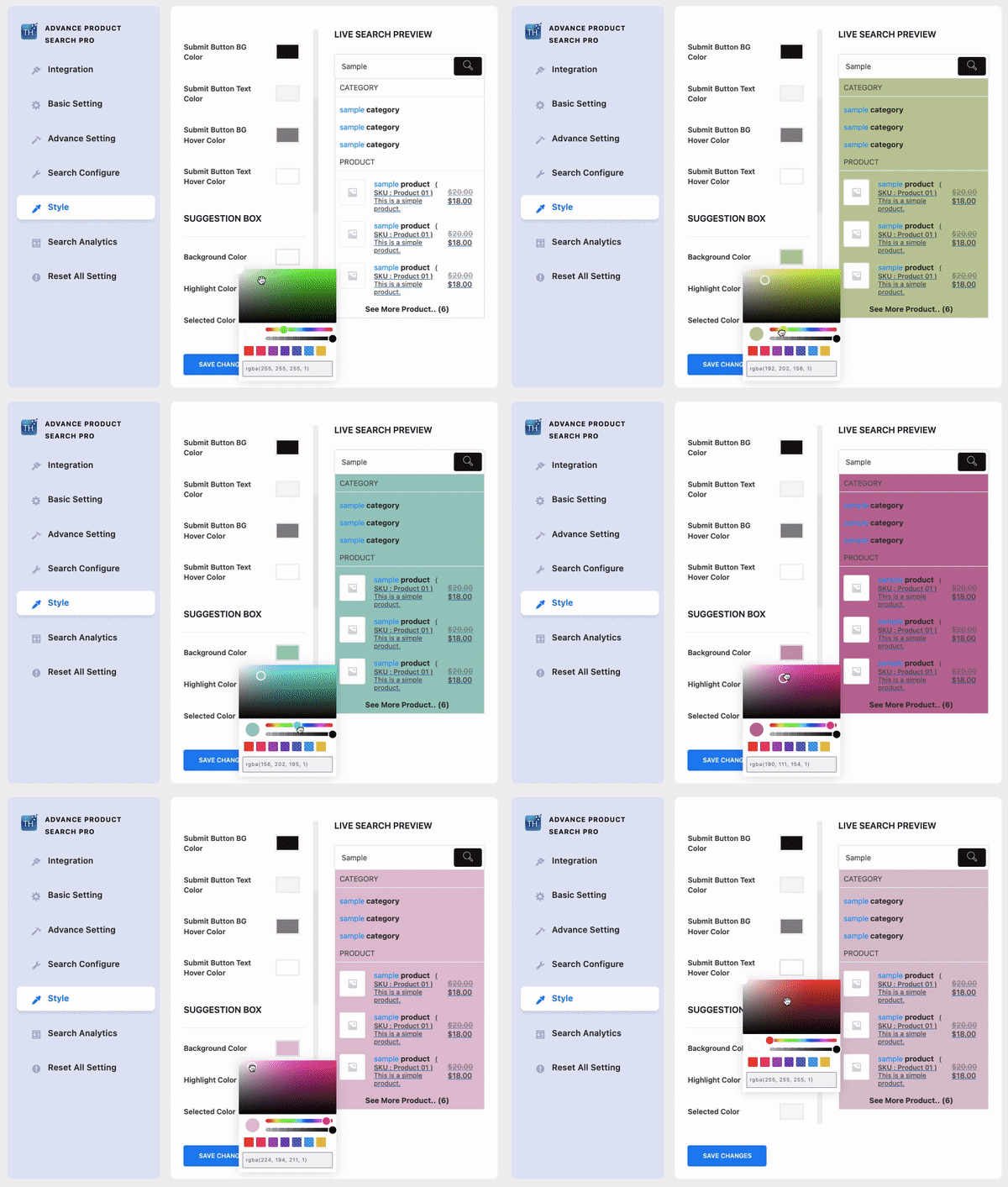
Suggestion Box
Background Color – Pick color for your Suggestion Box background from here.
Highlight Color – You can pick color for Suggestion Box highlight color from here.
Selected Color – This option will be useful in showing the selected element with a different color while hovering over the text.
Border color – You can pick color for Suggestion Box border.
Group Title Color – You can pick color of the Group Title.
Title Color- You can pick color for Title of suggestion box
Text Color – You can pick color for text color of suggestion box
Search Style Setting ( Pro )
Bar Background Color – Pick color for your Search bar background from here.
Border Color – You can pick color for Search bar border.
Placeholder Color – You can pick color of the Placeholder text.
Submit Button BG Color – You can pick color for the background of submit button.
Submit Button Text Color – You can pick color of the text of submit button.
Submit Button BG Hover Color – You can pick color for background hover color of submit button.
Submit Button Text Hover Color – You can pick color for hover text color of submit button.
Suggestion Box
Background Color – Pick color for your Suggestion Box background from here.
Highlight Color – You can pick color for Suggestion Box highlight color from here.
Selected Color – This option will be useful in showing the selected element with different color while hovering over the text.
Border color – You can pick color for Suggestion Box border.
Group Title Color – You can pick color of the Group Title.
Title Color- You can pick color for Title of suggestion box
Text Color – You can pick color for text color of suggestion box
Product
Feature Icon Color – You can pick the color for Featured icon of your product.
Sale BG Color – You can pick the color for sale product background.
Sale Text Color – You can pick the color for the sale product text.
Add to Cart Color – You can pick the add to cart button color.
Search By Category (Pro)
Search By Category is a key feature in the TH Advance Product Search plugin that allows users to quickly narrow down search results by selecting specific product categories.
This improves the shopping experience by making it easier for customers to find relevant products without sifting through unrelated items. Whether you’re managing a large catalog or a niche store, this feature enhances both speed and accuracy in product discovery.
You can enable this option from Advanced Settings.
You can show the category on search, add a category filter, and also can change the category filter label.
Add to Cart Button on Search (Pro)
Add to Cart Button on Search Suggestions is a convenient feature in the TH Advance Product Search plugin that allows customers to add products to their cart directly from the live search suggestions dropdown.
As users type in the search bar, relevant products appear instantly along with an “Add to Cart” button, enabling a faster and more seamless shopping experience without needing to visit the product page. This enhances user convenience and can help boost conversions.
You can enable this feature from Advance settings
Voice Search
To enable Voice search on your website, just install and activate this plugin – Voice Search in your dashboard. It will add voice searching functionality in your search bar and allow visitors to search the product, post, or page using their voice.
Search Analytics Setting
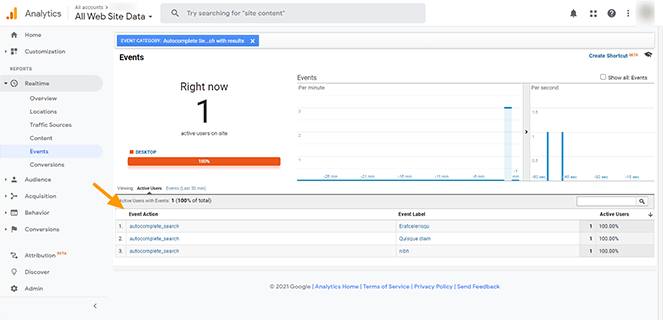
For search analytics, Go to Th Search > Search Analytics.
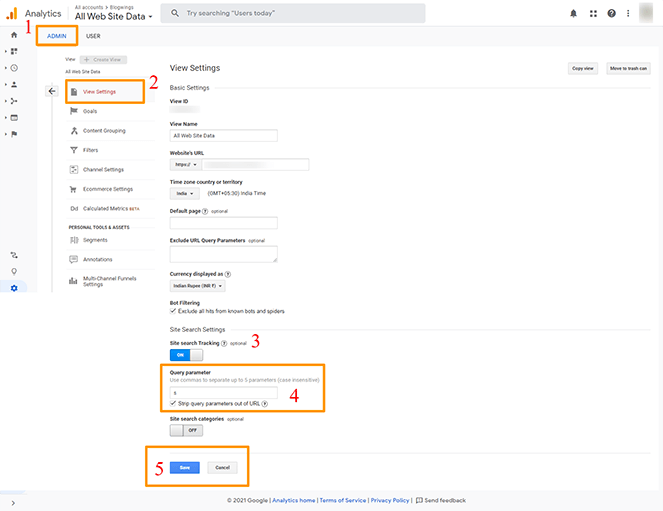
To enable the Search analytics feature, follow the below instructions –
1. First login to your Google Analytics, and Go to the Admin screen.
2. Open “View Settings” view
3. Enable the “Site Search” module
4. Add “s” as a query parameter.
5. Save settings
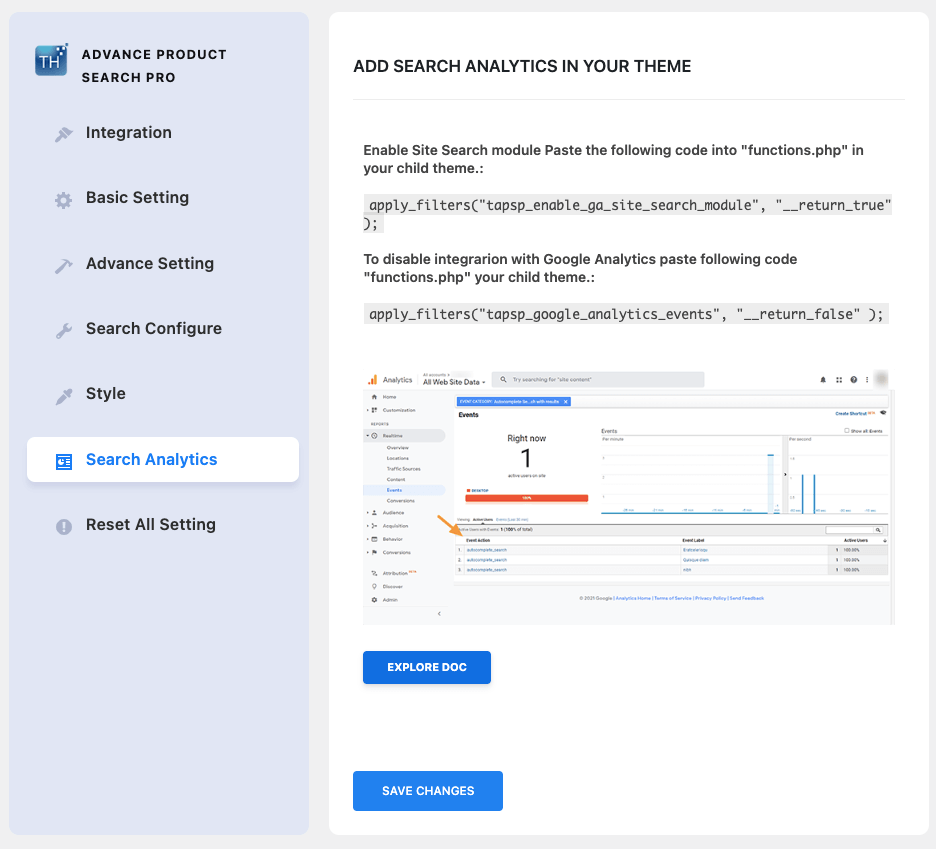
Enable Search module in website using PHP.
To Enable Site Search module in the site search Paste the following code into “functions.php” in your child theme.:
To Reset all the plugin Settings, Just go to Th Advance Product search > Reset All Plugin settings > Click on the button Reset All.
Get Help
If you face any difficulties, feel free to contact our support team at support forum.
You can also Contact us. by filling the form or ping us at our Live chat for pre-sales queries.
We use cookies on our website to give you the most relevant experience by remembering your preferences and repeat visits. By clicking “Accept”, you consent to the use of ALL the cookies.
This website uses cookies to improve your experience while you navigate through the website. Out of these, the cookies that are categorized as necessary are stored on your browser as they are essential for the working of basic functionalities of the website. We also use third-party cookies that help us analyze and understand how you use this website. These cookies will be stored in your browser only with your consent. You also have the option to opt-out of these cookies. But opting out of some of these cookies may affect your browsing experience.
Necessary cookies are absolutely essential for the website to function properly. This category only includes cookies that ensures basic functionalities and security features of the website. These cookies do not store any personal information.
Any cookies that may not be particularly necessary for the website to function and is used specifically to collect user personal data via analytics, ads, other embedded contents are termed as non-necessary cookies. It is mandatory to procure user consent prior to running these cookies on your website.