
Vayu Blocks are advanced blocks designed to enhance the functionality of the WordPress Full Site Editing Block Editor. For using this plugin first install & activate the plugin in your dashboard.
Step 1: Navigate to your WordPress Dashboard, then go to Plugins > Add New Plugin. In the search box, type “Vayu Blocks” and press Enter. A plugin matching the name will appear. Click on the ‘Install Now’ button next to it.

Step 2: Once the installation is finished, click the ‘Activate’ button to activate “Vayu Blocks“.

Step 3: Once you’ve activated the “Vayu Blocks Plugin” in your dashboard, you’ll notice the “Vayu Block” tab on the right side. Click on it to begin customization.
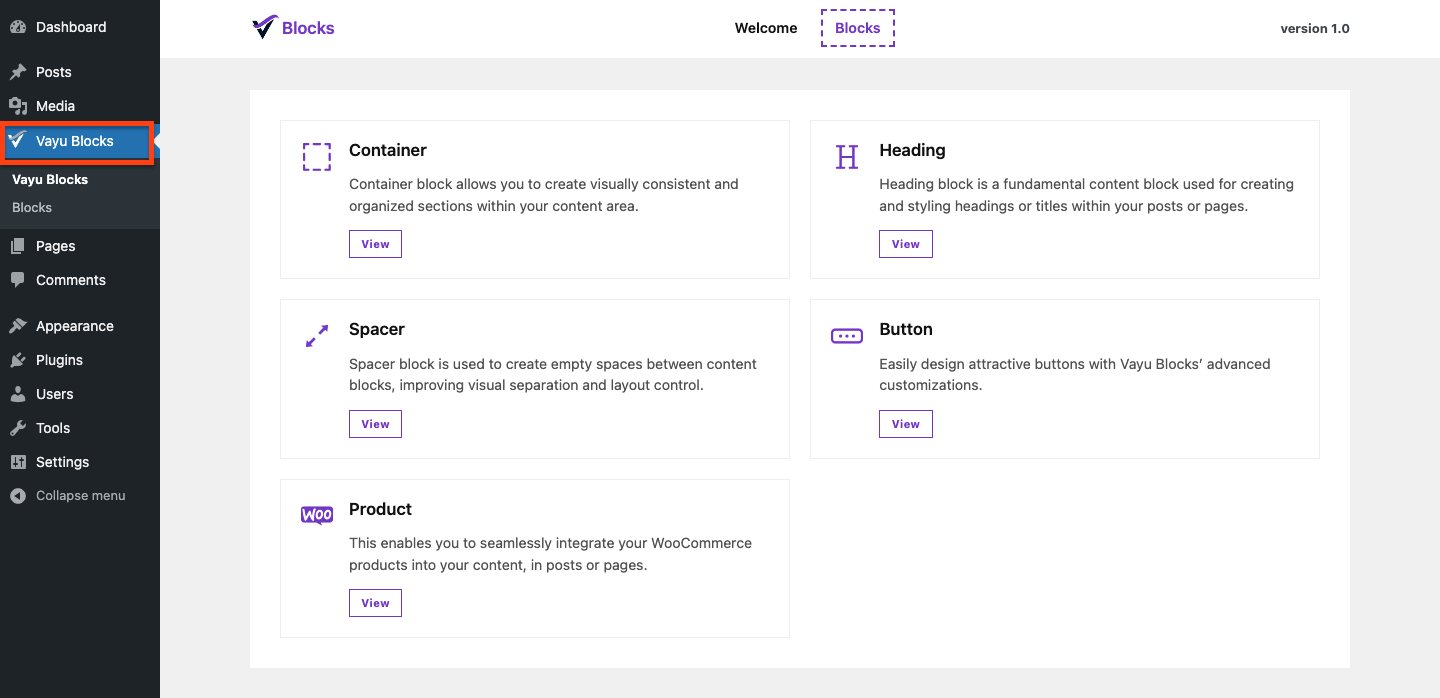
To activate the Vayu Blocks license key go to your WordPress Dashboard > Vayu Blocks > License.
Watch Video tutorial
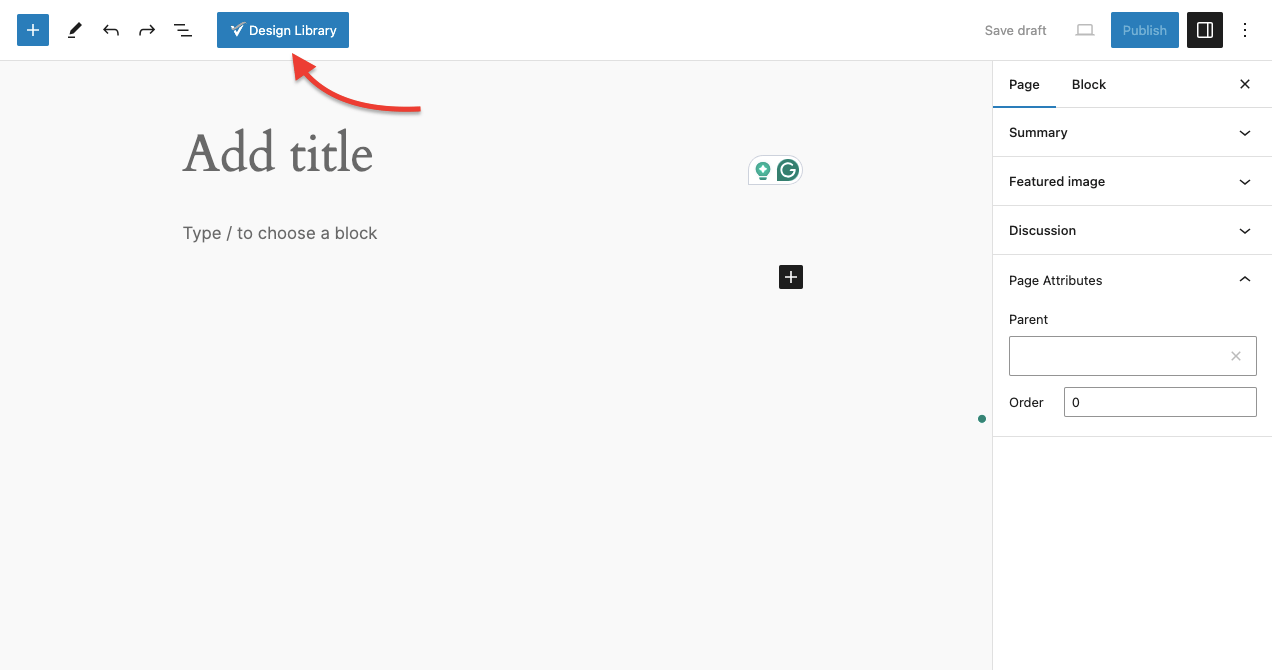
From the Design Library, you can access pre-made demo templates ready for import. Additionally, you have the option to customize these templates to suit your needs.
To access templates Go to Page or Post > Design Library
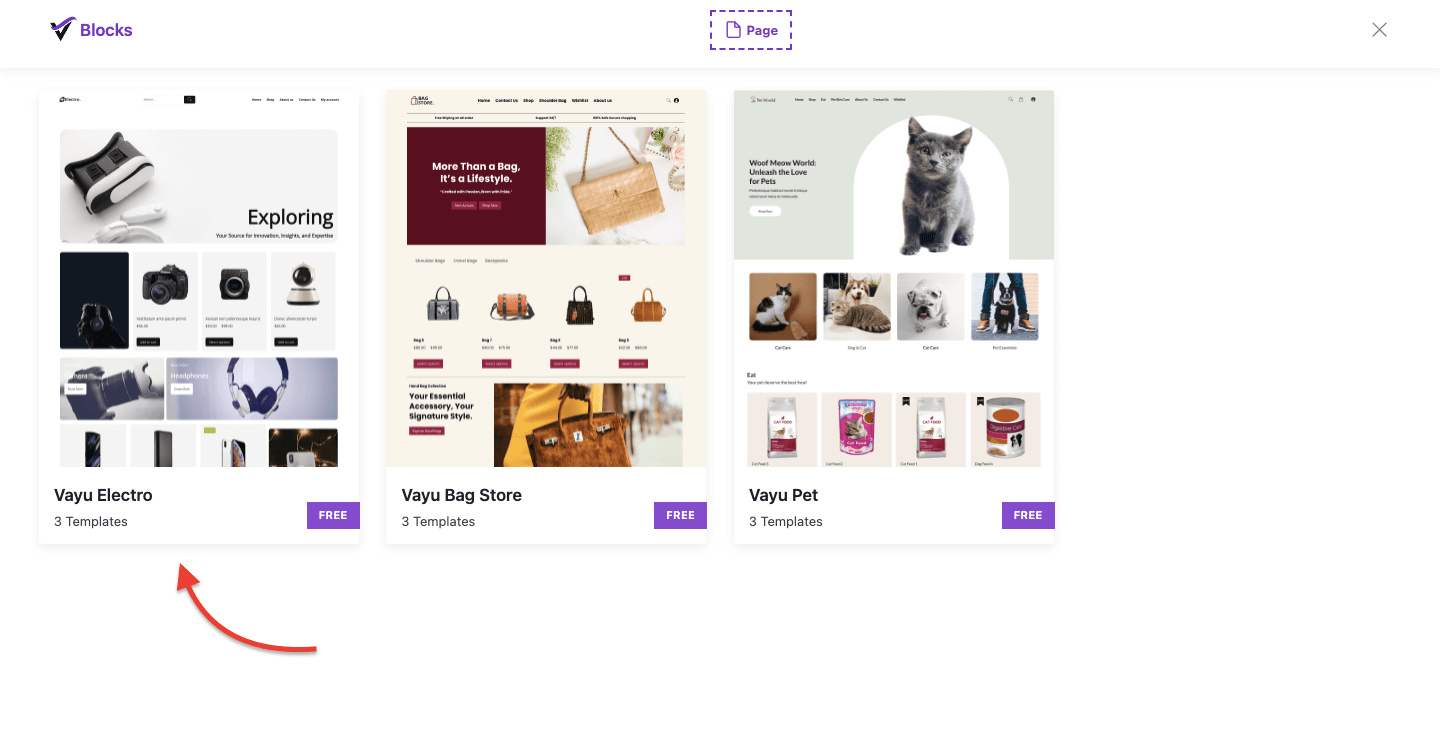
Select any Template
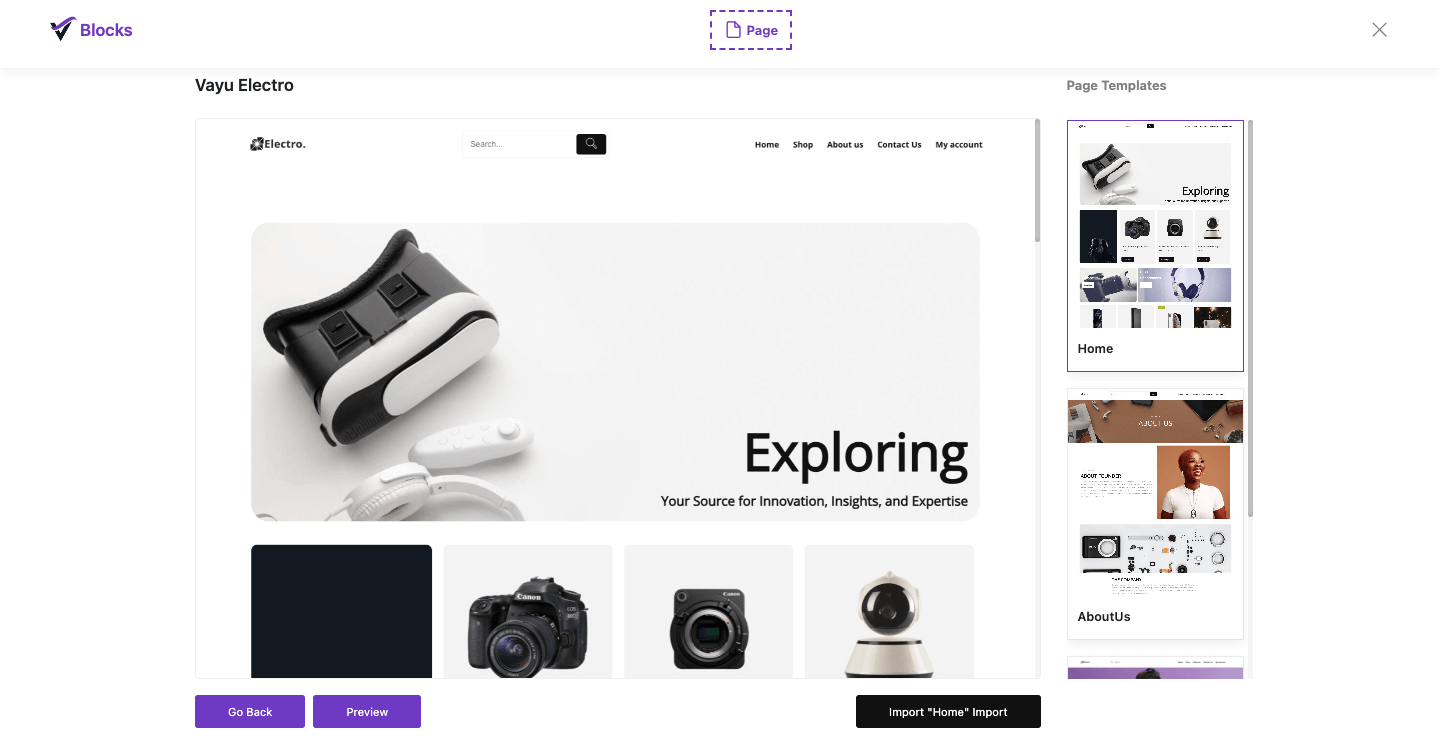
Import Template
The Container block enables you to establish visually consistent and organized sections within your content area, offering advanced functionality.
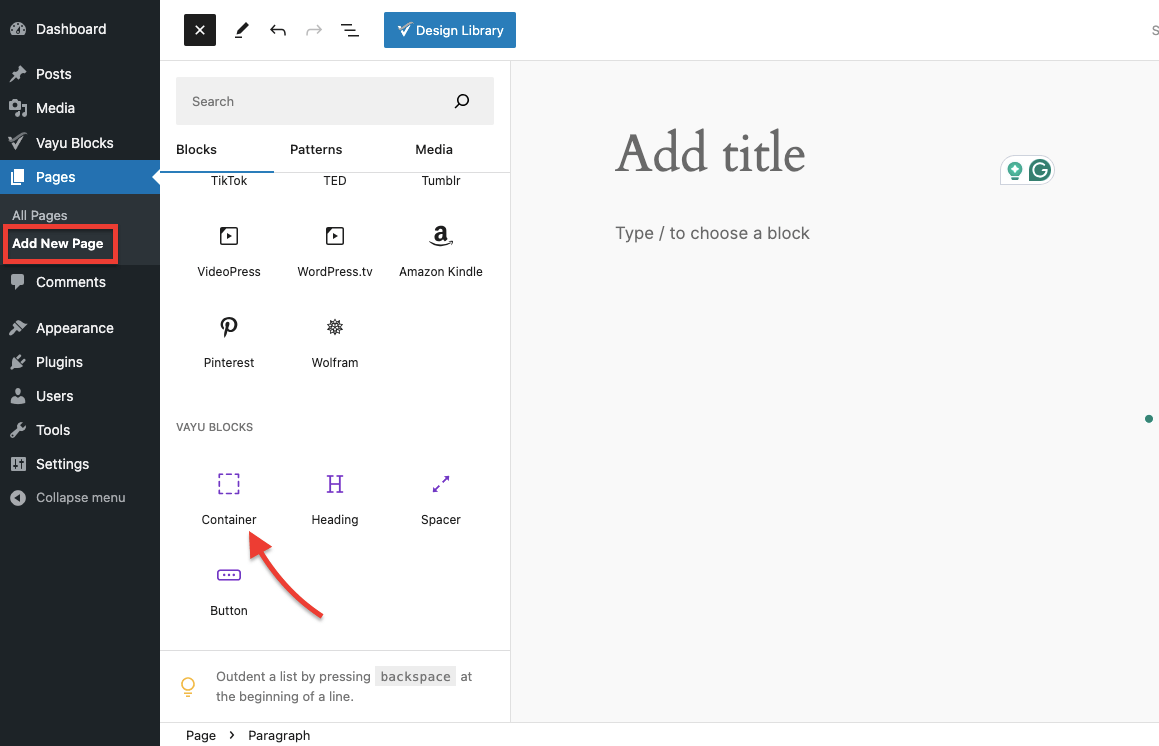
Settings: From here, you can adjust container width and styling, among other options.
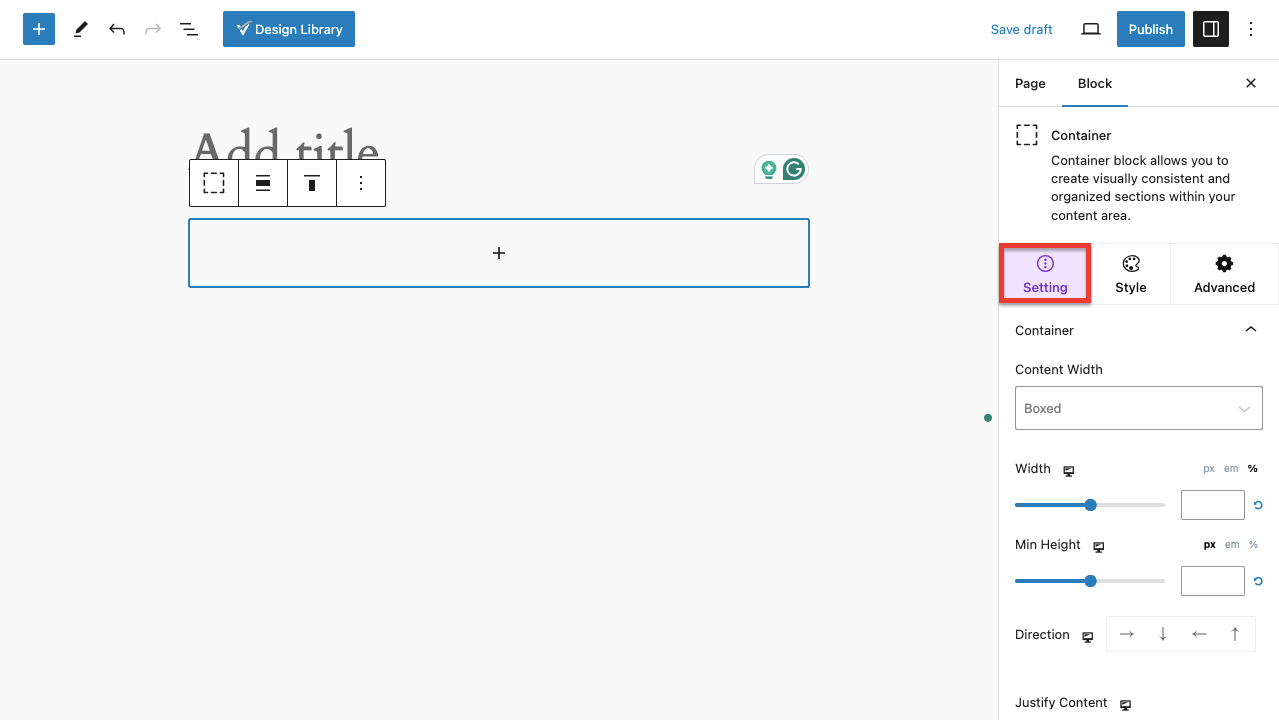
Style: From here, you can change the background, add overlays, utilize shape dividers, and apply animations to your container.

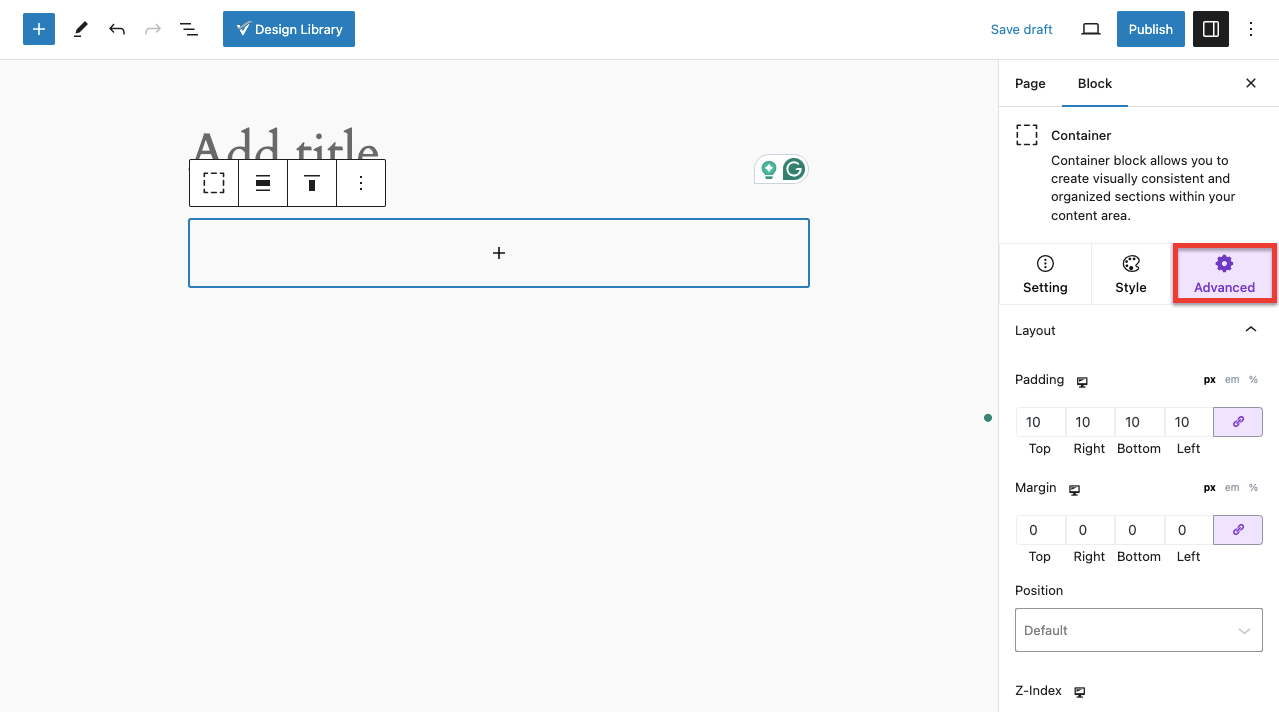
Advanced: From here, you can modify your container layouts, border, and box-shadow, adjust responsiveness for various devices, set transition durations, and access many other advanced features.
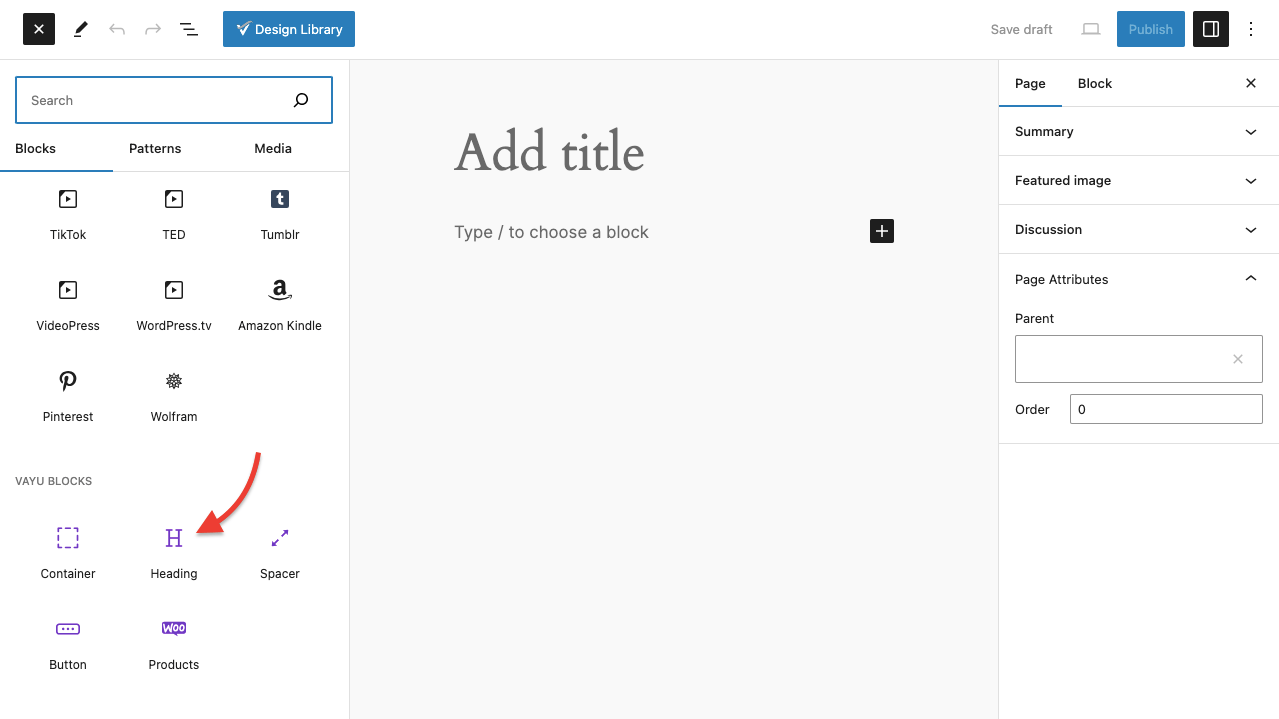
The Heading block serves as a core element for crafting and formatting titles or headings within your posts or pages.
You can watch the below video to learn more about using this block for your posts or pages.
The WooCommerce Product Blocks for the WordPress Block Editor empower users to seamlessly integrate product displays and features directly into their website content. These blocks provide a convenient way to showcase products, highlight promotions, and streamline the shopping experience for visitors. With a variety of customizable options, including layout variations, image displays, and call-to-action buttons, users can effortlessly create engaging and visually appealing product presentations. Whether you’re a small business owner or an e-commerce enthusiast, these blocks offer a versatile solution for enhancing your online store and maximizing sales potential.

You can watch the below video to learn more about using this block for products.
You can effortlessly create beautiful, customizable buttons that are designed to drive engagement and conversions. Whether you’re aiming to encourage users to make a purchase, sign up for a newsletter, or explore more of your content, our intuitive button customization options allow you to tailor every aspect of the button to suit your needs. From selecting the perfect colour scheme to choosing the ideal size and font, our user-friendly interface puts you in control of crafting buttons that not only enhance the aesthetics of your website but also actively encourage interaction and drive meaningful results.
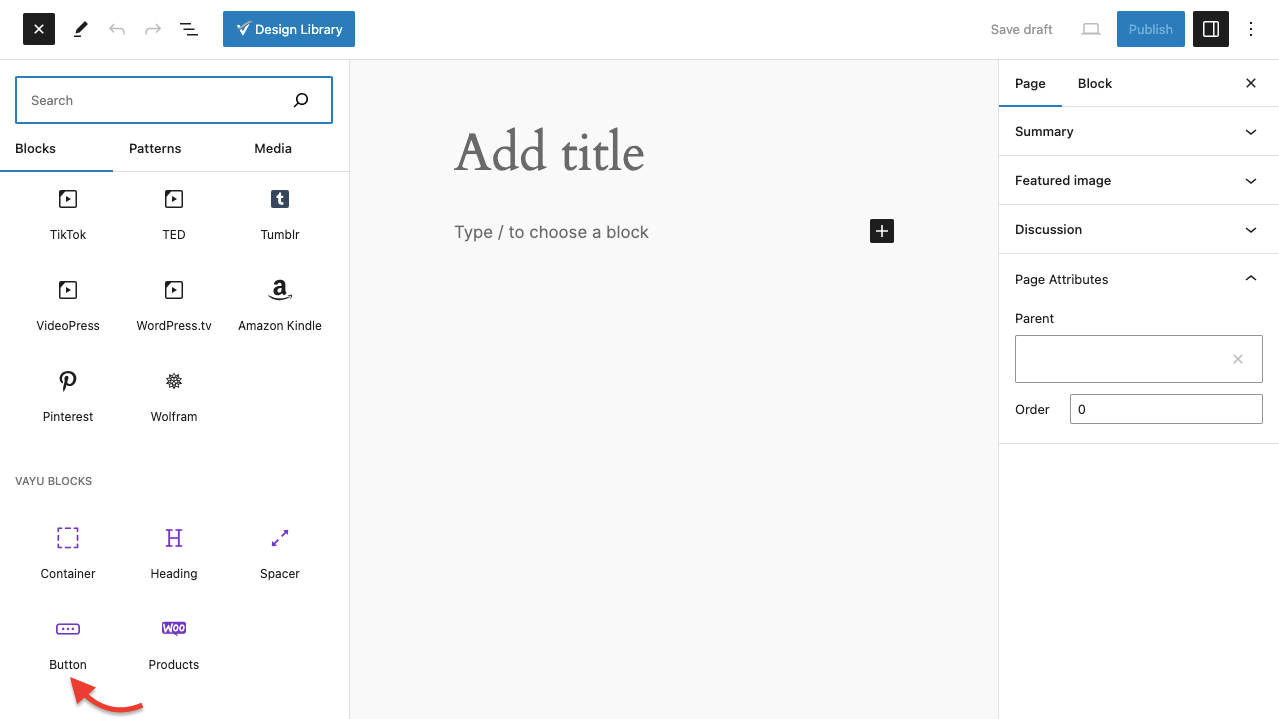
You can watch the below video to learn more about using this block for your posts or pages.
A spacer in the WordPress block editor is a tool used to add space or gaps between other blocks on a page or post. It allows you to control the layout and spacing of your content more precisely, helping you create visually appealing designs and improve readability. The spacer block doesn’t contain any content itself; it simply creates space between other blocks, such as paragraphs, images, or headings, giving your website a more polished and professional appearance.

You can watch the below video to learn more about using this block for your posts or pages.
A Flip Box in WordPress is a creative and interactive design element often used to display content engagingly.
It’s typically implemented as a block in WordPress page builders or themes that support advanced block features, such as Vayu Blocks.
To add a Flip box to your page or post, click on the (+) icon on the left side of the editor. From the Vayu Block select Flip Box, as shown on the image below.

You can edit both sides of the flip box and can add text, buttons or images. The front and back sides of the flip box can be accessed by two methods.
For adding 3D box Animation, you can enable it from the block settings as you can see in the below screenshot.
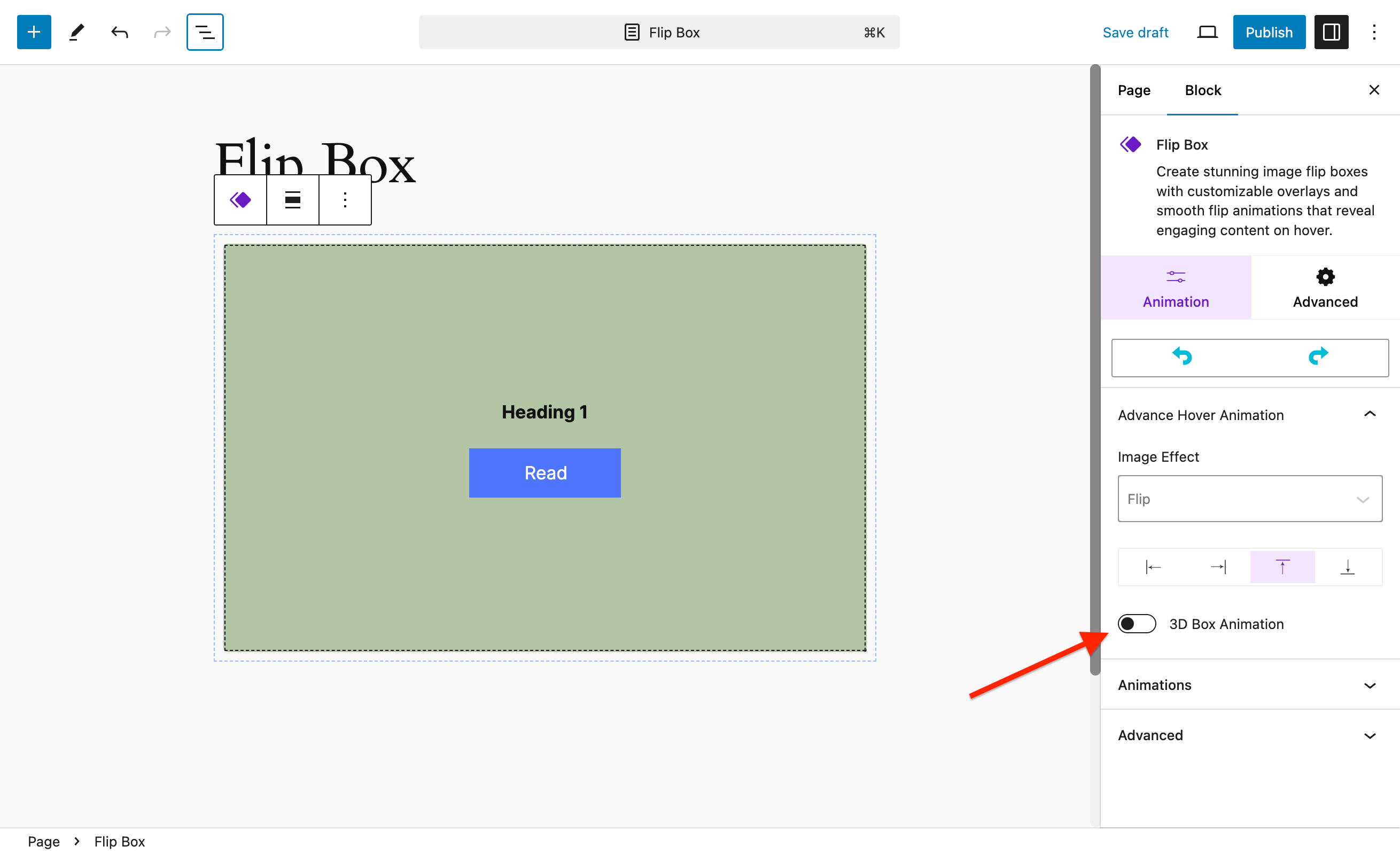
After enabling the 3D Box Animation, you can see the 3D animation as shown in the below video.
On the advanced settings section, you customize more things to your flip box, like Layout, Background, Transitions, and Animations.

A Slider in a WordPress block is a design element used to display a collection of content (images, text, videos, or other media) in a sliding, carousel-like format.
It is typically interactive and allows users to navigate through the content using arrows, dots, or auto-scrolling features.
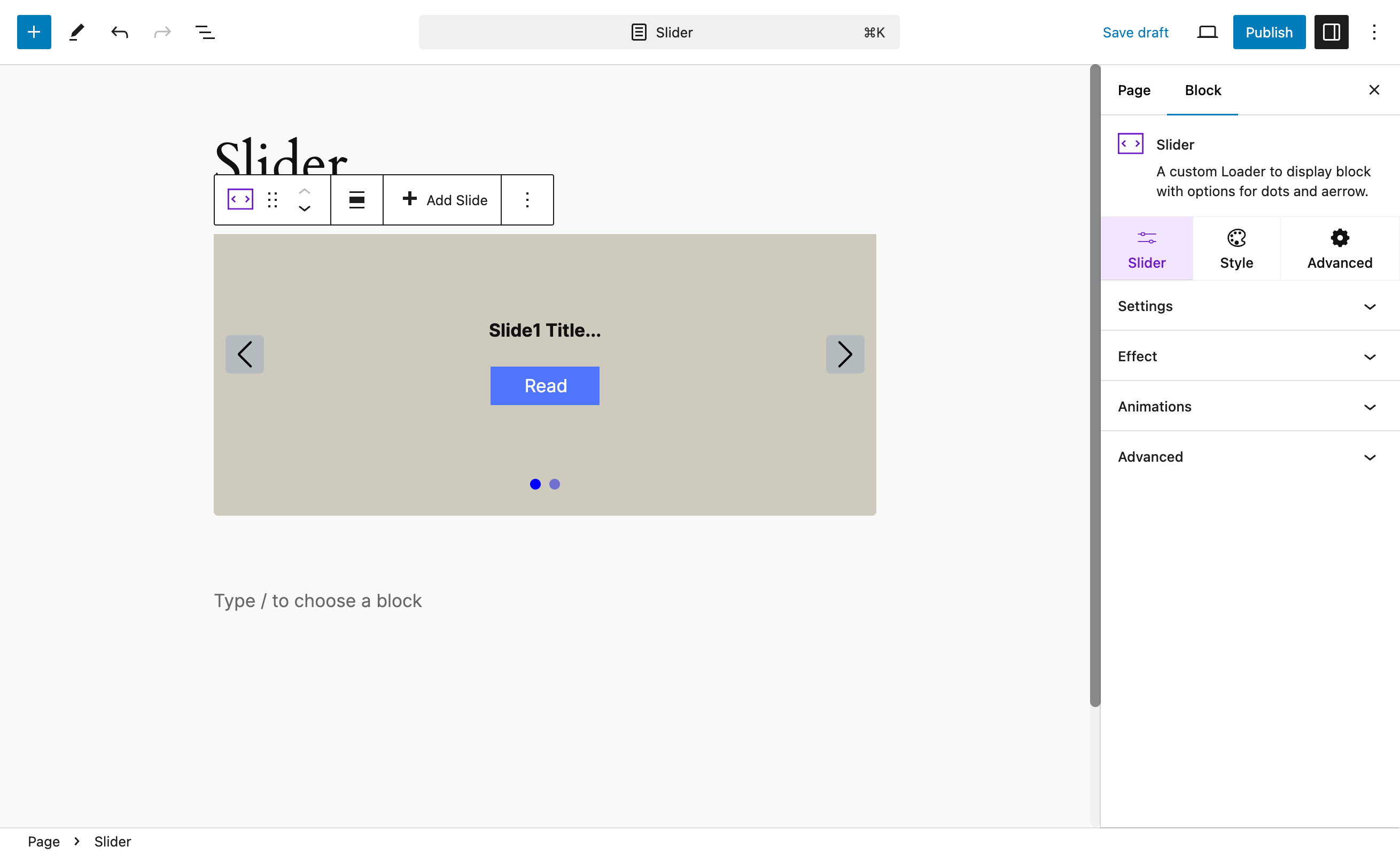
To add a Slider to your page or post, click on the (+) icon on the left side of the editor. From the Vayu Block select slider, as shown in the image below.

You can access settings from the block of the sidebar of the editor. You can make many changes as per your need on the slider.
A Post Grid in WordPress is a layout design that organizes blog posts, pages, or other content into a visually appealing grid format.
This type of block is commonly used to showcase multiple posts in an organized way, making it easier for visitors to browse and find relevant content.
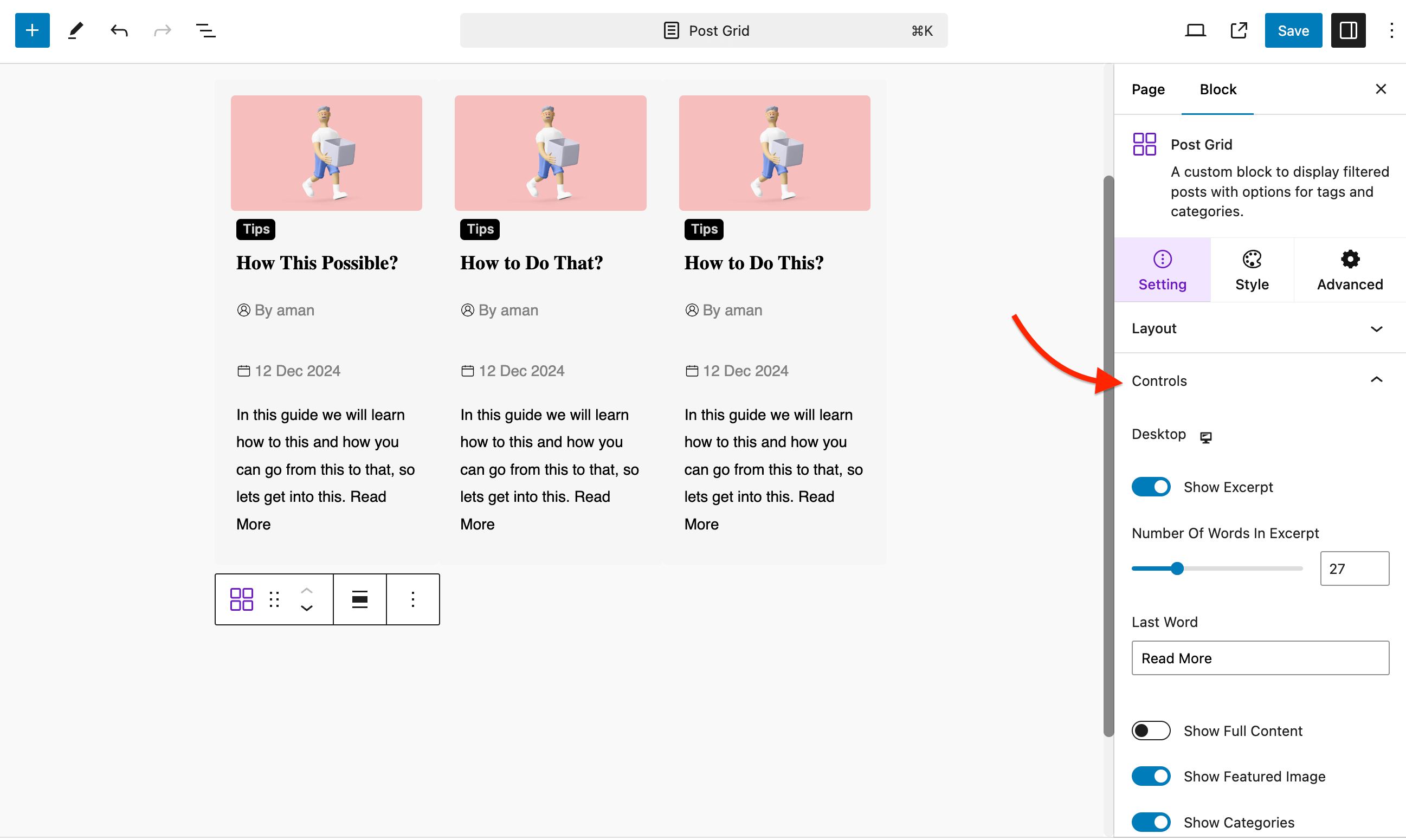
To add a Post Grid to your page or post, click on the (+) icon on the left side of the editor. From the Vayu Block select Post Grid, as shown in the image below.
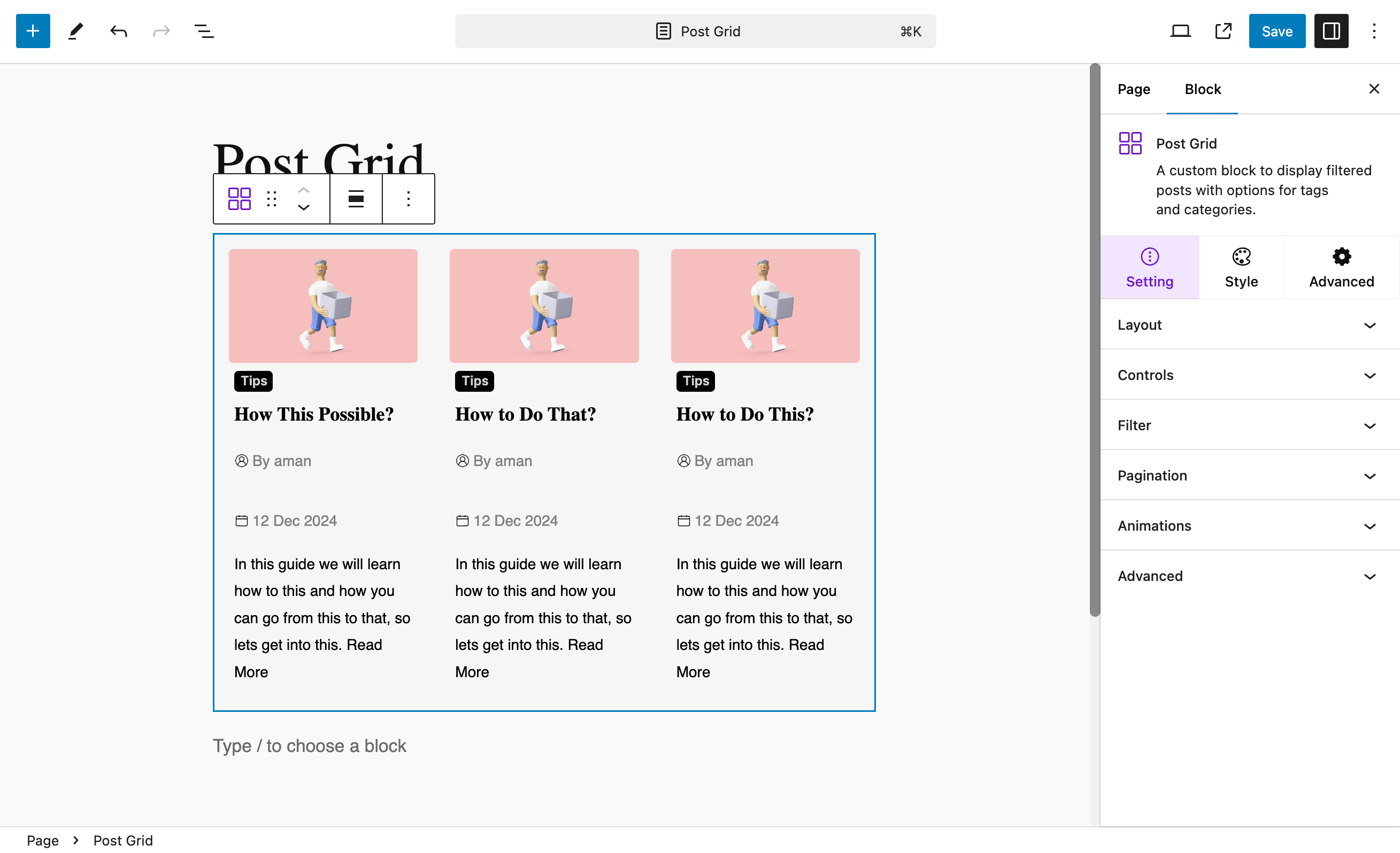
Various post-grid settings can be used to customize your post-grid block. Some of the main settings are:
From the Controls tab, the options are available to show, or hide post excerpts and other settings like Author, Date, Tags, Excerpt, Read More Link, and Pagination.
An Image Block is a content block within the block editor (Gutenberg) that allows you to add an image to a post or page. It is a simple and intuitive way to insert and manage images, giving you control over the image’s size, alignment, and other settings.
The Image Block is designed to make it easy for users to manage images without needing to deal with code, making WordPress a user-friendly platform for visual content.
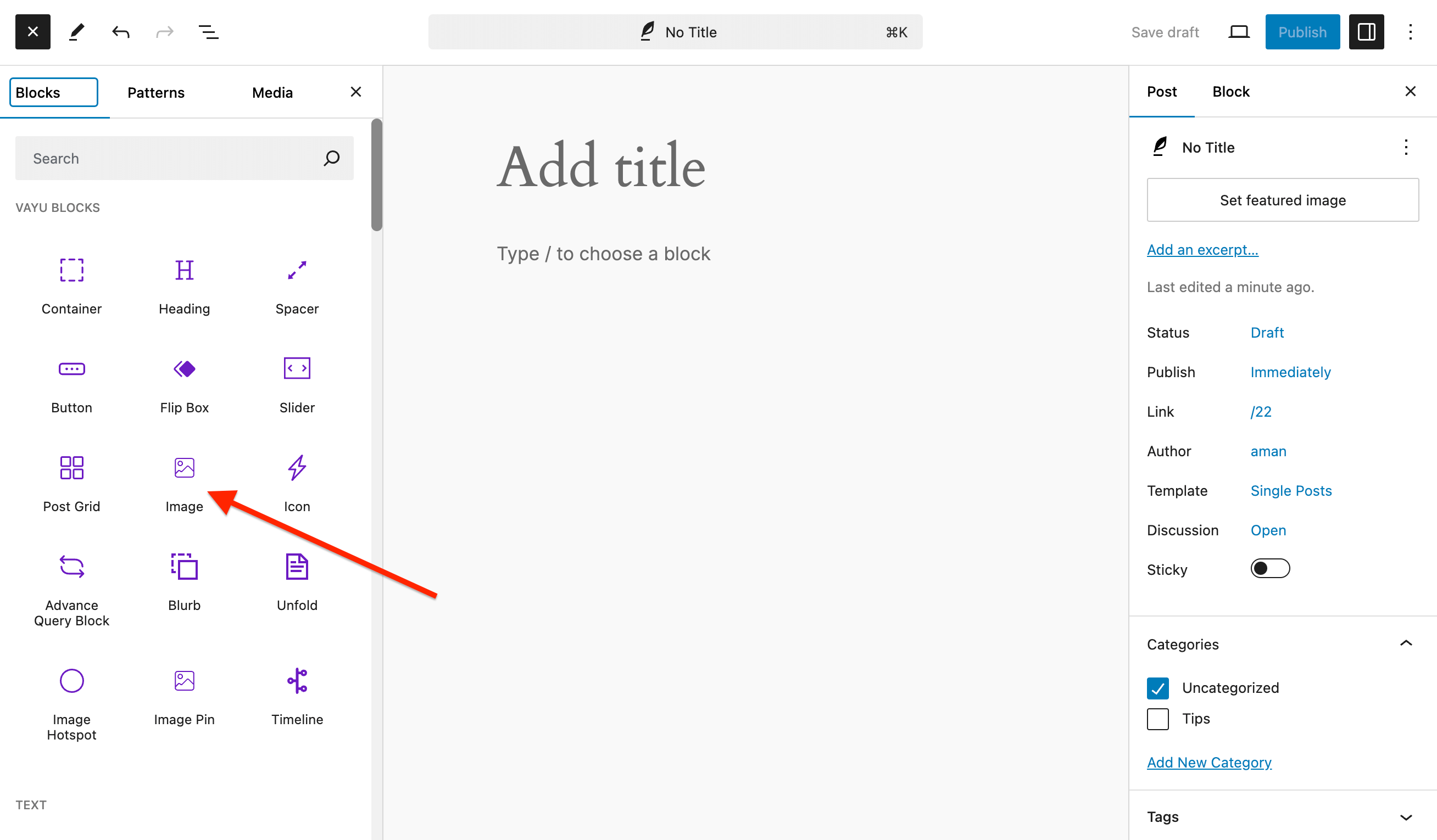
To add an Image block to your page or post, click on the (+) icon on the left side of the editor. From the Vayu Block select Image block, as shown in the image below.
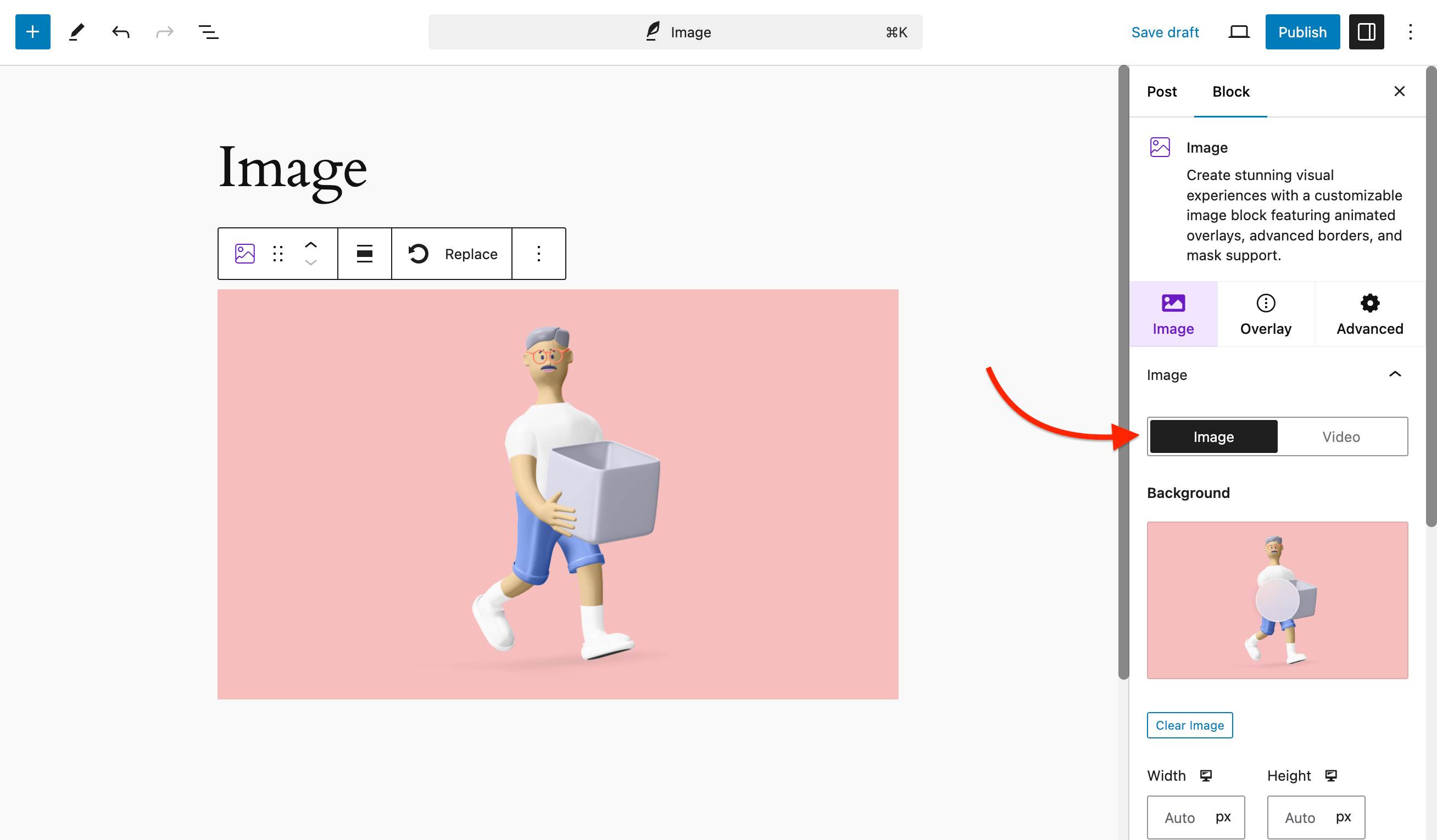
Here you can see image settings, you also add a video in place of the image from the Image block.
You can also add Advanced Animation & Mask with 3D animations from the settings. There is also an option for the caption on the image.

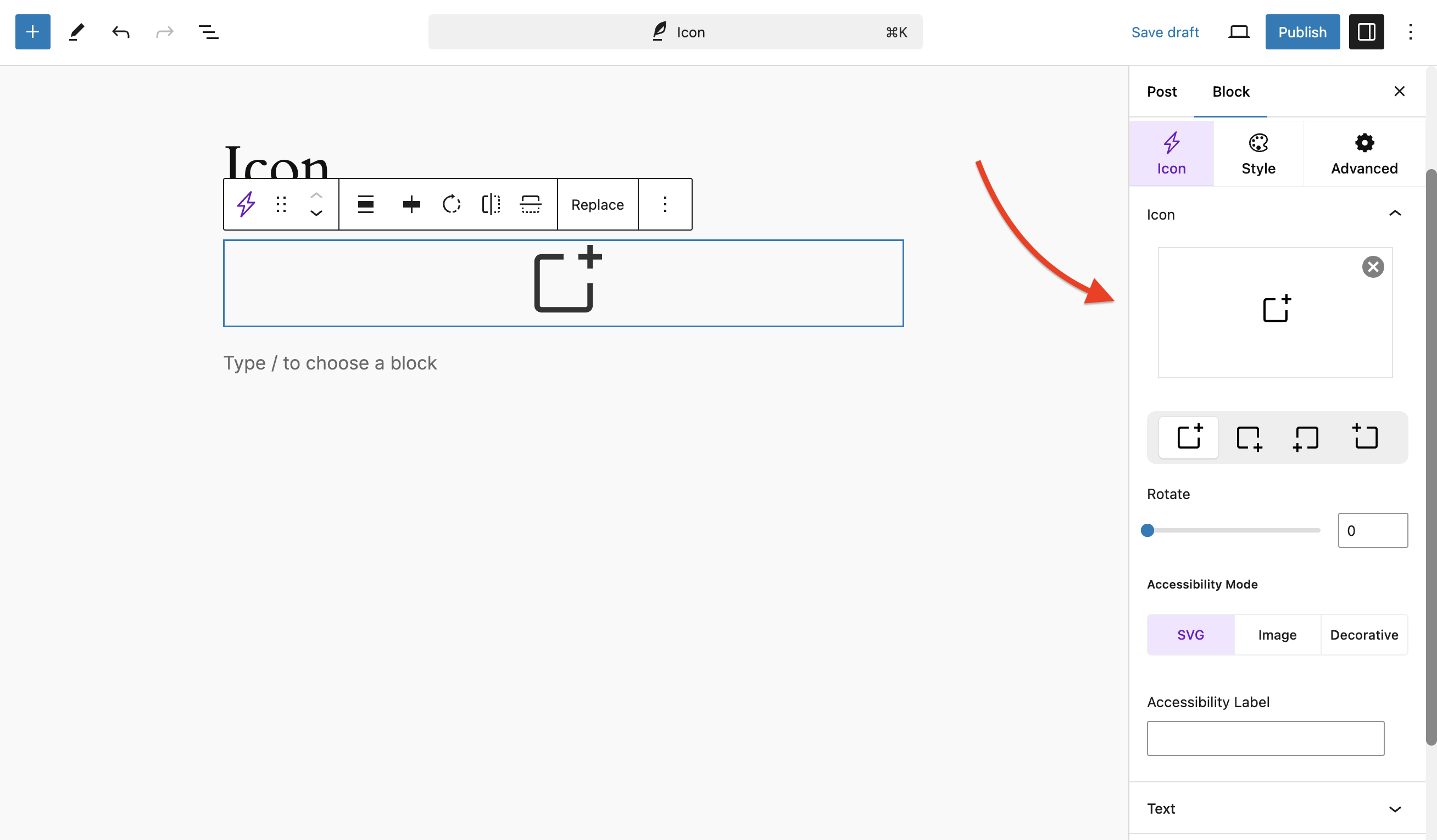
An Icon Block in WordPress is a block element used to add an icon (often as a graphical representation of an action, feature, or service) to a post or page. It’s typically used in conjunction with text or other elements to visually communicate information in a compact and appealing way.
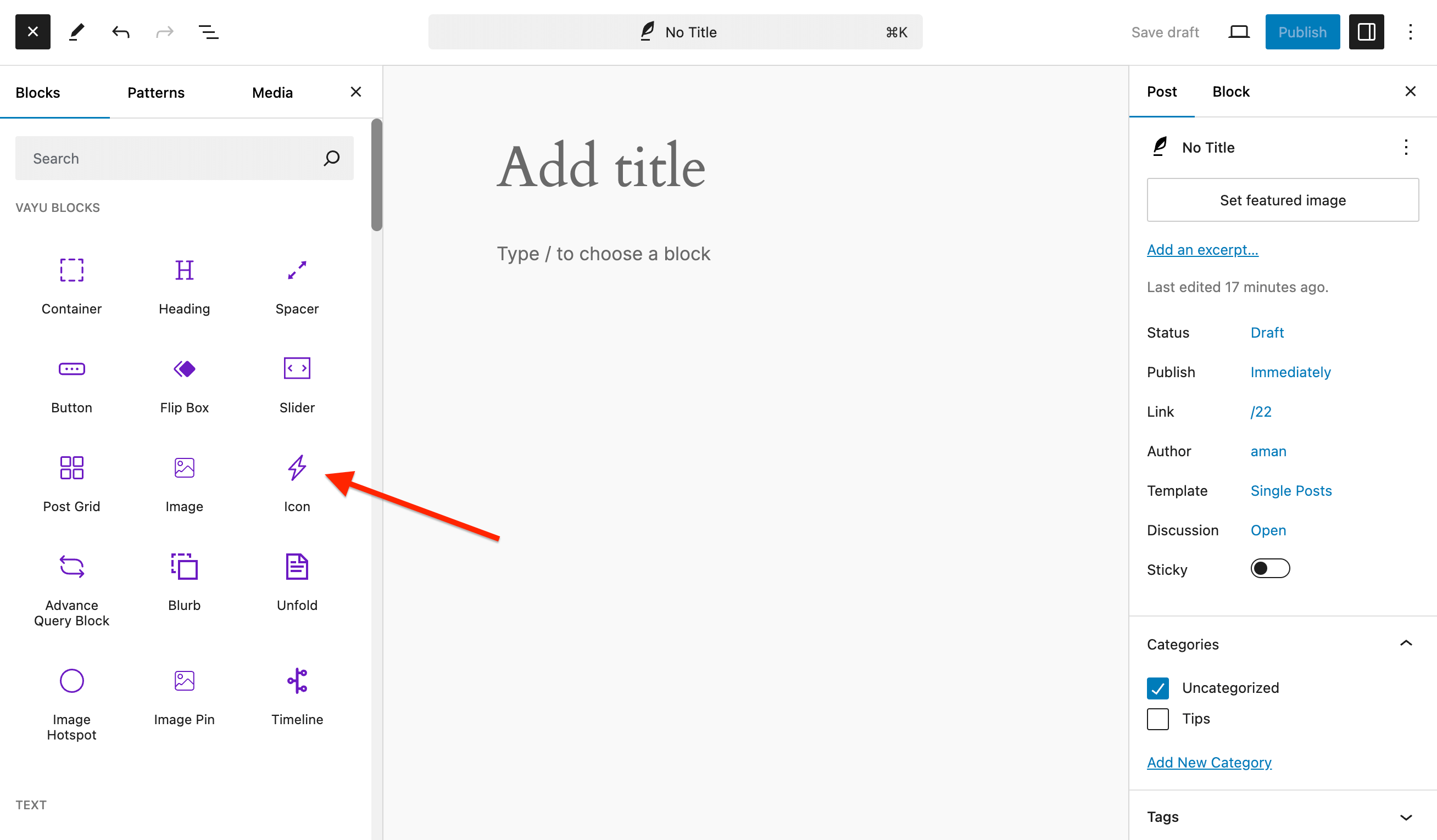
To add an Icon block to your page or post, click on the (+) icon on the left side of the editor. From the Vayu Block select Icon Block, as shown in the image below.
You can select various pre-build icons and can use them directly to your post or pages.
The Advanced Query Block in WordPress is a block that allows users to display custom lists of content (like posts, pages, or custom post types) based on specific query parameters.
This block is typically used to display content dynamically according to criteria such as categories, tags, authors, dates, or other custom fields.
It offers more control over how content is displayed compared to the standard “Latest Posts” block.
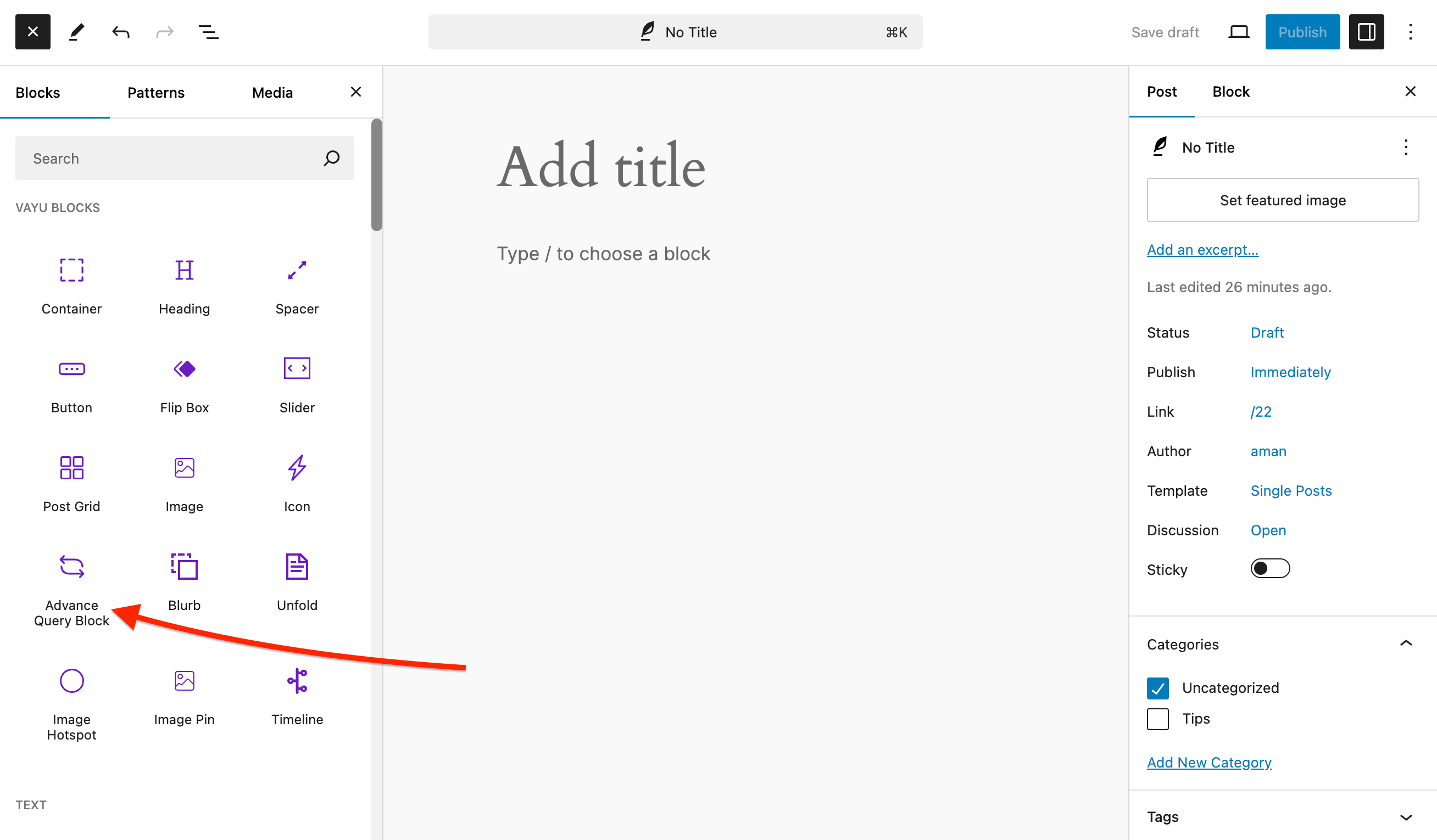
To add an Advance Query block to your page or post, click on the (+) icon on the left side of the editor. From the Vayu Block select Advance Query Block, as shown in the image below.
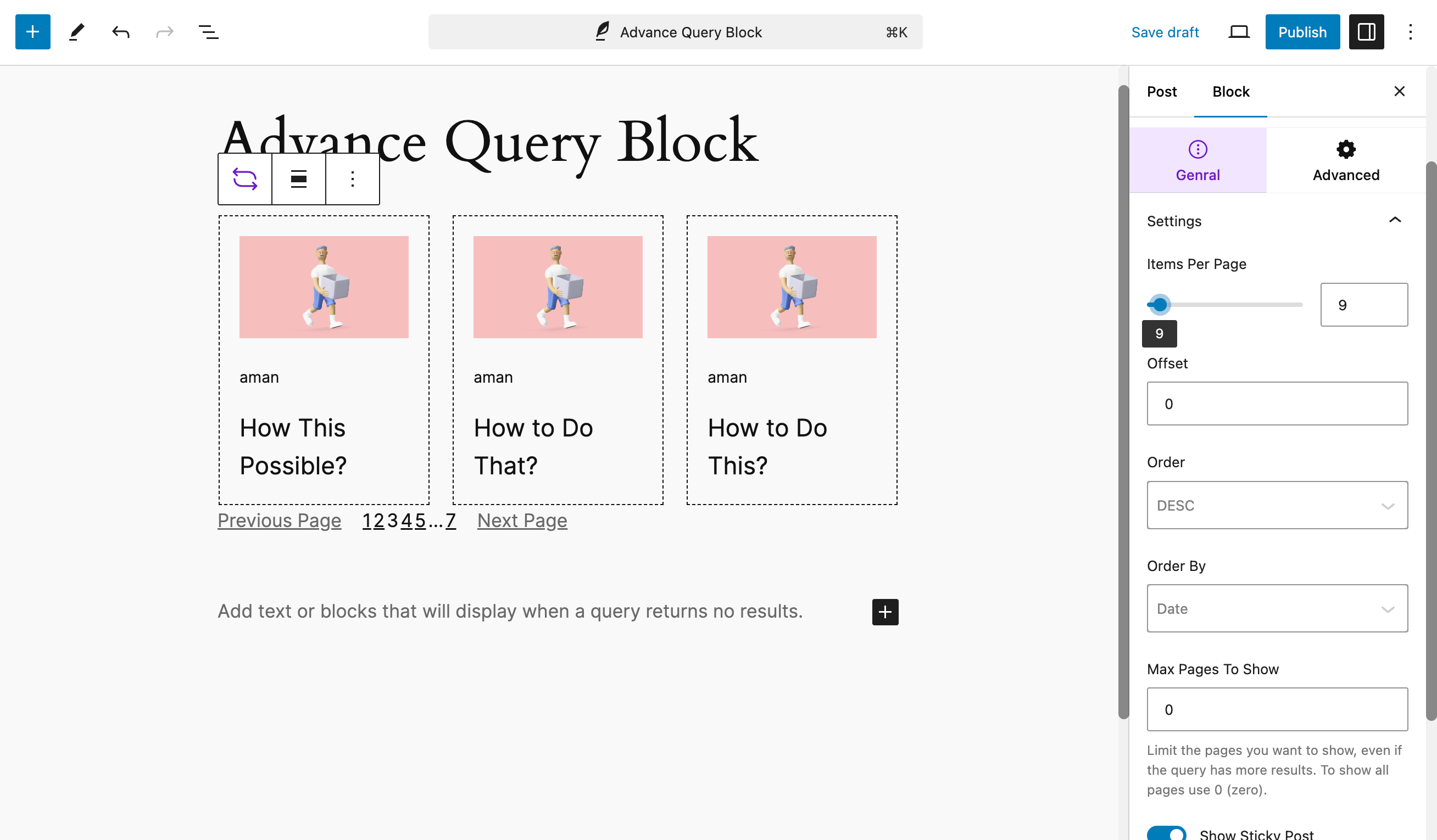
You can manage your Query Block general settings here like, Image per page, filters and animations.
You can set your Dynamic content as per your need, like if you want to show a Title you can replace a feature image with a Title. and you can also enable disable links.
A Blurb block in WordPress is a versatile content element that combines text, images, and other media into a compact, visually appealing unit. It is often used to convey concise information in a clear and engaging way, and it’s popular for creating callouts, highlight sections, service features, or introductory snippets on a page.
A Blurb block typically refers to a predefined content block or widget that allows you to add a combination of text and visuals (like icons or images) in a structured format.
These blocks are often used in page builders like Elementor, WPBakery, or Gutenberg (the default WordPress block editor) to enhance the layout of a page without needing custom code.
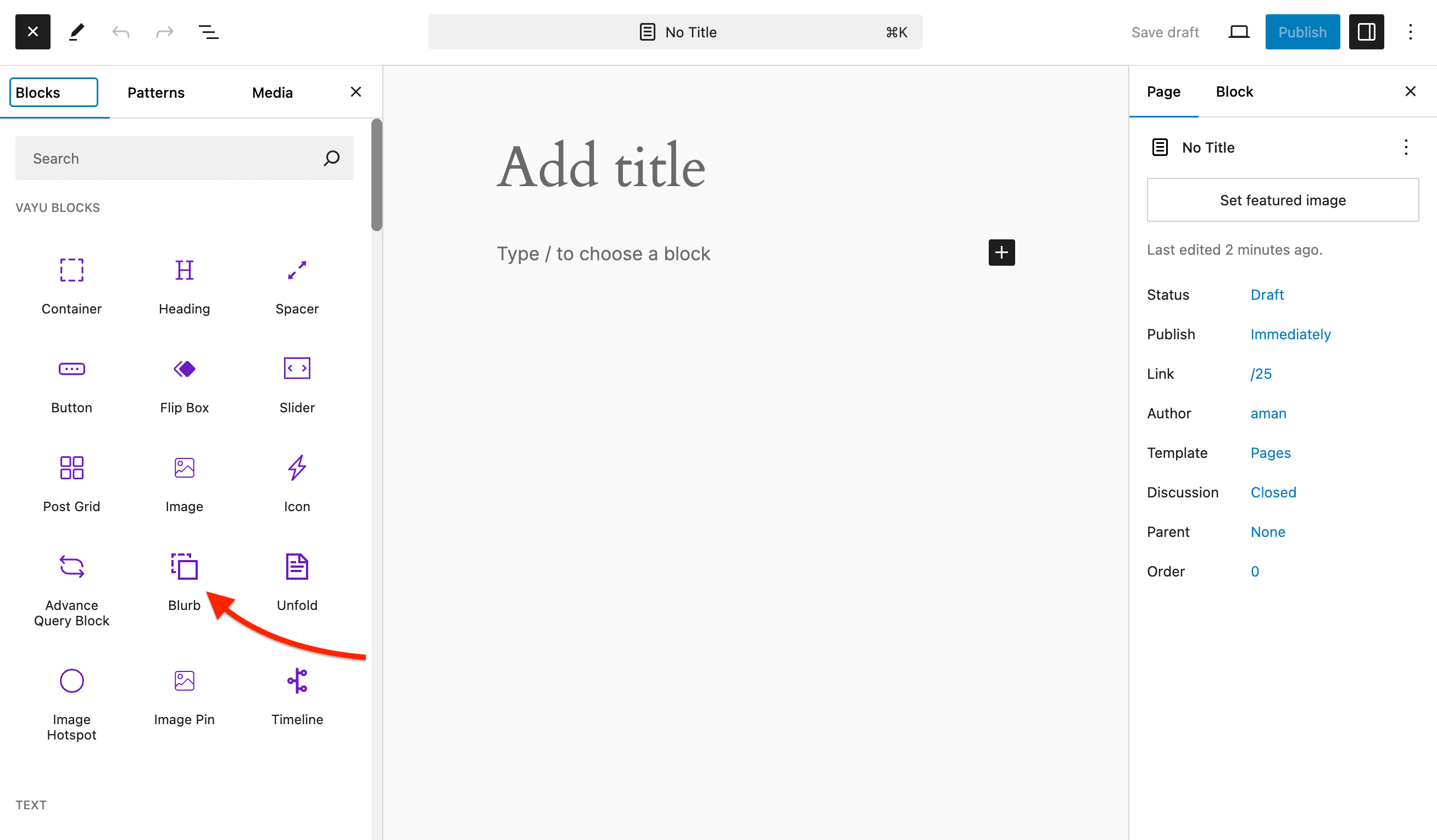
To add an Blurb block to your page or post, click on the (+) icon on the left side of the editor. From the Vayu Block select Blurb Block, as shown in the image below.
You have two blurb layouts.
Unfold is an a feature or element used to reveal hidden content when clicked or hovered over. This concept is commonly seen in interactive elements like accordion sections, dropdowns, or expandable content blocks.
You may want to create such a block using either custom code or a plugin that enables interactive elements.
To add an Unfold block to your page or post, click on the (+) icon on the left side of the editor. From the Vayu Block select Unfold Block, as shown in the image below.
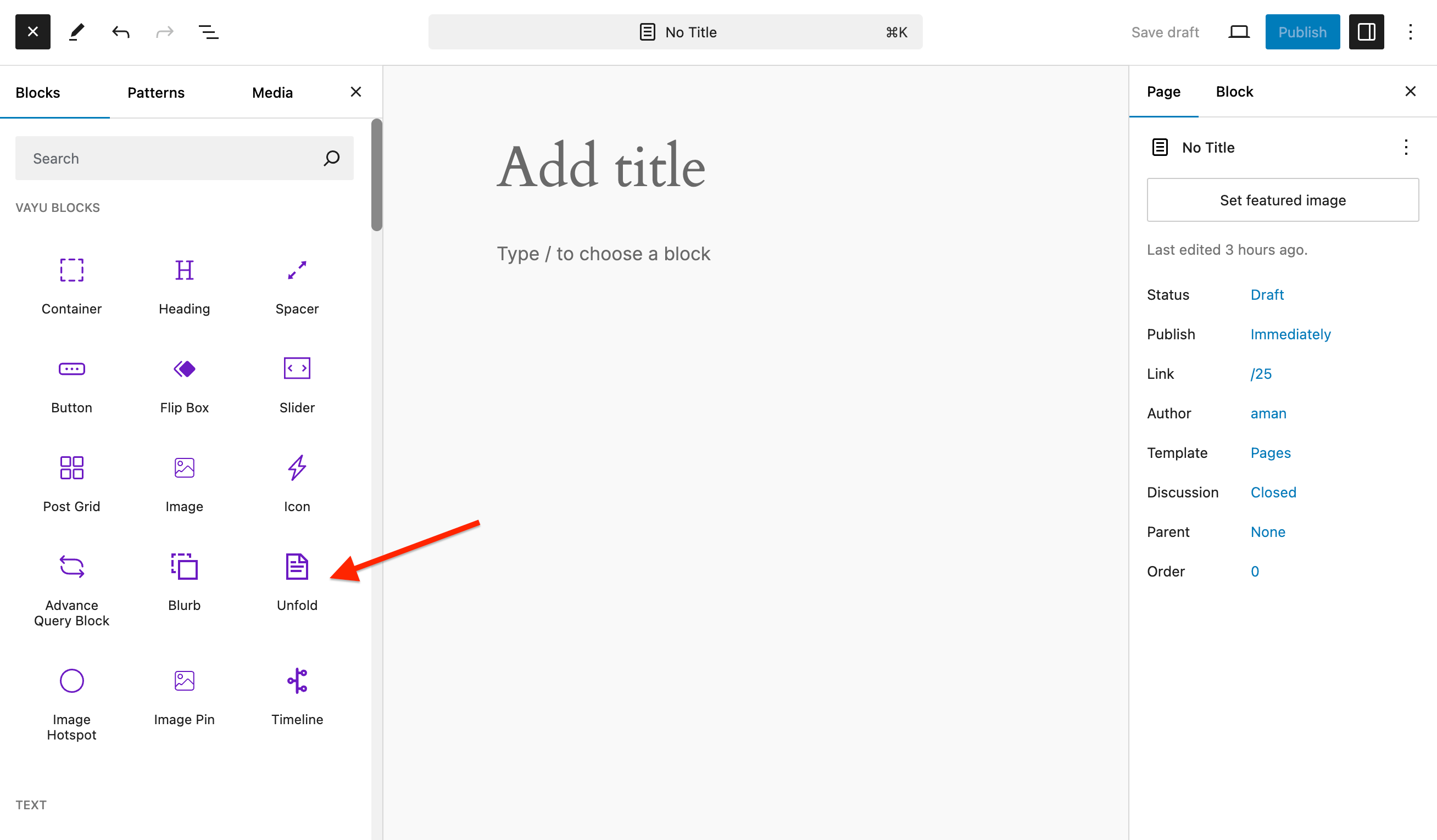
You can adjust settings of the Unfold block with other settings like styling and animations.
A Timeline Block in WordPress is a content element used to display events, activities, or milestones in a linear fashion, usually in a chronological order. It’s ideal for showcasing stories, achievements, historical events, project progress, or a sequence of events that you want your visitors to experience in a step-by-step manner.
To add an Timeline block to your page or post, click on the (+) icon on the left side of the editor. From the Vayu Block select Timeline Block, as shown in the image below.
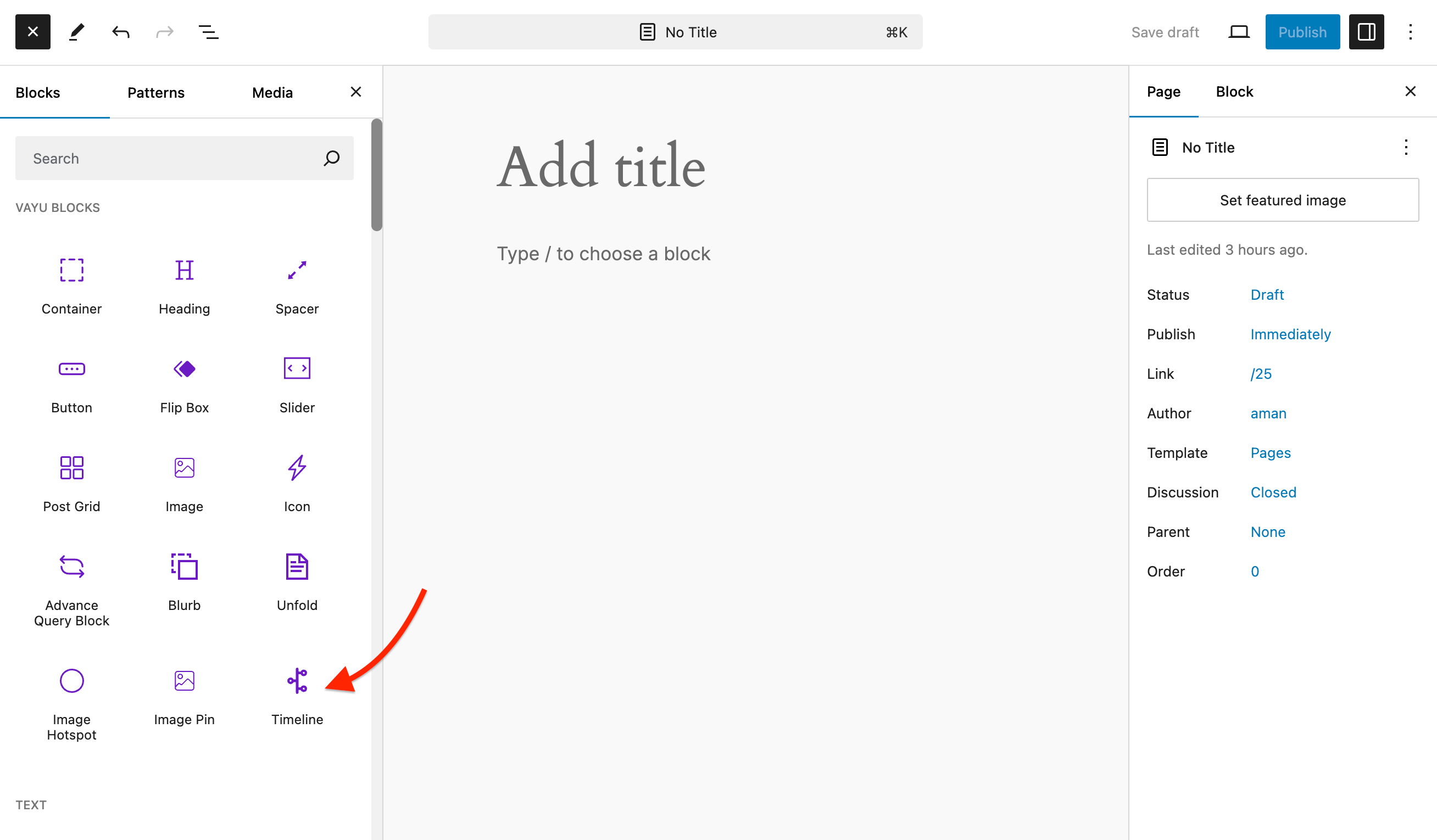
There 10 prebuild layouts for timeline you can choose from. You can find the layout from the block section Under Layout.
