
Adding an “Add to Cart” button anywhere on your WordPress site can greatly enhance your store’s user experience, making it easy for customers to purchase from any part of the website.
Whether you want to add it to a product description page, the homepage, or any custom page, WooCommerce provides simple methods.
In this blog post, I’ll guide you through different ways to insert the Woocommerce “Add to Cart” button on any page.
Why Add the WooCommerce “Add to Cart” Button?
By default, WooCommerce only places the “Add to Cart” button on the product pages.
However, adding this button in other sections of your website can increase conversion rates by offering a seamless purchasing process.
For example, adding a button on your homepage, landing pages, or blog posts can encourage visitors to make immediate purchases.
How to Add the WooCommerce Add To Cart button
Adding Woocommerce Add to cart button by using Elemento Addon for Elementor.
About Elemento Addon for Elementor

Elementor add-ons take the Elementor page builder for WordPress to the next level, providing users with advanced widgets and customizable templates.
These add-ons are designed to streamline the design process and offer extensive customization options, making it easier than ever to create stunning websites.
Plus, they come equipped with marketing-focused features to help elevate your online presence.
To add a WooCommerce Add to Cart button anywhere on your page using the Elemento Addons plugin follow these steps:
Step 1: Install and Activate the Plugin
Download the Plugin: Visit the Elemento Addons Plugin page and download the plugin.

Go to your WordPress dashboard → Plugins → Add New → Upload Plugin.
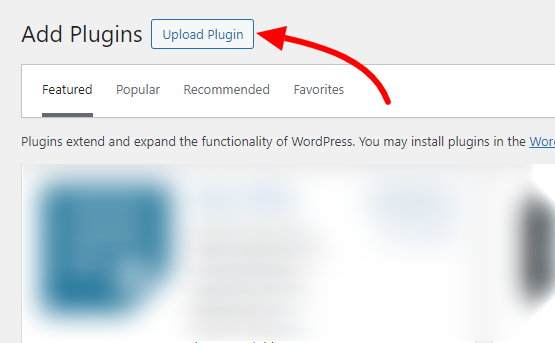
Upload the downloaded file and click “Install Now.”

Once installed, click “Activate” to enable the plugin.
To Install Elemento Addons please watch below video tutorial:
Step 2: Enable WooCommerce.
Ensure that WooCommerce is installed and activated on your WordPress site:

If WooCommerce is not installed, go to Plugins → Add New and search for WooCommerce. Please install and activate it.
Ensure your products are added to WooCommerce.
Step 3: Create or Edit a Page Using Elementor

In your WordPress dashboard, go to Pages → Add New (or select an existing page).

Click on Edit with Elementor to open the Elementor page editor.
Step 4: Add the Add to Cart Widget from Elemento Addons

In the Elementor editor, look for Elemento Addons widgets in the sidebar.

Search for the Add to Cart widget in the list of Elemento Addons widgets.
Drag and drop the WooCommerce Add to Cart widget anywhere on the page.
Step 5: Configure the Add to Cart Button


After adding the widget, you’ll need to select the product for the Add to Cart button. In the widget settings, you will have the option to choose a product.

You can customize the button label from the settings panel.
Elemento Addons enables you to customize the button’s colour, font, padding, and hover effects to match your site’s design.
Step 6: Update and Publish the Page
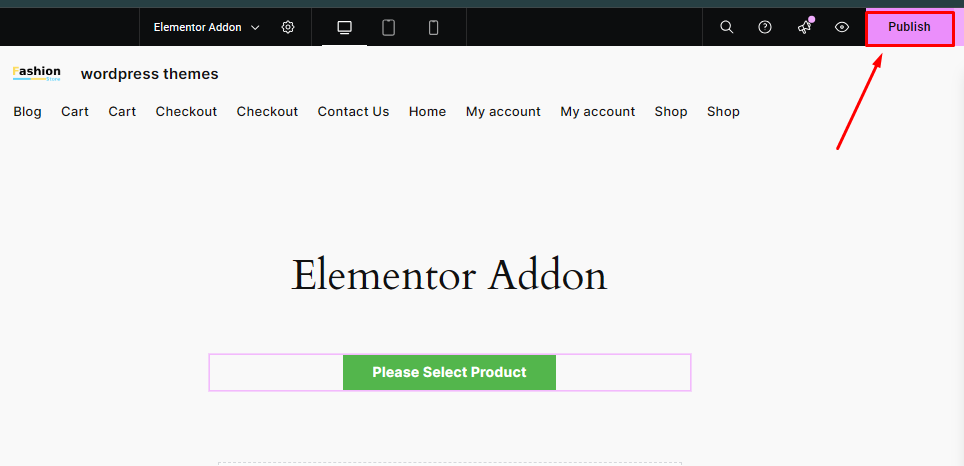
After customizing the “Add to Cart” button, click the “Update” or “Publish” button in Elementor.
This will enable the WooCommerce Add to Cart button on your page, allowing users to add the selected product to their cart from anywhere on the page.

Now, your page will display the WooCommerce Add to Cart button, allowing users to directly add the selected product to their cart from anywhere on the page.
If someone clicks on the button, where will he be redirected?
When users click the “Add to Cart” button created with the Elementor Addon, they are not immediately redirected to another page.
Instead, the product is added to the cart, providing a seamless experience for users by getting the cart on the page without clicking elsewhere.
FAQ
Q: Can I style the Add to Cart button to fit my website’s design?
Ans: Absolutely! You can style the Add to Cart button from style settings.
Q: Is it possible to add the Add to Cart button directly to the content of a page or post?
Ans: Yes, you can add the Add to Cart button to the content of a page or post.
Q: What are the benefits of flexibility in adding the “Add to cart” anywhere on the page?
Ans: The ability to place the “Add to Cart” button anywhere on the page offers several key benefits: Improved User Experience, Increased Visibility, Reduced Cart Abandonment and so on.
Conclusion
Following these steps, you can easily add a WooCommerce Add to Cart button to any page on your WordPress site using the Elemento Addons plugin.
This process is straightforward and highly adaptable, enabling you to tailor the button’s functionality and design to align with your site’s unique aesthetic and operational needs.
Thanks for reading this blog. If you find this article helpful, do share it with your friends. If you have any questions, do not hesitate to comment below. We will help you to solve your problem.
Please Subscribe to our YouTube Channel, we also upload great content there Do Follow us on Instagram, Facebook, and Twitter.
Discover more articles:


