
Overview ➣ This article explains how to add a Sticky Add to Cart Bar for WooCommerce using the Store One plugin, helping improve user experience, mobile shopping, and conversion opportunities.
As a store owner, your primary goal is to turn browsing visitors into paying customers.
But if your product pages have long descriptions, extensive image galleries, or pages of customer reviews, shoppers have to scroll a long way back to the top just to find the Add to Cart button.
This extra step creates friction in the buying process, which can lead to lost conversions, especially for mobile users.
A Sicky Add to Cart Bar solves this problem by keeping the purchase option visible as customers scroll through the page.
This simple enhancement can improve user experience and help increase conversions by making it easier for shoppers to add products to their cart instantly.
In this guide, we’ll show you step-by-step how to add a high-converting sticky add to cart bar to your WooCommerce store using the free StoreOne plugin by ThemeHunk.
What is Sticky Add to Cart Bar
A sticky add to cart bar is a floating bar that remains visible while users scroll through a product page. It typically displays:
- Product title
- Product image
- Price
- Add to Cart button
This ensures customers can purchase the product at any point without scrolling back to the top of the page.
Why Use Sticky Cart Bar
Adding a sticky cart bar offers several benefits:
- Improve User Experience: Customers can quickly add products to their carts without having to search for the purchase button.
- Increase Conversion: Reducing friction in the checkout journey can lead to higher conversion rates and more complicated purchases.
- Better Mobile Shopping Experience: Sticky purchase buttons are particularly useful on mobile devices where screen space is limited.
- Faster Purchase Decisions: When customers are ready to buy, the add to cart button is always accessible.
Introducing Store One Plugin for WooCommerce
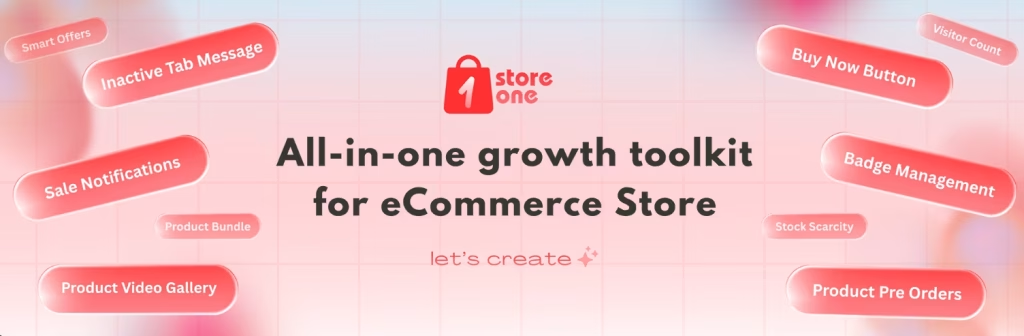
Store One is an all-in-one WooCommerce toolkit, which includes multiple conversion-focused modules designed to improve your online store’s functionality and shopping experience.
The Sticky Cart Bar module allows you to display a floating Add to Cart section on WooCommerce product pages, helping customers complete purchases more easily.
Some other useful modules included in Store One are:
- Product Video Gallery
- Product Bundles
- Product Features
- Frequently Bought Together
- Buy Now Button
- Sale Notifications
- Recently Viewed
- Quick Social Share
- Stock Scarcity Features
- Sales Countdown
- Trust Badges
- Pre Order
- Inactive Tab Messages
- Visitor Count
- Smart Offers
- Badge Management
All modules can be enabled individually based on your store’s needs.
Add a Sticky Add to Cart Bar Using Store One
Step 1: Install the Store One Plugin
First, install and activate the Store One plugin from the WordPress plugin repository or the ThemeHunk website.
Method 1: Install from WordPress Plugin Repository
- Log in to your WordPress admin area
- Navigate to Plugins > Add New Plugin

- Search for TH Store One
- Click Install Now

- Activate the Plugin

Method 2: Upload the Plugin from the ThemeHunk website
- In the ThemeHunk site, navigate to Plugins > Store One
- Click on Try Free
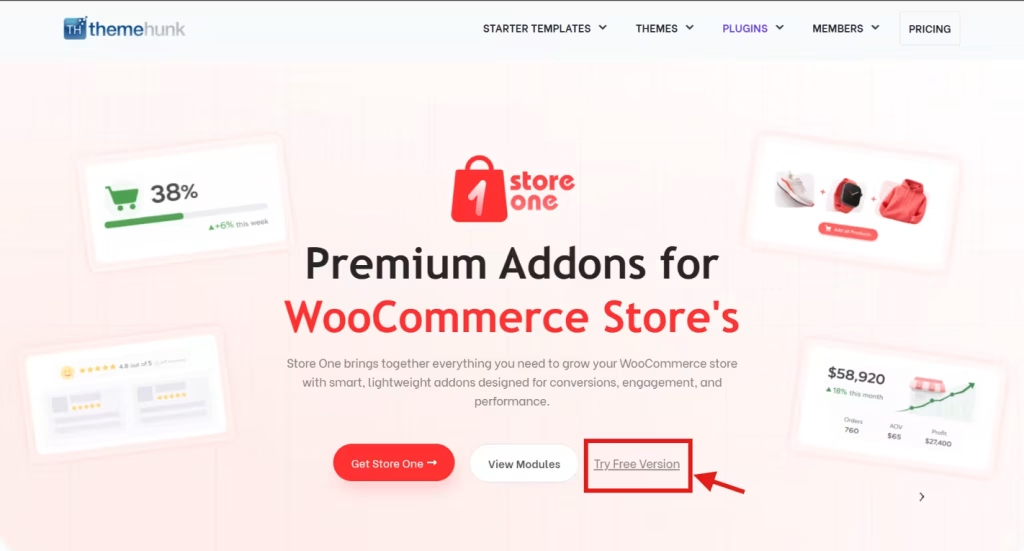
- Go to Plugins > Add New > Upload Plugin
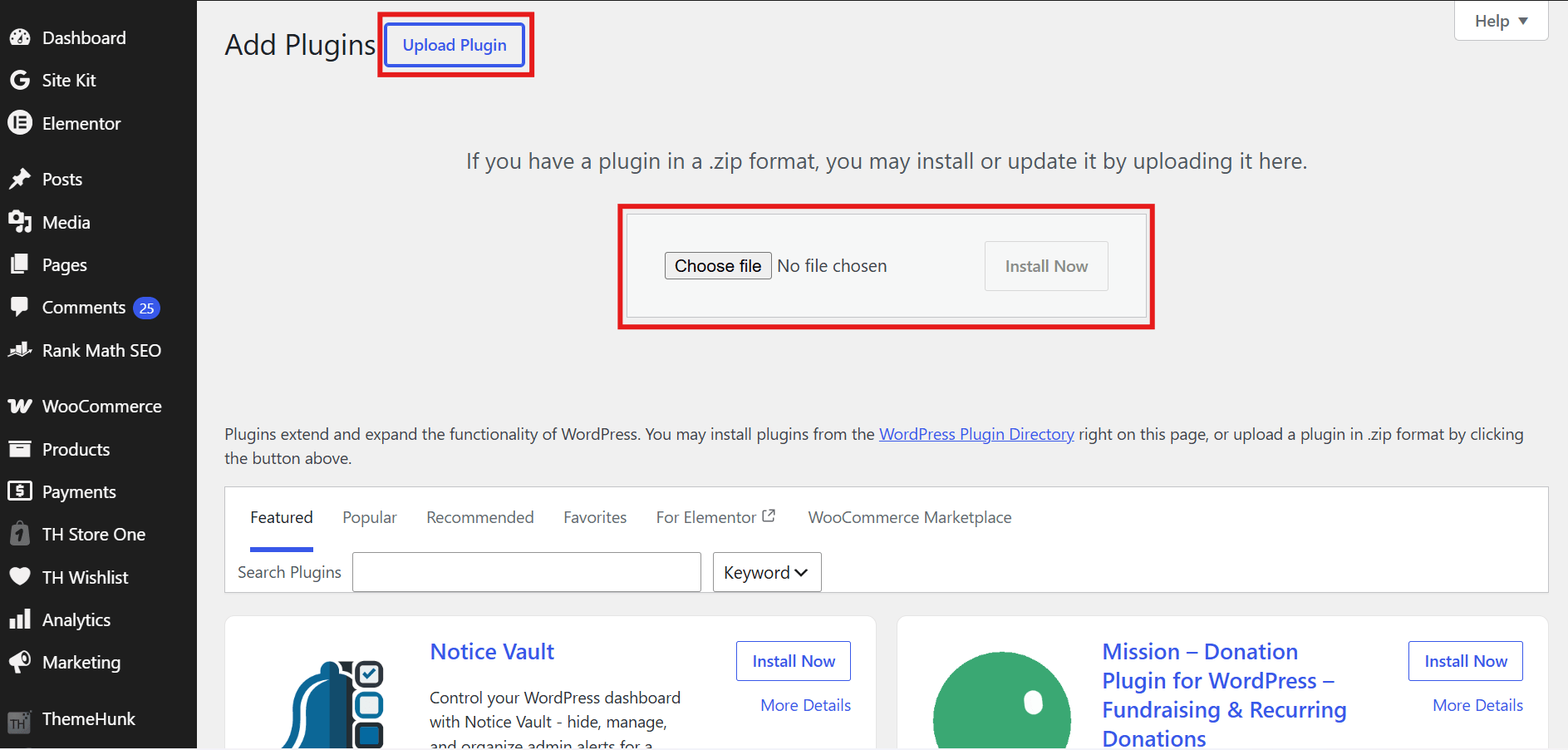
- Upload the ZIP file
- Click Install Now and then Activate

After activation, you’ll see the Store One menu in your WordPress dashboard.
Step 2: Open Store One Dashboard
From your WordPress dashboard:
- Store One > Modules

Here you’ll find all available WooCommerce enhancement modules included in the plugin.
Step 3: Enable the Sticky Cart Bar Module
- Locate the Sticky Cart Bar module.

- Toggle the switch to ‘Enable’.

- Once activated, the feature automatically adds a floating Add to Cart bar to your WooCommerce product pages.
- The sticky bar remains visible while visitors scroll through the product content, ensuring the purchase button is always within reach.
Step 4: Configure Sticky Cart Bar Settings
Store One plugin doesn’t just slap a generic bar on your site, but it gives you granular control over the user experience. Here
Settings
- Position: Choose whether the sticky cart bar is fixed to the top or bottom of the screen. The bottom position is generally preferred for mobile users due to easier thumb access, while the top position offers greater visibility on desktop.
- Show After Scroll: Control when the sticky cart bar appears by setting a scroll trigger at 10%, 20%, or 50% of the page.
- Animation Effects: Make the cart bar more noticeable with smooth slide, fade, or bounce animations that attract attention without disrupting the shopping experience.

- Content Settings: Customize the information and actions displayed in the sticky cart bar. You can show or hide the product image and price, enable quantity and variation selectors, choose whether the button adds products to the cart or redirects customers to checkout, and personalize the button text with labels such as “Add to Cart” or “Buy Now.”

- Offer Banner: Display a promotional banner within the sticky cart bar to highlight special deals and create urgency. You can add a custom message, enable a countdown timer, and set start and end dates to automatically run limited-time offers, discounts, or seasonal campaigns.

Visibility
- Trigger Type: Choose where the sticky cart bar should appear. You can display it on all products, selected products, or specific product categories.
- Exclude Products: Prevent the sticky cart bar from appearing on specific products by selecting them from the exclusion list.
- Device Visibility: Control whether the sticky cart bar is displayed on desktop, tablet, and mobile devices independently.
- Mobile Settings: Optimize the sticky cart bar for mobile users by choosing which elements to display, including the product image, price, quantity selector, and variation options, helping save valuable screen space.

User
- User Condition: Control who can see the sticky cart bar by displaying it to all visitors, selected users, or specific user roles.
- Exclude Roles: Hide the sticky cart bar from particular user roles, such as Administrators, Editors, Contributors, or Subscribers.
- Exclude Users: Prevent specific user accounts from seeing the sticky cart bar by manually selecting individual users.

Style
You can typically adjust the background, button, and text colors directly in the customizer to ensure they match your store’s branding.

Step 5: Save Changes
Once you’ve configured all your sticky cart bar settings, click Save Changes to apply them and make the sticky bar live on your store. Your final setup should look similar to the example shown below.

Benefits of Using Store One’s Sticky Cart Bar
Lightweight Solution
Instead of installing multiple WooCommerce plugins, Store One combines several conversion-focused features into a single toolkit.
Improved Shopping Experience
Customers can add products to their cart at any time without unnecessary scrolling.
Better Mobile Usability
Mobile shoppers benefit from constant access to the purchase button.
Conversion Optimization
Keeping purchase actions visible throughout the browsing experience can help reduce purchase friction and improve sales performance.
Broader Theme Compatibility
Store One is designed to work smoothly with WooCommerce and the most popular WordPress themes, allowing store owners to add a Sticky Cart Bar without changing their existing website design or functionality.
Best Practices for Sticky Add to Cart Bar
To maximize results:
- Use a high-contrast Add to Cart button to make the call to action stand out.
- Keep the design clean and unobtrusive to avoid distracting shoppers.
- Display essential product information such as the product image, name, and price.
- Match the sticky bar’s colors and styling with your store branding for a consistent experience.
- Optimize the bar for mobile devices and ensure it doesn’t cover important content or navigation elements.
- Test the sticky bar on both desktop and mobile to verify usability and performance.
- Choose a position (top or bottom) that provides visibility without disrupting the shopping experience.
Need More Help? Check the Documentation
ThemeHunk offers thorough documentation for the Store One ecosystem. To learn how to set up and customize the Sticky Add to Cart Bar, visit the official plugin documentation or watch the step-by-step tutorials on YouTube.
FAQ
Q: What is the sticky Add to Cart bar in WooCommerce?
Ans: A sticky add to cart bar is a floating purchase section that remains visible as customers scroll through the pages. It keeps the Add to Cart button accessible at all times, making it easier for shoppers to complete purchases.
Q: Does a sticky Add to Cart bar increase conversion?
Ans: Yes, by keeping the Add to Cart bar visible at all times, a sticky cart bar reduces friction in the buying process and encourages faster purchasing decisions, which can help improve conversion rate.
Q: Can I add a sticky Add to Cart bar to WooCommerce for free?
Ans: Yes, you can add a sticky Add to Cart bar for free using the Store One plugin. Simply install the plugin, enable the Sticky Cart Bar module, and customize it according to your store’s requirements.
Q: Does the Store One plugin work with any WooCommerce theme?
Ans: Store One is designed to work with WooCommerce and almost all WordPress themes, like Shop Mania.
Q: Is the sticky Add to Cart bar mobile-friendly?
Ans: Yes, the sticky Add to Cart bar is optimized for mobile devices, ensuring customers can easily add products to their cart without scrolling back to the purchase section.
Q: Can I customize the appearance of the sticky Add to Car bar?
Ans: Yes, Store One allows you to customize various display settings so the sticky car bar matches your store’s branding and design.
Final Thought
A Sticky Add to Cart Bar is one of the simplest ways to improve WooCommerce conversions. By keeping the purchase button visible throughout the customer journey, you remove unnecessary friction and make buying easier.
With Store One, you can enable this functionality in minutes while also gaining access to a complete set of WooCommerce growth tools designed to increase sales, improve engagement, and streamline store management.
If you’re looking for a lightweight and effective way to optimize your product pages, adding a Sticky Add to Cart Bar with Store One is an excellent place to start.
Thanks for reading this blog. If you find this article helpful, do share it with your friends. If you have any questions, do not hesitate to comment below. We will help you to solve your problem.
Please Subscribe to our YouTube Channel, we also upload great content there Do Follow us on Instagram, Facebook, and Twitter.
Explore More Articles:


