
Are you looking for a way to hide or remove the Add to Cart Button on WooCommerce? You have come to the right place
WooCommerce is a powerful platform for creating and managing an online store. But sometimes you might want to hide or remove the Add to Cart button. For example, you may need to:
- Showcase products without allowing purchases.
- Temporarily pause sales while keeping the product pages active.
- Show products as “Out of Stock” or “Coming Soon.”
Whatever the reason, WooCommerce makes it easy to manage this feature.
In this blog, we’ll explore simple methods to hide or remove the Add to Cart button.
How to Hide or Remove the Add to Cart Button on WooCommerce
Hide the Add to Cart button by using a plugin.
Modify the Plugin Settings
If you want to remove or hide the “Add to Cart” button by modifying the plugin settings on any page of a WooCommerce site, you can follow these steps:
If your Cart plugin provides an option to enable or disable buttons on specific pages, explore its settings:
- Go to Dashboard > Plugin Settings.
- Look for options like Enable Add to Cart Button or Hide Add to Cart.
- Set conditions based on your requirements.
Let’s see if it works or not. Let’s take an example: suppose we are using the All-in-One Woo Cart plugin.

The TH All In One Woo Cart plugin offers a simple way to customize or hide the Add to Cart button for specific pages, categories, or your entire store. Below is the step-by-step process:
Navigate to the Plugin Settings

- In your Dashboard, locate and click on Themehunk in the left-hand menu.
- Select All In One Woo Cart Settings.
Disable the Cart Button
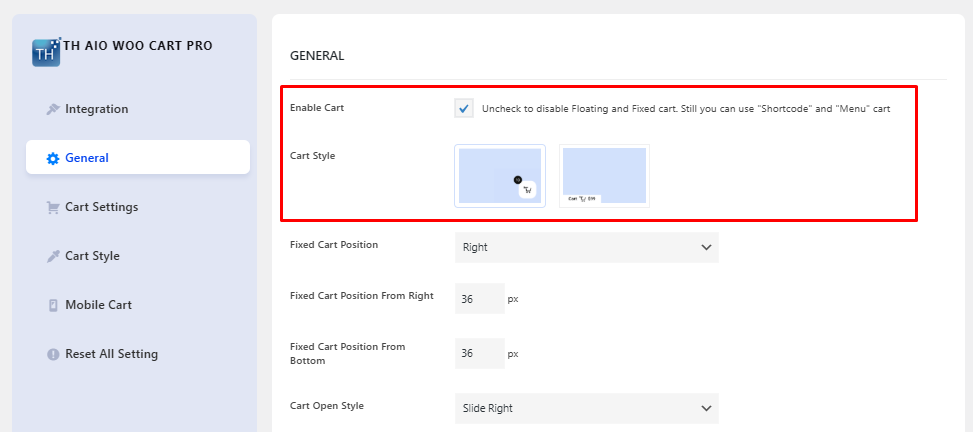
- Go to the General Settings tab within the plugin settings.
- Find the option labeled Enable Cart
- Uncheck this box to disable the cart functionality globally across your store.
- This removes the Add to Cart button and disables the cart popup on all pages.
Hide the Cart Button for Specific Pages

- Go to the General section in the plugin and scroll down.
- Locate the Hide Cart from the Pages option.
- In the text field, enter the Page IDs, Slugs, or Taxonomy of the pages where you want to hide the cart.
- For example:
- about-us to hide the cart from the About Us page.
- checkout to hide it on the checkout page.
- Click Save Changes to apply.
Hide the Add to Cart button without using a plugin.
You can hide the button using custom code in your theme’s functions.php file. However, using a plugin like TH All In One Woo Cart is simpler and doesn’t require coding knowledge.
Test Your Store
- Visit the specific pages or products to confirm that the Add to Cart button is hidden or removed based on your configuration.
- If necessary, go back to the settings to adjust your preferences.
FAQ
Q: Will hiding the Add to Cart button affect my product pages?
Ans: No, hiding the button will only remove the purchase functionality. Your product pages will still display all other details.
Q: Is it possible to temporarily hide the Add to Cart button and enable it later?
Ans: Yes, you can hide the button temporarily using the plugin settings or custom code. Once you’re ready to enable it again, simply revert the changes in the settings or remove the code snippet.
Q: Can I hide the Add to Cart button on the mobile version of my store only?
Ans: Yes, plugins like TH All In One Woo Cart often include mobile-specific settings, allowing you to control cart visibility on different devices.
Conclusion
Removing or hiding the Add to Cart button in WooCommerce can be done easily by adjusting settings, using a plugin, or activating built-in features like catalogue mode.
Whether you want to temporarily disable purchases or permanently transform your store into a product showcase, these easy methods help you achieve your website’s perfect look and functionality — no stress, no worries!
Choose the option that best suits your store and start customizing today.
Thanks for reading this blog. If you find this article helpful, do share it with your friends. If you have any questions, do not hesitate to comment below. We will help you to solve your problem.
Please Subscribe to our YouTube Channel, we also upload great content there Do Follow us on Instagram, Facebook, and Twitter.
Check out more Articles:


