
Overview ➣ A strong online presence is essential for ceramic shops. The Shop Mania WordPress theme’s Ceramic Shop template provides an easy way to create a professional website. With a simple one-click install.
WooCommerce, the powerhouse behind millions of online stores Powered by WordPress, which accounts for 43% of websites worldwide, continues to be one of the most popular e-commerce platforms in the world.
In the digital era, a beautifully designed website is no longer a luxury but a necessity for businesses, especially for ceramic shops.
Whether you’re a local artisan or a large-scale ceramic retailer, having an online presence allows you to reach a broader audience, showcase your products, and boost sales.
The Shop Mania WordPress theme introduces its Ceramic Shop template, a feature-rich and modern design tailored to meet your business needs.
With the one-click install option, you can create a stunning website without any technical hassle. Let’s explore what makes this template a perfect choice for ceramic businesses.
What are Shop Mania Website Templates?
Shop Mania is a collection of WordPress website templates specifically designed for eCommerce websites.
These templates are typically used for building online stores that sell products, and they provide users with ready-made, customizable designs for creating an attractive and functional shop.
The templates are often designed to work seamlessly with popular WordPress eCommerce plugins like WooCommerce, which enables users to manage products, process payments, track inventory, and offer shipping options, all within the WordPress framework.
Why Choose the Ceramic Shop Template?
The Ceramic Shop template is packed with features designed to help you succeed online:
- Responsive Design: Adapts seamlessly to any device, providing a smooth experience for mobile, tablet, and desktop users.
- Modern Design: The sleek, elegant design emphasizes your products, making them the star of the show.
- SEO Optimization: Built with SEO-friendly practices to help your website rank higher on search engines.
- Customizable Options: Easily adjust colours, fonts, and layouts to reflect your brand’s identity.
- WooCommerce Integration: Includes all the essential eCommerce tools for managing inventory, processing payments, and tracking orders.
- Addons: The template comes with various pre-build addons for enhancing your WooCommerce Ceramic Shop Website
With its eye-catching design, the Ceramic Shop Template captures the essence of creativity and craftsmanship, making it the perfect showcase for ceramic products of all kinds.
Whether you’re selling artisanal pottery, decorative tiles, or ceramic homeware, this template provides a stunning backdrop to highlight your merchandise.
Features of the Ceramic Shop Template
1. Eye-Catching Homepage Layout:
The homepage greets visitors with a large, visually appealing banner where you can display new arrivals, discounts, or seasonal collections.


2. Product Showcase:
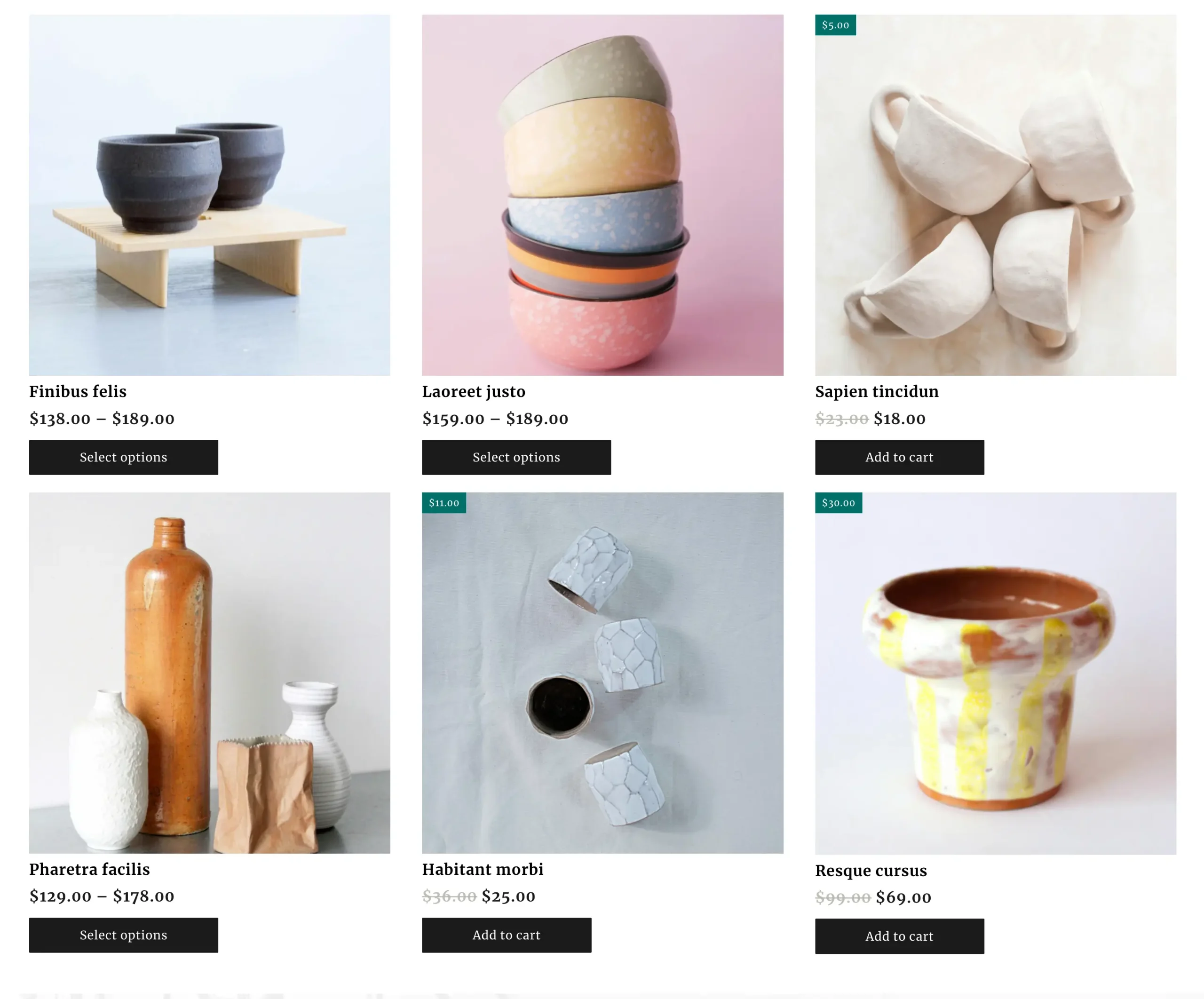
Showcase your products in neatly organized sections for easy browsing. This template comes with various product display styles and addons.
These addons help you to to display your products in a very beautiful way.
3. About Us Page:
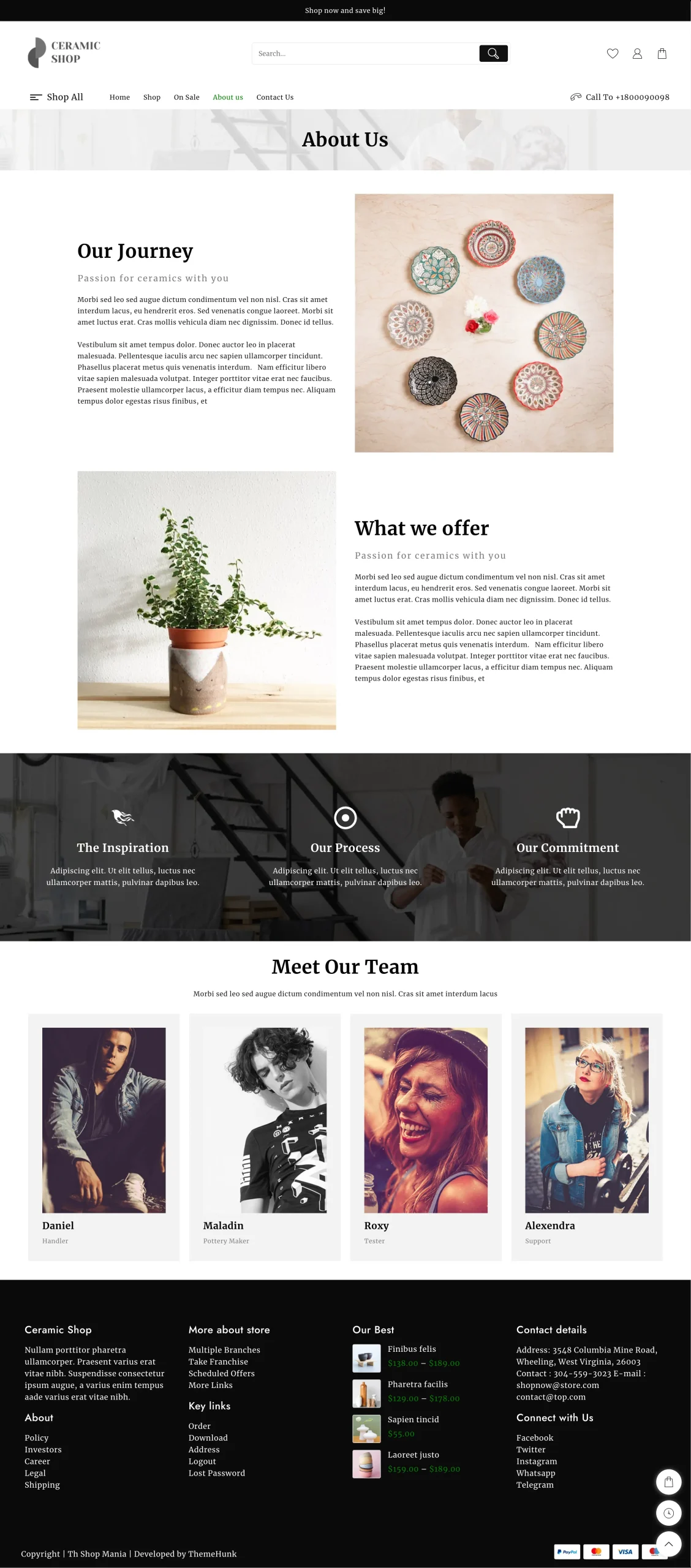
The template has a premade about us page. You can share your story and values to create a connection with customers.
Add a brief history of your shop, your passion for ceramics, and images of your workshop or showroom.
4. Contact Page
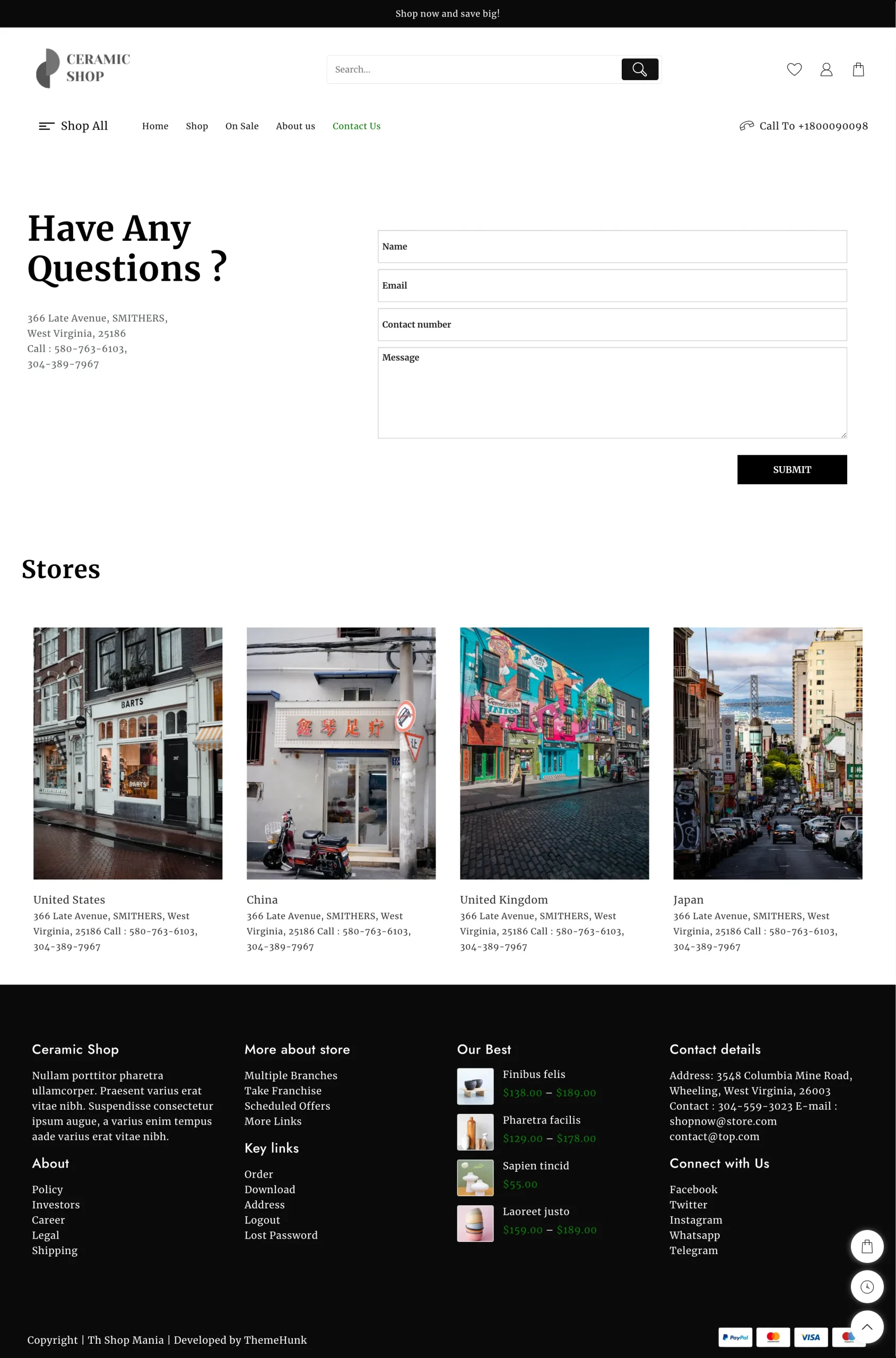
Make it easy for customers to locate your store or reach out for inquiries. You can also use Google Maps to display your store location on your Contact Us page.
5. Shop Page
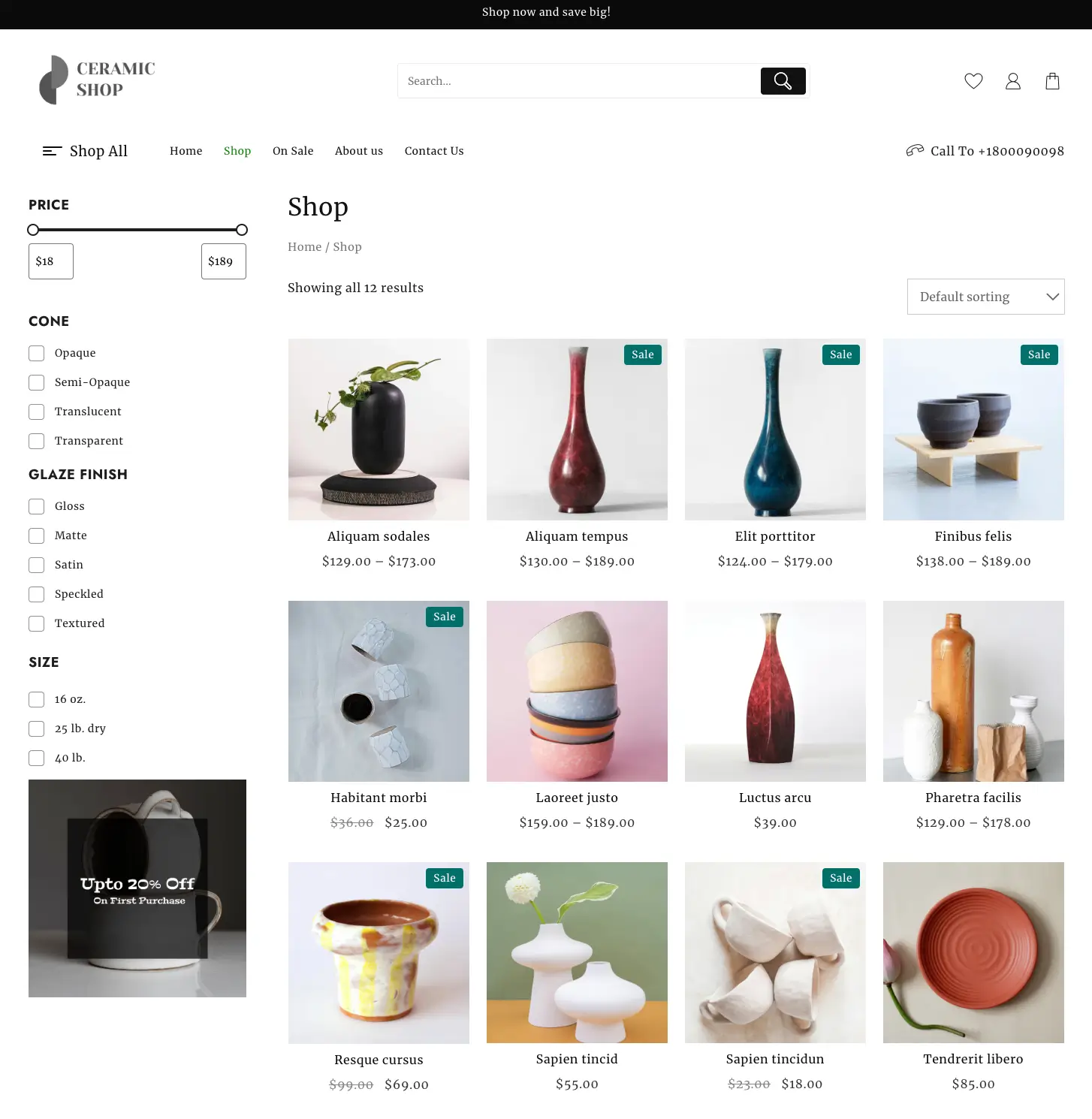
A dedicated shop page is a must for any website. The Ceramic Shop template has a unique shop page design with a sidebar for various filters like Price, Option, Size, Color and other useful filters.
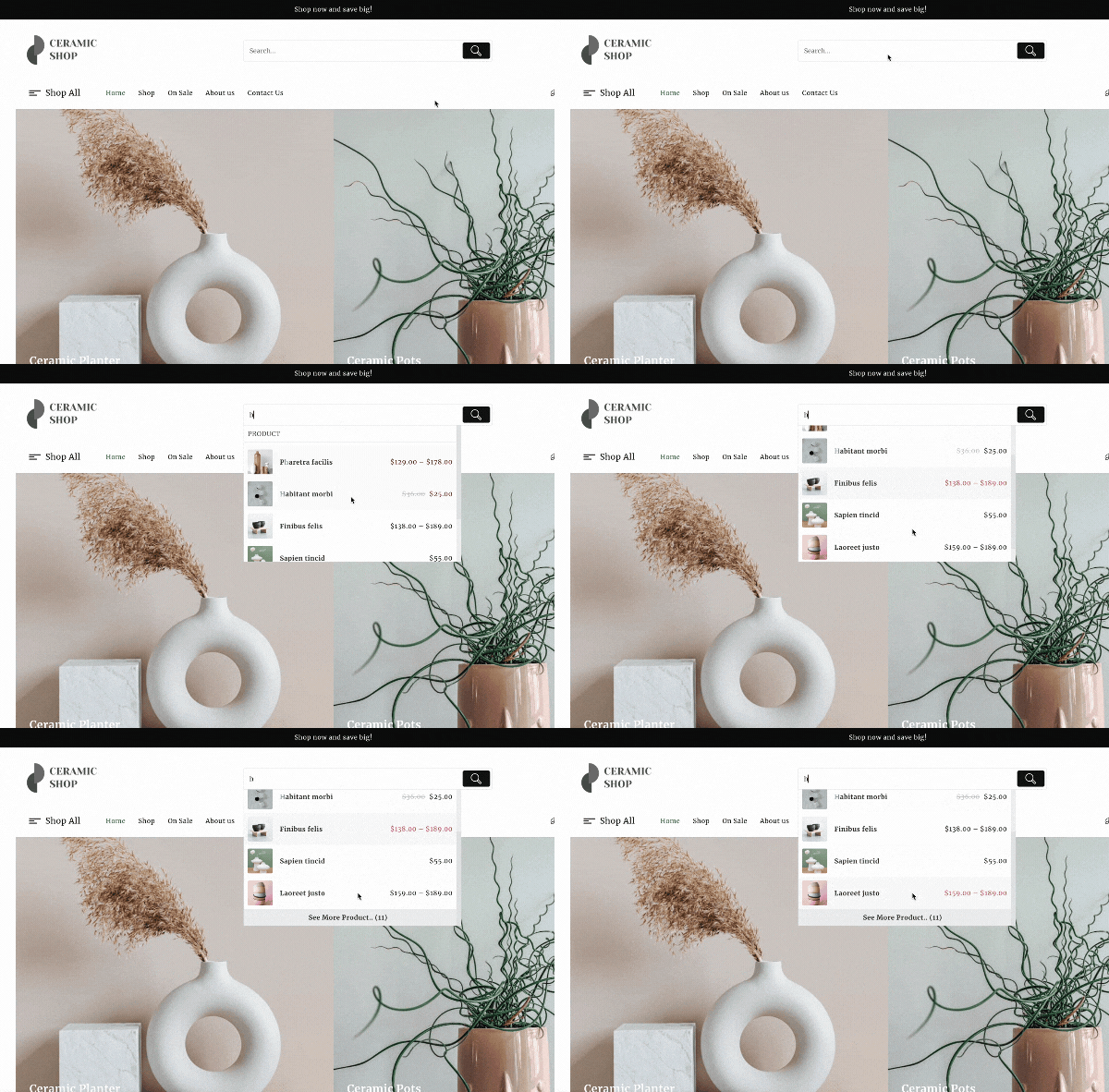
6. Live Product Search
This Ceramic Shop template facilitates advanced product searches across your entire store.
Users have the flexibility to search directly for any product using various criteria such as categories, SKUs, attributes, and more.
7. Shopping Cart Layout
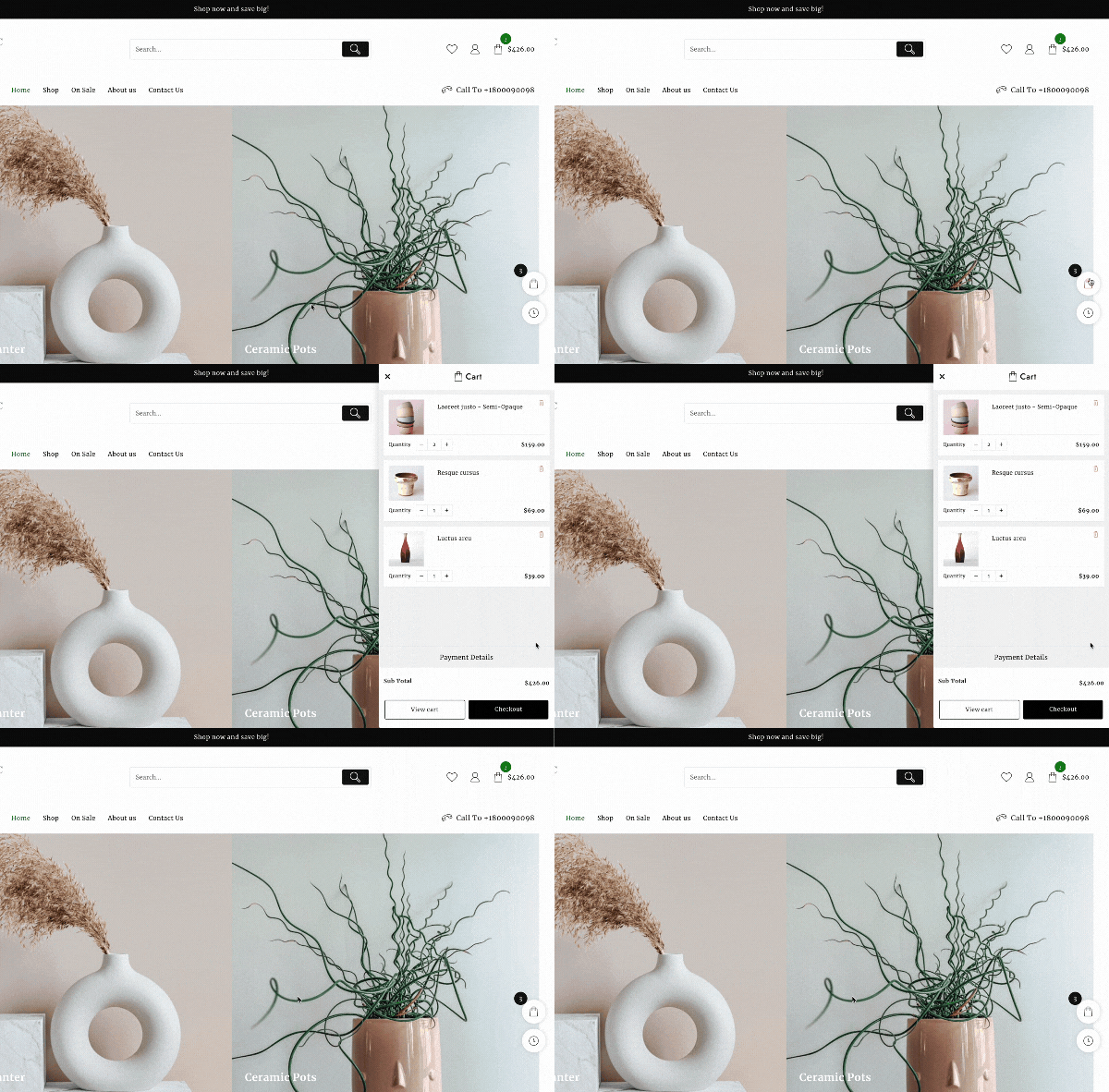
It supports multiple shopping cart layouts and is designed to provide users with various options for displaying their online store’s shopping cart.
Users can choose from different cart designs and layouts, including floating carts, sidebars, and dropdown menu carts.
Additional Features
- Quick Shop Option: Allow customers to add items to their cart directly from the homepage.
- Advance Product Slider: Showcase WooCommerce products in a sleek, responsive slider, enhancing the shopping experience with easy product browsing.
- Product Category Slider: Organize product categories in a responsive slider, helping visitors quickly find the products they’re interested in.
- Product Compare: You can add a product compare functionality on your website with an inbuilt compare option using the ThemeHunk Compare Plugin.
- Woo Coupon: Encourage sales by displaying attractive, easy-to-redeem WooCommerce coupons directly on your website.
- Add to Cart: For a shopping experience with a customizable “Add to Cart” button that fits seamlessly into your product or any page.
- Wishlist Functionality: Enable customers to save their favourite products for future purchases.
- Social Media Integration: Add clickable icons linking to your Instagram, Pinterest, or Facebook pages to boost engagement.
How to Install the Ceramic Shop Template with One Click
Setting up a Ceramic Shop template for your WordPress website is easier than ever with a one-click demo import.
Following these steps, you can quickly install a professional and attractive design for your store without coding skills.
Download and Install the Theme
You need to install the Shop Mania theme before importing the demo template for the website.
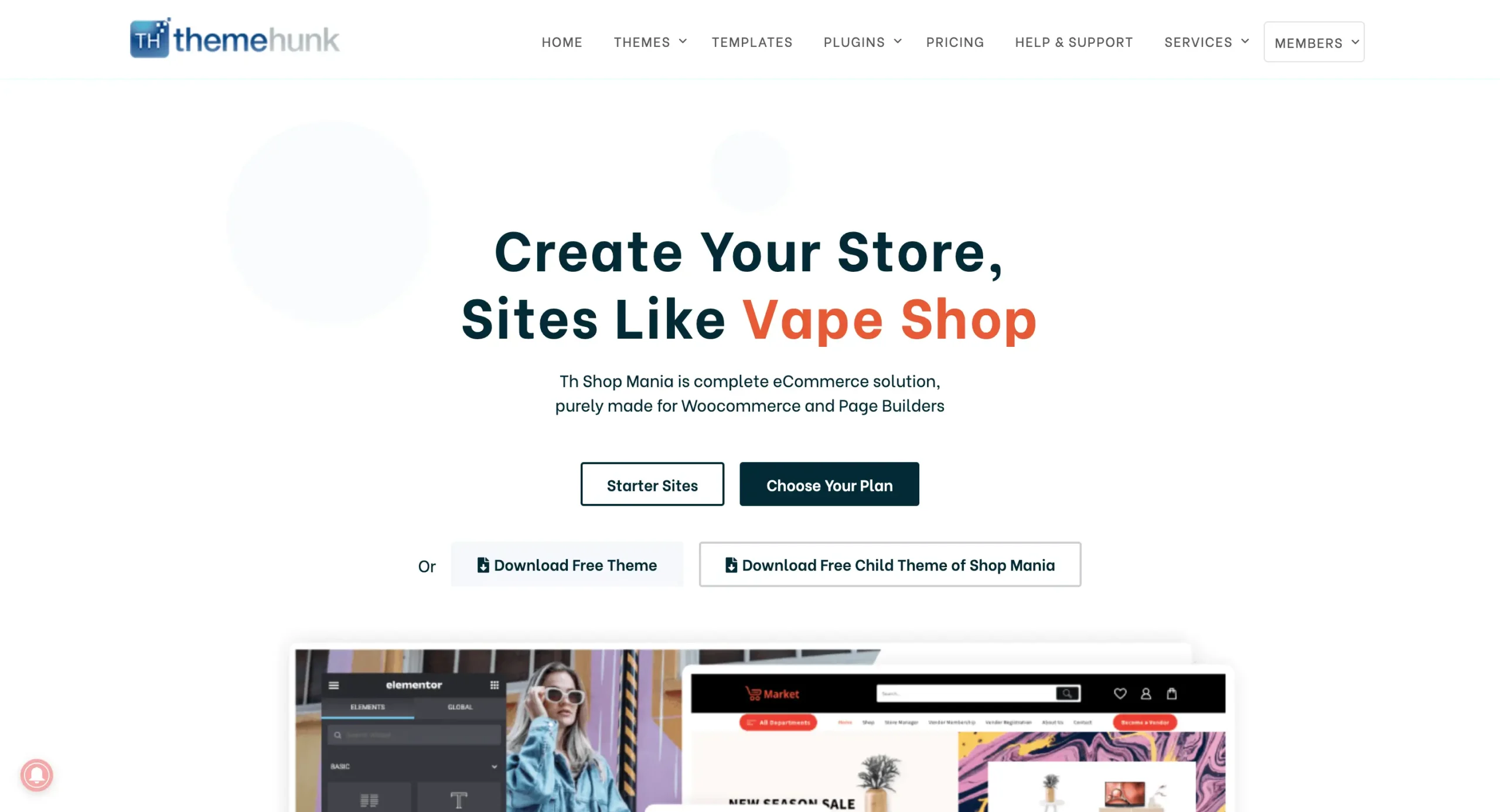
Purchase and Download the Shop Mania Theme from the below link
Download the Pro Version from the Members area
After purchasing the theme, you will see the member’s area dashboard. From here, you can download the Shop Mania Pro plugin.
You can log in to your >> Member’s area from here

Install Pro Plugin
Now open your dashboard again, and Go to Plugins and click on Add New Plugin

Click on Upload Plugin in the top right corner, as shown in the image below.
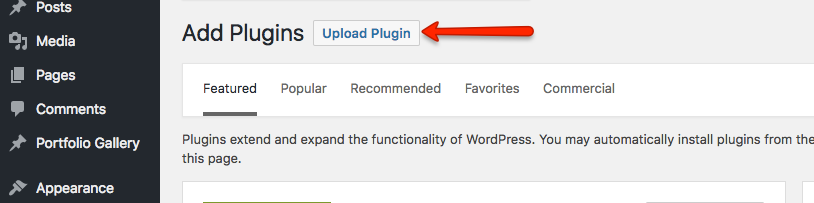
Upload the Shop Mania Pro plugin here, and click on Install Now
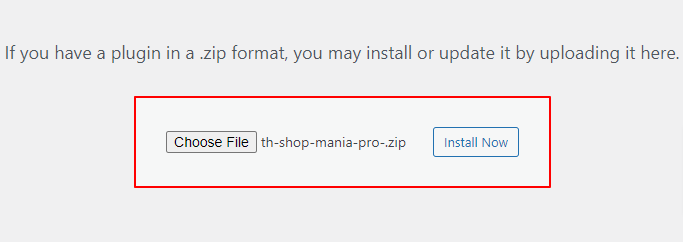
Click on the Activate Plugin

Generate & Activate Your License
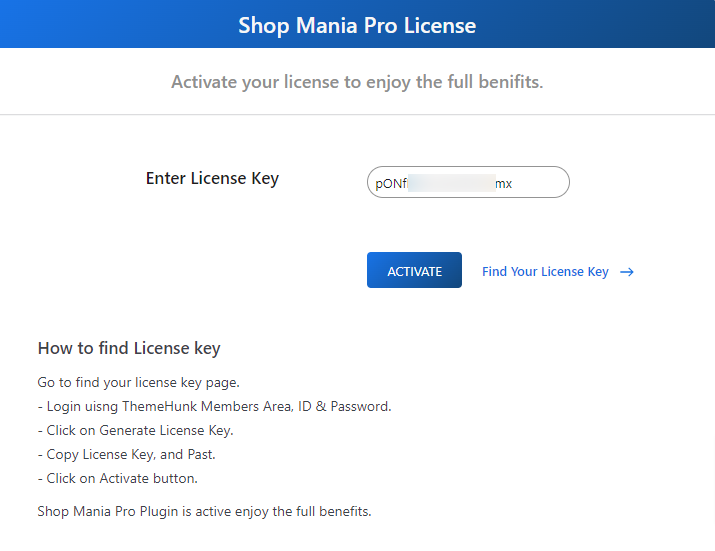
Now you need to activate your license to use the full features of the theme.
Go to Appearance and click on License
You can find the license from the >> license page here

Click on Find My License Key to get your license key.

Login using the Member’s area ID and password, to generate your license key.

Now you will see your license key, click on Copy to copy the license key.
Paste the License Key into the box, click on Activate, and the license will be activated.
Import Ceramic Shop Template
Go to Appearance and Click on Demo Import Sites.
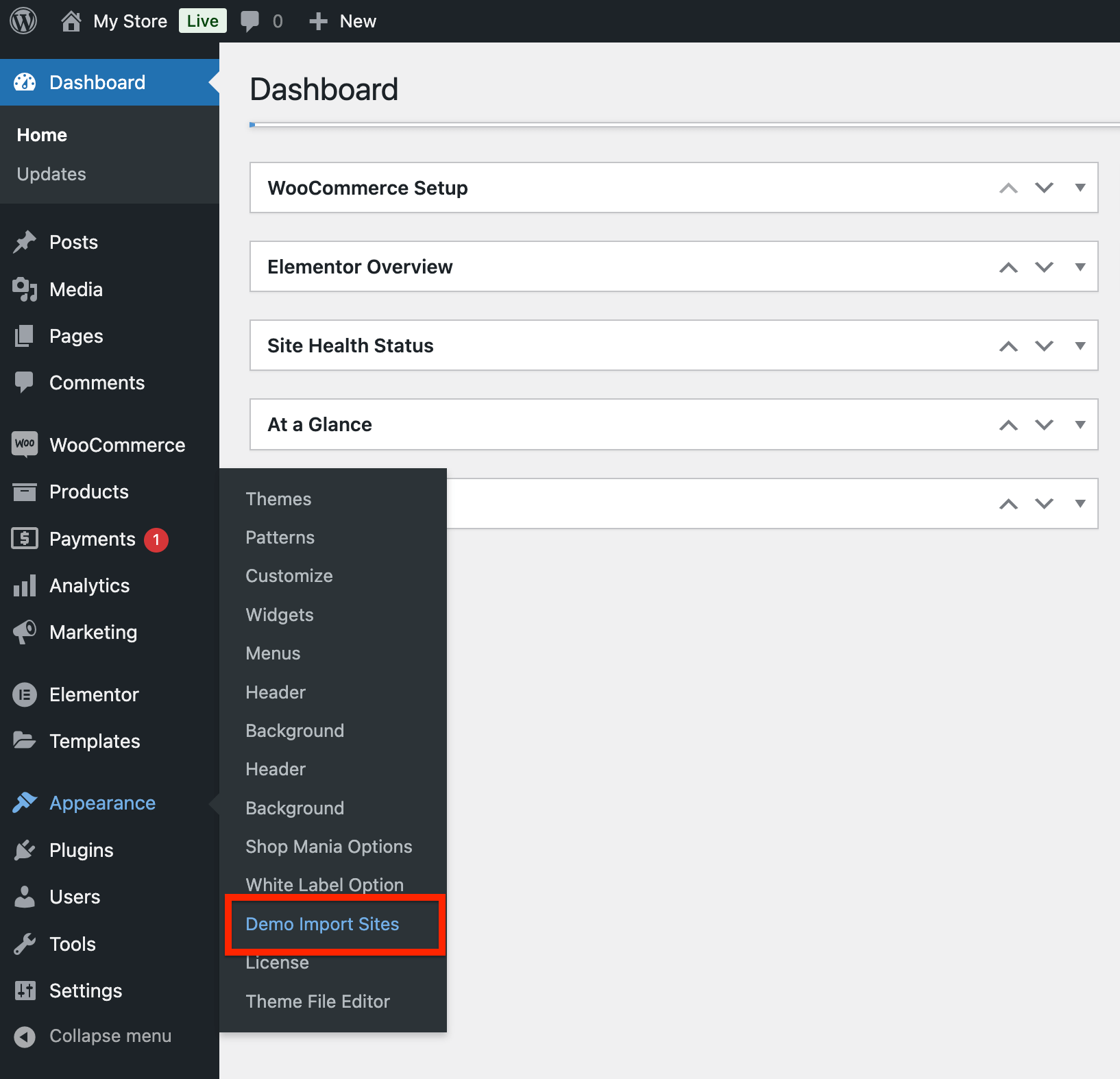
When you click on Demo Import Sites, you will be now on the new page.
Here you will see a dashboard and a button with View All Starter SItes, click on this button.

Now you will see many demo sites here. So we’re going to install the Ceramic Shop template. You can see this template on the list.
Click on the Ceramic Shop template
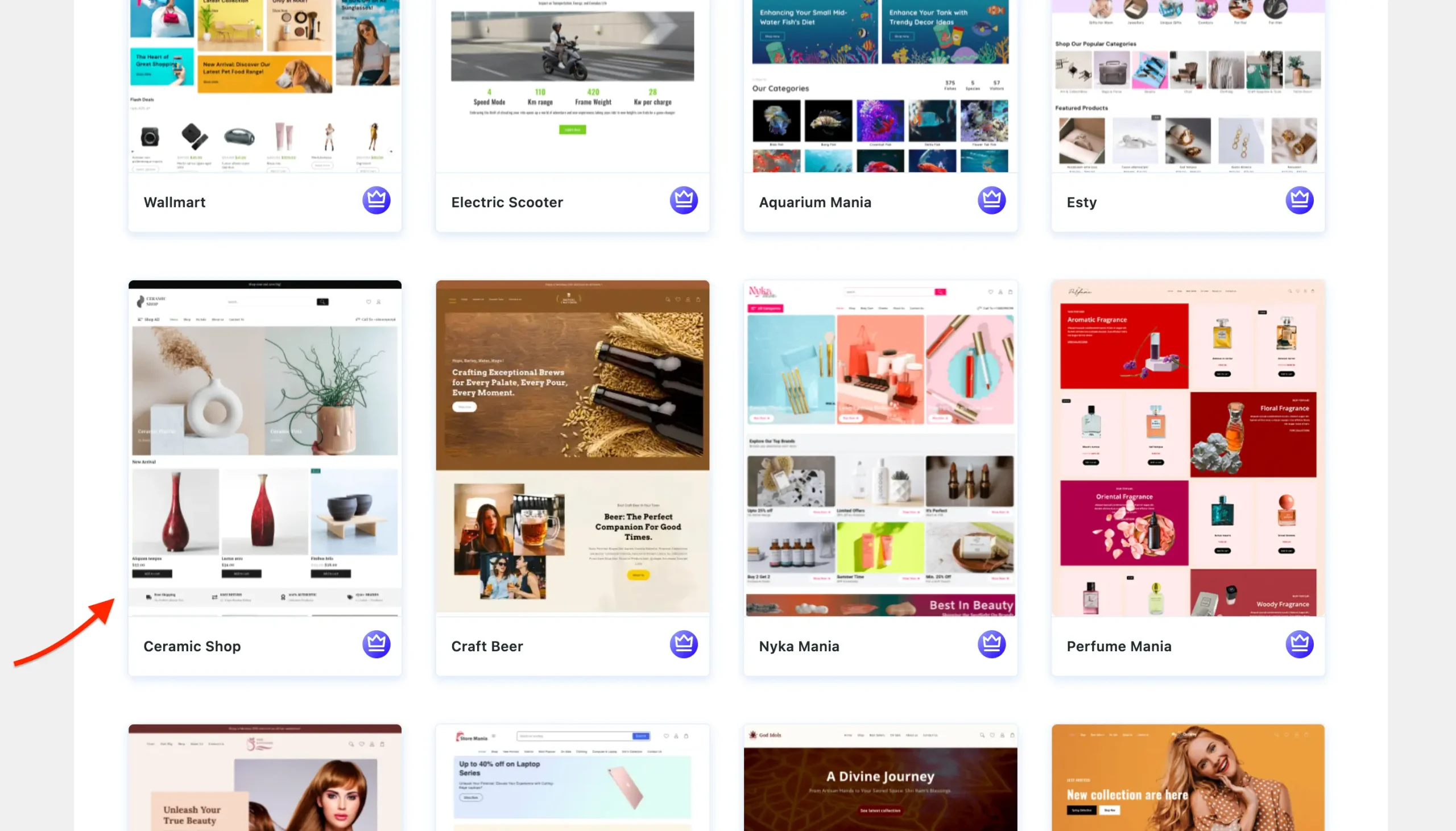
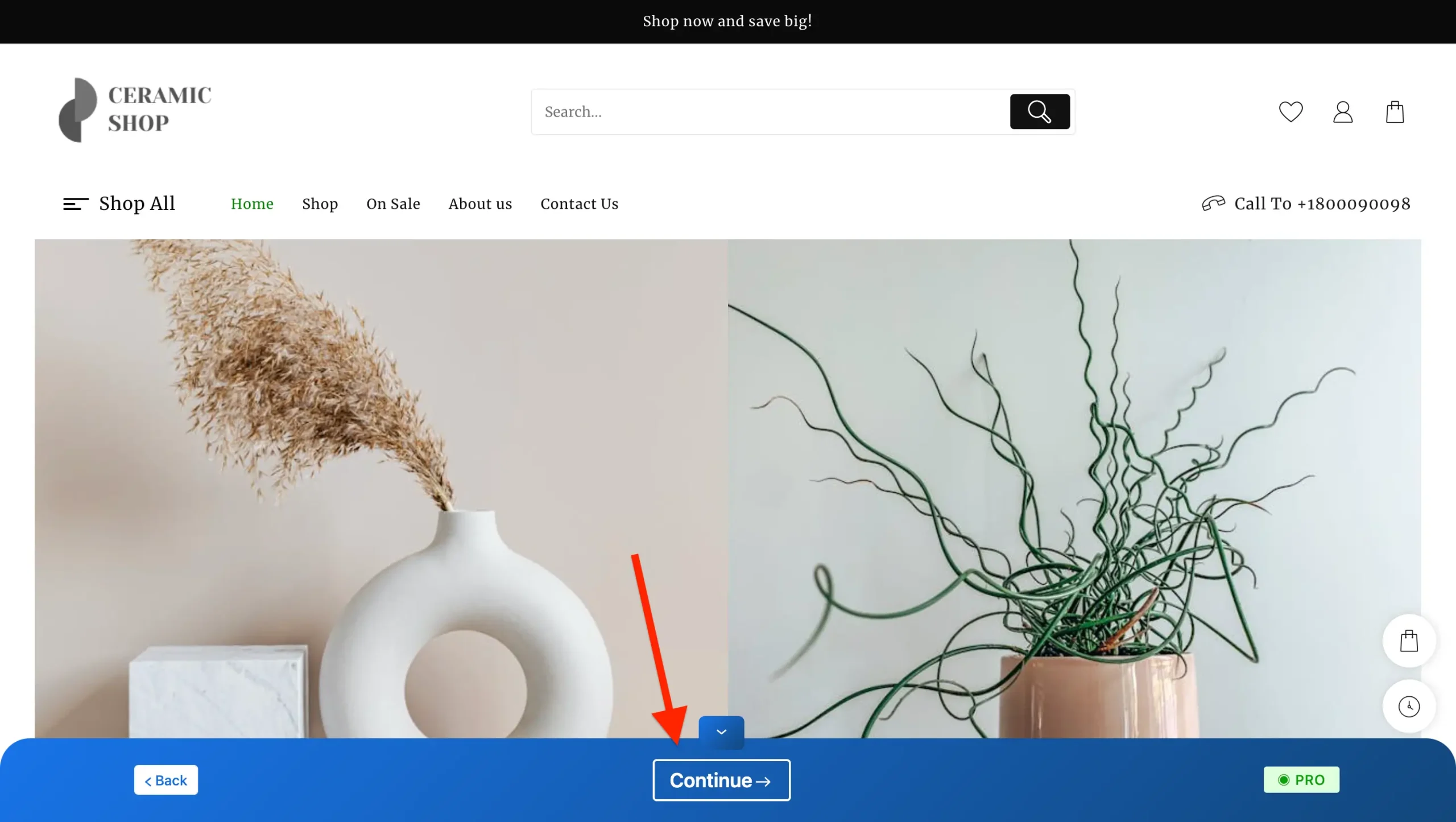
Now you will see a full-page preview of the template to make sure you have selected the right template.
Now click on the Continue button to proceed further.
On the next step click on the Build My Website button, as you can see on the below screenshot.
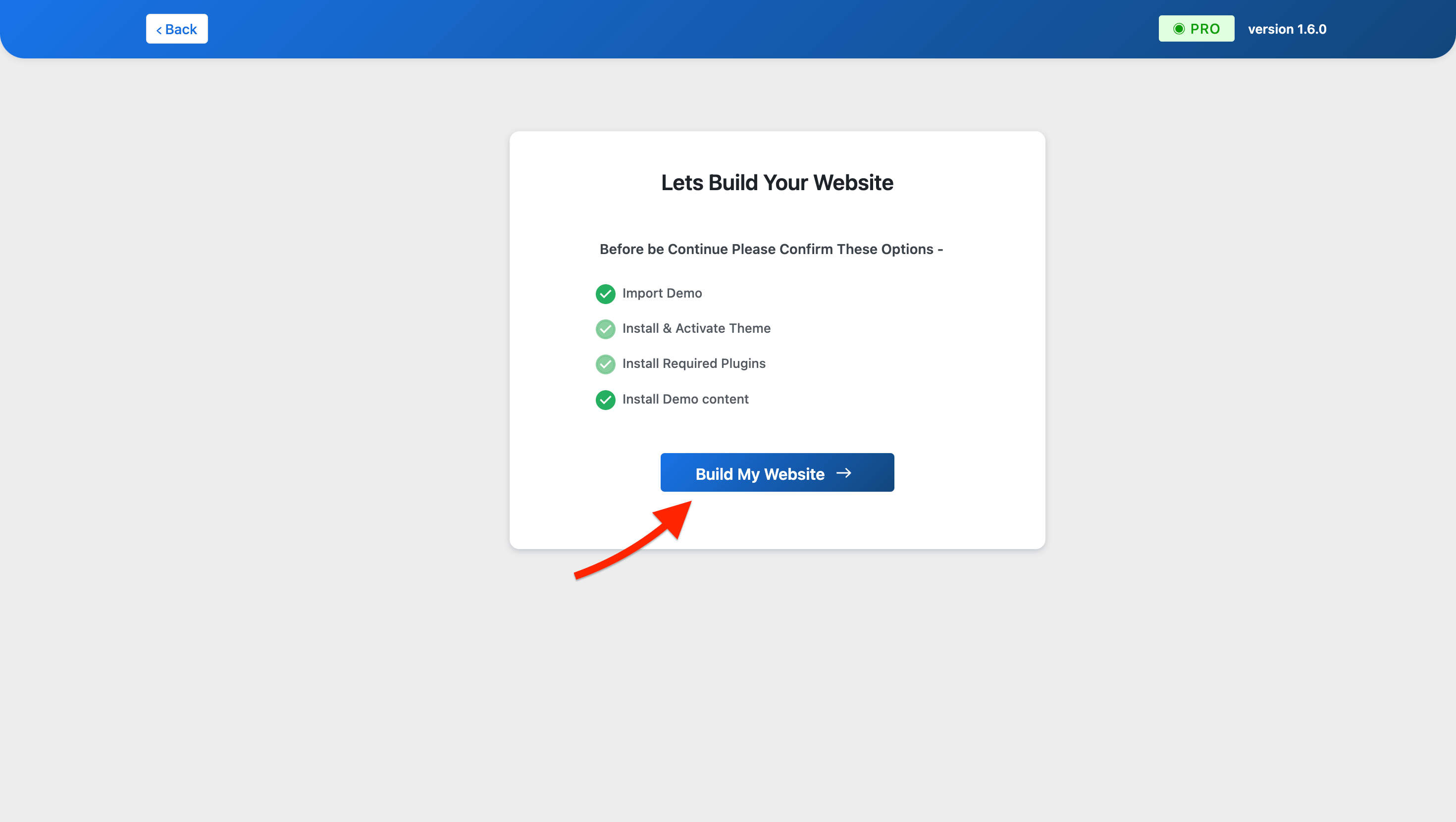
Now wait a few seconds and your website will be imported.
Note: Don’t exit or close the page while the demo template is being imported. This may cause some problems.
After the demo is imported, you can now see or edit your website.
To see your website click on the View Website button, and If you want to edit your site you can click on the Customize button.
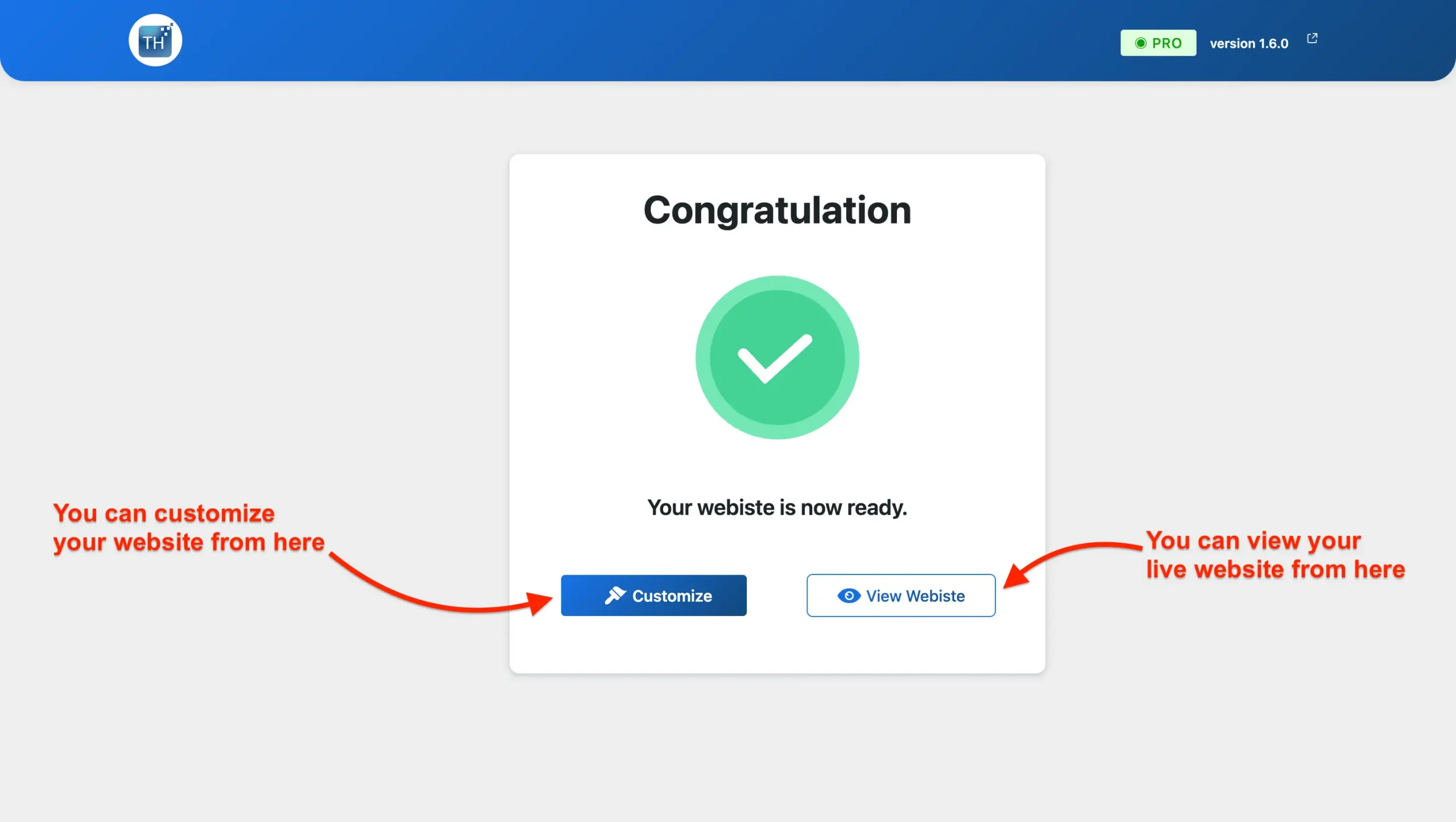
Now your website is ready. You can see your live website on your devices. It was so easy to import the Ceramic Shop website template.
Customizing or Modifying the Ceramic Shop Template
Customizing or modifying the ceramic shop template in Elementor is a straightforward process, thanks to its intuitive drag-and-drop interface.
Below is a step-by-step guide to help you get started:
Go to your website’s homepage and here you can see the Edit with Elementor option, as you can see on the screenshot below.
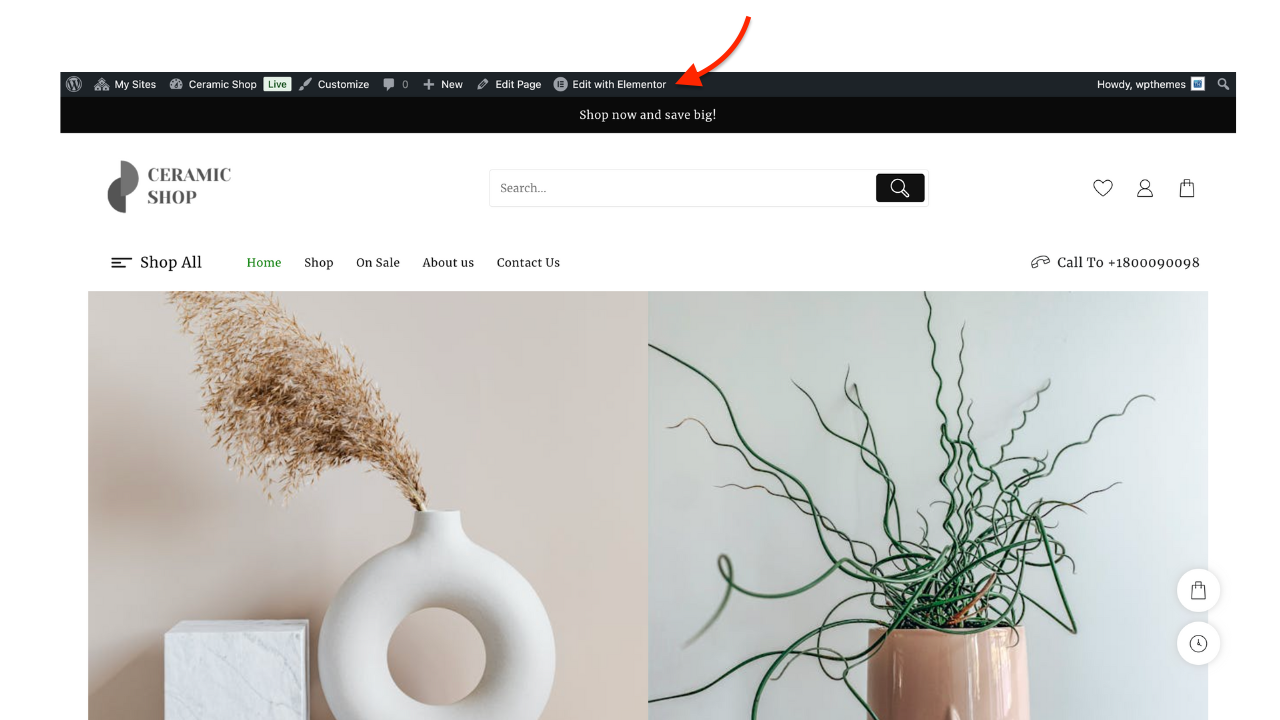
Editing any section in Elementor is quick and easy, and it allows you to modify content, structure, and design elements directly.
Whether you’re editing text, images, buttons, or layout settings, Elementor’s drag-and-drop interface makes it simple.
You can add or delete any section on your site very easily. You can also add your custom sections anywhere on your page.

By following these steps, you can effectively customize your homepage to reflect the unique style and offerings of your ceramic shop.
With Elementor’s user-friendly tools, you have the freedom to experiment with different layouts, designs, and content until it feels just right.
Add Product to Your Website
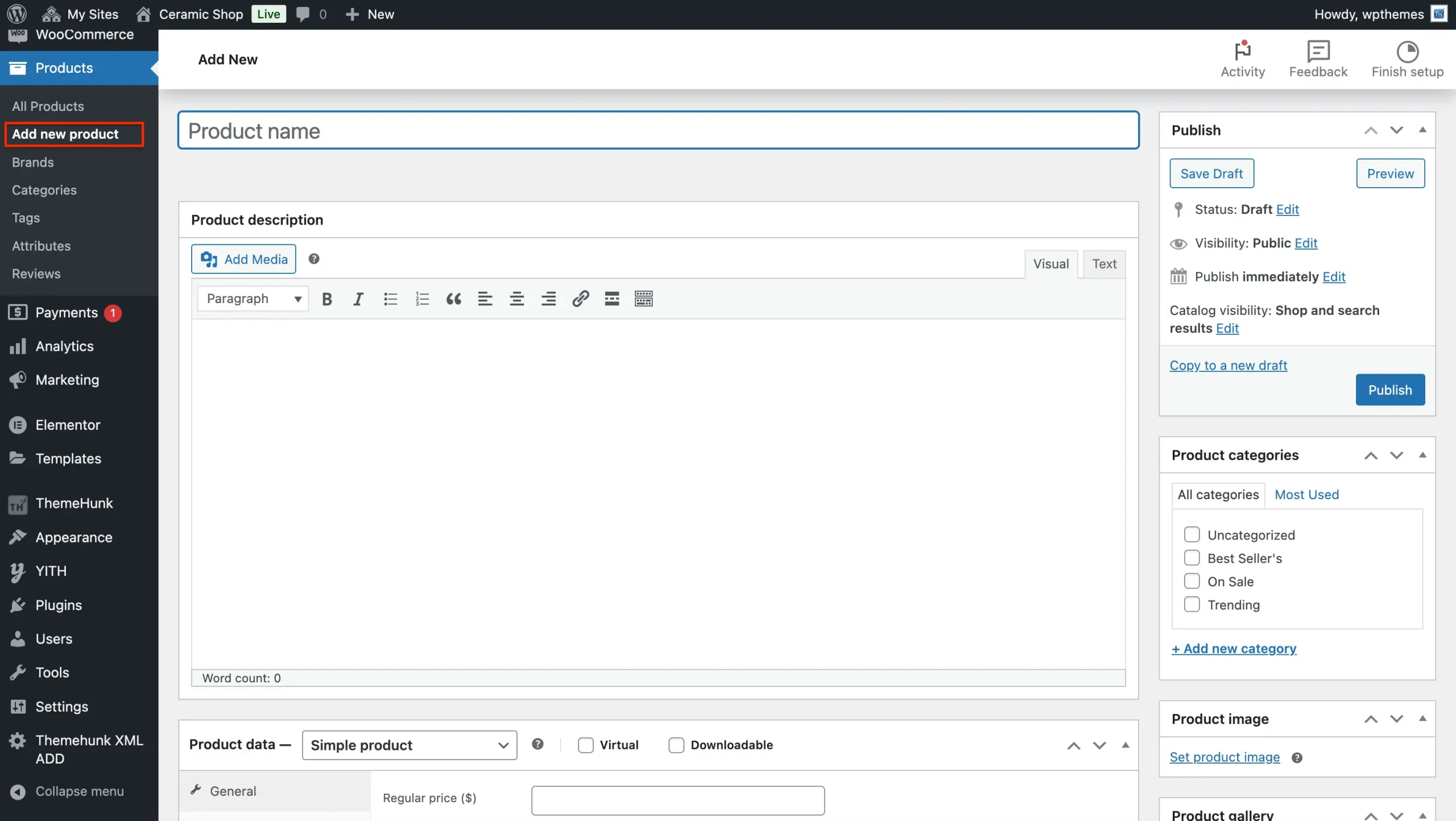
Adding a product to your WooCommerce store is a straightforward process. Here’s a step-by-step guide to help you through it:
Navigate to WooCommerce Products On the left-hand sidebar, hover over “Products” and click on “Add New”.
Add Product Title, In the Product Name field at the top, enter the name of the product.
Below the title, you will see the Product Description box. Here you can add a detailed description of your product.
Set Product Type
Scroll down to the Product Data section. Here you can set different product types, such as:
- Simple Product: A basic product with no variations.
- Grouped Product: A collection of simple products.
- External/Affiliate Product: A product that links to an external website.
- Variable Product: A product with multiple variations (e.g., size, color).
Pricing and Inventory
- Regular Price: Enter the standard price of your product.
- Sale Price: If you have a discount, enter the sale price here.
Product Images
- On the right side, you’ll see a section called Product Image. Click Set product image to upload a main product image.
- Below this, you can also add Product Gallery Images. These are additional images that customers will see in the product gallery.
Set Categories and Tags
- Under the Product Categories section on the right, select or create a category for your product. Categories help organize your store.
- In the Product Tags field, add relevant tags (e.g., “blue jeans,” “casual shoes”) to help with product searchability.
Publish the Product
Once you’re satisfied with all the product details, click the Publish button on the right-hand side to make the product live on your store.
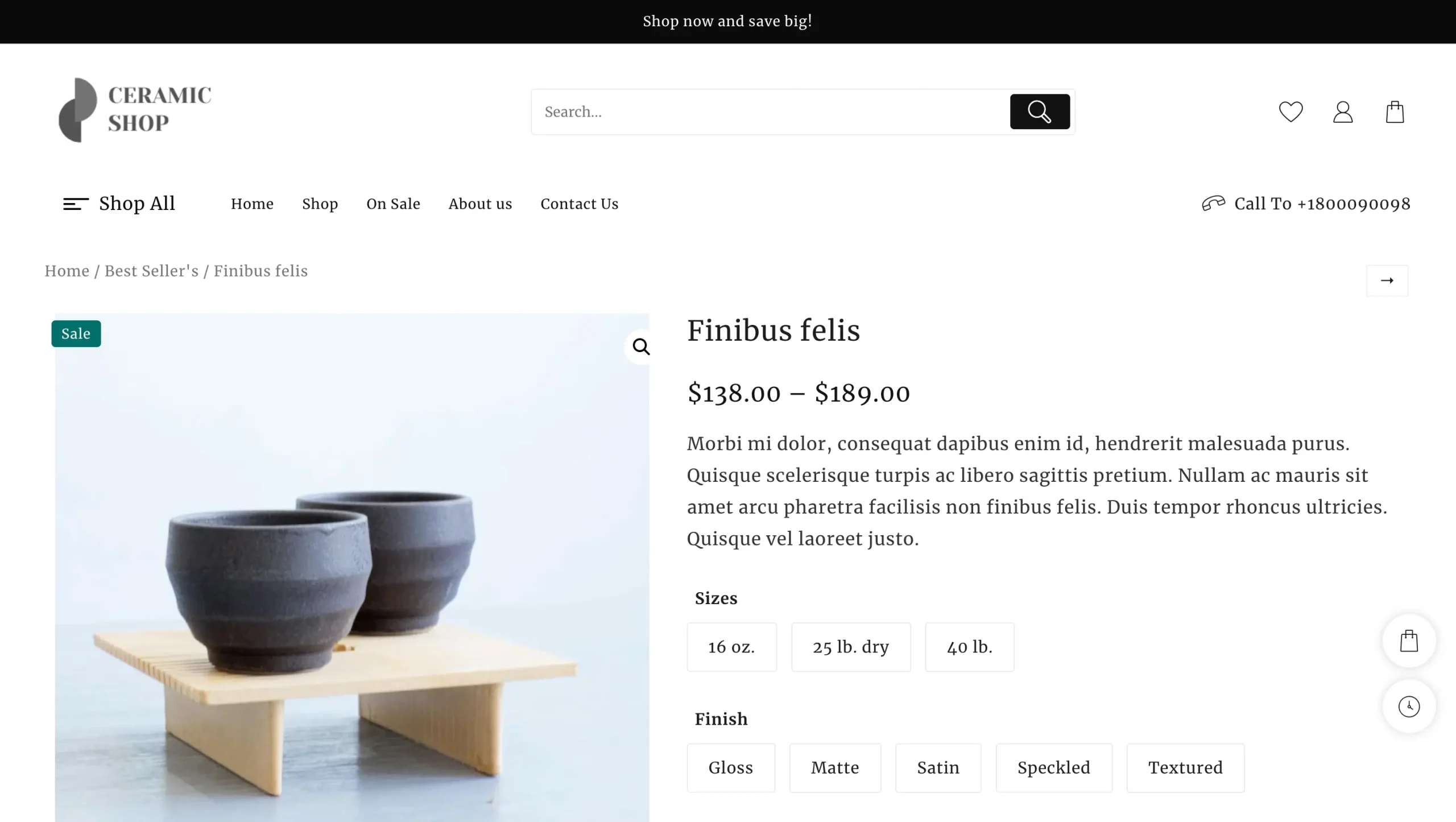
This is how your product will look on your Ceramic Shop website.
You can preview and if you want any changes, you can edit them by clicking on the Edit Product option.
Tips for Optimizing Your Ceramic Shop Website for Better Conversions
After launching your ceramic shop website, it’s essential to focus on converting visitors into paying customers. Here are some optimization tips that can help:
- Product Page Optimization: Each product should have high-quality images, a clear and compelling description, and important details like dimensions, material, and care instructions. Adding customer reviews and testimonials can build credibility and influence purchasing decisions.
- Use Call-to-Actions (CTAs): Make sure your CTAs are visible and persuasive. For example, “Add to Cart,” “Shop Now,” and “Get 10% Off Today” should be strategically placed and stand out on the page.
- Reduce Checkout Friction: Simplify your checkout process to avoid cart abandonment. Offer guest checkout options and provide multiple payment methods (credit cards, PayPal, etc.).
- Offer Free Shipping or Discounts: Free shipping is a major incentive for online shoppers. You can promote this on your homepage and product pages. Discounts like “Buy One, Get One 20% Off” or “Free Shipping on Orders Above $50” can encourage customers to make a purchase.
- A/B Testing: Regularly test different versions of your product pages, CTAs, and checkout processes to determine what works best. Small tweaks can significantly impact conversion rates.
Essential Tools and Plugins to Enhance Your Ceramic Shop’s Functionality
To provide the best experience for your customers, consider adding the following tools and plugins to your WooCommerce site:
- Live Product Search: Enhance the search experience by providing real-time, predictive search results for customers, allowing them to find the products they’re looking for quickly and easily.
- Woo Cart Pro: Improve the shopping cart experience with advanced features like sticky carts, Ajax updates, and custom cart designs, making it easier for customers to manage their orders while shopping.
- Product Compare: This plugin enables customers to compare different ceramic products side by side, helping them make informed purchasing decisions.
- Rank Math: This SEO plugin helps you optimize your content for search engines, improving your website’s visibility and search engine ranking.
- WooCommerce Product Add-Ons: If you offer customizations (e.g., custom glazing or engraving), this plugin allows you to add extra options to your product pages, helping customers personalize their items.
- WooCommerce PDF Invoices & Packing Slips: Automate the process of sending invoices and packing slips to your customers after they place an order, which improves the customer experience.
- LiveChat: Add a live chat feature to help customers with any inquiries they have while shopping. Providing instant support improves customer satisfaction and conversion rates.
Final Thoughts
In today’s competitive market, a professional and functional website is essential for the success of any business, including ceramic shops.
The Ceramic Shop template from the Shop Mania WordPress theme is an excellent solution for ceramic business owners looking to build an attractive, user-friendly, and responsive online store with minimal effort.
With its one-click installation, modern design, WooCommerce integration, and powerful features, this template makes it easy to showcase your products and create an engaging shopping experience for customers.
Whether you’re selling pottery, tiles, or ceramic homeware, the Ceramic Shop template offers everything you need to start selling online successfully.
FAQ’s
Q. Does the template support WooCommerce?
Ans: Yes, the Ceramic Shop Template fully integrates with WooCommerce, allowing you to manage inventory, process payments, and track orders seamlessly.
Q. Can I customize the Ceramic Shop Template?
Ans: Yes, the template is highly customizable. You can adjust the colors, fonts, and layout using the Elementor page builder to match your brand’s style and offerings.
Q. Is SEO optimization included in the template?
Ans: es, the Ceramic Shop Template is built with SEO-friendly practices, which helps your website rank higher on search engines, attracting more organic traffic.
Q. Is there support available for the template?
Ans: Yes, after purchasing the Shop Mania theme, you’ll receive access to support for any installation or customization issues you may encounter.


