
There are various ways to add ads.txt file in WordPress. In this WordPress tutorial, we will add an ads.txt file in WordPress with a plugin and without the plugin. You can opt for whichever you find suitable.
The ads.txt file does multiple works. It is created by the IAB Tech Lab to tackle specific forms of ad fraud, particularly domain spoofing and fake inventory arbitrage, while also offering clarity in an industry known for its lack of transparency.
This initiative helps brands and advertisers buy genuine digital media with assurance and makes it more difficult for scammers to earn money from selling inventory that is not their own.
It also helps to increase the ad revenue of the website along with digital security. Ultimately, it increases your earnings.
Adding ads.txt helps you fight various problems.
How To Add ads.txt File In WordPress
Add ads.txt File In WordPress (With Plugin)
Let’s add an ads.txt file in WordPress with the help of a Plugin. In this method, we will use the Ads.txt Manager plugin.
Open your Dashboard

Step 1) Navigate to Plugins and click on Add New Plugin

To install a plugin. Hover the cursor on Plugins and click on Add New Plugin.
Step 2) Search add.txt in the Search Bar

Go to the search bar and search ads.txt. Find the Ads.txt Manager and click on Install Now. After Installation click on Activate.
Step 3) Navigate to Settings and click on Ads.txt

To open the ads.txt settings, you need to hover your cursor on settings and click on Ads.txt.
Step 4) Enter The Certification Authority ID AKA ads.txt Code

Enter the Certification Authority ID or ads.txt code in the box and click on Save Changes. This will create the ads.txt file.
After creating the file, you can check whether the file is created or not. You can search your URL followed by /ads.txt (https://.example.com/ads.txt)
Add ads.txt File In WordPress (Without Plugin)
To add an ads.txt file in WordPress we need to access the cPanel.
Step 1) Open your cPanel
Open the cPanel. If we have to add the ads.txt file then
Step 2) Copy the Certification Authority ID
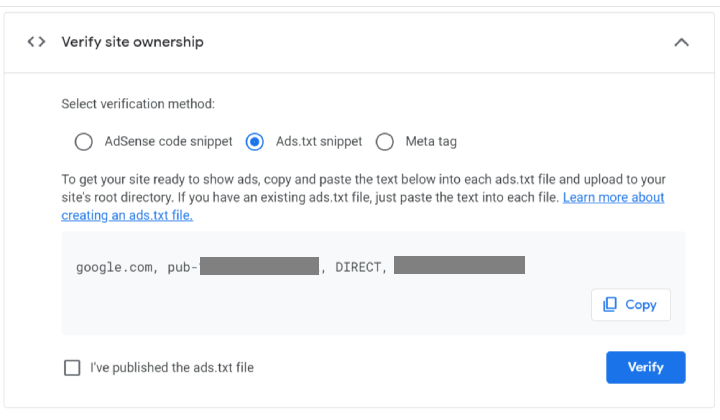
Click on the Copy button to copy the ads.txt code.
Step 3) Click on File Manager

You will find numerous files and other sections here. Click on File Manager.
Step 4) Find the public_html file and click on Upload

On the left side search the public_html folder and click on Upload.
Step 5) Upload the ads.txt

Upload the ads.txt file here.
The file is uploaded and showing here.
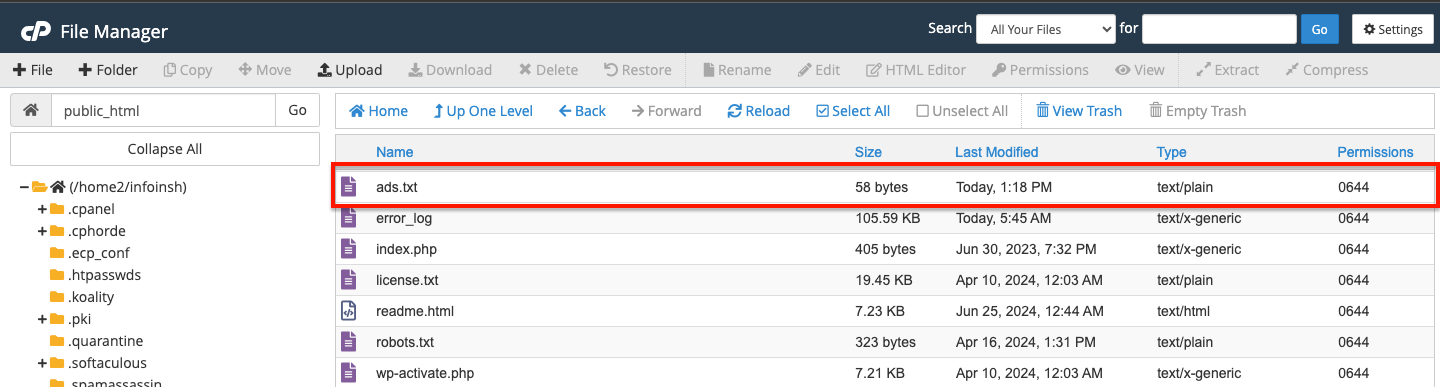
This is how we can add the ads.txt file in WordPress without a plugin.
FAQ
Q. What is ads.txt is used for?
Ans. There are various purposes for using ads.txt files. As the name signifies, it is used to show ads on the ads. It is also used as a safety measure.
Conclusion
So, we have seen two methods to add ads.txt files in WordPress. We did it with the help of a WordPress plugin and also without a plugin through cPanel.
We all know the importance of safety in this digital world. Various types of fraud occur in our day-to-day life.
So online safety is important. The ads.txt protects us from ad fraud along with increasing revenue through ads.
I hope this blog will help you. Still, if you have any queries or suggestions then let me know in the comment section.
You can Subscribe to our YouTube Channel, we also upload great content there, also Do Follow us on Facebook and Twitter.
See More


