
Are you looking to find out How to add Free Shipping to a Product? You’re definitely in the right spot! Let’s get started right away!
Free shipping is an effective strategy that can greatly influence your sales, as well as increase customer satisfaction.
It Makes a powerful incentive that not only attracts more buyers but also very importantly helps reduce cart abandonment rates.
Customers normally reconsider their purchases at checkout when they see unexpected shipping costs.
Through free shipping, you make it easier for a customer to get what he needs.
It can also give a strong competitive advantage over others in your market, offering free shipping.
As online shopping becomes more popular customers are more likely to choose a store that offers free shipping over one that doesn’t.
This increases brand loyalty, as the customers appreciate the value and convenience of free shipping.
Additionally, free shipping can add to the experience from the customer’s perspective.
How to Add Free Shipping to a Product on WooCommerce
Now, let’s get started with the step-by-step guide to enable free shipping in WooCommerce.
Step 1: Log in to Your WooCommerce Dashboard
Start by accessing your WordPress admin panel with credentials and navigating to WooCommerce.
Ensure you access your store so that you would be able to configure shipping options.
- Go to your WordPress Dashboard.
- Click on WooCommerce in the left-hand menu.
- Select Settings from the dropdown menu.
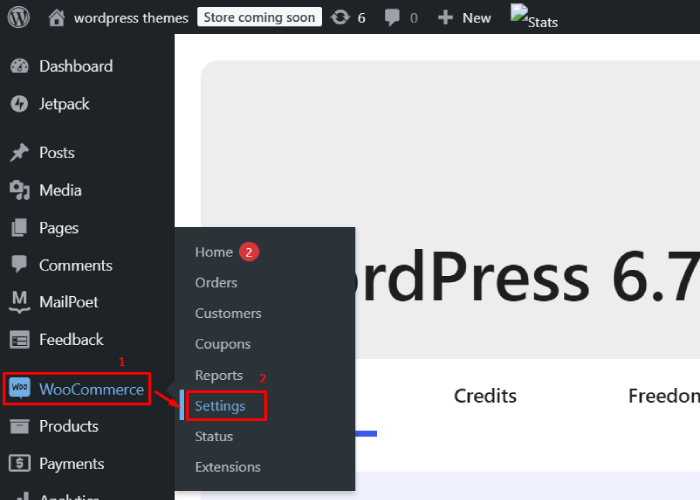
To access the settings in your WordPress site, start by navigating to your WordPress Dashboard. From there, look for WooCommerce in the left-hand menu and click on it.
This will open a dropdown menu, from which you can select Settings to manage your WooCommerce settings.
Step 2: Configure Shipping Zones
WooCommerce uses shipping zones to determine shipping rates based on a customer’s location.
You need to set it up within the appropriate shipping zone to offer free shipping.
- In the Settings tab, go to the Shipping section.
- Click on Shipping Zones.
- Select an existing shipping zone or create a new one by clicking Add Shipping Zone.
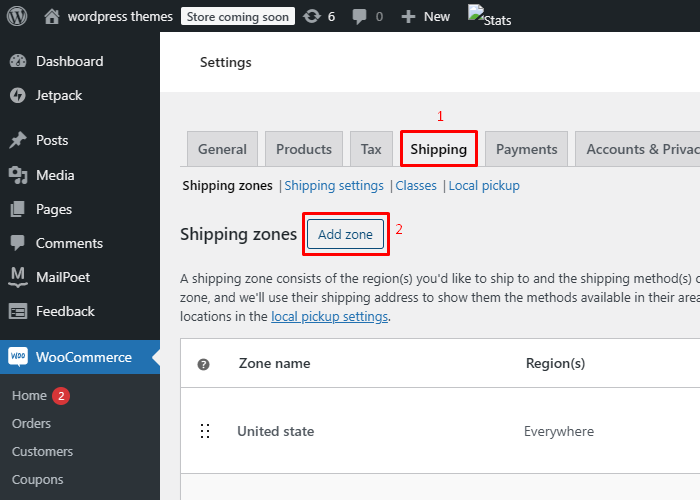
- Give your zone a name, add regions, and click Add Shipping Method.

Step 3: Add Free Shipping as a Shipping Method
Once you’ve created your shipping zone, you’ll need to add free shipping as a method.
- Under the Shipping Zone, click Add Shipping Method.
- From the dropdown menu, select Free Shipping.
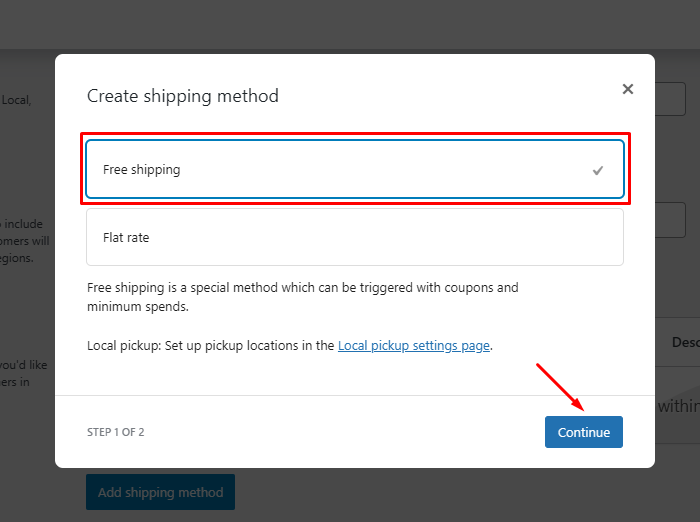
In the Shipping Zone section, start by clicking on Add Shipping Method. Then, select Free Shipping from the dropdown menu.
Set up Free Shipping in WooCommerce on a Single Product
To provide free shipping for specific products in WooCommerce, follow these steps:
Step 1: Creating the shipping class for free delivery
You can make a WooCommerce shipping class for free delivery by following the path: WooCommerce → Settings → Shipping.
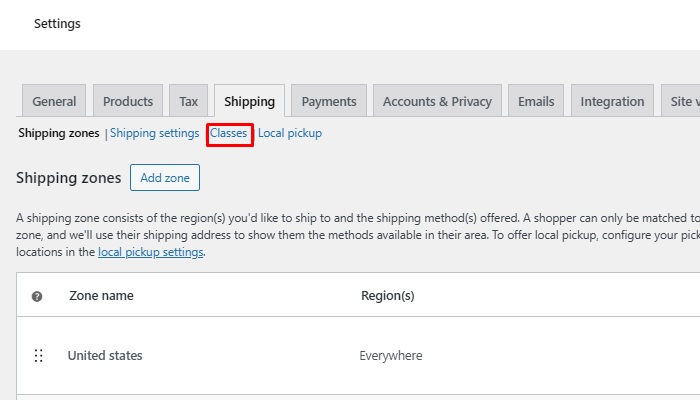
Move to the “Classes” option.
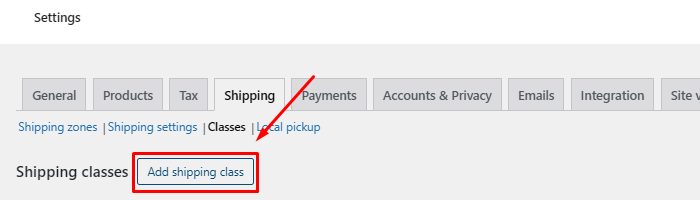
Click on the “Add Shipping Class” option.
Next, enter the shipping class title, slug, and description, then click on Create.

Step 2: Add a flat rate option to your shipping zone.
To set up shipping, create a shipping class, then add Flat Rate in your desired shipping zone by selecting “Add Shipping Method” and clicking “Continue.”
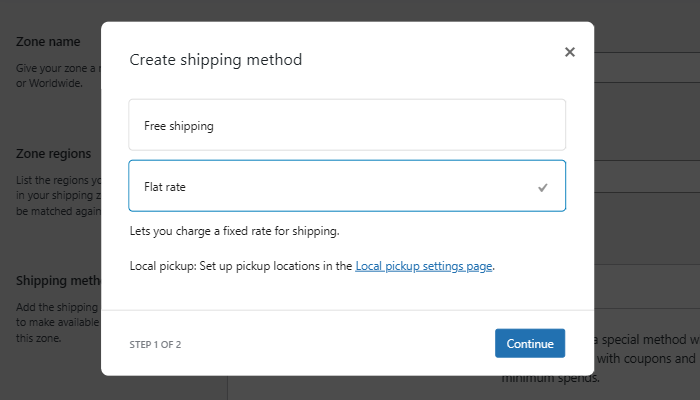
In addition, create another shipping class for the products that you will charge shipping on. We will add flat-rate shipping, but we’ll also offer free shipping for a single product.
To add flat-rate shipping, go to the shipping zone where you want the shipping to occur. Then click on “Add Shipping Method” select Flat Rate and then click on Continue.
Step 3: Set up the flat rate shipping method.
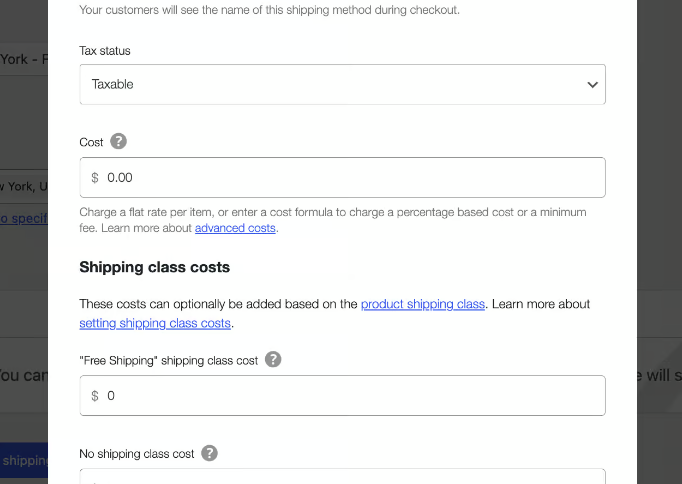
- Change the Title: Alter the title for the shipping method.
- Set Tax Status: Choose the appropriate tax status.
- Configure Free Shipping: Set the cost for the “Free Shipping” class to 0.
- Enter Additional Charges: Specify shipping charges for other classes.
- Calculation Type: Select “Per class: Charge shipping for each shipping class individually.”
Step 4: Assign shipping class to the product
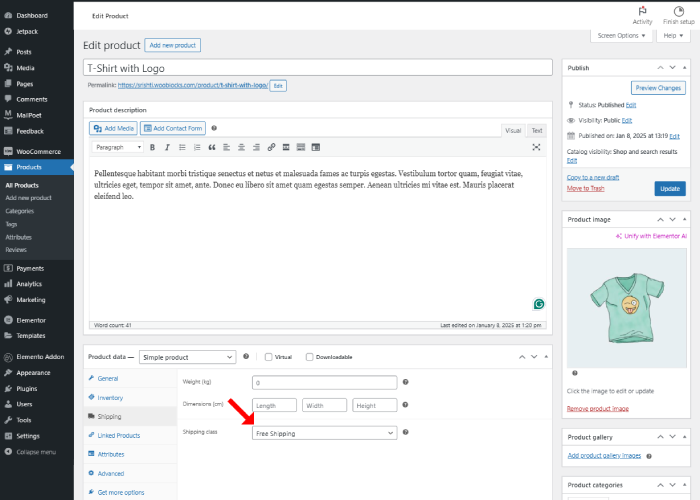
In the same way, assign the additional class to the products for which you intend to apply shipping charges.
Step 5: Execute a test order to verify free shipping on a single product.
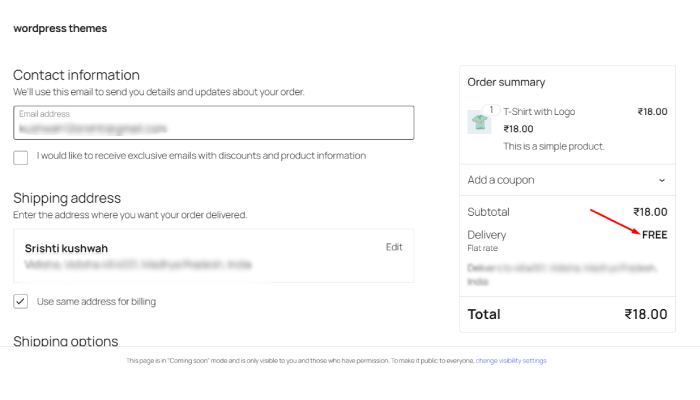
Test the process by ordering only the product assigned to that shipping zone.
Information: Shipping is free if you order only the free product designated for that shipping zone. However, if you include additional products in your order along with the free item, a shipping charge will apply.
FAQ
Q: Can I set free shipping for certain countries only?
Ans: Yes, in WooCommerce, you can configure shipping zones that will enable you to specify rules for various countries.
For example, create a shipping zone for the desired countries and then apply free shipping to that zone.
Q: Is it possible to offer free shipping for a limited time?
Ans: Absolutely! You can use WooCommerce’s built-in promotions or coupons to create temporary free shipping offers, or consider using a plugin that allows for scheduled shipping promotions.
Q: What if I want to offer free shipping for local customers only?
Ans: You can configure a local shipping zone in WooCommerce that offers free shipping to specific postal codes or regions while keeping standard rates for other customers.
Conclusion
This means you can include free shipping with your products in WooCommerce to increase the shopping experience of your customers and even push more sales.
In this tutorial, you’ll find a simple process for enabling free shipping in WooCommerce.
Lastly, don’t forget to keep track of your shipping strategy. Regular analysis ensures it remains consistent with your business objectives and what the customer really wants.
Free shipping can make your store more competitive and appealing, leading to greater customer satisfaction and loyalty.
I hope this article provides you with the correct guidance on how to add Free shipping to a product.
If you find this article helpful, please share it with your friends. If you have any questions, do not hesitate to comment below. We will help you solve your problem. Thanks for reading this blog.
Please Subscribe to our YouTube Channel, we also upload great content there and also Do Follow us on Facebook and Twitter
Check out more Articles:


