
Adding a grid product layout anywhere on your WooCommerce store can greatly enhance the user experience by making it easy for customers to browse and explore products across your website.
Whether you feature it on the homepage, product pages, or custom sections, the grid layout offers a streamlined way to display your products and boost visibility.
In this blog post, I’ll guide you through the steps to create and add a WooCommerce Product Grid to any page on your site.
Why Add a Grid Product in WooCommerce?
By default, WooCommerce displays grid products in the shop section, but adding a grid product to other parts of your website can boost engagement and drive conversions.
Placing this grid product on your homepage, landing pages, or blog posts makes it easier for visitors to discover and explore various grid products, encouraging them to browse and make purchases more efficiently.
How to Add a Grid Product in WooCommerce?
Adding a Grid Product is easy with the Elemento Addon for Elementor. This powerful tool allows you to create dynamic and engaging sliders for your WooCommerce store, enhancing product discovery and user experience.

About Elemento Addon for Elementor:
The Elemento Addon for Elementor is a versatile plugin to help you build beautiful and functional WooCommerce sections.
It offers a variety of widgets, including the Grid Product, allowing you to showcase the product anywhere on your site effortlessly.
How to add Grid Product in WooCommerce?
Step 1: Install and Activate WooCommerce & Elementor
Make sure that WooCommerce and Elementor are both installed and activated on your WordPress website.

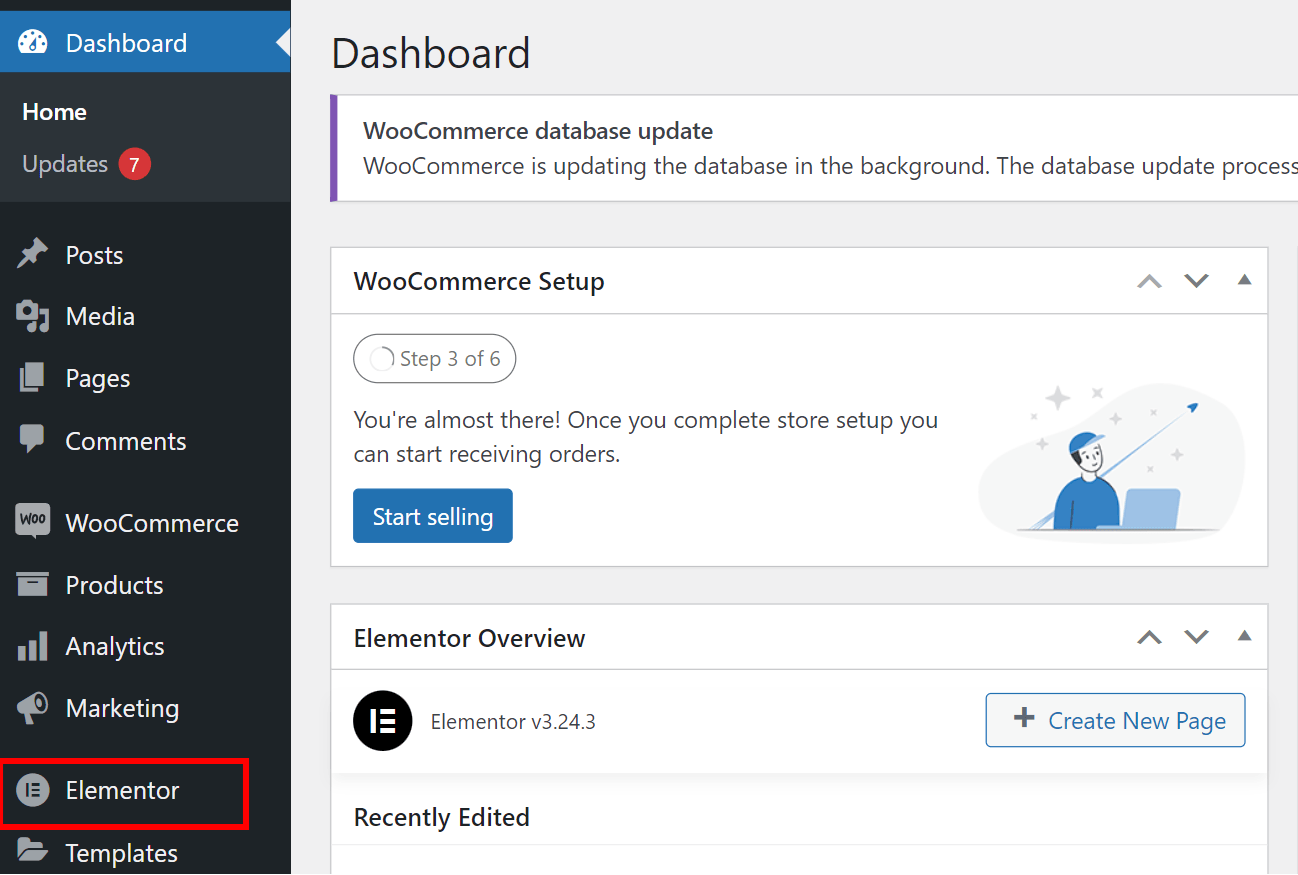
If you haven’t installed them yet, navigate to Plugins > Add New, search for “WooCommerce” or “Elementor,” and click Install Now followed by Activate.
Step 2: Install and Activate the Elemento Addons Plugin
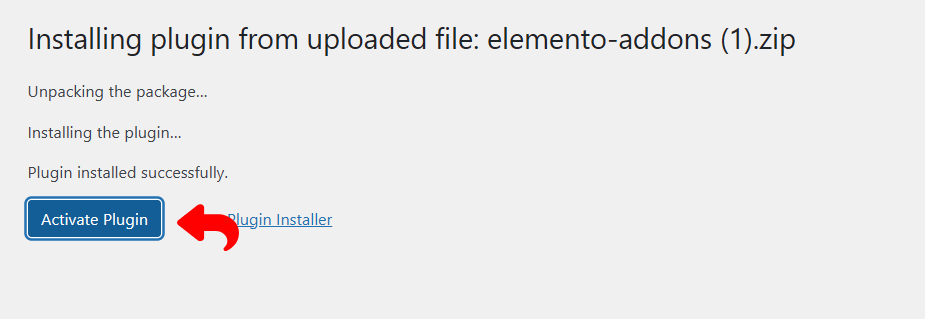
Download the Elemento Addons plugin from ThemeHunk.
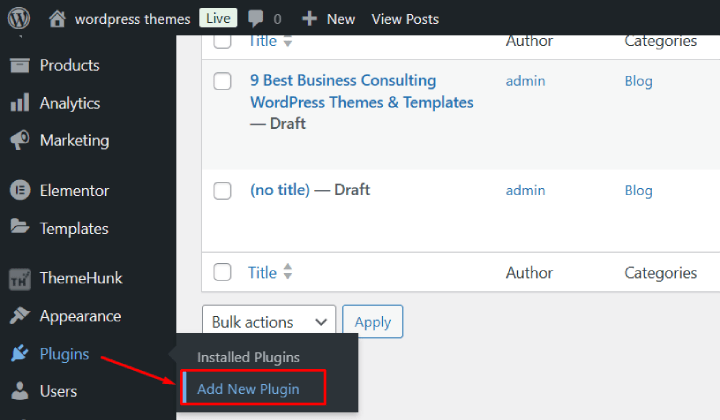
In your WordPress dashboard, go to Plugins > Add New.
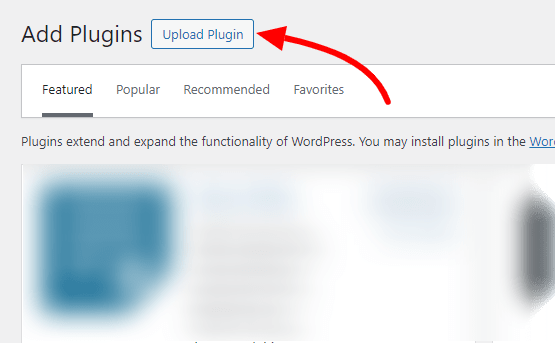
Click the Upload Plugin button, then select the downloaded zip file.
Step 3: Build a New Page Using Elementor

To create a new page, navigate to the Pages section and click Add New. If you need to make changes, you can also select an existing page to edit.
Additionally, you can seamlessly add a Grid product to any page to showcase your products in an organized layout.

Select ‘Edit with Elementor’ to launch the Elementor page builder.

On the left-hand side, you can find the panel where you can access the addon by scrolling down.
Step 5: Search & Add Grid product addon.

In the Elementor panel, search for “Grid Product” (this widget is available in Elemento Addons).
Drag and drop the Grid Product widget into the section you created.
Step 6: Customize the Grid Product.

Once the widget is added, you’ll see a range of customization options on the left panel.
In the Content tab, select the specific WooCommerce product categories you wish to showcase in the grid.
You can adjust the number of products displayed per row, modify layout settings, and tweak slider speed in the Layout, Number of products to show, Number of Columns, and Style tabs.
Step 7: Publish & Preview

After finalizing the setup, click Publish to go live.

The Grid product is now displayed on the newly created page.
FAQ:
Q: What is the benefit of using a product grid layout in WooCommerce?
Ans: A product grid layout improves product organization, making it easier for customers to browse and find what they are looking for. It also enhances the overall visual appeal of your store and can boost engagement, leading to increased sales.
Q: Is it possible to add a product grid to my homepage?
Ans: Absolutely! With the Elemento addon, you can easily add a product grid or any other product showcase element to your homepage by using the page builder interface.
Q: Can I customize the grid layout for mobile users?
Ans: Yes, Elementor allows you to fully customize the appearance of your product grid for different screen sizes, including mobile devices. You can adjust the number of columns, spacing, and layout specifically for mobile users.
Conclusion
Adding a grid product layout to your WooCommerce store is a great way to enhance the user experience, boost product visibility, and increase conversions.
With the Elementor Addon plugin, creating an engaging and visually appealing grid display is easy and efficient.
By showcasing your products in a structured grid format, you make it simpler for customers to browse your offerings, encouraging more interaction and driving sales on your website.
If this article was helpful, feel free to share it with others. Have any questions? Leave a comment below, and we’ll be happy to assist you. Thanks for reading!
Please Subscribe to our YouTube Channel, we also upload great content there and also Do Follow us on Facebook and Twitter
More Helpful Reads:


