
If you operate a WooCommerce store, you understand the impact of presenting and showcasing your products appealingly.
A product slider is one of the best ways to showcase your products. A product slider adds movement, making your site more dynamic and user-friendly.
And thanks to Elementor and the Elemento addons, adding a product slider has never been easier.
In this guide, we’ll explain how to create a WooCommerce product slider using the Elemento add-on.
Why Use a Product Slider?
Before we dive into the tutorial, let’s first understand why adding a product slider can be a game changer for your WooCommerce store:
Showcase Multiple Products:
It allows you to display several products without taking up too much space. Visitors can quickly browse through your offerings.
Highlight Featured Products:
You can use sliders to feature bestsellers, new arrivals, or discounted items, making it easier for customers to spot hot deals.
Enhanced User Experience:
Interactive elements like sliders keep users engaged, which can lead to longer browsing sessions and increased sales.
Responsive Design:
Most sliders, including the one you’ll create with Elemento, are mobile-responsive. This means your slider will look great on all devices, ensuring a seamless experience for every visitor.
Now that we understand the benefits, let’s begin by learning how to add a product slider using the Elemento Addon.
How to add Product Slider in Elementor for WooCommerce.
Step-by-Step Guide: Adding a Product Slider by using Elementor Addon
Step 1: Install Elementor and WooCommerce

- Go to your WordPress dashboard.
- Navigate to Plugins > Add New.
- Search for Elementor and WooCommerce in the plugin repository.
- Click Install and then Activate both plugins.
Step 2: Install the Elemento Addon
Download the Plugin: Visit the Elemento Addons Plugin page and download the plugin.

Go to your WordPress dashboard → Plugins → Add New → Upload Plugin.
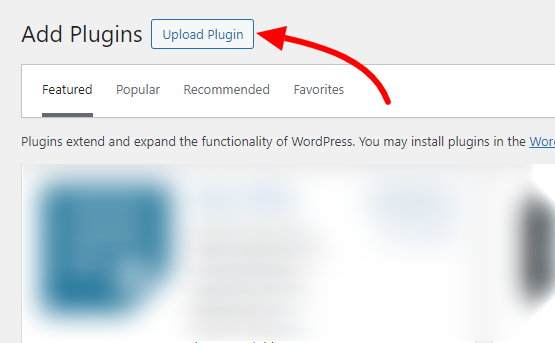
Upload the downloaded file and click “Install Now.”

Once installed, click “Activate” to enable the plugin.
To Install Elemento Addons please watch below video tutorial:
Step 3: Create or Edit a Page with Elementor:

Go to Pages > Add New if you’re starting fresh, or Edit an existing page or add a slider to any page as needed.

Click Edit with Elementor to launch the Elementor page builder.
Step 4: Search the Product slider widget in Elemento Addons.
Now it’s time to add the slider to your page using Elementor Addon.

In the Elementor editor, look for Elemento Addons widgets in the sidebar.

Drag and drop the WooCommerce Products slider widget anywhere on the page.
Step 5: Customize the Slider

After adding the slider to your page, customize it using the left-side settings panel to match your store’s design and functionality.
- Select Products
- Layout Options
- Style Customization
Step 6: Publish and Preview

When you’re satisfied with your slider’s settings and design, click Publish to make it live on your site.

You can also preview the page to see the slider in action.
FAQ
Q: What should I do if the Slider is not displaying correctly?
Ans: Clear cache, check for plugin conflicts, and ensure settings are configured correctly.
Q: How can I make my Product Slider responsive?
Ans: Use Elementor’s responsive settings to adjust the slider for different screen sizes.
Q: Do I need any specific plugins to add a Products Slider in Elementor?
Ans: Yes, Elementor Pro or third-party addons like Elemento Addon are recommended for advanced features.
Conclusion
Adding a product slider to your WooCommerce store is an excellent way to enhance user experience, highlight featured products, and increase engagement.
With the Elemento Addon for Elementor, you can easily create a visually appealing and highly functional products slider in just a few steps.
No coding is necessary, and customization options enable you to create a slider that seamlessly aligns with your website design and requirements.
If you find this article helpful, please share it with your friends. If you have any questions, do not hesitate to comment below. We will help you solve your problem. Thanks for reading this blog.
Please Subscribe to our YouTube Channel, we also upload great content there and also Do Follow us on Facebook and Twitter
Discover more Articles:


