
Managing the time and date settings on your WordPress website is essential for accurate content scheduling, event management, and the overall user experience.
Whether you’re running a blog, an e-commerce site, or a portfolio, ensuring your site’s time and date settings are correct can help keep everything running smoothly.
In this blog post, we’ll walk you through the steps to change or modify the time and date settings on your WordPress website.
Why Time and Date Settings Matter
Accurate time and date settings are crucial for several reasons:
- Content Scheduling: Schedule posts to go live at specific times.
- Event Management: Ensure event dates and times are correct.
- User Experience: Display the correct time zone for your audience.
- SEO: Ensure search engines see the correct publishing times.
Steps to Change Time and Date Settings
Step 1: Access Your WordPress Dashboard
First, log in to your WordPress admin area. This is where you’ll find all the settings and tools needed to manage your site.
Step 2: Navigate to the General Settings
Once you’re in the WordPress dashboard:
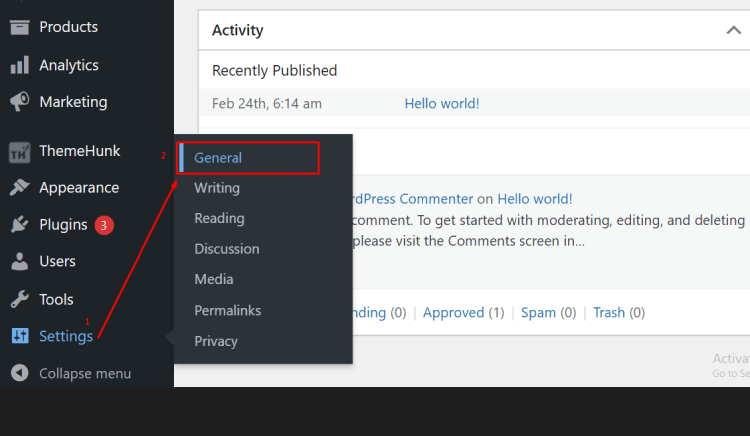
- In the left-hand menu, hover over “Settings.”
- Click on “General.”
This will take you to the General Settings page, where you can adjust various basic settings for your website, including time and date.
Step 3: Modify the Time Zone
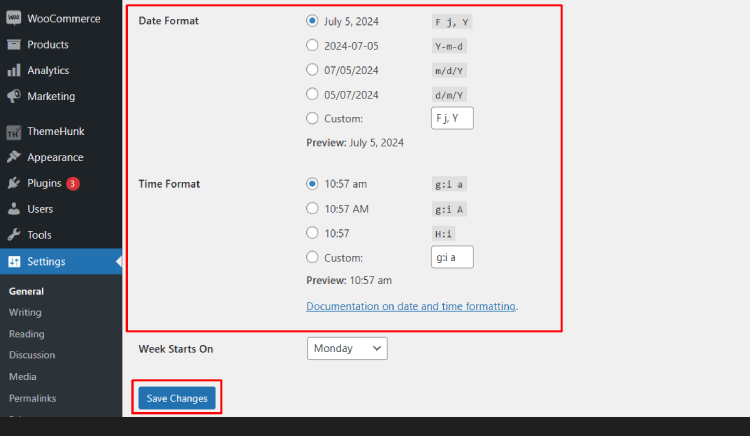
The time zone setting ensures that all timestamps on your site (such as when posts are published) reflect the correct local time.
- Scroll down to the “Time Zone” section.
- Click the dropdown menu to see a list of time zones.
- Select the city or time zone that matches your location.
Step 4: Adjust the Date and Time Format
WordPress allows you to customize how dates and times appear on your site.
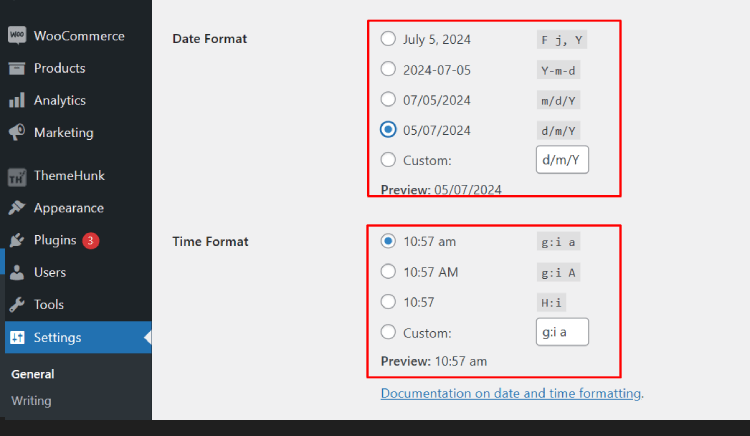
- In the “Date Format” section, choose from the predefined formats or enter a custom format. The letters in the format represent different parts of the date (e.g., “Y” for year, “M” for month).
For example, “F j, Y” will display as “July 5, 2024.
- In the “Time Format” section, select a predefined format or create a custom one.
For example, “ga” will display as “8:15 pm.
You can see a preview of how each format looks next to the selection options.
Step 5: Save Your Changes
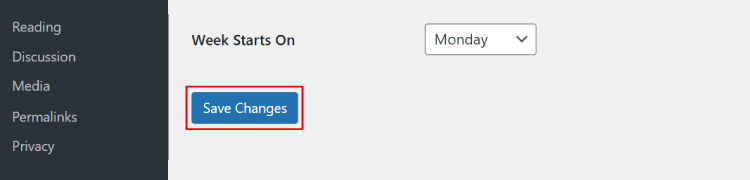
After making the desired adjustments:
- Scroll to the bottom of the page.
- Click the “Save Changes” button.
Your new time and date settings will now be applied across your WordPress site.
FAQ
Que: Can I schedule posts in WordPress to be published at a specific date and time?
Ans: Yes, you can schedule posts in WordPress to be published at a specific date and time. When creating or editing a post, you can set the desired date and time under the ‘Publish’ settings on the right side of the editor.
Que: Why is it important to have the correct time and date settings on my WordPress website?
Having the correct time and date settings is important for displaying accurate timestamps on your posts, comments, and other content. It also ensures that scheduled posts are published at the intended time.
Que: Is there a way to automatically adjust for daylight saving time in WordPress?
Ans: WordPress automatically adjusts for daylight saving time changes based on your selected timezone settings. However, it’s a good practice to double-check that your timezone settings are correct before daylight saving time transitions.
Conclusion
Accurate time and date settings are vital for the smooth operation of your WordPress site. By following these steps, you can easily change or modify these settings to suit your needs.
Whether you’re scheduling posts, managing events, or simply ensuring a seamless user experience, the correct time and date settings are essential.
Stay organized and keep your content timely with these straightforward adjustments!
If you find this article helpful, Feel free to share this blog post with your fellow WordPress enthusiasts, and let us know in the comments if you have any questions or additional tips!
We will help you solve your problem. Thanks for reading this blog.
Please Subscribe to our YouTube Channel, we also upload great content there Do Follow us on Instagram and Twitter.
Read more:


