
Are you frustrated with encountering the WordPress login error at your wp-admin?
Whether it’s an “Incorrect password,” “This site is experiencing technical difficulties,” or simply being unable to access the dashboard, login issues can be a major headache for site administrators.
But don’t worry! In this blog post, we’ll explore common causes of these issues and provide step-by-step solutions to get you back into your WordPress site swiftly.
Common Causes of Login Errors at wp-admin
Before diving into the fixes, it’s helpful to understand what might be causing your login issues. Here are some common culprits:
- Incorrect Credentials: This is the most straightforward issue, and a simple typo can lock you out.
- Plugins or Themes Conflicts: Sometimes, poorly coded plugins or themes can cause issues.
- Browser Cache or Cookies: An outdated cache or corrupted cookies can interfere with the login process.
- Corrupted .htaccess File: A misconfigured .htaccess file may create access problems.
- Locked Out by Security Plugins: Some security plugins might block your IP if you’ve tried to log in too many times unsuccessfully.
- Database Connection Issues: If your database credentials in the wp-config.php file are incorrect, you won’t be able to log in.
How to Fix WordPress Login Error at wp-admin
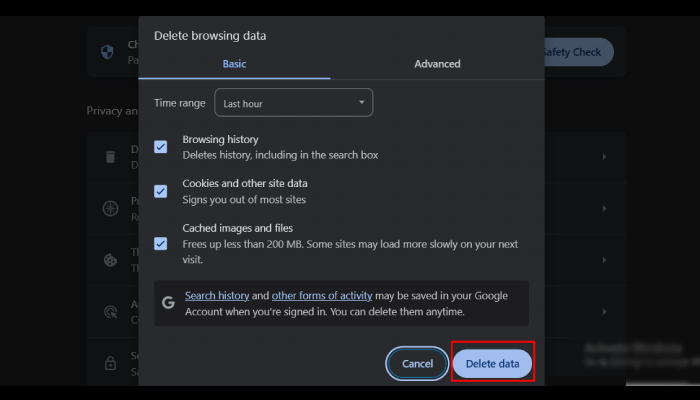
Clear Browser Cache and Cookies
Clear your browser’s cache and cookies to remove any outdated or corrupted data that may be causing the issue.
- How to Do It: Go to your browser settings, find the options for clearing browsing data, and select cookies and cached files.
Check Your Login URL
Ensure that you’re using the correct login URL. The default WordPress login URL is your domain.com/wp-admin.
- How to Do It: Type the URL directly into your browser’s address bar.

Deactivate Plugins via FTP or cPanel
Sometimes, plugins can conflict with the login process.
- How to Do It:
- Access your WordPress files via FTP or cPanel.
- Navigate to wp-content/plugins/.
- Rename the plugins folder to something like plugins_backup.
- Try logging in again. If it works, one of the plugins will cause the issue. Rename the folder back and deactivate plugins one by one to find the culprit.
Revert to Default Theme
A theme issue can also prevent you from logging in.
- How to Do It:
- Go to wp-content/themes/.
- Rename your active theme’s folder to something else (e.g., theme_backup).
- WordPress will automatically revert to a default theme. Try logging in again.
Check .htaccess File
The .htaccess file could be corrupted.
How to Do It:
- Access the root directory of your WordPress installation.
- Rename the .htaccess file to something like .htaccess_backup.
- Try logging in again. If it works, go to the WordPress dashboard and navigate to Settings > Permalinks, then save changes to regenerate the .htaccess file.
Increase PHP Memory Limit
If your site is running out of memory, it might prevent you from logging in.
- How to Do It:
- Edit your wp-config.php file.
- Save the file and try logging in again.
Reset WordPress Password
If you’ve forgotten your password or it’s not working, reset it.
- How to Do It: Use the “Lost your password?” link on the login page, or manually reset it via phpMyAdmin.

Disable Login Protection Plugins
If you’re using a security plugin that limits login attempts, you might be locked out.
- How to Do It: Deactivate the plugin via FTP or cPanel as described in step 3.
Check File Permissions
Incorrect file permissions can block access to the login page.
- How to Do It: Set the permissions of your WordPress files and directories to the following:
- Files: 644
- Directories: 755
Contact Your Hosting Provider
If none of the above steps work, there may be a server-side issue.
- How to Do It: Contact your hosting provider and ask them to check the server logs for any errors related to your WordPress site.
By following these steps, you should be able to resolve most issues that cause the WordPress login error at wp-admin.
FAQ
Q: What should I do if I forgot my username?
Ans: If you don’t remember your username:
Check your email for previous WordPress notifications that might contain your username.
Look into your database using phpMyAdmin and check the wp_users table for usernames.
Q: How to Enable Debugging?
Ans: Add define (‘WP_DEBUG’, true); in wp-config.php for error insights.
Conclusion
Login issues at wp-admin can be annoying, but they are often easily fixable. By methodically working through the steps above, you can identify and solve the problem so you can regain access to your WordPress dashboard.
Remember to keep regular backups of your site to avoid potential data losses in the future.
If you’re still experiencing issues after attempting these fixes, consider seeking assistance from a WordPress professional or your hosting provider.
I hope this blog will help you. Still, if you have any queries or suggestions then let me know in the comment section.
You can Subscribe to our YouTube Channel, we also upload great content there, also Do Follow us on Facebook and Twitter.
More Helpful Reads:


