
Overview ➣ A WooCommerce wishlist option improves user experience by allowing shoppers to save products for later buying, increasing sales, decreasing cart abandonment, and enhancing marketing strategies. This guide takes you through implementing a wishlist in your store through plugins such as Woocommerce Wishlist Plugin.
Are you looking to set up a WooCommerce wishlist feature for your store? You’ve come to the right place! In this simple guide, I will show you how to add a wishlist feature to your WooCommerce store.
Stay tuned for the guide to successfully enable the wishlist feature on your WooCommerce store.
A wishlist functionality in your WooCommerce store improves customer experience since it enables customers to save their desired products for future purchase.
This can boost sales and customer interaction. In this tutorial, we will guide you through how to implement a WooCommerce wishlist functionality on your store step by step.
Why Add a Wishlist Feature to Your WooCommerce Store?
- Enhances User Experience – Consumers can save items for later, which makes it simple for them to return and finish their purchase.
- Increases Sales – Wishlists bring users back to purchase, increasing conversion rates.
- Decreases Cart Abandonment – Certain customers might put products in the cart with no intent to purchase right away. A wishlist provides them with an added means of saving products without contributing to abandoned carts.
- Boosts Marketing Strategies – You can send reminder emails to customers informing them of saved products.
How to Set Up a WooCommerce Wishlist Feature on Your Store
Steps to Set Up a Wishlist Feature in WooCommerce
The image below lacks the Wishlist button and Wishlist page. Follow this simple guide to enable the Wishlist button easily.
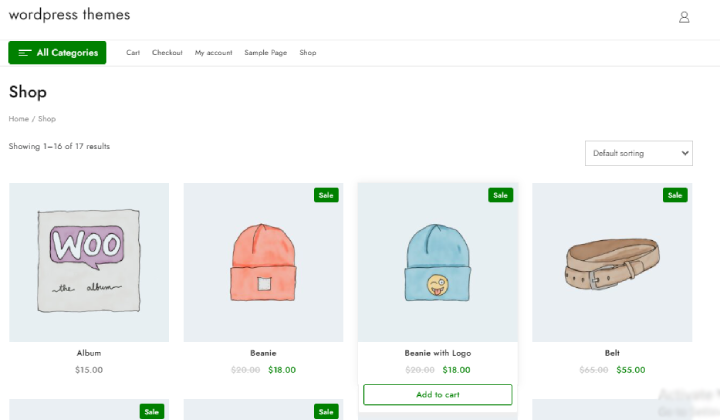
Step 1: Choose a Wishlist Plugin
WooCommerce doesn’t have a built-in wishlist feature, so you’ll need a plugin. Some popular options include:
- Woocommerce Wishlist Plugin
- YITH Wishlist
Step 2: Install and Activate the Plugin
Log in to your WordPress dashboard.
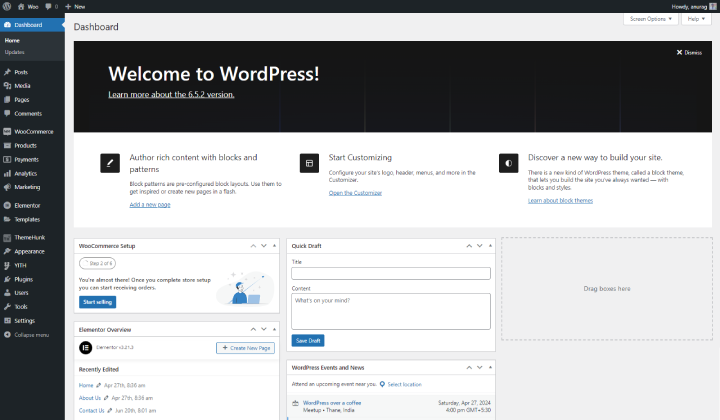
Log in to your WordPress dashboard by entering your username and password.
Go to Plugins > Add New.

From your WordPress dashboard, navigate to Plugins on the left sidebar.
Click on “Add New” to access the plugin installation page, where you can search for, upload, or browse available plugins.
Enter your selected wishlist plugin in the search box.
Here, I’ll go with the WooCommerce Wishlist Plugin
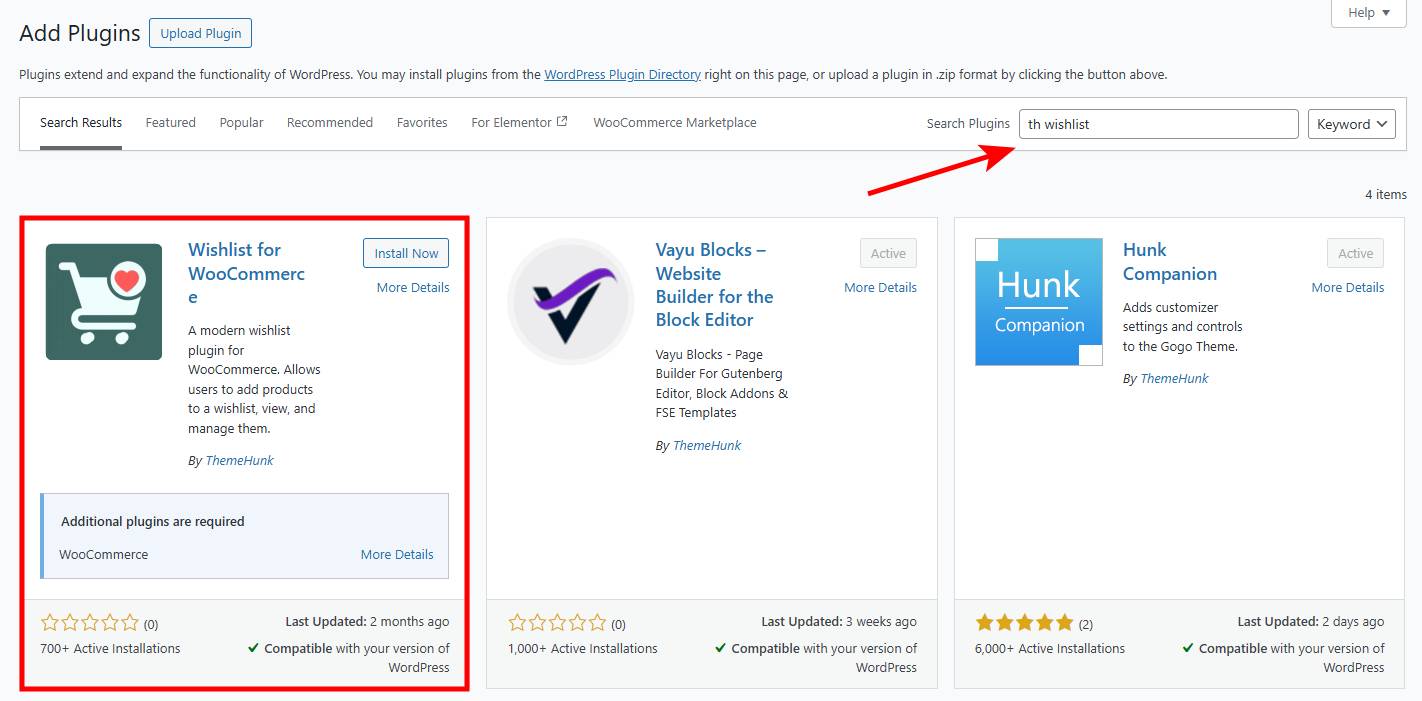
In the Add Plugins page, find the search box in the top right corner.
Type Woocommerce Wishlist Plugin and press Enter.
Click Install Now and then Activate.

Look for the plugin in the search results, then click the Install Now button next to it. Once installed, click “Activate” to enable the plugin on your site.
Step 3: Set up the Plugin Settings
After activation, set up the settings according to your store’s requirements:
You can now see the Woocommerce Wishlist Plugin option in your dashboard. Click on it to access the configuration settings.

Here, you can see the general settings of the wishlist plugin.
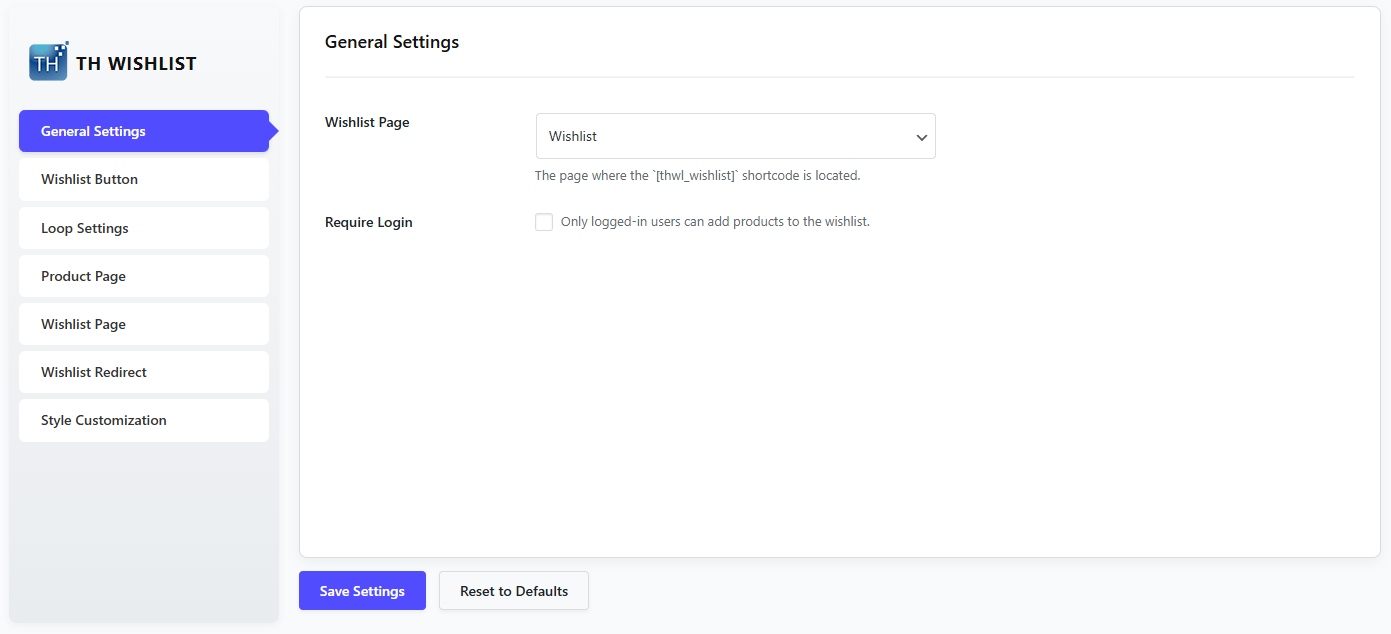
You can select where the wishlist shortcode is located so that the users are sent to the right page.
Customize the Wishlist Button Settings
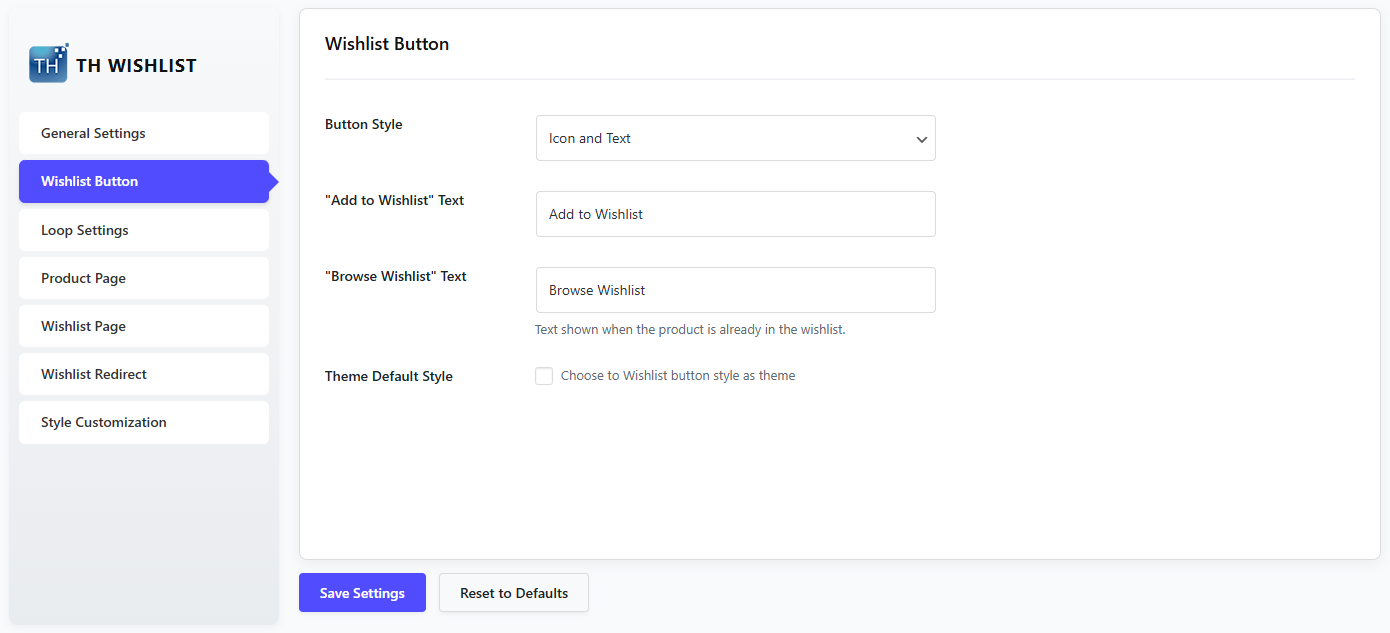
Here, you can change the button style, and you can select any option from the given styles. You can also alter the texts used for different parts.
Loop Setting- Wishlist settings in loop
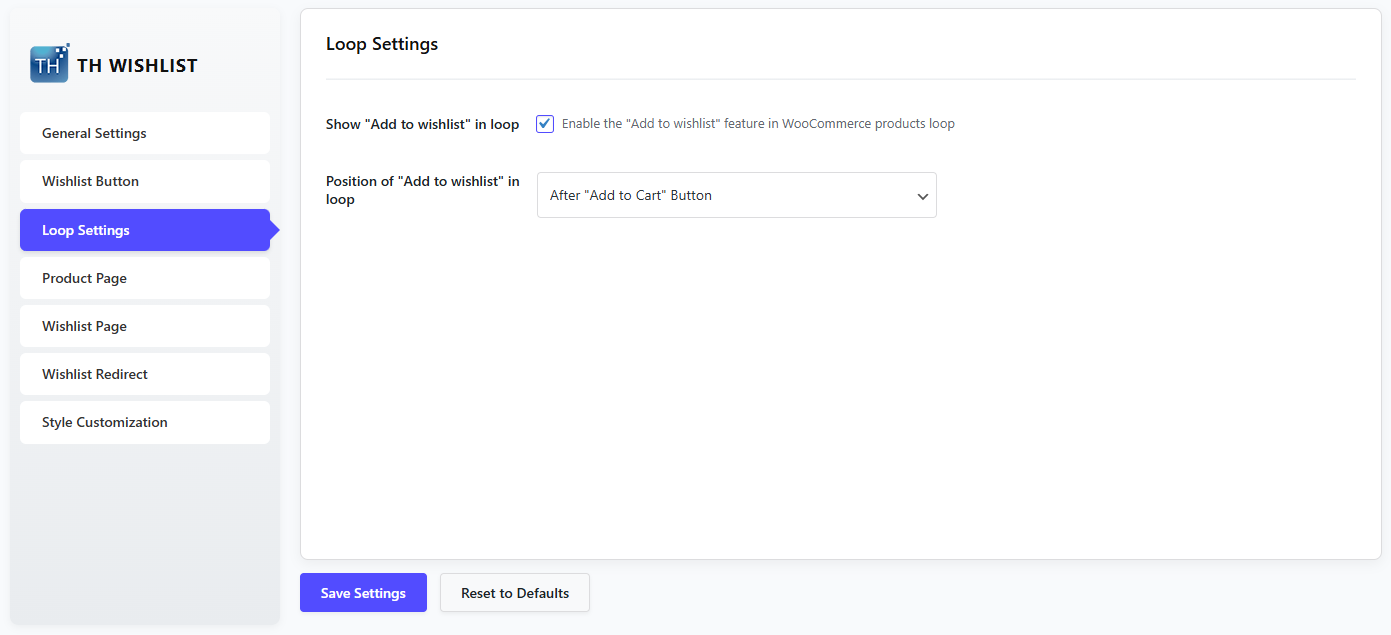
This setting is given to customize the wishlist for the loop. You can enable or disable the wishlist button for the page and change the position of the button also.
Product Page

This setting is specifically for the product page.
Wishlist Page
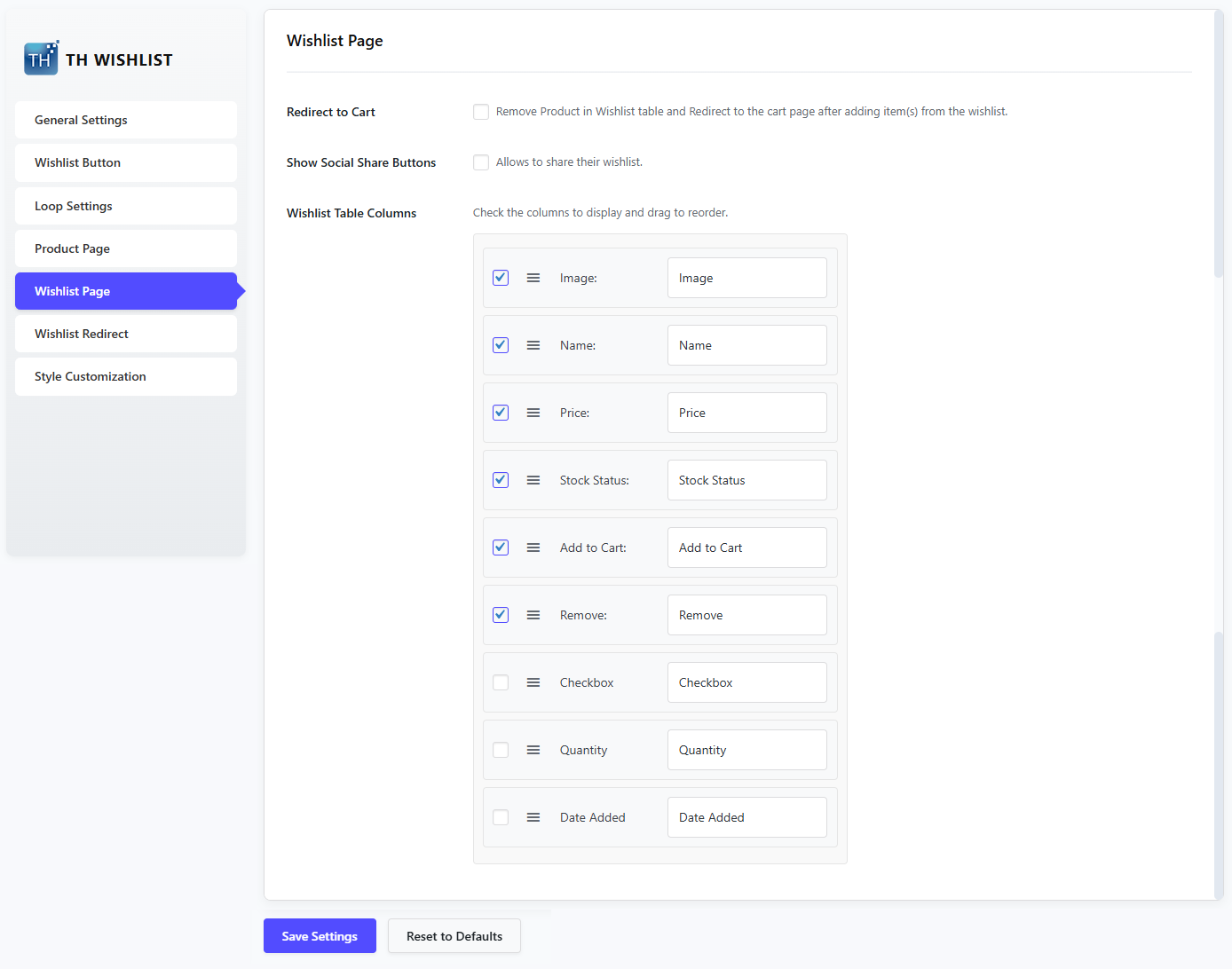
You can set how the wishlist page should look and where it should redirect users. You can also select which fields should appear in the wishlist page.
Wishlist Redirect
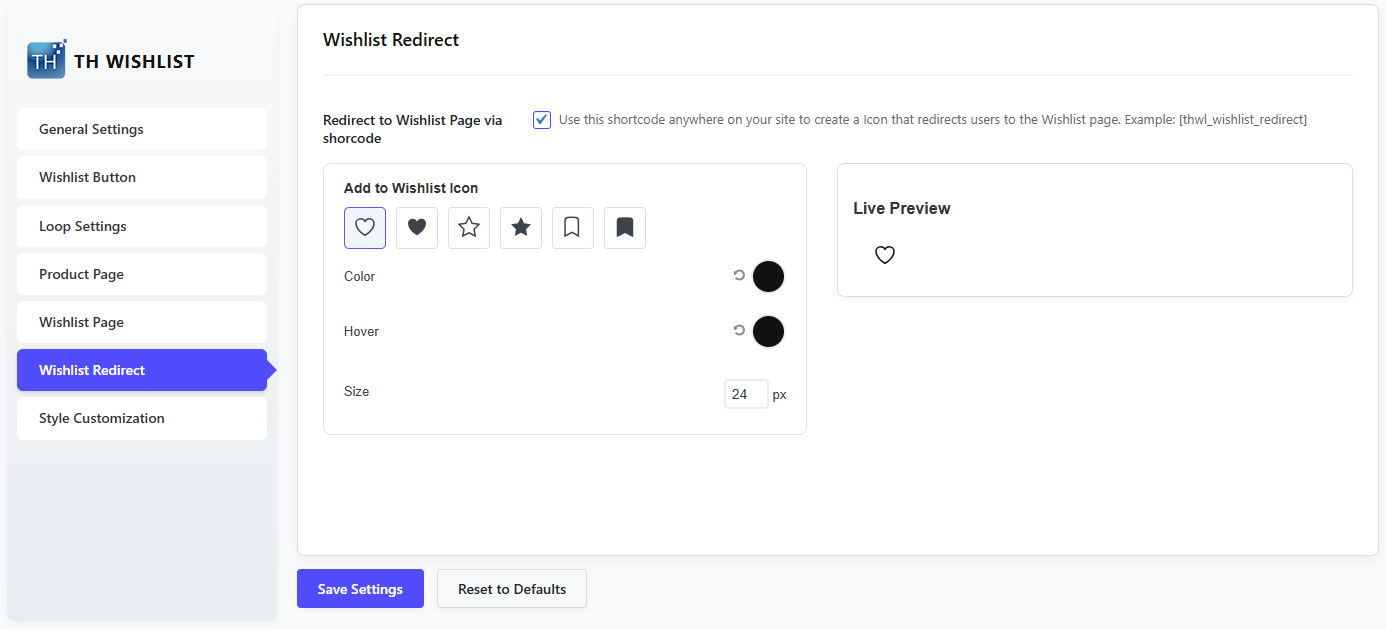
If you want to redirect users to the wishlist page via an icon, enable this button and put the shortcode where you want to show it.
Style Customization Button
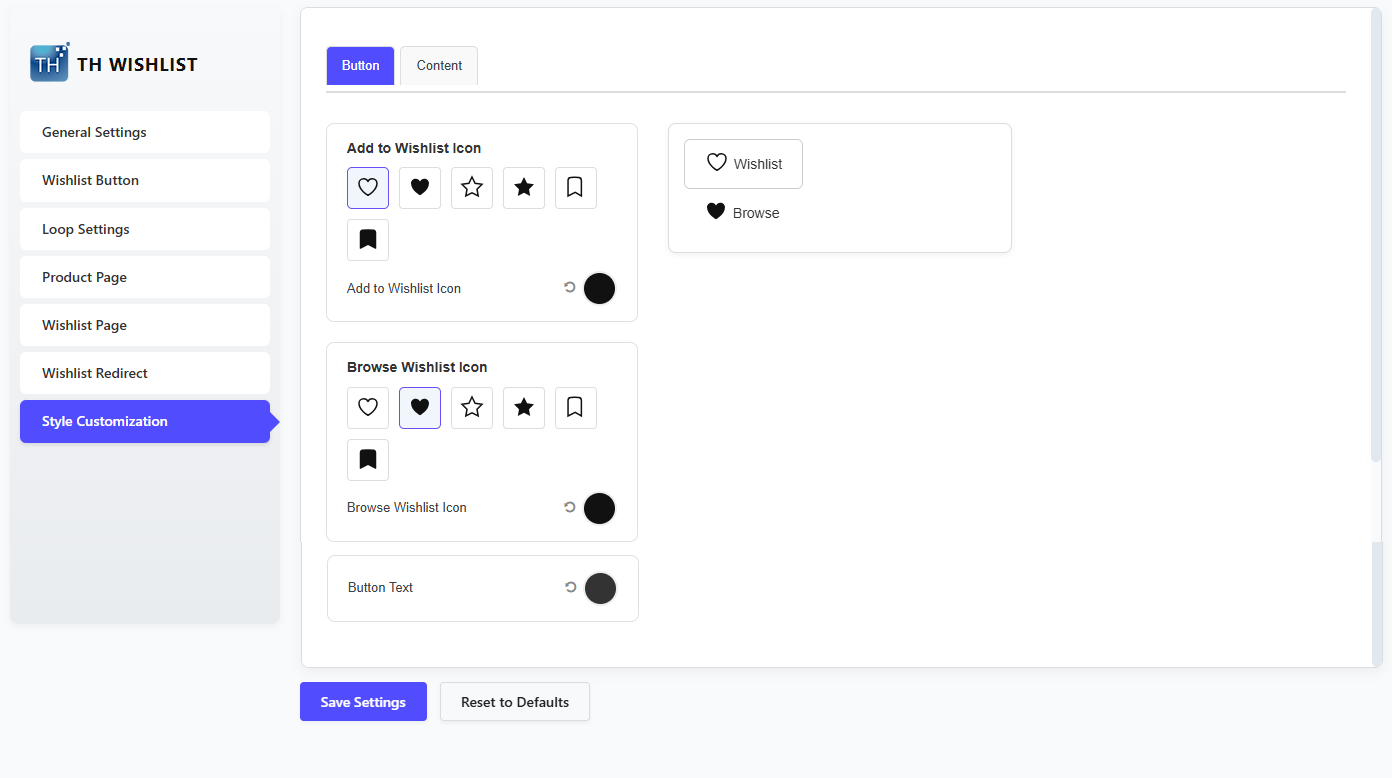
You have the freedom to stylize the wishlist however you want. You can change the appearance by customizing the icons and colors.
Style Customization Content

If you switch to Content, you get options to customize the button and table, also.
Upon activation of the Woocommerce Wishlist Plugin, it automatically comes to the site.

Wishlist Pro
You can upgrade the plugin to Pro to experience some exciting features that make a website professional.
By upgrading to Pro, you get
- Wishlit Layout
- Multi Wishlist
- Wishlist Reminder Emails
- Wishlist Add Note
Step 4: Test the Wishlist Feature
- Test the feature before launching:
- Add products to the wishlist to test that it works as expected.
- Test the look on mobile and desktop.
- Make sure users can easily remove items or transfer them to the cart.
Shop Mania WooCommerce Theme
Looking for a stunning and feature-rich theme to complement your WooCommerce store?

We strongly suggest the Shop Mania theme for a smooth and visually pleasing shopping experience. With its sleek design, simple customization features, and WooCommerce support, Shop Mania is ideal for stores seeking to improve their customer experience and increase conversions. You can see it here.
Some stunning features of Shop Mania:
- Ready-to-Import Sites: Simply import sample sites and customize them for your store.
- Multiple Product Cart Templates: Select from five high-quality cart templates to suit your store.
- Quick View: Enables users to see product information without having to leave the page.
- Off-Canvas Sidebar: Show more products and widgets without taking up space on the home page.
- Floating Cart: A floating shopping cart for a better user experience.
- Product Hover Effects: Features zoom, fade, image swap, and slide effects.
- Mobile Header Styles: Various header styles that are optimized for mobile.
- Customizable Single Product Layouts: Various gallery combinations, such as grid and slider.
- Advanced Checkout & Cart Styles: Customizable checkout page layouts and distraction-free cart/checkout.
FAQ
Q: Can customers share their wishlist with others?
Ans: Yes, Wishlist plugins allow users to share their wishlist via social media, email, or direct links, helping increase potential sales through referrals.
Q: How can I analyze wishlist data to improve sales?
Ans: Certain wishlist plugins also include analytics and reports on products saved. Utilize this information to give discounts, send targeted marketing campaigns, and balance inventory.
Q: Do wishlist plugins work with all WooCommerce themes?
Ans: Wishlist plugins are compatible with popular WooCommerce themes, but it’s always best to check plugin documentation or test compatibility with your theme before making it live.
Final Thoughts
Including a wishlist functionality in your WooCommerce store can enhance user experience, retain customers, and drive sales.
With the proper plugin and configuration, you can extend your store’s functionality and keep consumers interested.
We hope this post can assist you in setting up a WooCommerce Wishlist Feature on Your Store
You can Subscribe to our YouTube Channel, we also upload great content there, also Do Follow us on Facebook and Twitter.
More helpful reads:


