
WooCommerce is a powerful eCommerce platform that empowers businesses to set up and manage their online stores with ease.
It is important to know How to set up WooCommerce Tax Rates and Shipping Zones Correctly
However, to truly maximize its potential and enhance the shopping experience for your customers, it’s crucial to configure essential settings, particularly tax rates and shipping zones, accurately.
These settings ensure smooth order processing and keep your business compliant with tax regulations.
Setting up tax rates and shipping zones in WooCommerce is important for several reasons. Firstly, it ensures compliance with local and international tax laws, helping you avoid fines.
Secondly, it provides customers with accurate totals at checkout, which reduces cart abandonment.
Additionally, clear and fair Tax rates and shipping zone costs build customer trust and satisfaction, encouraging repeat business.
Automating tax and shipping setups enhances operational efficiency by reducing mistakes and saving time.
Finally, having the right settings allows your store to grow and expand into new markets without encountering logistical issues.
In this guide, we’ll discuss the steps to effectively set up WooCommerce store tax rates and shipping zones.
How to Set Up WooCommerce Tax Rates and Shipping Zones Correctly
Enable Taxes in WooCommerce
Before you can configure tax rates, you need to enable the tax settings in WooCommerce :
Step 1: Go to your WordPress dashboard.
First, log in to your WordPress site to ensure WooCommerce is installed on your WordPress dashboard.

Once you’re in, navigate to the Plugins section and click on Installed Plugins to check if WooCommerce exists. If it is present but not activated, click the Activate button.
If WooCommerce isn’t listed, go to Plugins > Add New, search for “WooCommerce,” and click Install Now. After it’s installed, click Activate.
To access your WordPress dashboard, open your web browser and type in your website’s URL.
Log in with your admin credentials to reach the dashboard.
Step 2: Navigate to WooCommerce > Settings.

In the WordPress dashboard, locate and click on the WooCommerce option in the left-hand menu.
Then, select Settings from the dropdown to access configuration options for your WooCommerce store.
Step 3: Click on the General tab & Scroll down.
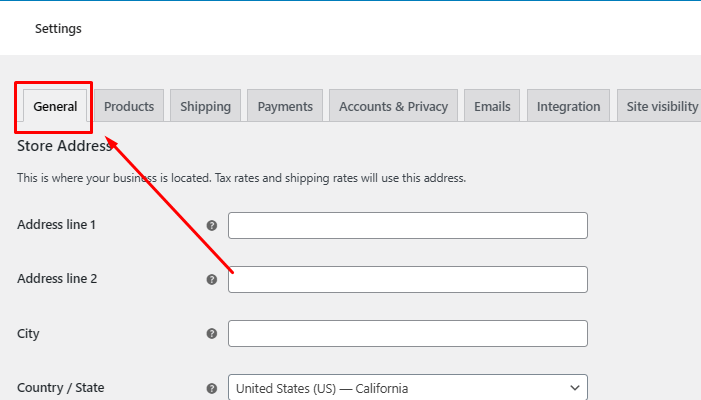
Once you’ve accessed the settings, click on the General tab at the top of the page.
Next, scroll down to see different options related to your store’s general settings.
Step 4: Check the box for Enable taxes.
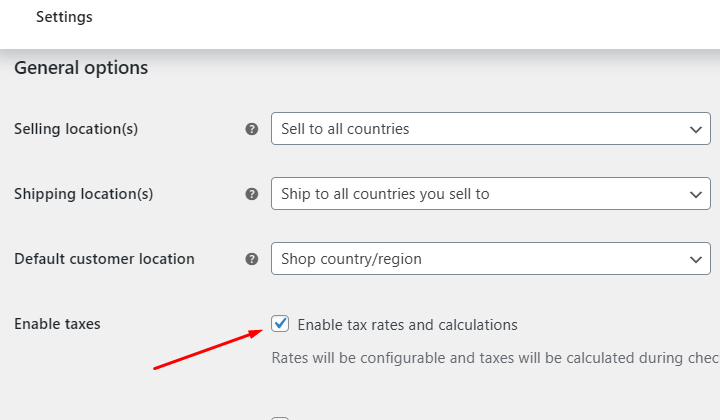
In the General settings section, find the option labeled Enable taxes and check the box.
This action allows you to configure tax settings for your WooCommerce store.
Step 5: Save the changes.
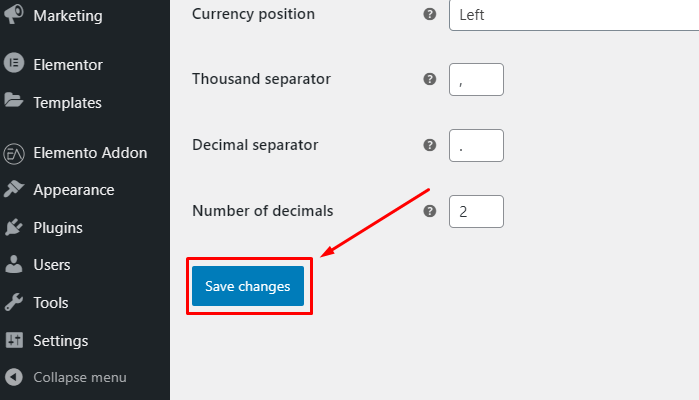
Configuring Tax Rates
Once taxes are enabled, you can define specific tax rates:
Step 1: Access the Tax Settings by going to WooCommerce > Settings > Tax.

To access Tax Settings, click on WooCommerce in the WordPress dashboard, then select Settings. From there, click on the Tax tab to manage your store’s tax options.
Step 2: Set the Tax Options

Choose whether prices entered in the store are inclusive or exclusive of tax.
Select how taxes are calculated: based on the customer’s billing or shipping address.

Decide whether to display tax details in the cart and checkout.
WooCommerce provides default tax classes: Standard, Reduced Rate, and Zero Rate.
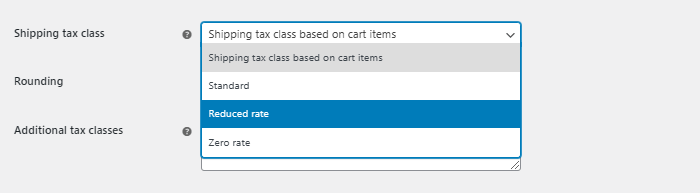
Click on a tax class to add rates.
Step 3: Save Tax Rates
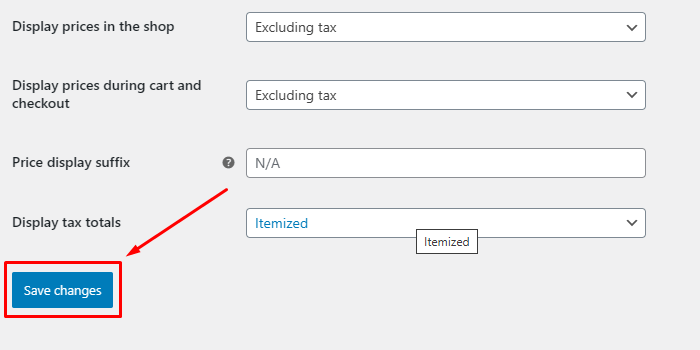
After entering all the details, click Save Changes.
Setting Up Shipping Zones
Shipping zones determine the regions you deliver to and the shipping methods you offer.
Shipping zones are segmented regions typically corresponding to the distance from your warehouse or shipping centre.
Typically, different zones hold a different cost implication and timeline for delivery, enabling businesses to manage shipping the right way and optimize it well.
Step 1: Go to Shipping Settings
Navigate to WooCommerce > Settings > Shipping.
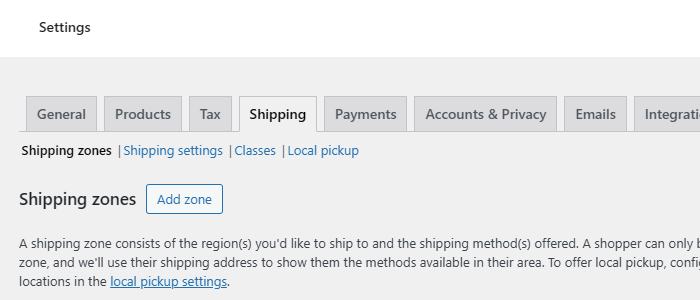
To access shipping settings in WooCommerce, go to your WordPress dashboard and click on WooCommerce in the sidebar.
Then select Settings and navigate to the Shipping tab to manage shipping options.
Step 2: Add a Shipping Zone

To set up a shipping zone, begin by clicking on Add shipping zone. Next, you’ll need to name the zone for example “United States.”
After naming the zone, specify the regions covered within this zone, such as individual states, territories, or the entire country, depending on your shipping preferences and the areas you wish to serve.
Step 3: Add Shipping Methods
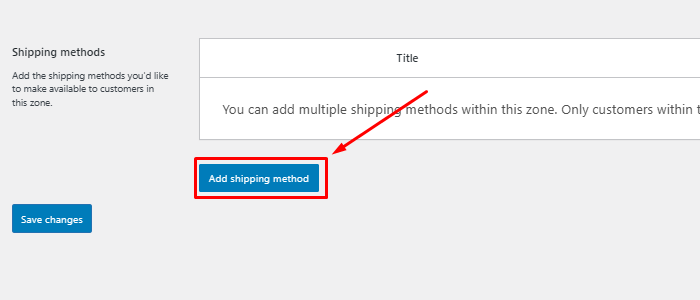
After setting the zone, click “Add shipping method“.
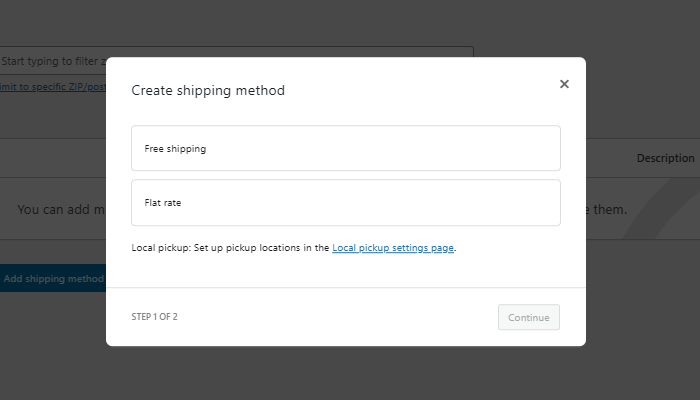
Choose from Flat Rate, Free Shipping, or Local Pickup.
Step 4: Configure Shipping Methods

For Flat Rate: Set a fixed shipping fee.
For Free Shipping: Define conditions like minimum order value.
For Local Pickup: Specify availability for in-store collection.
Step 5: Save the Changes

Once you’ve configured the methods, save the zone settings.
The tax settings have been successfully enabled.

Test Your Setup
Before making your store live, test the tax and shipping settings:
- Add products to your cart and proceed to checkout.
- Enter various addresses to check if the correct taxes and shipping methods are applied.
- Adjust the settings if necessary.
FAQs
Q: Can I set different tax rates for different regions?
Ans: Yes, WooCommerce allows you to set different tax rates based on regions.
Q: How do I ensure customers see accurate taxes and shipping costs during checkout?
Ans: Make sure to configure your tax rates and shipping zones accurately.
Enable address-based tax and shipping calculations, and test the checkout process thoroughly with different addresses.
Q: How do I apply taxes only to specific products?
Ans: You can assign specific tax classes for example Reduced Rate or Zero Rate to individual products.
In the product edit page, under the General tab, select the appropriate tax class.
Conclusion
Setting up tax rates and shipping zones correctly in WooCommerce ensures a seamless shopping experience for your customers and complies with regional laws.
By following this guide, you can create a seamless experience for your customers, ensuring they see accurate tax and shipping costs at checkout.
Don’t forget to keep your tax rates updated and regularly review shipping zones to reflect changes in your business operations.
I hope this article provides you with the correct guidance on how to Set Up Tax Rates and Shipping zones correctly.
If you find this article helpful, please share it with your friends. If you have any questions, do not hesitate to comment below. We will help you solve your problem. Thanks for reading this blog.
Please Subscribe to our YouTube Channel, we also upload great content there and also Do Follow us on Facebook and Twitter
Discover more articles:


