Lead Form Builder Pro

Installing the plugin via WordPress Dashboard:-

Lead Form Builder

As you already know about our free WordPress plugin Lead form builder lite, Now we are going to give you our pro plugin of Lead form Builder with many advanced features. This doc will help you in running our pro plugin easily for your WordPress site.

  • Step 1 : Navigate to ThemeHunk homepage, You will see “Plugins” menus on the top, when you hover over it you’ll see Pro Plugins, click on it.
ThemeHunk Lead Form Builder
  • Step 2 : Afterward, just simply hit the ‘Get Started’ button and it will directly take you to the ‘Pricing‘ section of Lead Form Builder Pro Plugin.
Lead Form Buy
  • Step 3: Now choose your desired plan from here and hit the button Buy Now from desired table.
Lead Form Pricing
  • Step 4: Purchase your plugin from here, and fill in all the required details. Log in to your member’s area. Your pro plugin has been added to your member’s area dashboard.
Lead Form Builder Pro Annual Plan plugin installation
  • Step 5 : You’ll see a Lead Form Builder Pro plugin zip file in your Member’s area. Download the zip file of plugin.
Lead-Form-Builder-Pro-installation-5
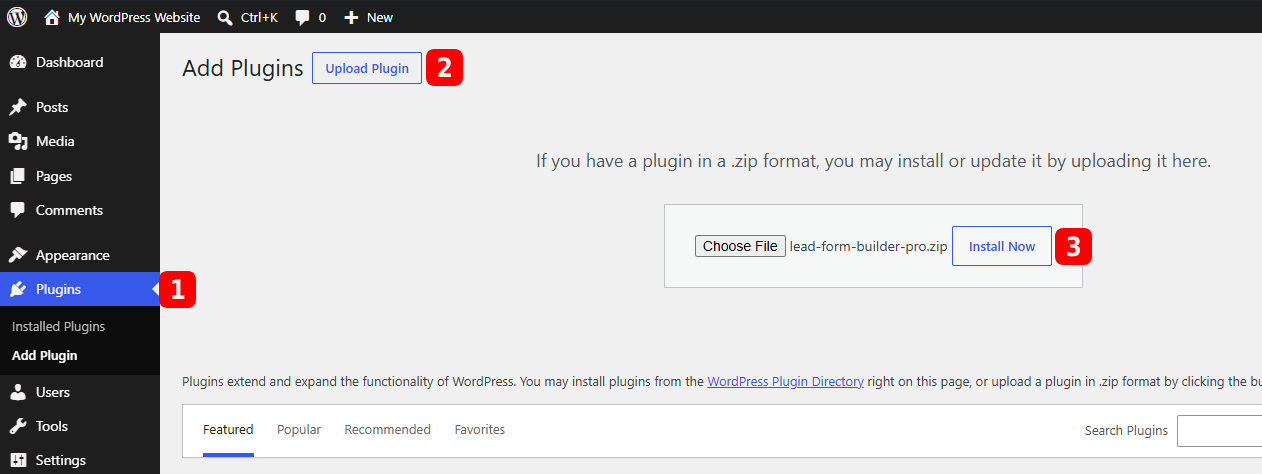
  • Step 6 : Now, Open your WP Dashboard > Plugins > Add New > Upload the Plugin Zip file and Activate it.
Lead Form Builder Pro installation 6
  • You can see the “Lead Form Builder Pro” panel in your dashboard.
Dashboard Lead Form

Creating Form :-

  • For creating a new form just go to “WP dashboard > ThemeHunk > Lead Form > Add Form”.
  • When you click on Add form, a new panel will open where you will see Form Fields like –
Lead Form 1 GIF

First, give your Form a title, and then in the box below, write the names of the fields that you want to create. Having written the names of all fields, click Generate Fields.

Your fields will be generated, and then you can set whether you want to keep the placeholder and required. If you still want to add a field, click on Add Field and then enter the values.

Another Method to add a field

Lead Form 2 GIF

You can add fields manually also if you want.

1. Add Field Name – Enter the field name of your form here.
2. Field Type – You can choose the field type from here. There are many field types given. You can choose them according to your needs.
3. Default Value – You can enter the default value of your field name.
4. Use Default Value as a Placeholder – Check this option to show default value inside fields.
5. Required – Check this option to make that particular field mandatory/required.
6. Submit Button – You can add or edit the submit button text.
7. Action ( Add or Remove ) – This button will help you in adding more fields. You can also Remove your fields.

  • Choose desired fields and create form for your website.
  • You can also choose the Drag and Drop field ordering : To order form fields just drag and drop fields.
  • After creating your form, don’t forget to Save it.
  • To display form in your site, you can use the shortcode which will generate in your form.


FYI – Add “Terms and Condition check box” from the field type option. You can put your Terms of services in field name and set it as required.
For example – Put the text <a href="#">Term & condition</a> in field name, this will show text with link too. ( Write link in place of #. )

Pre-Built Templates

You can save your time by importing the pre-built templates. There are several templates for you, and these are below-

  • Contact Us
  • Feedback Form
  • Registration Form
  • Email Subscription
  • Job Application Form

Adding them is Easy. Simply go to Pre-built Form. Choose any one template and click on its Import Template button.

Lead Form Templates GIF

Displaying Form:-

  • You can display the Contact form in your Site pages by just adding the shortcode.
  • To Get Shortcode, first create a form – “WP dashboard > ThemeHunk > Lead Form > Add Form”. After creating form under Form list, you’ll see Shortcode field. Copy Shortcode from there.
Lead Form Builder Shortcode
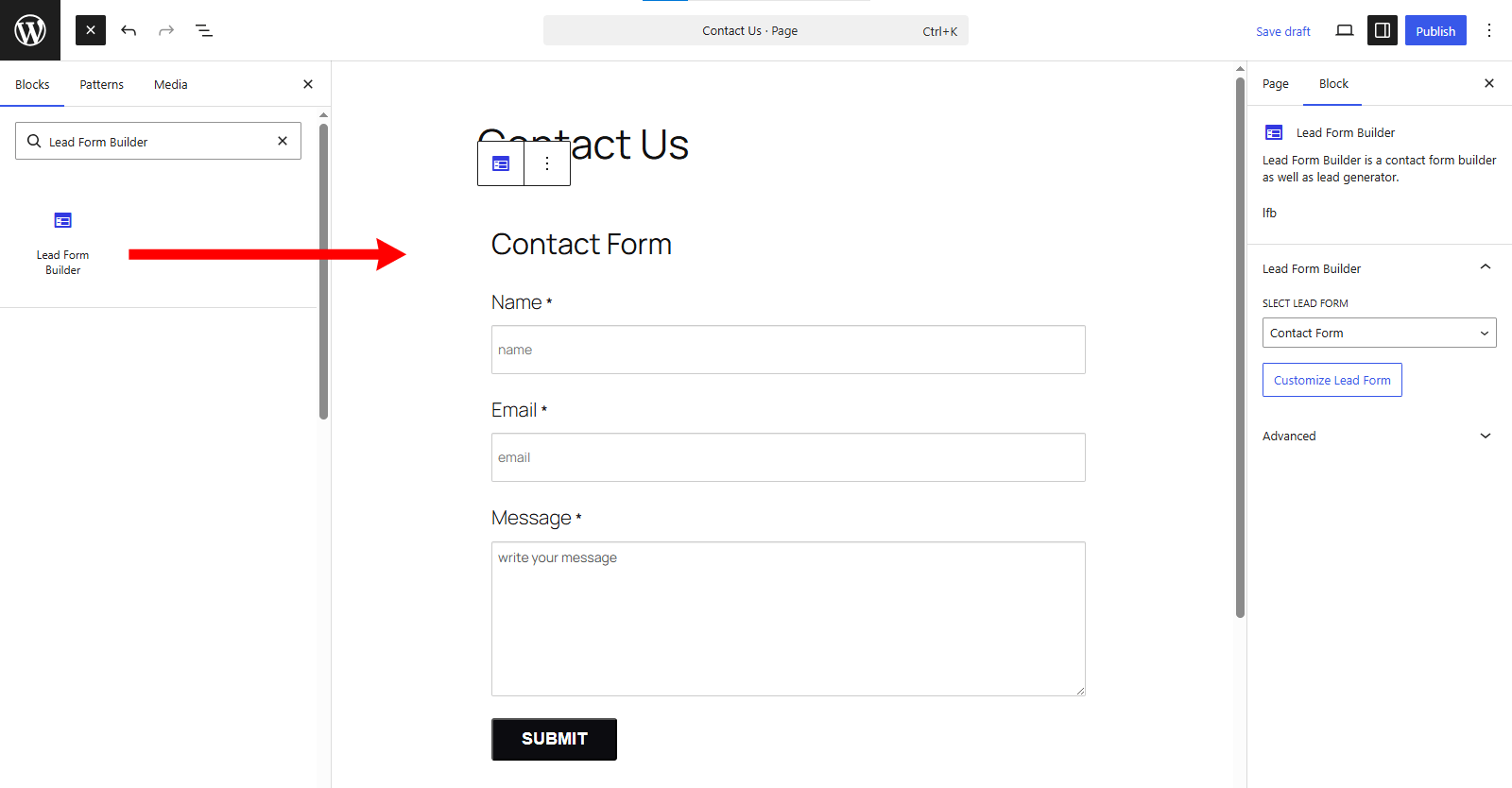
  • Now Navigate to your Page/Post editor area and Paste Shortcode there. This will display form on your page/post area.
edite page lead form builder pro 1

Display Lead form using Elementor

Our new Lead Form Styler is now available for Elementor.

You can follow these steps to style the form with Elementor.

  • First, install and activate the Elementor plugin in your WordPress dashboard. Now, now Go to any page/post of your choice to edit that page/post using Elementor.
  • When the page/post is opened in Elementor, search for Lead Form Styler.
  • Drag and Drop the widget and you will see the list of already created forms there. You can select the form and customize it as per your need.
Lead Form Elementor GIF

How to Edit or Update Form :-

  • Go to Lead Forms Builder Pro > Form List > Edit Form. Here you can edit your form.
  • This option will allow you to Edit your form or change its field settings like Edit Form Heading, Drag & Drop Fields, Edit Form Fields like Name, Default value, Check or uncheck options – Use Default Value as Placeholder and Required fields.
Lead Form Edit

Form Setting :-

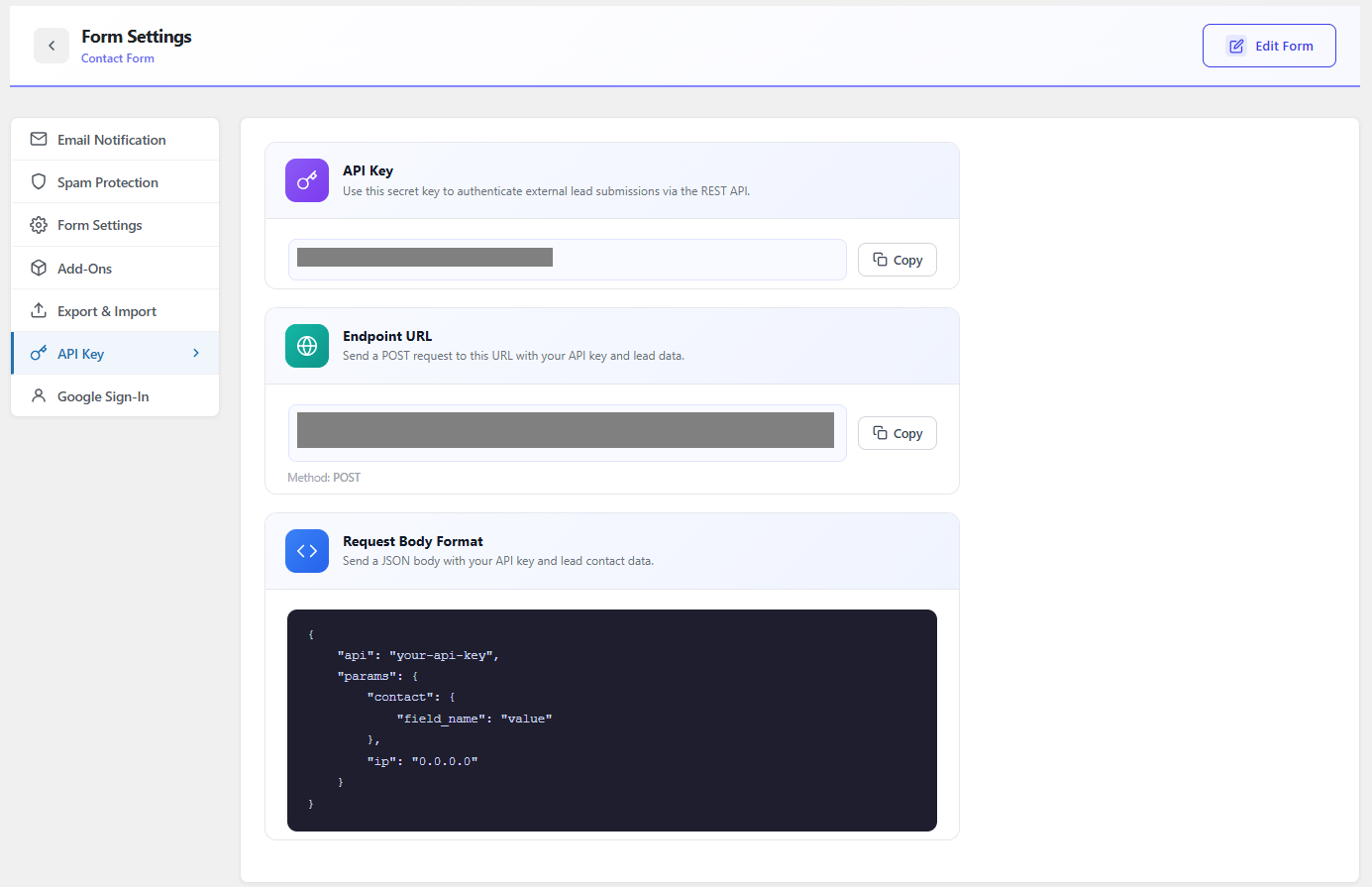
  • For Form Setting. Go to Dashboard > Lead form > Form list > Form Settings.
  • You’ll get Following Form Settings with Pro version –

1. Email Setting
2. Captcha Setting
3. Setting

Lead Form Setting Options

2. Captcha Setting

Form Builder Form Setting

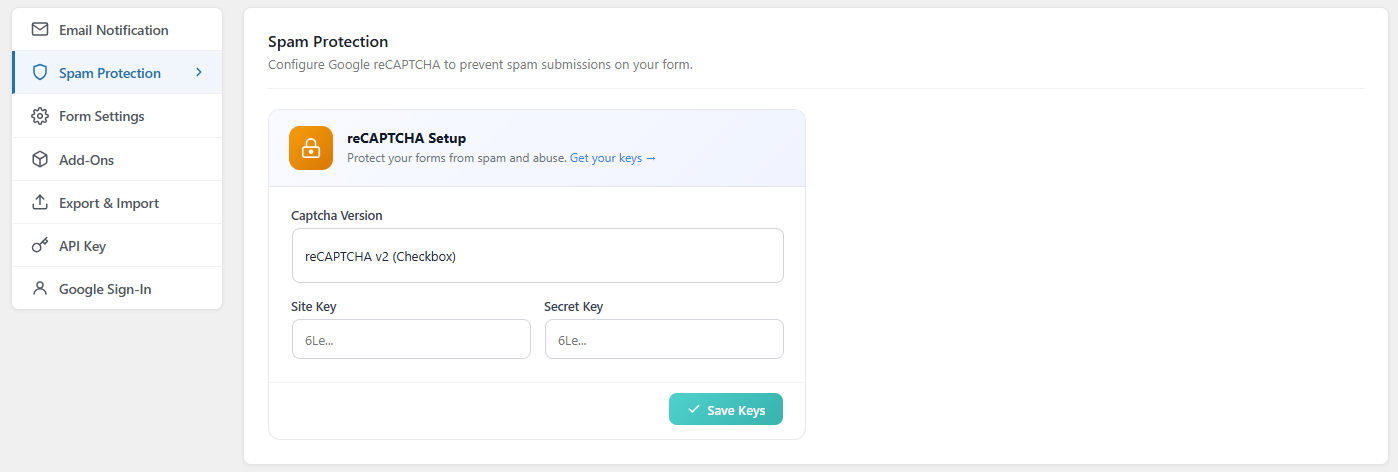
  • Click on Spam Protection

Lead Form Spam Recaptcha
  • Now all the settings will open.

How to Add Captcha?

  • Go to Google reCaptcha > Admin Console > Register your account and select the version Google reCaptcha v3 or Google reCaptcha v2.
register reCAPTCHA
  • To add Captcha in your form you have to Generate a site key and secret key by going with the settings.
  • Copy the Site key and Secret key, paste it in the dashboard. Now your google recaptcha will perfectly work on your site.
reCAPTCHA-v3-lead-form-builder
Lead Form Spam Recaptcha e1773730968937

Google reCaptcha v3

  • Captcha Version – You can choose the captcha version – Google recaptcha v3 Or Google recaptcha v2.
  • Google reCaptcha v3 -It will continuously monitors the visitor’s behavior to determine whether it’s a human or a bot. After that that you now need to decide which action to take depending on the score.
  • To add Google reCaptcha v3, First Generate the Site Key & Secret key from the Google reCaptcha. Now Go to Dashboard > Lead Form > Captcha Settings > Setup Captcha > Captcha Version > Select Google reCaptcha v3 and Enter the Site Key & Secret Key. Save It.
v3-reCAPTCHA

Google reCaptcha v2

  • Google reCaptcha v2 – Here it will verify whether the user correctly solved the challenge or not.
  • To add Google reCaptcha v2, First Generate the Site Key & Secret key from the Google reCaptcha. Now Go to Dashboard > Lead Form > Captcha Settings > Setup Captcha > Captcha Version > Select Google reCaptcha v2 and Enter the Site Key & Secret Key. Save It.
reCAPTCHA-v2-lead-from-builder

3. Lead receiving method

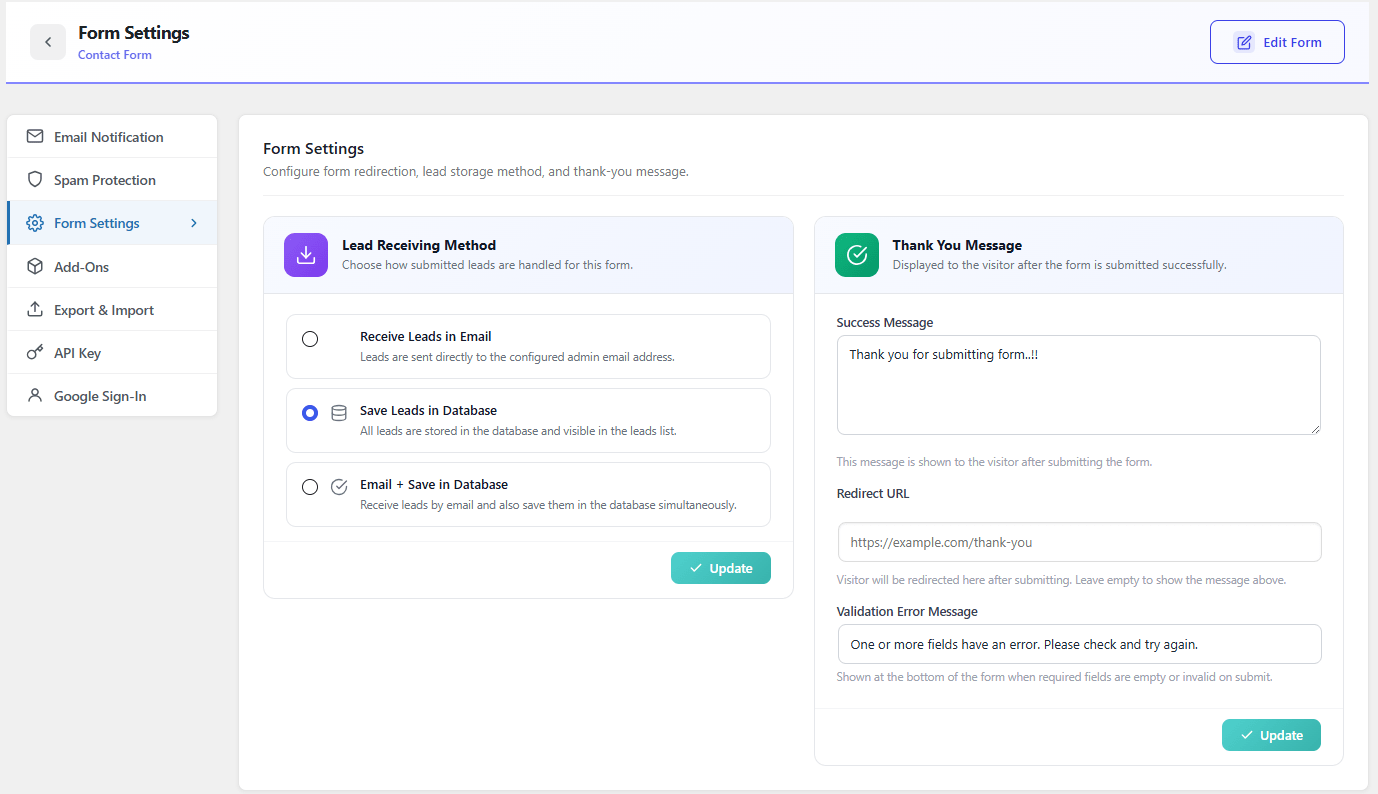
  • For the Lead receiving method Setting. Go to Dashboard > Lead form > Form list > Setting > Lead receiving method
  • The form contains three lead receiving options Receive leads in email, Save leads in database (You can see all leads in the view leads), Receive leads in email and save in database.
  • 1.Receive leads in an email:- You can receive your leads in your mail which you have set in the email setting.
  • 2.Save leads in database:- Your all leads will receive and save in your database which can be seen in the database.
  • 3.Receive leads in email and save in database:- By using this option leads will receive in your mail and save in your database too.
Form Builder Lead recieving Method

Thank You Message

  • For Form Redirection Setting. Go to Dashboard > Lead form > Form list > Setting
  • Write the message you want to send to users after submission of the form.
  • You can redirect your form after submitting. Just paste the URL in the text area and redirect your visitor to the desired page or site.
Lead Form Thank you message

View Leads through Form

  • There are two ways to view leads. If you want to view all leads, click on the View leads button of you plugin’s dashboard.
Lead Form View Leads
  • This option will display your form leads in your dashboard. If someone filled your form, Leads will automatically save in your dashboard with all the details.
  • To see the collected leads og a particular form, click on the number of leads of that form.
Form Builder Leads

Following options are available in this panel –

  • Action – You can delete any collected leads from your dashboard.
  • Form fields – You can see the form fields which you have added in your created form like – Name, email, contact no etc.
  • Date – You’ll see the date on which the lead has been collected.
  • Show details – From this option you’ll see all the details like – Name, email, IP address, Lead Save Url ( Tracking URL ), Date etc of that particular lead.
  • IP address – You’ll get the Ip address from where your lead has been generated.
  • Lead Save Url – This will display the url from where your lead has been submitted. You can track the site url.
Form Builder Lead Details

Form Customization

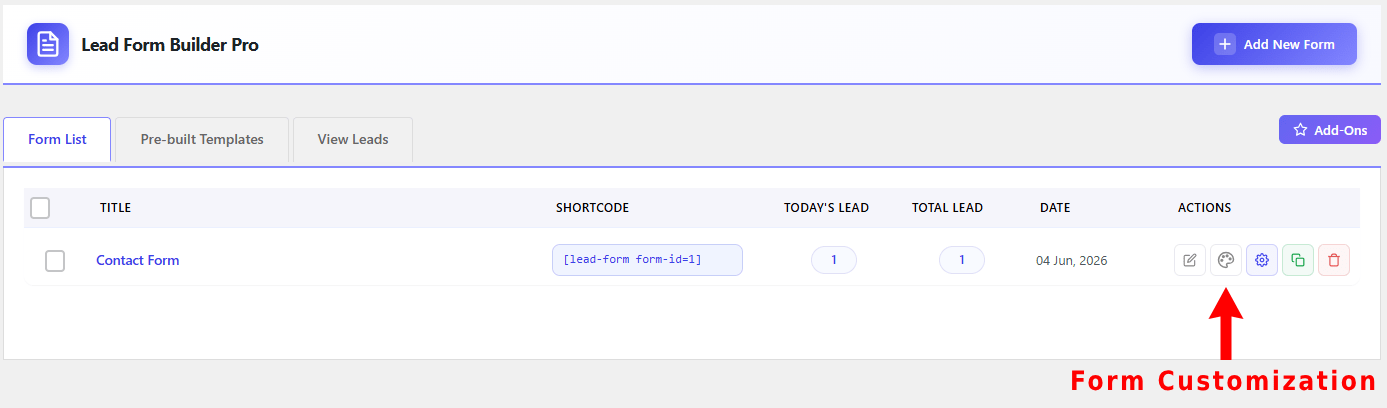
  • For Form Color Customization. Go to Dashboard > Lead form
  • Click on the View icon of the form you want to edit:-
Lead Form View
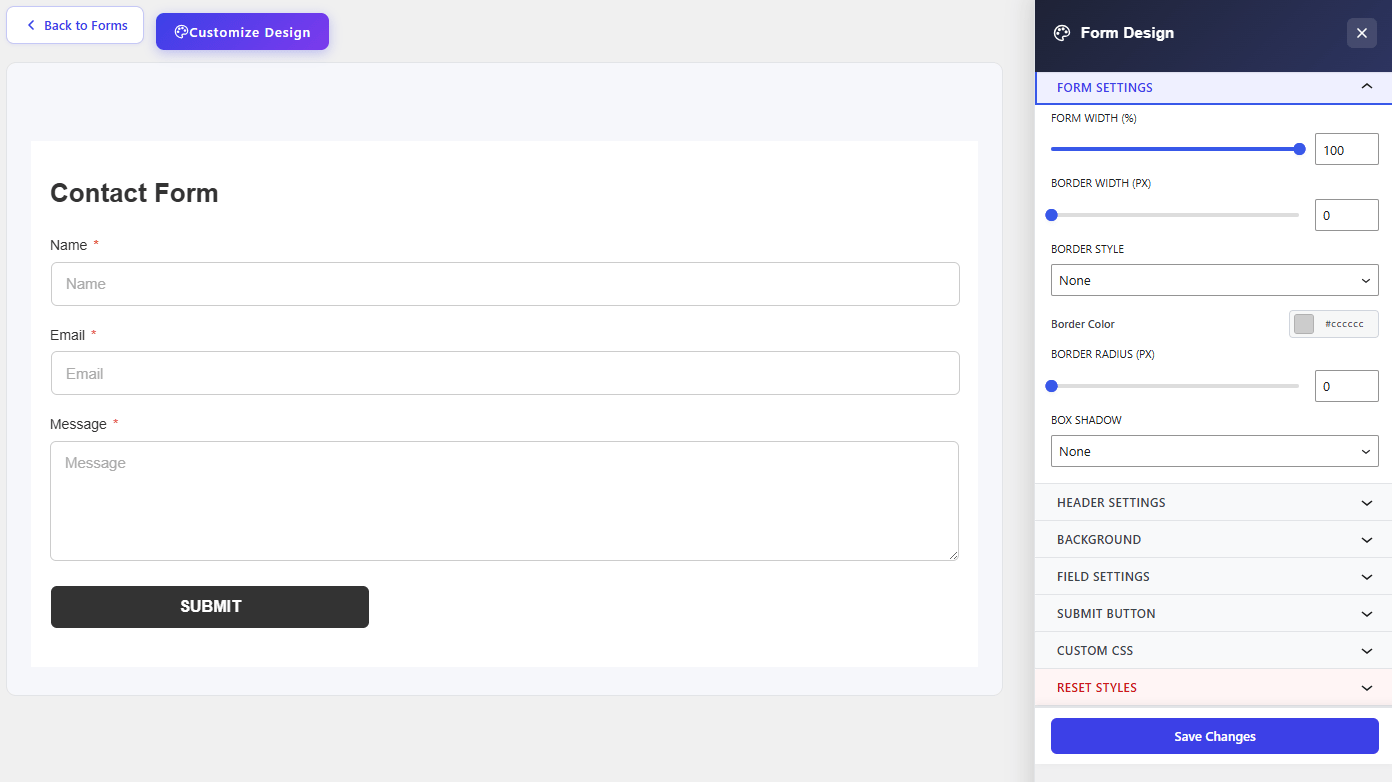
Lead Form Customization
  • Form Setting– Here you can change the form width % according to your need.
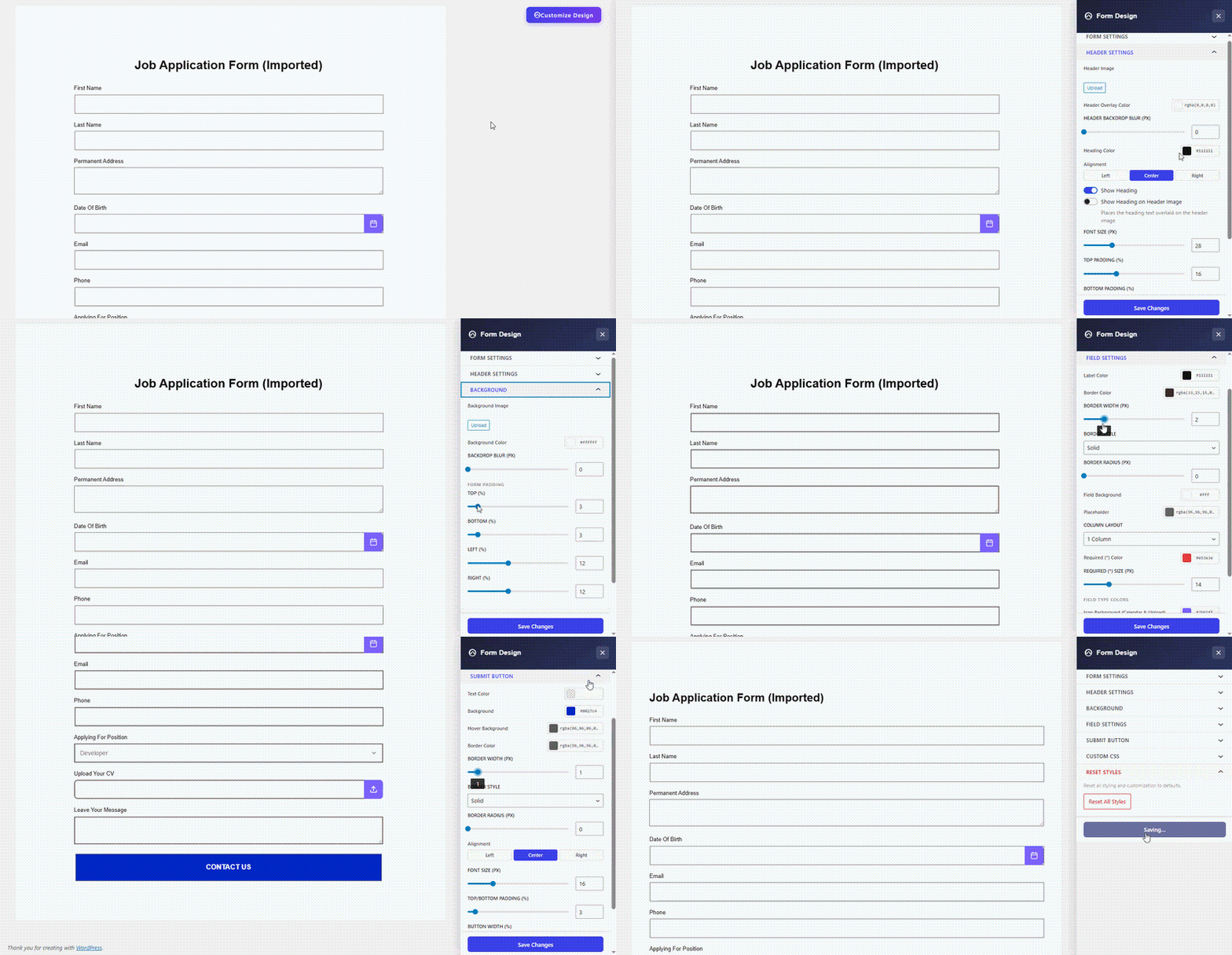
  • Header Setting – You can change or upload a header image or set the heading color. From the alignment, you can put your heading in left, right or center. Hide or show your heading and set the font size. You can also set the Top/Bottom Padding and Left/Right Padding of the heading.
  • Background Setting – You can upload an image in the background of your form or set a background color.Through form padding, you can set the padding % at top, bottom, right or left in your form.
  • Field Setting – Here some options are given:-Label Color, Border Color, Background Radius, Radio & Checkbox Selected Color, etc. You can set the colors of these sections.
  • Submit button Setting – Here some option are given for submit button Text Color, Background Color, Hover Background Color and Hover Background Color. From border alignment, you can set the submit button left, right or center. You can also change the text size %, Top/Bottom Padding % and Left/Right Padding % of the submit button.
  • Custom CSS – Here you write your custom CSS for your form other than the existing options.
  • Reset all Customization will reset your form styling and give you a default form for customization.
  • Reset – This will reset all your customization and take your form as it was before customization..

Result of form, in this way your form will look. It is just an example.

Lead Form Preview

Form Addons or Advanced setting :-

  • Go to Dashboard > Lead form
  • Click On Add-ons
  • You’ll get the following options in the Form Addon setting –

1. SMTP Mail Configuration
2. Mailchip
3. Lead Export
4. Form Export/Import

Lead Form Addons

1. SMTP Configure

  • For Smtp Configure (Contact Me) Setting. Go to Dashboard > Lead form > Form list > Form Add-Ons > View Add-ons > Smtp Configure (Contact Me).
  • SMTP is used for sending and receiving email. You can use On/Off when you fill all the data in the SMTP form. For know about in detail you can go with our Doc of SMTP.
Lead Form SMTP confi

2. MailChimp Addon Setting

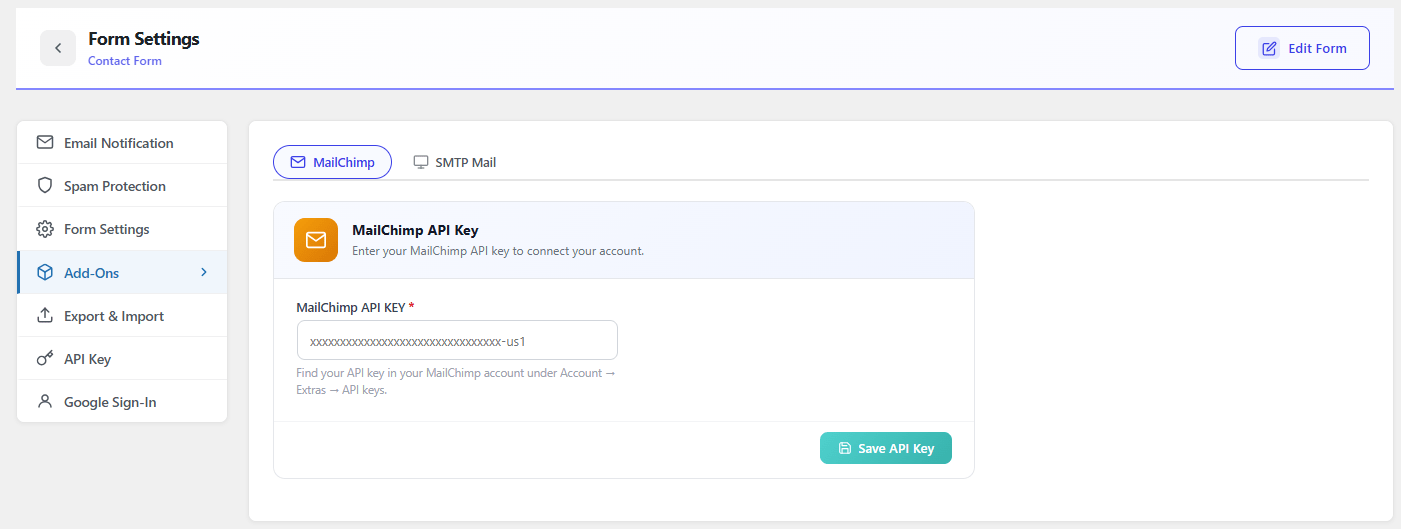
  • For MailChimp Addon Setting. Go to Dashboard > Lead form > Form list > Form Add-Ons > View Add-ons > MailChimp Addon Settings.
  • As MailChimp is a simple email marketing software (EMS) which gives you a number of easy options for designing, sending and saving template of your emails. We are giving you this option in our plugin, you can simply add your MailChimp API KEY and save it.
Form Builder Mailchimp API Key

3. Export Form Leads Setting

  • For Export Form Leads Setting. Go to Dashboard > Lead form > Form list > Form Add-Ons > View Add-ons > Export Form Leads.
  • Here you can add the starting and ending date of your leads and you can easily export them. You can export unlimited leads and save them.
Form Builder Lead

4. Form Export

  • For Form Export Setting. Go to Dashboard > Lead form > Form list > Add-Ons > Form Import/Export.
  • By using this option, you can export your form easily. Just click on the export form, and you can export unlimited forms using this option.
Form Builder Form

Form Import

  • For Form Import Setting. Go to Dashboard > Lead form
  • Click on the Settings icon any form .
  • Click on Export & Import.
Lead Form Export Import
  • Click on the Form Export/Import tab on the top bar
Lead Form Form Import
  • Choose the JSON file and import the form.

Google One Tab Leads

With Google One Tab Leads You can generate an effective and useful Email list. It helps you to get the Emails of your website visitor. If any user clicks on the Google One Tab Login button, then you will get their details right from your Dashboard.

Follow the Steps Below

Navigate to Dashboard > Themehunk > Lead Form Builder Pro. Here you will see all your forms.

Click on the Settings icon of the form you want to add Google Sign-In to.

Form Builder Form Setting

Click on Google Sign-In.

Lead Form Google Sign In

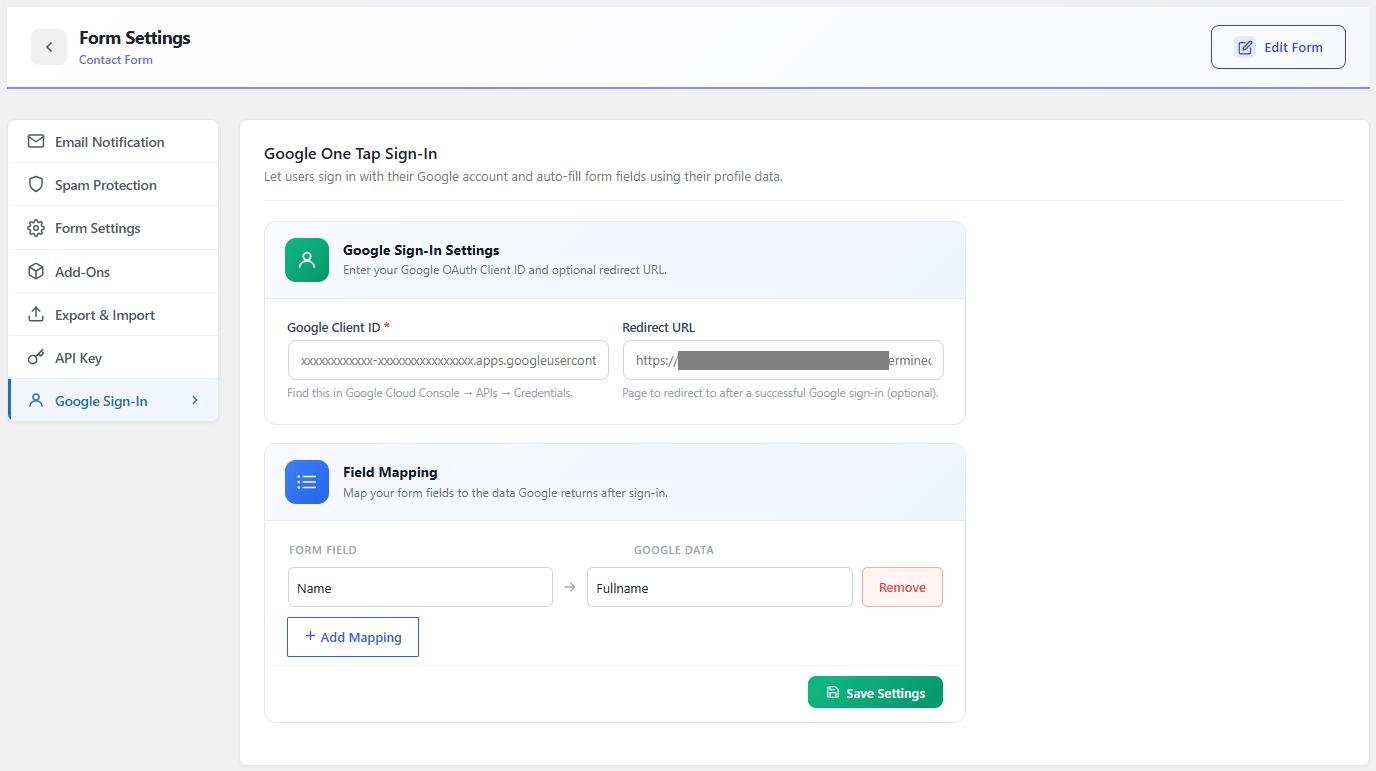
After this, a page will open with Google Settings. Here you have to set up a few settings like:

  1. Google API- Past the Google API that you have created
  2. Redirect URL- Enter a Redirect URL eg. Homepage
  3. Field Mapping- Here you have to add the Lead Form & Google Data Mapping fields.

After doing all the steps, now click on the Save Settings button.

Lead Form Google One Tap

After saving the form. Now when any visitor comes to your website, they will see a Google One Tap Login popup on the Top Right Side of the website. As you can see in the screenshot below.

Google One Tap Login

To Know more about Google One tap login lead generation, and creating Google API, Read This blog for full details.

Get Help

  • If you face any difficulties, feel free to contact our support team at the support forum.
  • You can also Contact us. by filling out the form or ping us at our Live chat for pre-sales queries.