
Overview➣ Having a feature-rich website is very crucial in this competition. One such feature is ‘Bought Together’ that improves the website’s reliability and encourages them to purchase more products from your website. Let’s see how you can add this functionality to your store.
If you are looking to boost sales and engagement at your online store, one of the best ways to achieve this is by adding a ‘Frequently Bought Together’ feature.
You have likely seen this on large sites, such as Amazon, where it appears beneath a product, labeled “Frequently Bought Together,” and then lists a few related or complementary items.
This feature helps customers find any useful add-ons or matching items in one easy step, enabling them to buy more in a single order. The best part is that you can add this feature to your WooCommerce store easily, in just a few simple steps.
In this guide, we’ll cover how to add the Frequently Bought Together feature in WooCommerce, what it does, why to do this, and what plugins help you do it quickly and without any code.
What Does “Frequently Bought Together” Mean?
The “Frequently Bought Together” section showcases a selection of products that are relevant or complementary to the main product, which were typically bought by other customers of the main product.
For example:
- If a customer is viewing a laptop, you can show a computer bag, a wireless mouse, or a keyboard.
- If the customer is purchasing a shirt, you can suggest pants, shoes, or matching accessories.
- If they are researching a camera, you can suggest a memory card, a tripod, or a camera lens.
A “Frequently Bought Together” feature acts like a smart sales assistant, encouraging shoppers to find more complementary or relevant products while improving their overall shopping experience.
Why Add the “Frequently Bought Together” Feature to WooCommerce?
By adding this option, you can gain numerous advantages for your online store, including:
Increases average order value – When customers see related products together, they are more likely to be persuaded to buy multiple items in a single purchase.
Increases revenue and sales – Cross-selling or upselling relevant products means that you can bring in higher revenues without the need for additional marketing investment.
Improved user experience – Customers appreciate convenience. By displaying related items, you offer a user-friendly experience, saving them time by not having to search for matching products.
Increases product visibility – Products that may not get much viewership will appear as a suggestion and possibly sell more.
Encourages impulse purchases – A customer may not have planned to buy an accessory, but once they see the accessory on the product page, they may think to themselves, “Why not?”
How to Add Frequently Bought Together on WooCommerce
Step 1: Purchase and Download the Plugin
Download from the button below
Or, go to the ThemeHunk’s “Plugins” section from the top menu. Look for the Frequently Bought Together. Go to its single page and buy the plugin.
After this, go to the Member’s Area and log in to the dashboard. Then, install the Frequently Bought Together plugin.
Step 2: Upload the Frequently Bought Together to the WordPress Dashboard:
- Log in to your WordPress dashboard.
- Go to Plugins> Add Plugin. Click on Upload Plugins.
- Upload the Frequently Bought Together plugin that we just installed.
- Install & Activate the plugin.
Step 3: Set Up the Plugin Settings
After activation:
Go to Click on Bought Together under Woocommerce
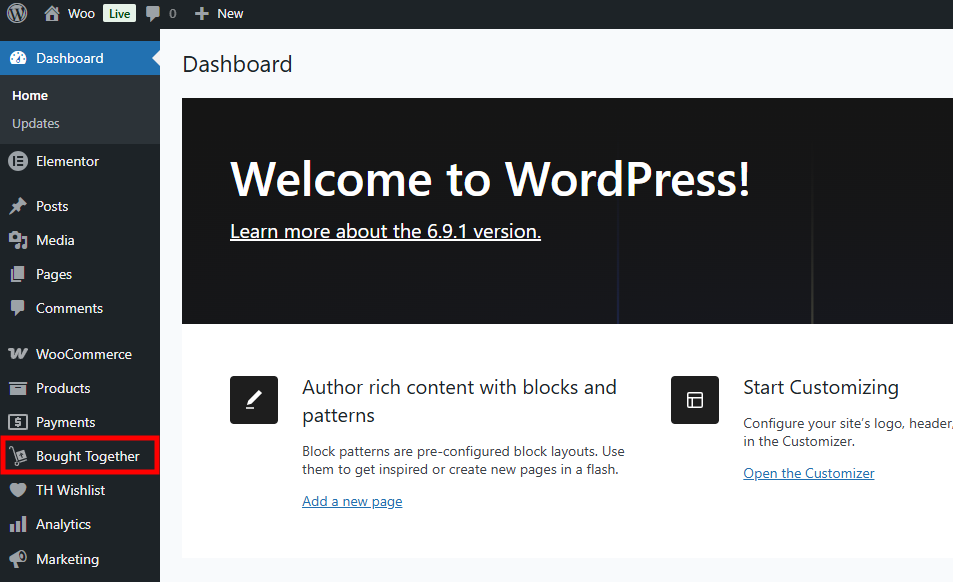
You will see the plugin’s settings here.
General

Bought Together enable/disable – To enable or disable the plugin, tick this box.
Box Title – You can change the title of the Frequently Bought Together box.
Select Box Position – Here, various options are for the position of the Frequently Bought Together box. You can choose any one.
Label Option
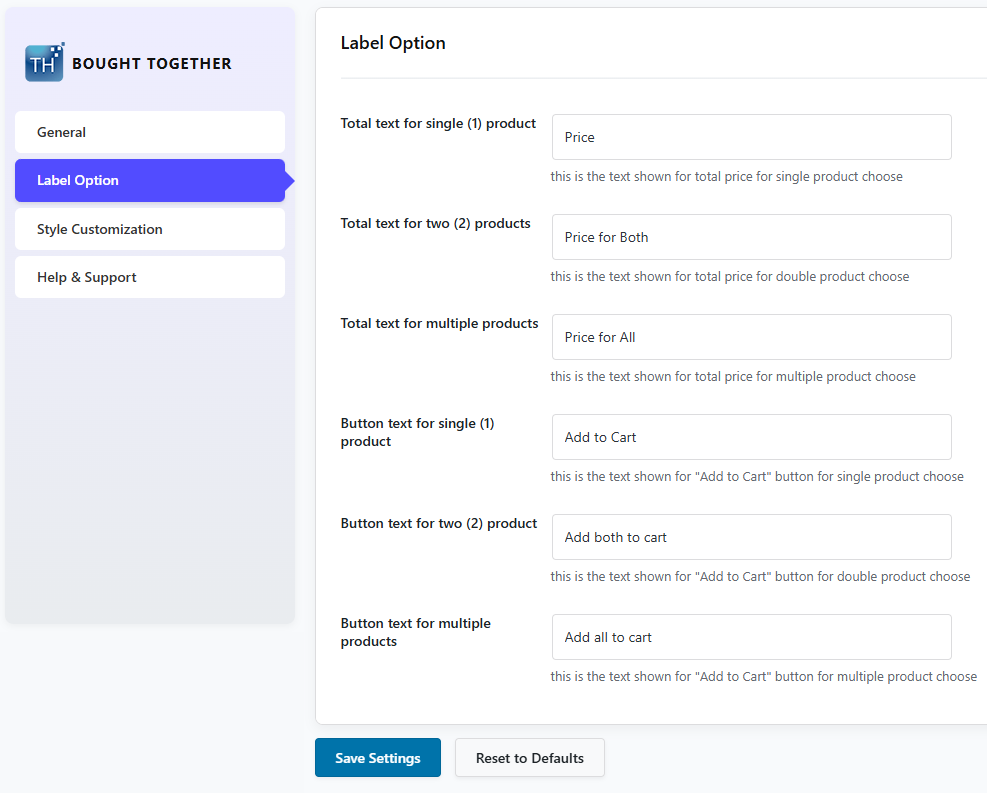
This setting is used to change the text of the different components of the Frequently Bought Together box.
Style Customization
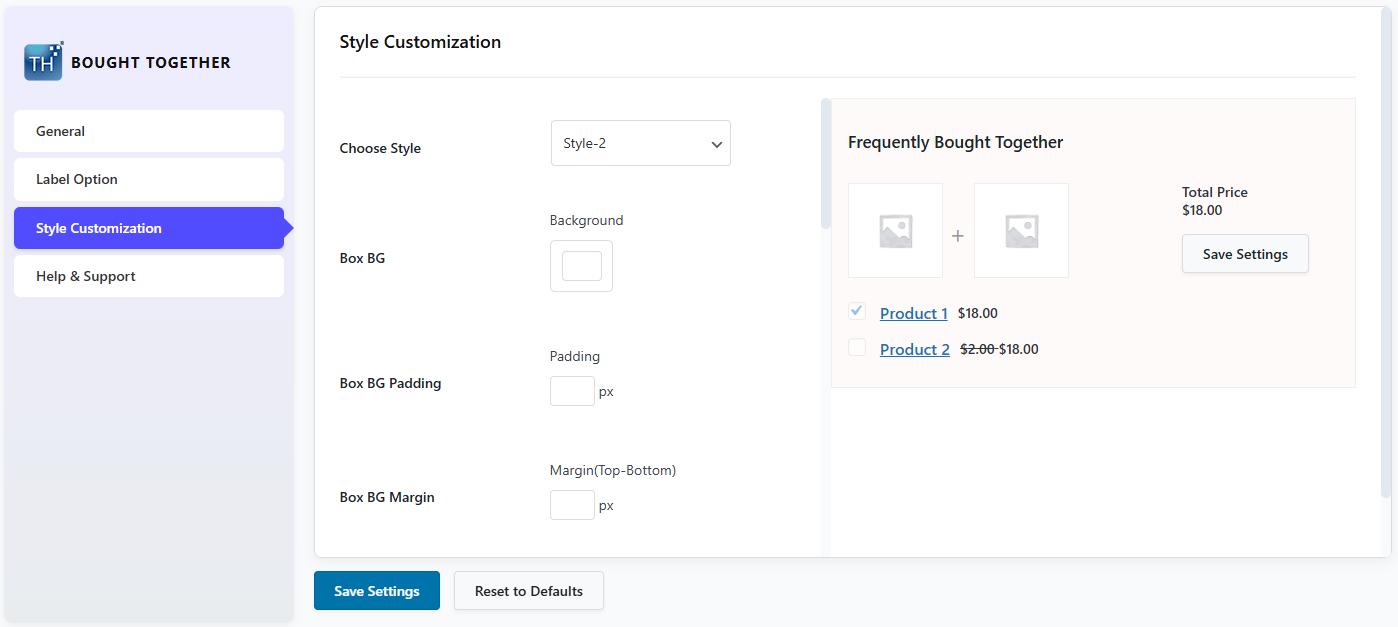
Style Customization is given to stylize the Frequently Bought Together Box’s appearance. There are 3 styles for the box. You can select any one.
You can change the color of the box, background, padding, title, image, and color of many parts.
Help & Support

This section can help you when you are stuck somewhere while navigating through this plugin. You can check out the documentation and contact the support team.
How to Make a Frequently Bought Together Box
Let’s see how you can put a Frequently Bought Together
Step 1: Open your WordPress dashboard.
Step 2: Go to Product and click on the product you want to make the Frequently Bought Together box on
Step 3: Go to the Product Data section and click on TH Bought Together

Step 4: Go to the Choose Product box and select product(s) that you want to show in the Frequently Bought Together box.
Although you can select other options (given above, Choose Product box) to show Bought Together products.
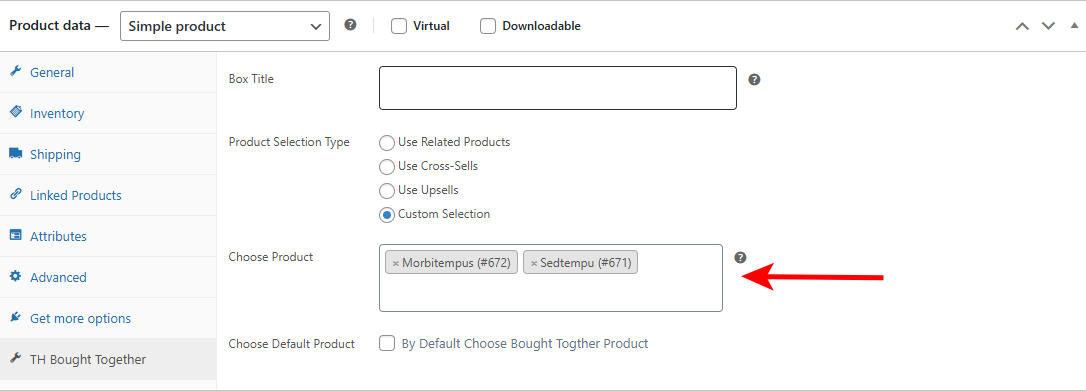
If you also select the Choose Default Product option, the selected products will be selected by default, and their price will be shown as added.
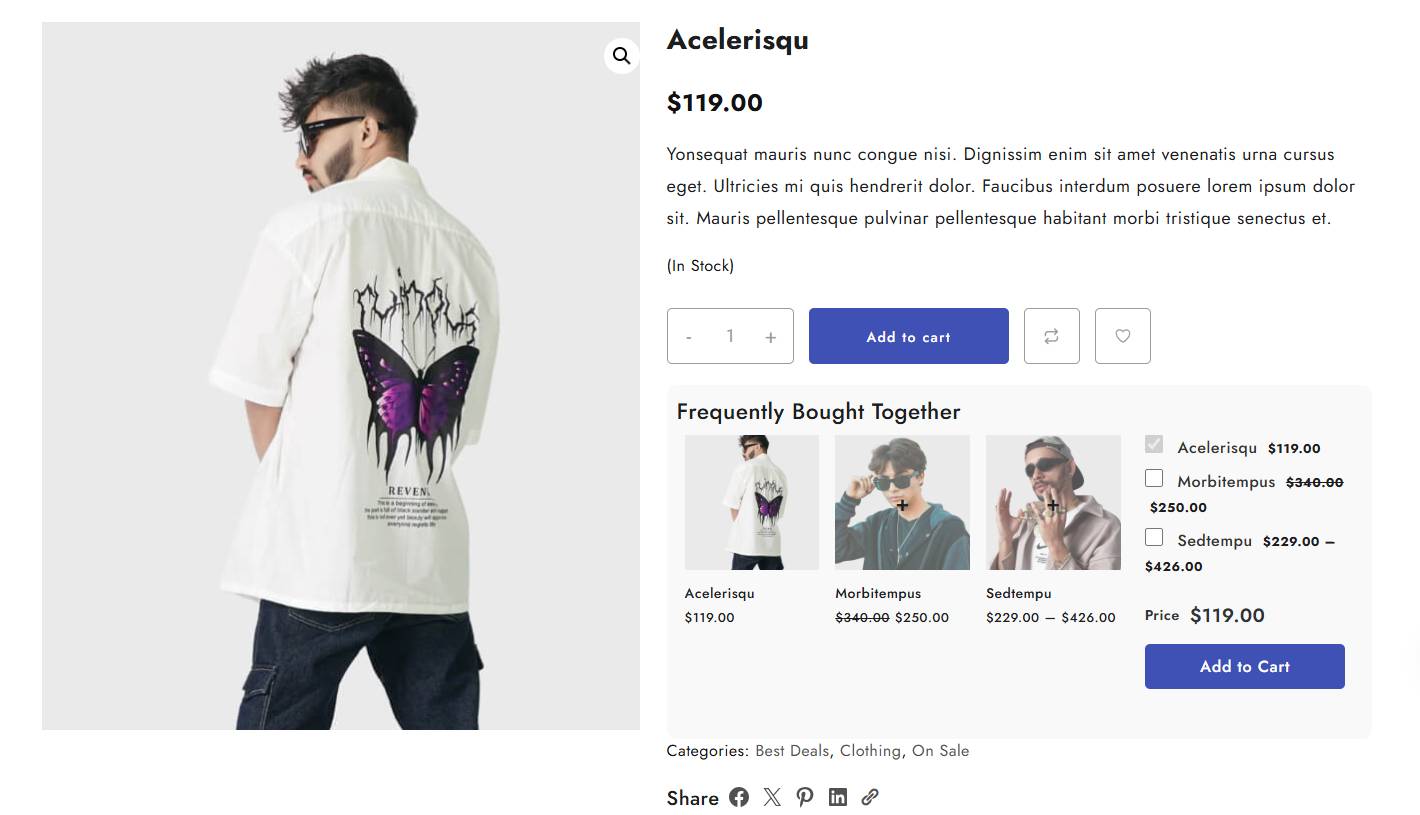
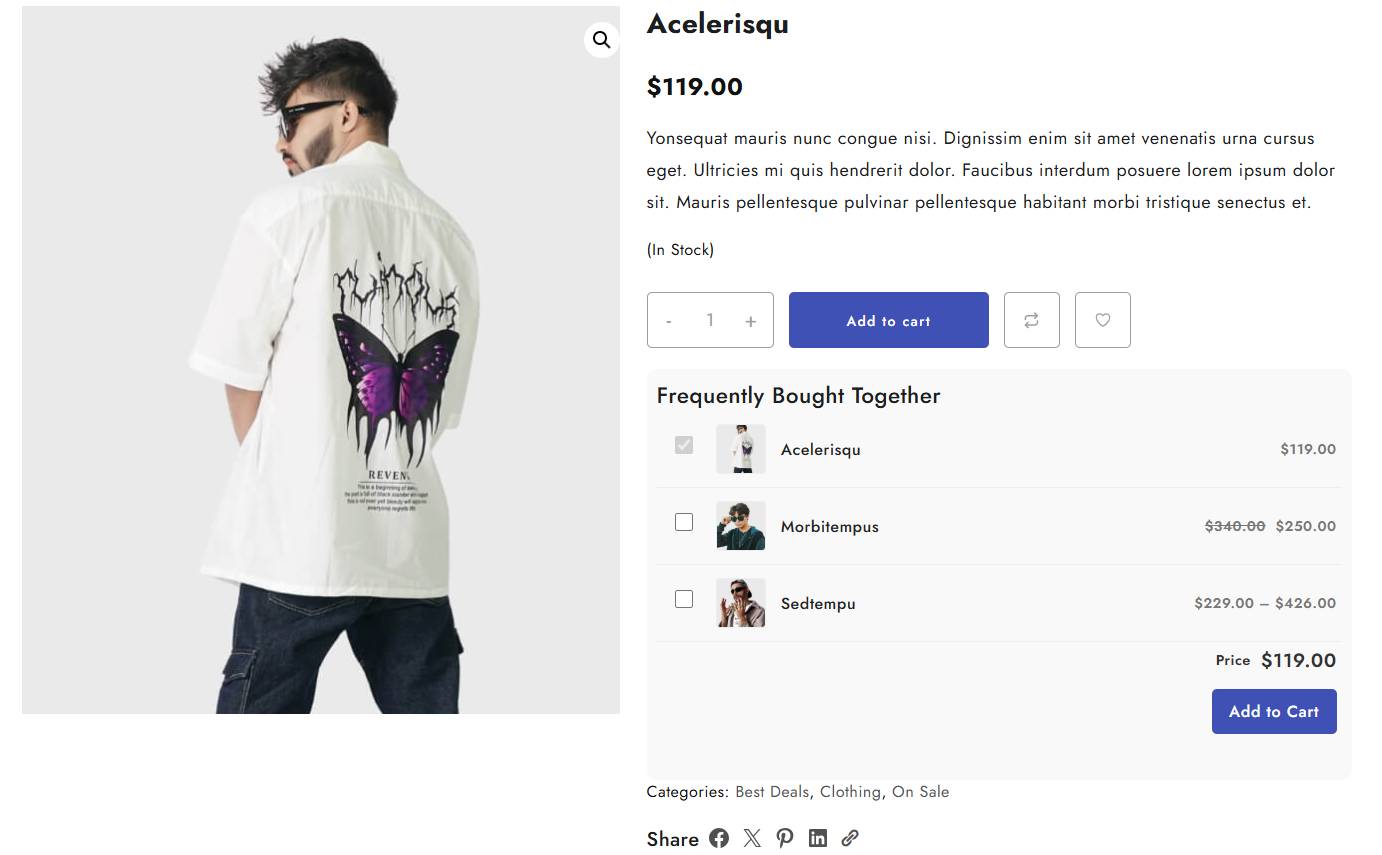
This is how Frequently Together Box will show up on the product’s single page
Style 1
Style 2

Style 3
FAQ
Q. Will this plugin slow down my website?
Ans. This is a well-optimized plugin, so it will not slow down your site.
Q. Is this feature compatible with my theme?
Yes, it is compatible with almost all WordPress themes. So you should not face any problem with theme compatibility.
Q. Can customers add all recommended items to the cart with one click?
Yes, with one click, all the bought together plugins will be added to the cart.
Q. Does this feature increase average order value?
Yes, this plugin is designed to increase Average Order Value by encouraging users to purchase similar products, ultimately increasing the order value.
Q. Is coding required to install the plugin?
No coding is required in any process.
Conclusion
So, we saw how you can add the bought-together functionality to your website. The whole procedure is so simple that a beginner can also use this plugin hassle-free.
With plugins like Frequently Bought Together, you can make a positive impression and convert website users to customers. Needless to say, these small things make a great impact.
This not only makes your site look professional but also makes your customers purchase more.
I hope this blog will help you. If you have any queries, comment down.
You can subscribe to our YouTube Channel, we also upload great content there, and follow us on Facebook and Twitter.
Read more articles:-


