
Overview ➣ The Pricing Table is a great way to tell the users about the pricing of the product. Do you know, how to create one? Learn to Create a Pricing Table in Elementor on your website in this blog.
While browsing a website, you must have seen a pricing table that provides detailed pricing in separate sections.
Sections can be separated by any means based on time period, services, features, etc.
The pricing table looks simple, but building the same can be time-consuming and headache-giving. Without suitable resources, designing a multi-sectional pricing table would be hard.
Elementor is a well-known page builder being used all over the world by website designers. Its drag-and-drop builder simplifies the design without writing a single line of code.
A pricing table is a great way to differentiate the pricing and components that fall under that pricing.
If you have seen such a pricing table where multiple boxes are given various pricing. Have you thought, about how you can create the same pricing table?
In this blog, we will see how can one design a Pricing table with the help of Elementor and Elemento Addons.
What are Elemento Addons and Why Do We Use the Plugin?
Elemento Addons is a WordPress plugin that gives extra power to Elementor with its add-ons (widgets) and customization capabilities.
It comprises several ready-to-use widgets like image animation, testimonial, pricing table, woo coupon, product slider, category slider, and many more.
Users don’t need to have technical knowledge to use this plugin.
How To Create a Pricing Table In Elementor?
Let’s get started with the full process.
Step 1) The first thing we have to do is install Elemento Addons to your WordPress site. So you can consider this video guide.
Now open the page, where you want to add the pricing table, with Elementor.
Step 2) In the left widget bar search for Price Box in the Elemento Addons section. Then drag the addon and drop it on the place where you want to add the Pricing table.

After placing the widget, you will see some settings in the left panel.
Step 3) Configure the Pricing table as per need
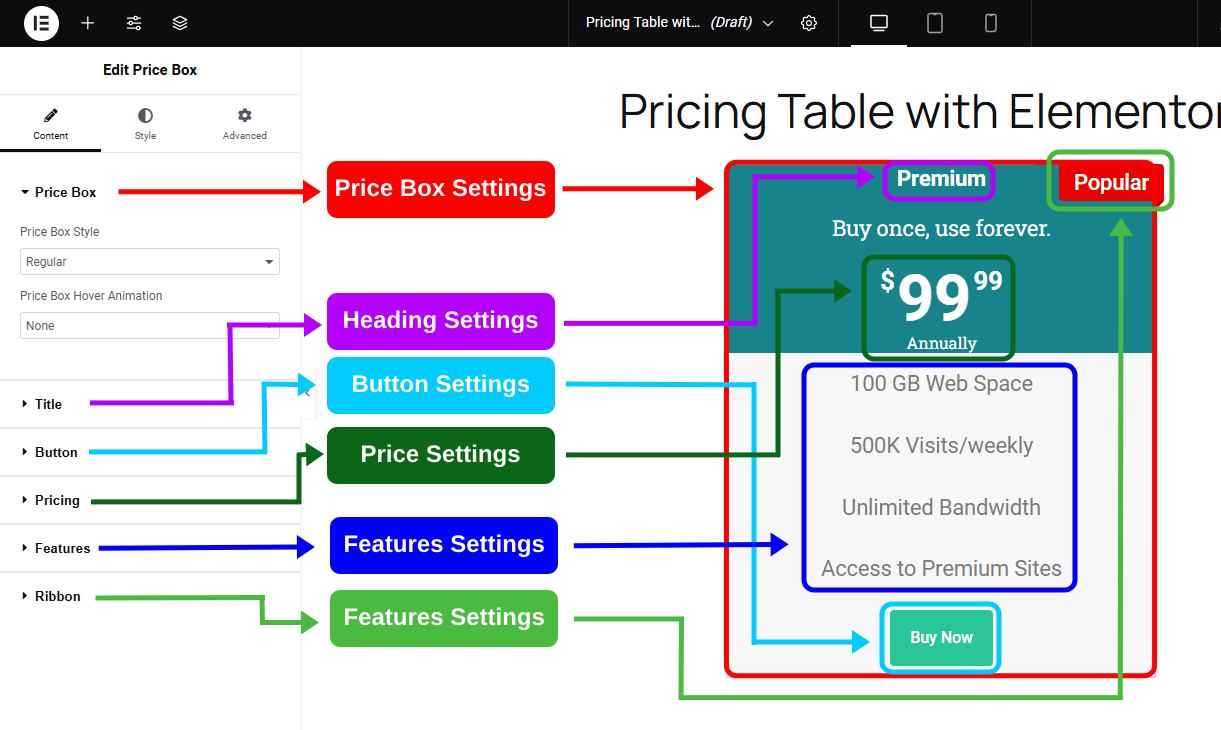
There are separate settings are given for each component of the price box like title, button, features, etc.
Step 4) Click on Styles to customize the appearance of the price box
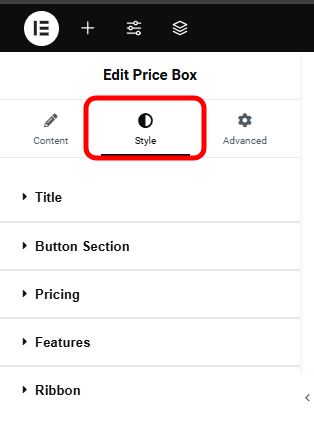
Here you can change typography, color & background, description tag, and padding. Again separate sections are here to customize the setting of each component.
In most of the sites, you would have seen 3 price boxes that show various pricing, to make that pricing table, we duplicate the box and put it in the container.

As per the price box, you can change the pricing and its features.
FAQ
Q. Why Pricing Table is significant?
Ans. The Pricing Table helps to show the pricing of different modules in a very simple way. It contains so much content and differentiates between them with pricing accordingly.
Q. Do I need to know the coding to create a Pricing Table?
Ans. No, no coding knowledge is important to create a Pricing Table. Just Elementor and Elemento Addons are enough for it.
Conclusion
So, we learned to create a Pricing Table with Elementor. We used Elemento addons in this tutorial as I found it most easiest way to do so.
Now you can design a Pricing Table on any site, but make sure it is compatible with Elementor, within a few minutes. Not only design but can customize it to match your website’s colour combinations.
This super easy Elemento Addons is highly recommended to empower Elementor.
I hope this blog will help you. Still, if you have any queries or suggestions then let me know in the comment section.
You can Subscribe to our YouTube Channel, we also upload great content there, also Do Follow us on Facebook and Twitter.
Explore More Articles


