
Nowadays, Elementor is among the top-ranked page builders. It is very easy to create a website using the features of page builders.
However, it provides premade designs but if you want to create on your own then Elementor’s drag-and-drop builder makes every operation very easy. So it is a win-win situation.
By the way, product pages are found in almost every ecommerce site but a custom woocommerce product page is built when the site owner has to show a product differently.
While designing the site you may create custom woocommerce pages.
And in this blog, we are gonna see how to create custom woocommerce product pages using Elementor page builder in a WordPress website.
What Tools We Need to Create Custom Woocommerce Product Pages
In this blog, we will need the Elementor plugin. In addition to this, we will also need Elemento Addons.
Elementor makes the page-building process easy and the Elemento Addon helps to extend the power of Elementor by adding widgets and extra functionalities to the widgets.
Elemento Addons has some widgets that feel illegal to use because of their operation and smoothness.
So let’s get started now,
How to Create Custom WooCommerce Product Pages Using Elementor
First, let’s install both plugins.
Installing Elementor Plugin
Step 1) Open your dashboard

Login to your WordPress dashboard.
Step 2) Go to Plugins and click on Add New Plugin

In the dashboard, you can see several menus on the left side. Go to plugins and click on Add New Plugin.
Step 3) Go to the Search Bar and search for Elementor
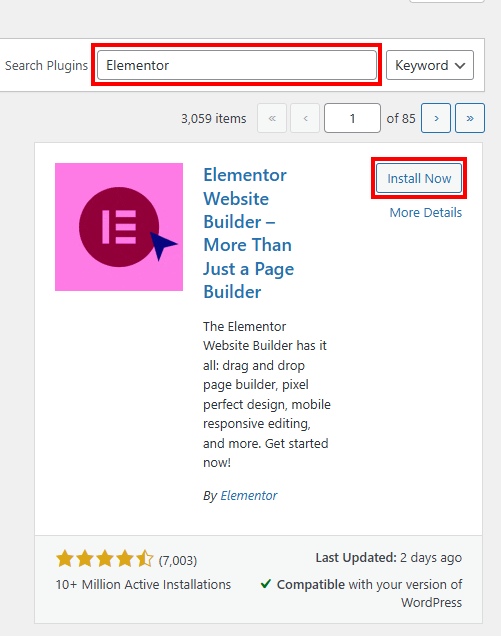
On this page, you will find the plugins. Go to the Search Bar and search for the Elementor.
Step 4) Install and Activate the Elementor
After searching for the Elementor, it will appear in the plugin’s list. Click on the Install button, after installation, click on the Activate button to activate the Elementor plugin.
Uploading Elemento Addons Plugin
First, download the Elemento Addons from ThemeHunk.

Go to the Elemento Addons page and purchase the plugin. You can watch this tutorial if you need a helping hand to get the Elemento Addons.
Step 1) Open your dashboard and Go to the Plugin’s Page
Repeat the same steps and reach the plugin’s page.
Step 2) Click on Upload Plugin
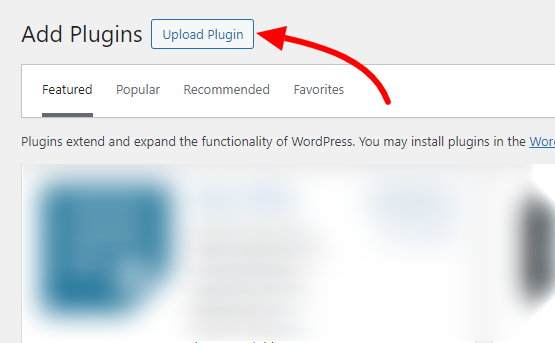
Go to the top left and click on Upload Plugin.
Step 3) Upload the Elemento Addons
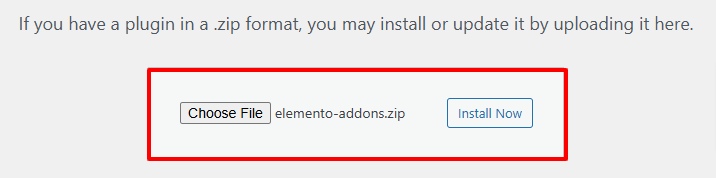
Click on Install Now and then Activate the plugin.
Both plugins are installed and now we can proceed further.
Creating Woocommerce Custom Product Page
Step 1) Create a New Page

Go to the dashboard and click on Pages then click on Add New Page.
Step 2 ) Click on ‘Edit with Elementor’
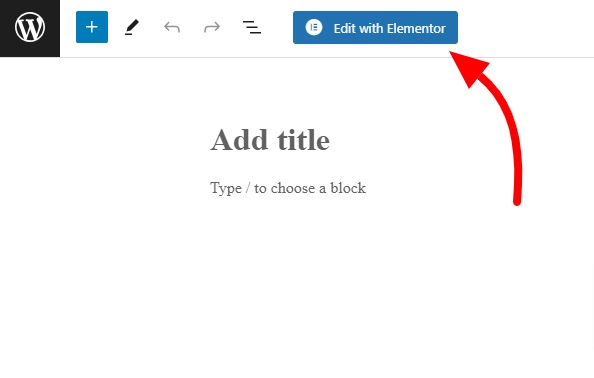
In the top bar, you will find the Edit with Elementor button. Click on it.
After this, the page will open with Elementor. You can access and use the Elementor widgets on this page.
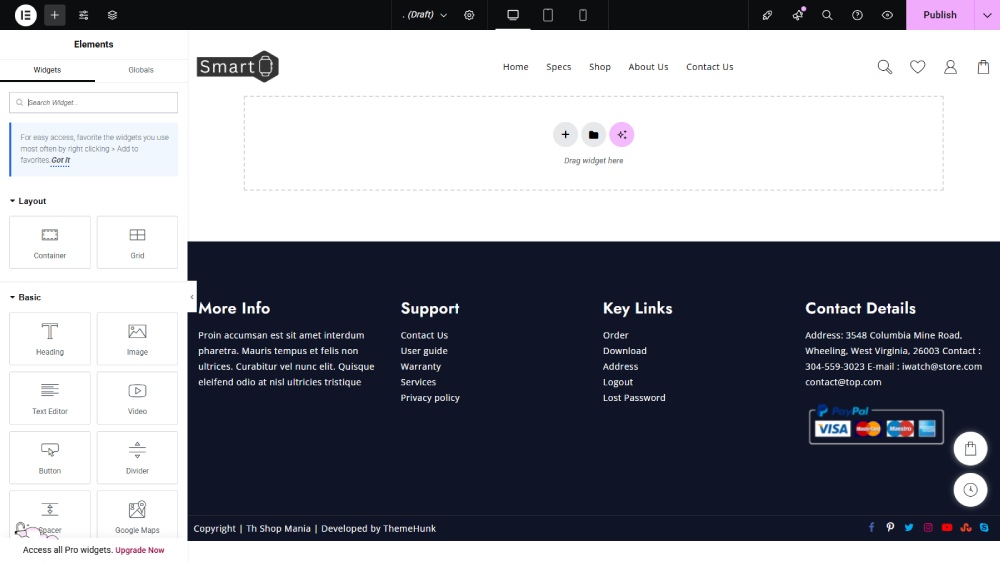
We will need two compartments, so first take a Container having two sides.

On a Product page, the first and one of the most important things we will put is image. so find the Image widget and put it into the left container.
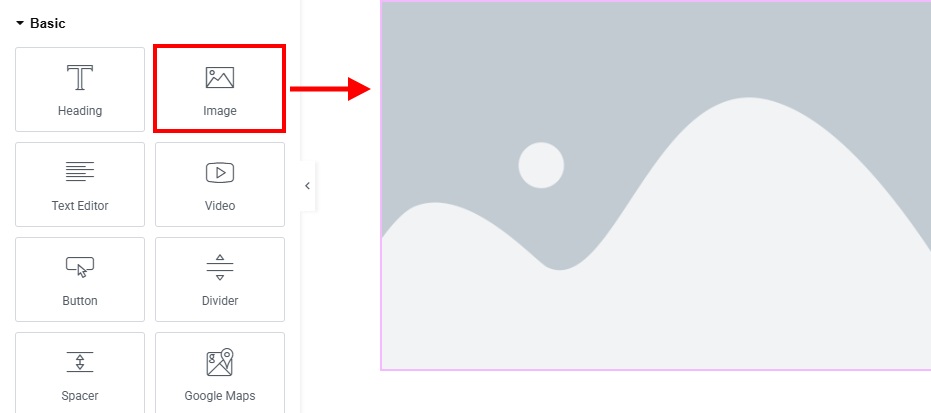
Now set the image of the product.
Now come to the right side. To enter the Heading, search for it and insert it into the second container.
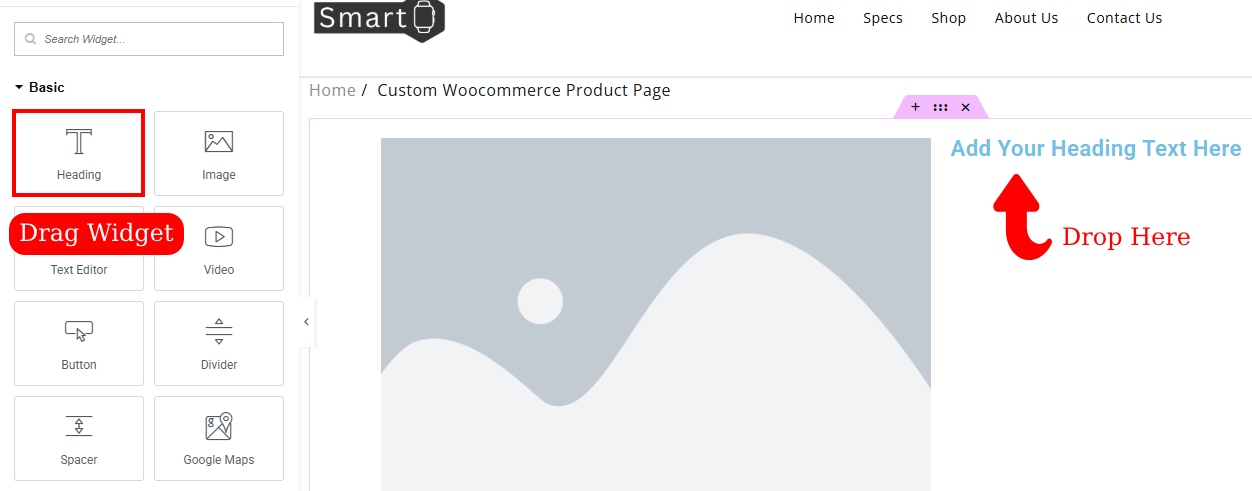
Enter the name of the product in the title.
In the same way, we will write the pricing of the product. To write the pricing, insert a text editor widget below the title and write the pricing of the product there.
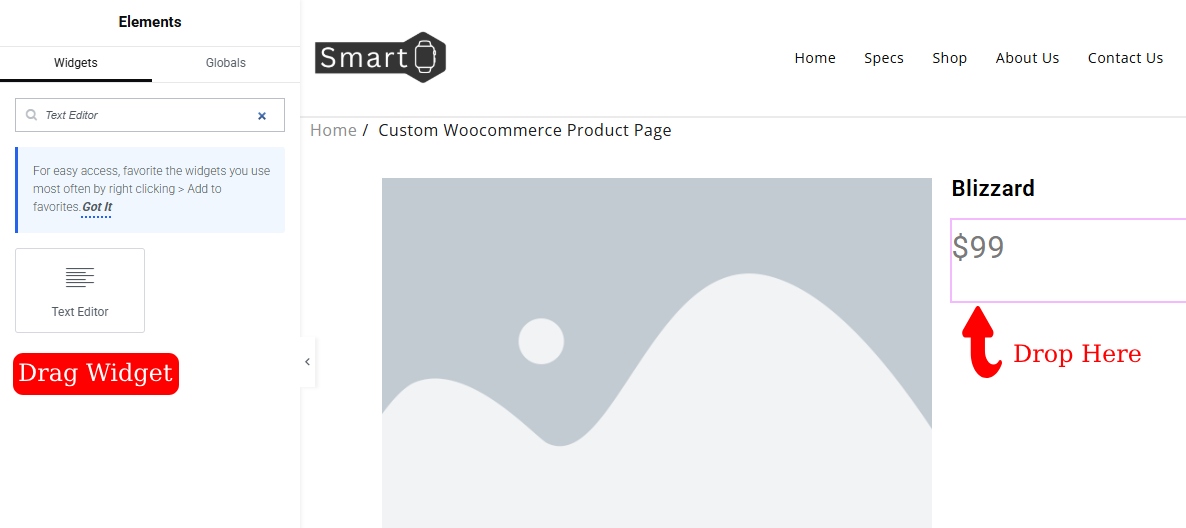
On the Product pages, there is a short description of the product. To add it, insert the text editor again and write a short description of the product.

Now it’s time to add the Cart button. This time we will use the Cart widget of the Elemento Addons because it has more features and functionalities.
Search for the Add to Cart and insert it into the container.
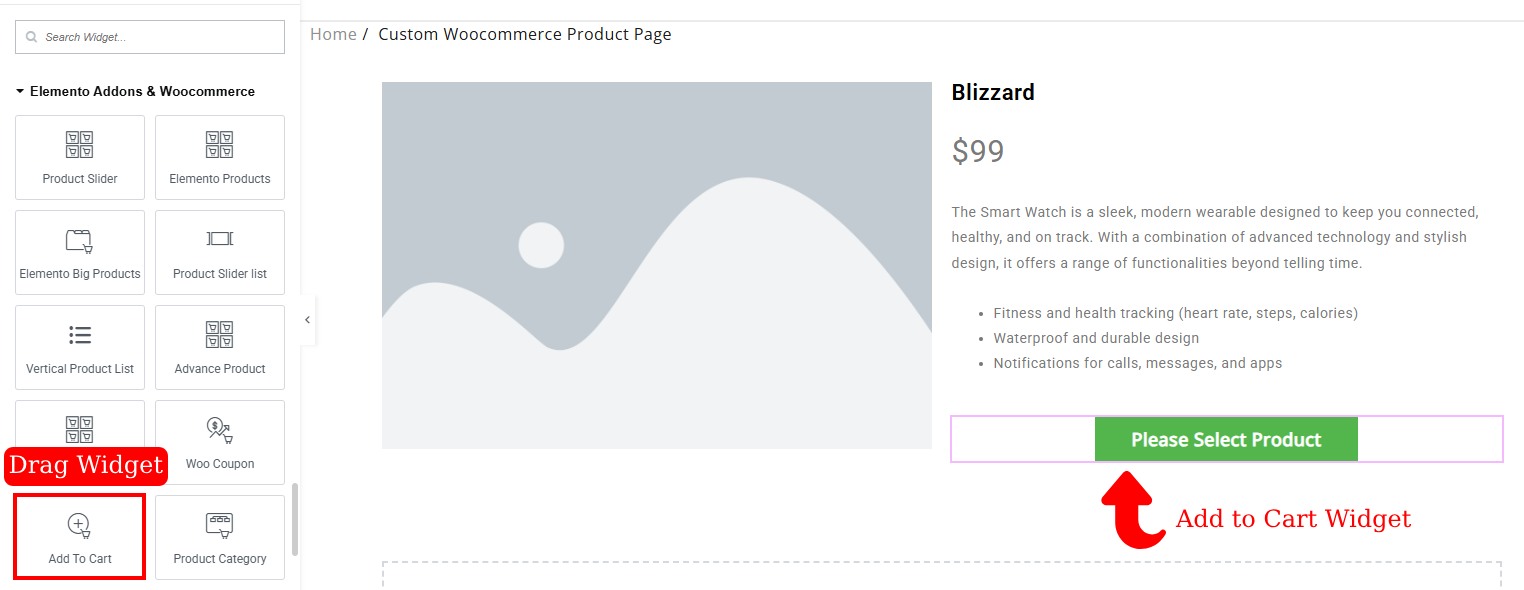
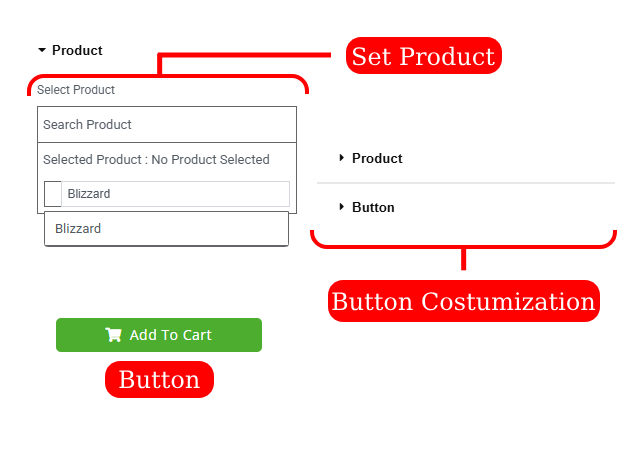
In the Cart button settings, search for the product name and select the product in the products section. After this, when the user clicks on the cart button, it will be added to the cart directly.
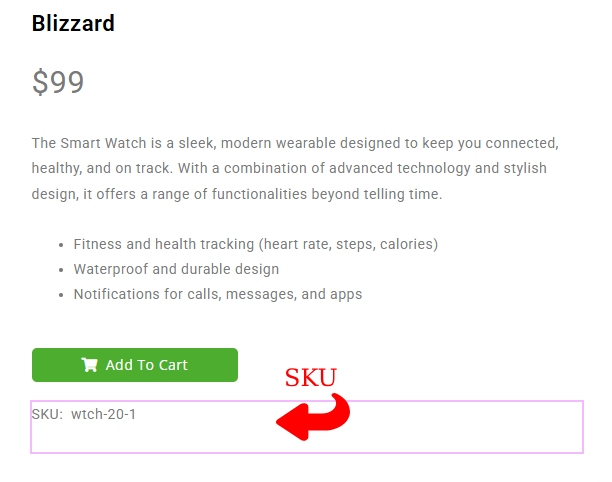
If you want to add the SKU ID then you can do so the same way we added other widget. Here insert the Text editor and write the SKU of the product.
One of the important parts of a product page is having social share buttons. You can add the social share button to this page too.
Search for the social icons and put them on the page.
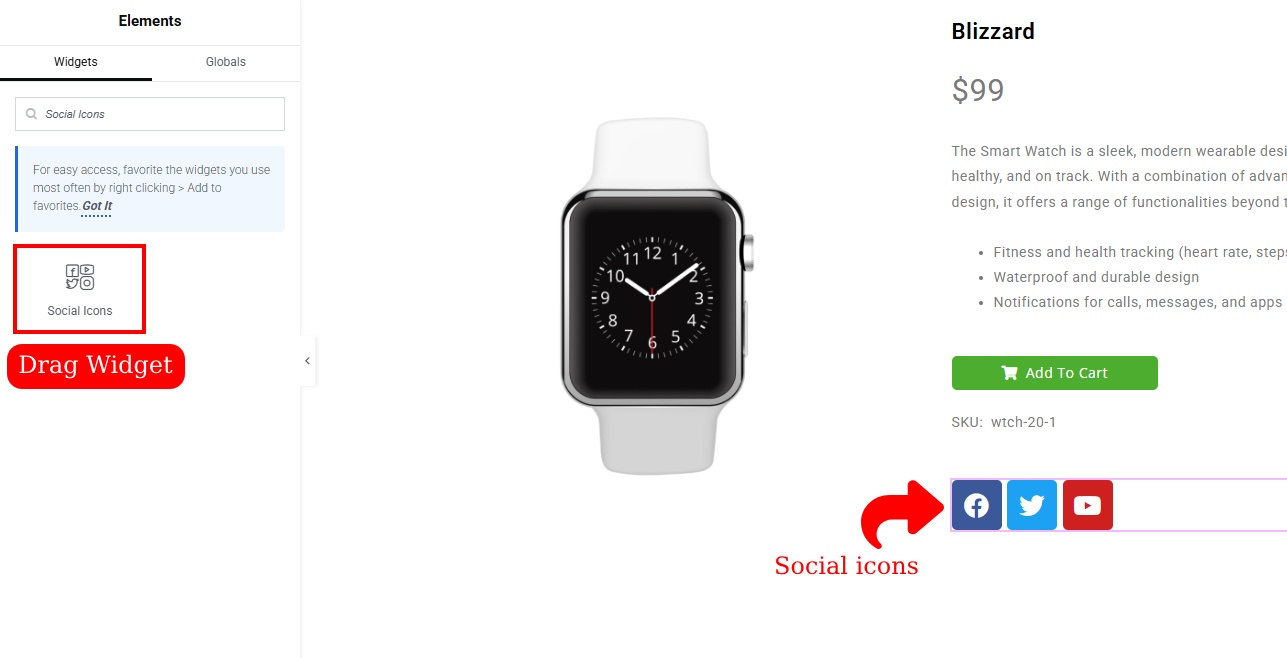
If you want to add more social handles buttons then click on Add New and add the new button. You can make several changes like changing the icon and editing the link and color.
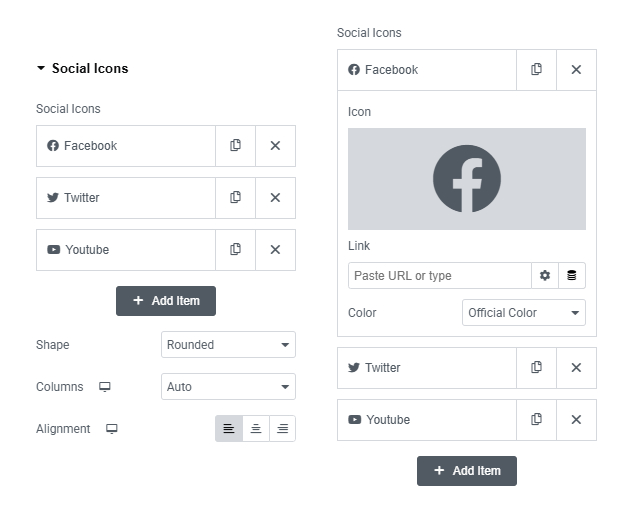
In the same way, you can add the other thing here.
If you want to give a main description also then add the text editor and write the description.

I added the main description outside the container which looks organized and systematic.
When users visit a product page, you can show related products so that they can check them too.
So, to add the related product first add a Heading and search for the product slider in Elemento Addons.
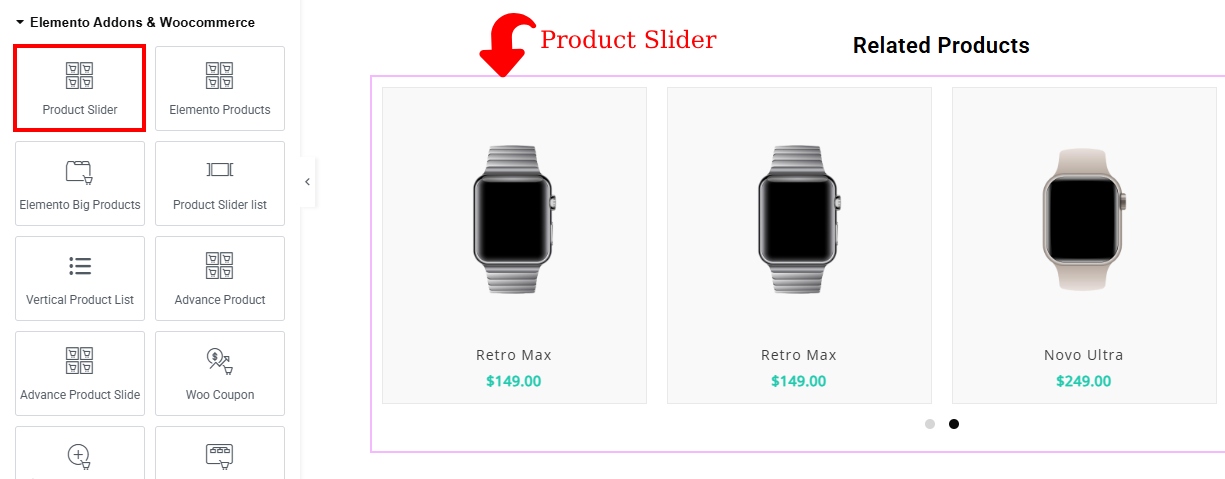
This is how you can add the custom woocommerce product page. Now it’s time to see the preview of the page.
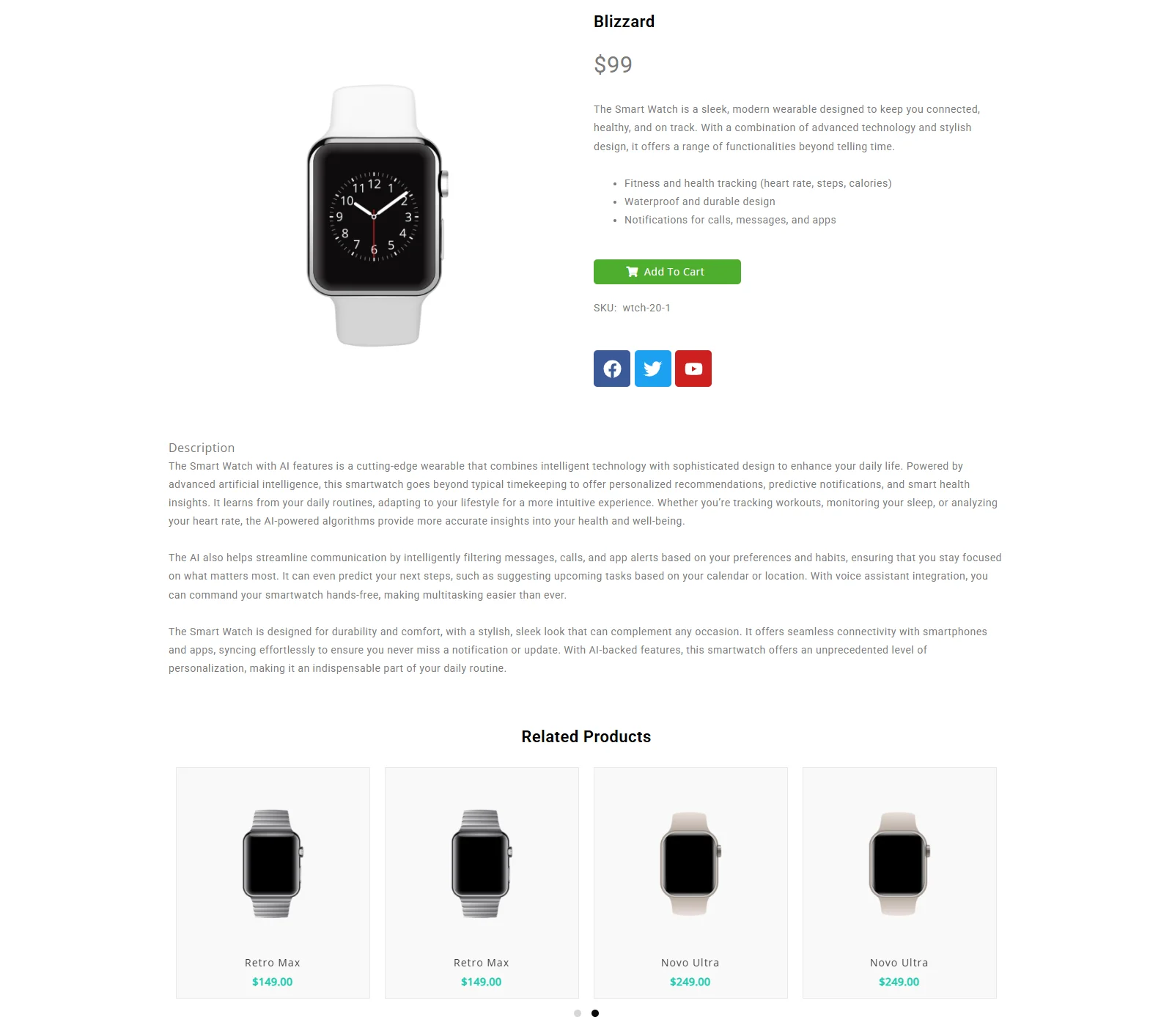
I must tell you, a product page can be made within a few simple steps too. For this, we will need the Elemento Addons widget.
Let’s see, how it is done.
Use Custom Related Product Page
After clicking on Edit with Elementor, go to the left side, where you will find the Elementor widgets.
Scroll down and get to Elemento Addons.
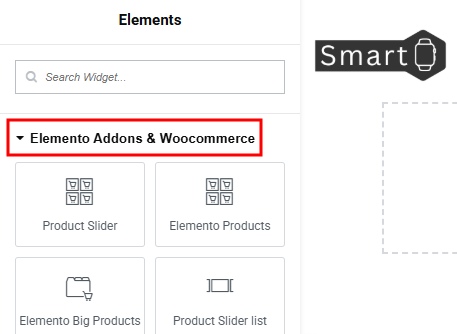
Find Theme Advance Products, drag the widget, and drop on the page.
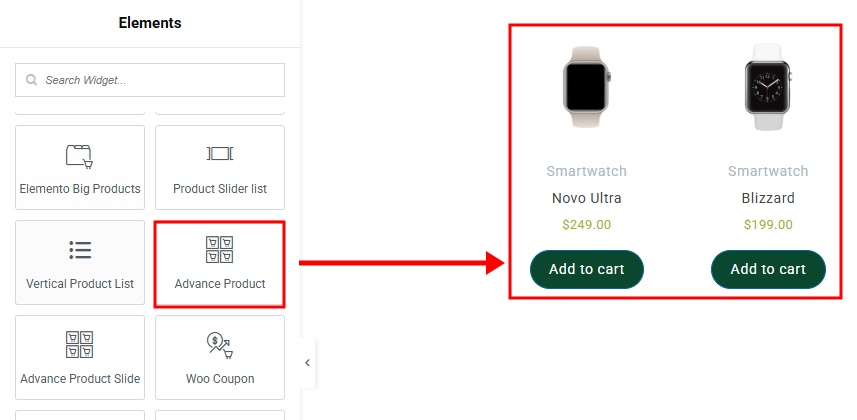
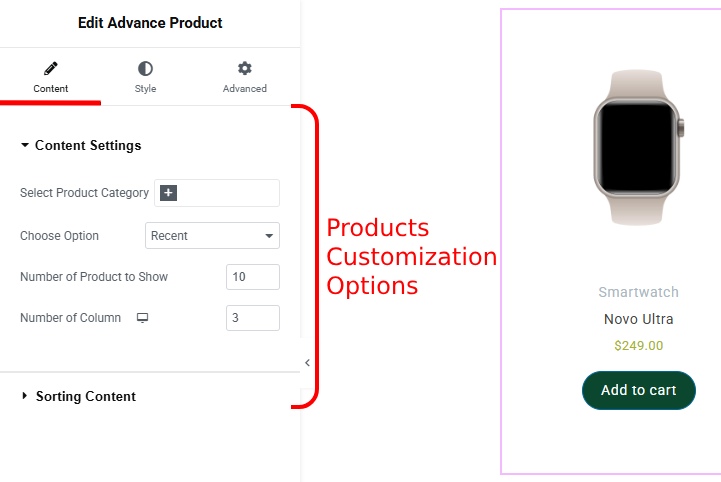
When you drop the widget, its customization setting will appear on the left bar. You can edit the settings and appearance of the addon.
But if you want to change the Appearance of the site then click on Style besides the Content.
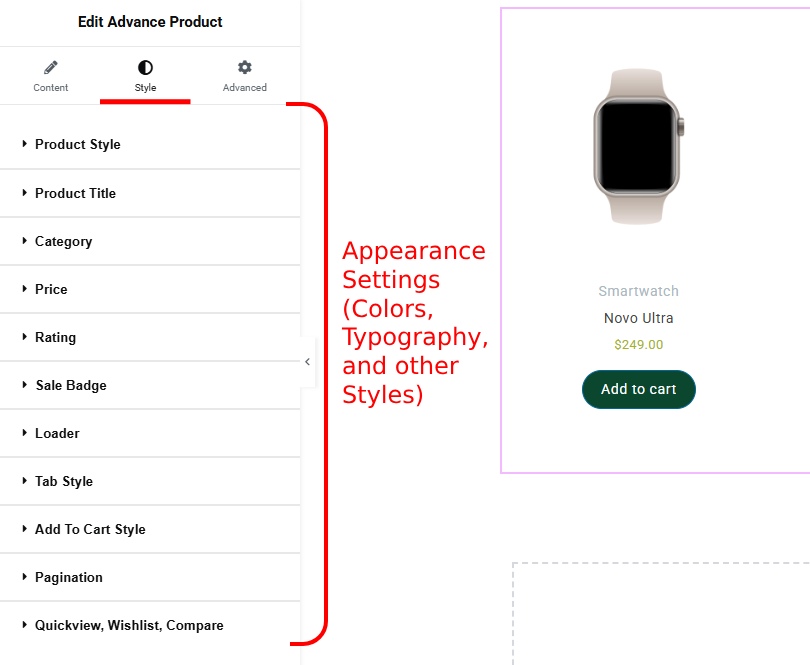
The Style section allows for changing the colors, typography, and other settings of the add-on.
After making all changes and setting up the page, click on Publish.
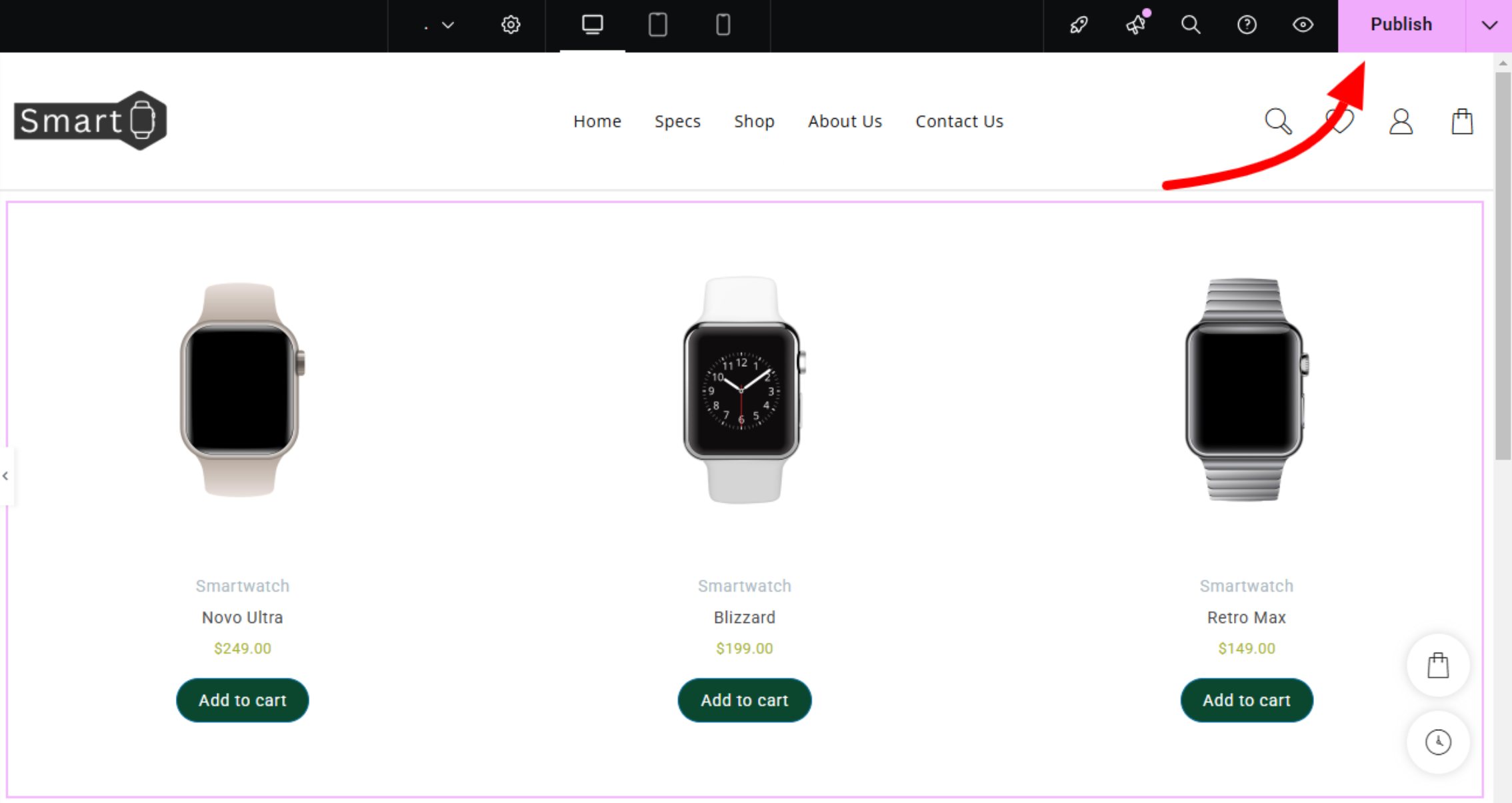
Now Preview your site.
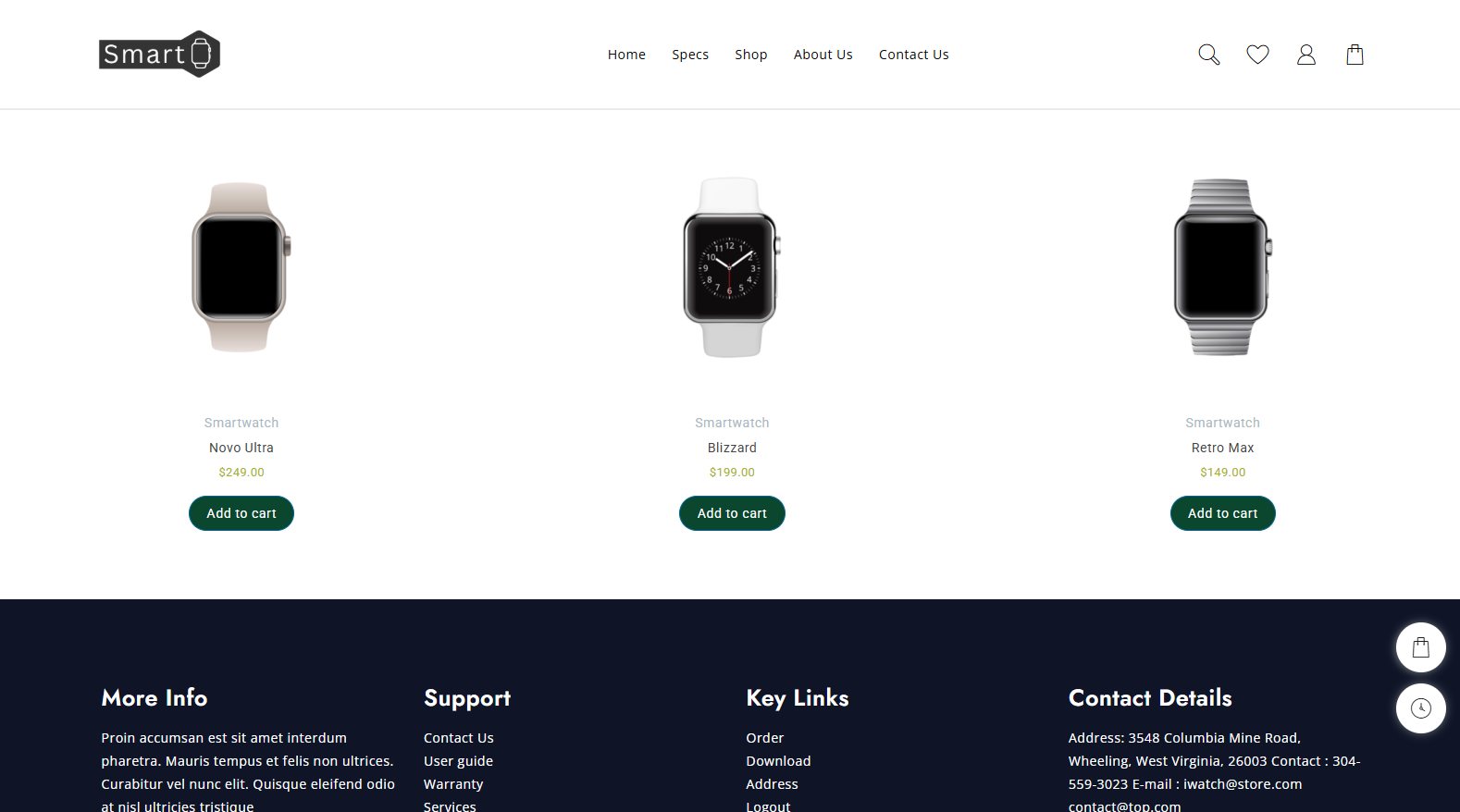
Here you can see, on the custom woocommerce product page, we added the products with the help of Elemento Addons’ Product widget.
The products are shown on the page. Let’s preview the single product page.
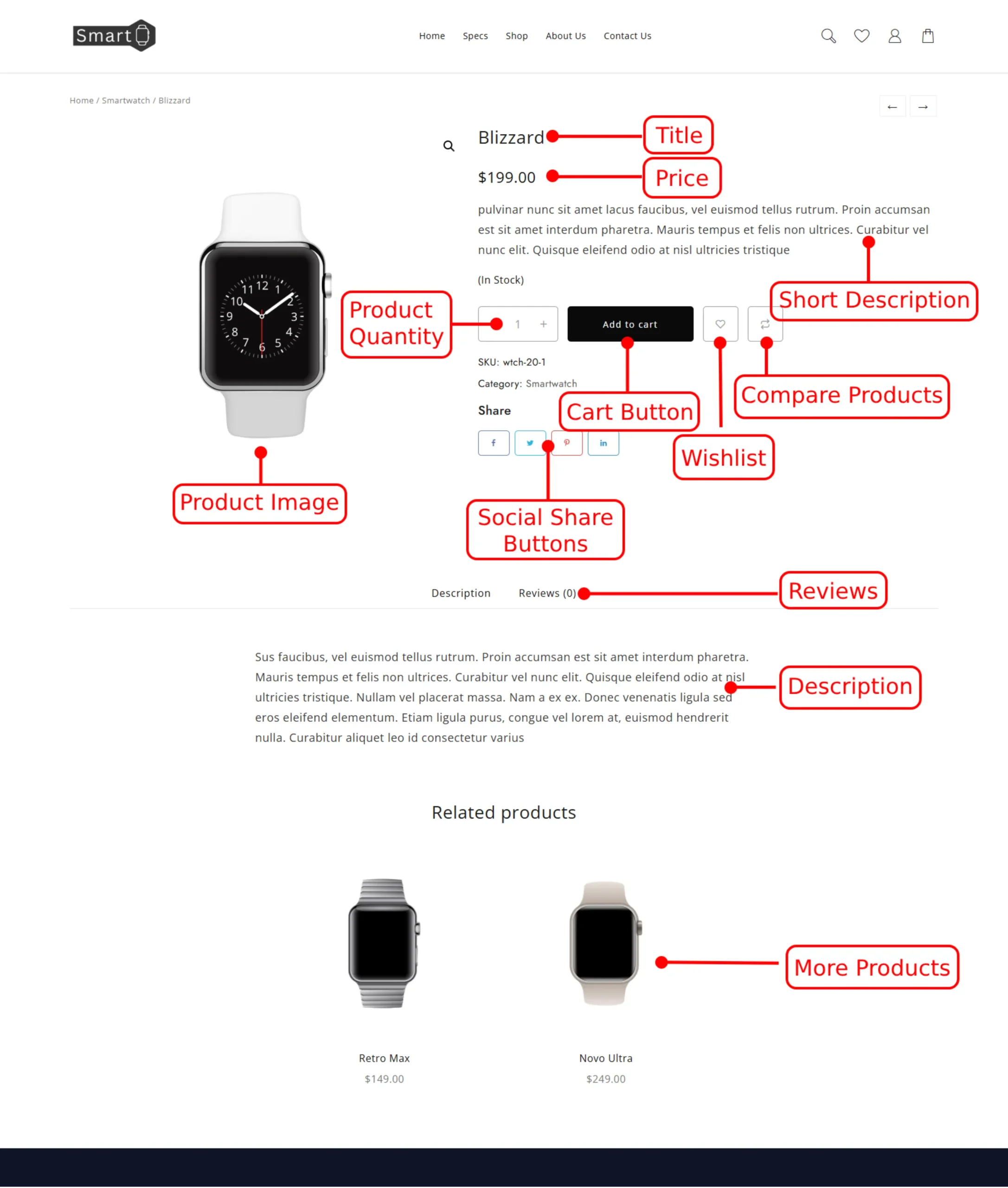
That’s it, the custom woocommerce product page is built.
FAQ
Q. Is the Elemento Addons’ Product widget responsive?
Ans. Yes, the Product widget is 100% responsive to all devices. Users can access the site and get the best view on any device they want.
Q. How to select products to show in Elemento Addons’ Products widget?
Ans. There are various ways to show products. You can show products by category, date added, etc. However, if you add a product widget, it will automatically fetch the products.
Conclusion
So we have learned, how to add the custom woocommerce product page using Elementor. As we used the Elemento Addons plugin also, it made it super easy to add products and show them on the page.
The Elemento Addons has so many addons for website building. It is not only known for the widgets but also for the features of the widgets.
Custom woocommerce product pages can be needed to promote specific features. Usually, templates don’t have such pages so it becomes necessary to create the page on our own.
I hope this blog will help you. Still, if you have any queries or suggestions then let me know in the comment section.
You can Subscribe to our YouTube Channel, we also upload great content there, also Do Follow us on Facebook and Twitter.
Discover More Articles


