
Overview➣ This article explains how to add shoppable video to a WordPress WooCommerce store using Store One, covering setup, product linking, video settings, layouts, customization, best practices, and ways to create an engaging video shopping experience.
Video has become one of the most effective ways to showcase products online.
Whether it’s a short product demonstration, an outfit video, a tutorial, or a vertical reel-style clip, videos can help shoppers understand products faster and make purchasing decisions with more confidence.
But there’s one common problem: a customer watches the video, likes the product, and then has to leave the video, find the product, open its page, and add it to the shopping cart.
Shoppable videos solve this problem by connecting products directly to the videos. With the right WordPress plugin, customers can watch a video and add the featured product to their cart without navigating through multiple pages.
In this guide, we’ll show you how to add shoppable videos to a WordPress website using Store One.
What is Store One?
Store One is a WooCommerce plugin designed to add useful shopping and product-focused features to WordPress stores.
It brings multiple eCommerce enhancements together, helping store owners improve product presentation, navigation, customer engagement, and the overall shopping experience.
One of its features is Shoppable Videos, which lets you connect WooCommerce products with videos and give customers a more interactive way to discover and shop for products.
What is Shoppable Video?

A shoppable video is a product video that includes clickable or purchasable products. Instead of simply watching a product demonstration, visitors can see the products featured in the video and add them to their WooCommerce cart.
For example, imagine you run a fashion store and publish a video showing a complete outfit.
You could attach:
- T-shirt
- Jeans
- Shoes
- Bag
to the same video.
Customers can watch the video and purchase the products directly from the video card.
Store One takes this approach and adds an Add to Cart option directly to the video card. It also allows multiple products to be associated with a single video.
Why Add Shoppable Video on WordPress Store?
Traditional product videos are useful, but they usually create an extra step between product search and purchase.
A typical journey looks like:
Watch video > Find product > Open product page > Add to cart
With shoppable videos, the journey becomes:
Watch video > Add to cart
This can make product discovery more interactive and reduce unnecessary navigation.
Key Benefits
- Make product discovery more engaging: Short-form video gives customers a visual way to understand how products look and work.
- Reduce the distance between discovery and purchase: Customers can add products directly from the video card instead of searching for them afterwards.
- Showcase multiple products: A single video can feature several products. For example, a fashion video can promote an entire outfit rather than just one item.
- Repurpose social media content: If you already create short vertical product videos for platforms such as Instagram or TikTok, you can use similar videos on your website.
- Create a more interactive shopping experience: Instead of displaying static product images alone, you can combine video content with product information and purchasing options.
How to Add Shoppable Videos in WordPress Using Store One
Store One is a WooCommerce plugin suite that includes a dedicated Shoppable Videos module.
The module lets you upload videos to your WordPress media library, connect WooCommerce products to them, and display the videos in a grid or slider.
Here is how to set it up.
Step 1: Install Store One
First, install the Store One plugin on your WordPress website from the WordPress plugin repository or the ThemeHunk website.
Method 1: Install from WordPress Plugin Repository
- Log in to your WordPress admin area
- Navigate to Plugins > Add New Plugin

- Search for TH Store One
- Click Install Now

- Activate the Plugin

Method 2: Upload the Plugin from the ThemeHunk website
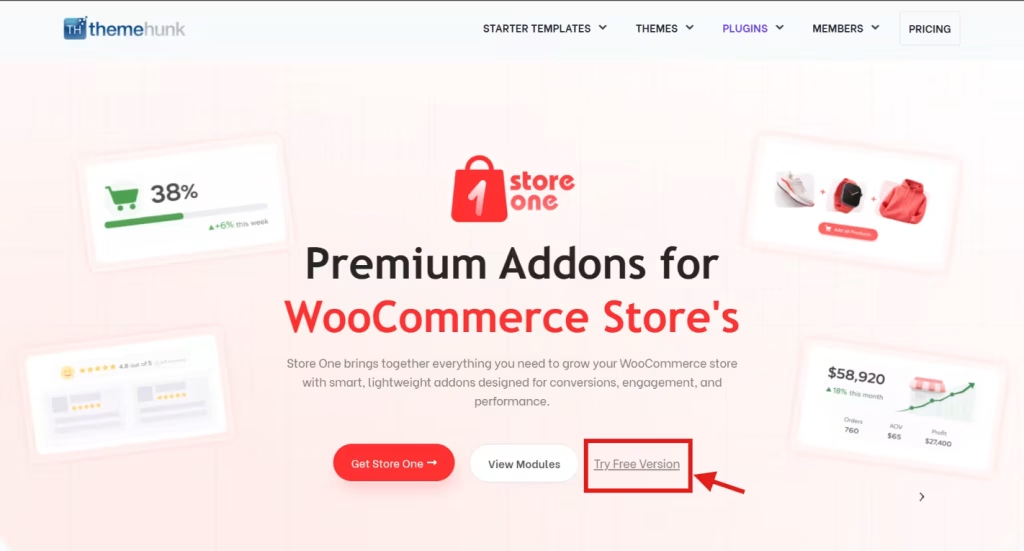
- On the ThemeHunk site, navigate to Plugins > Store One
- Click on Try Free
- Go to Plugins > Add New > Upload Plugin

- Upload the ZIP file
- Click Install Now and then Activate

After activation, you’ll see the Store One menu in your WordPress dashboard.
Step 2: Open Store One Dashboard
From your WordPress dashboard:
- Store One > Modules

Here you’ll find all available WooCommerce enhancement modules included in the plugin.
Step 3: Enable Shoppable Videos
- After activating Store One, open the Store One settings from your WordPress dashboard.
- Locate the Shoppable Video module.

- Toggle the switch and enable it.

The Status option lets you switch the Shoppable Videos functionality between Active and Inactive.

The feature is included within Store One rather than being a separate plugin. This means you can enable the module when you need it while keeping other Store One features available for your WooCommerce store.
Step 4: Create a Shoppable Video List
Under the Shoppable List Item section, click Add List Item.
A Product List Item acts as a container for your shoppable videos. You can create multiple list items if you want to display different video collections in different sections of your website.
For example, you could create separate lists for:
- New Arrivals
- Summer Collection
- Best Sellers
- Featured Products
- Product Tutorials
Store One also allows you to add multiple video products inside a single list item, making it possible to create a connected collection of shoppable videos.

Step 5: Add a Video Product
Inside your Product List Item, click + Add Video Product.
You can then upload or change the video associated with that video product.
Next, use the Search Products field to find the WooCommerce product you want to connect to the video. You can also use the Category Filter to make it easier to locate products in larger stores.
Once selected, the product will appear as the Attached Product Card, showing information such as its product name, price, stock status, and product ID.
You can repeat this process to add more videos and products to the same list.
Step 6: Configure Video Playback
Store One gives you several options for controlling how your shoppable videos behave.
Under content settings, you can configure:
- Video Auto Play: Automatically starts the video and can move to the next product video.
- All Video Auto Play: Automatically plays all videos in the list.
- Mute: Controls whether videos start with audio.
- Delay: Sets how long a product remains visible before moving to the next item.
If you leave the Delay field empty, the product remains visible for the full duration of its attached video.
Choose these settings based on the type of video content you’re displaying. For example, autoplay with muted audio can work well for short product demonstrations.

Step 7: Enable Product Information in the Popup
Store One can also display additional product information in a popup.
Enable Product Info Showing in Popup if you want customers to see more product details when they interact with a video.
The popup can allow shoppers to:
- Watch the product video
- Browse between products
- Adjust product quantity
- View the full product page
- Add the product directly to the cart
This allows customers to explore the product without immediately leaving the video-shopping experience.
Step 8: Copy the Shoppable Video Shortcode
Once your video list is configured, Store One generates a shortcode for the shoppable video section.
Click the Copy icon next to the shortcode and paste it wherever you want the videos to appear.
You can add the shortcode to:
- WordPress pages
- Blog posts
- Sidebar widgets
- Page builder sections
- Landing pages
This gives you flexibility over where your shoppable videos appear on your website.
Step 9: Configure the Display Layout
Next, open the Display Page settings.

You can add a heading above your videos by entering a custom Title, such as:
Shoppable Videos or Shop Our Latest Videos
You can also choose the appropriate HTML heading tag or hide the title completely.
For the video layout, Store One lets you choose between a standard grid and a slider.
Enable Display in Slider if you want visitors to browse through the videos using a carousel. Leave it disabled if you prefer a traditional grid layout.
You can also control:
- Number of columns
- Column spacing
- Navigation visibility

Step 10: Customize the Video Design
The Design section lets you customize the appearance of your shoppable video cards.
You can adjust:
- Product information position
- Product title color
- Video border
- Border color and thickness
- Border radius
- Product information background
- Product price color
- Add to Cart button color
- Progress bar color
- Video play/pause icon colors

Store One also provides two visual presets:
Default: Product information appears in an overlay on the video.
Modern: Product information appears below the video for a cleaner, more spacious layout.

Step 11: Add the Shortcode to Your Website
Finally, paste the generated shortcode into the page or section where you want your shoppable videos to appear.
For example, you could create a dedicated Shop by Video page or add a smaller video section to your homepage.
When visitors interact with the video, they can browse the featured products, view product information, and use the Add to Cart button without having to manually search for the product.
What the Customer Sees
On the front end, customers can browse through your video products using the navigation controls. The video card can display the product thumbnail, name, price, and a quick Add to Cart button.

Clicking a video product can open the interactive popup, where shoppers can watch the video, move between products, adjust quantities, view the product page, or add the product to their cart.

This creates a more direct journey from product discovery > video engagement > purchase, without requiring customers to search through your store manually.
Ready to add shoppable videos to your WooCommerce store?
Best Practices for Creating Shoppable Videos
Simply adding videos isn’t enough. The content needs to encourage customers to interact with the products.
Keep Videos Short and Focused
Avoid unnecessary introductions. Show the product quickly and focus on what makes it useful or desirable.
Showcase Products in Use
Instead of simply displaying a product, show how it works. For example, a fitness store could show a resistance band being used in an exercise rather than displaying the band on a table.
Feature Multiple Products When Relevant
If a video naturally includes several products, tag them all. For example:
Outfit Video > Shirt + Jeans > Shoes + Watch
This can turn one video into a mini product catalog.
Make the Product Clearly Visible
Customers should be able to understand which product is being promoted. Avoid videos where the product is hidden or only appears briefly.
Use High-Quality Video
Blurry or poorly lit videos can make products look less appealing. Use good lighting, clear visuals, and an appropriate video resolution.
Match the Video to the Product
The best shoppable videos aren’t simply advertisements. They demonstrate the product in a useful context.
For example:
- Clothing > Show the outfit being worn
- Cosmetics > Demonstrate application
- Electronics > Show the product in use
- Furniture > Show it in a room
- Fitness equipment > Demonstrate an exercise
Examples of Shoppable Video Ideas
You don’t need to limit shoppable videos to traditional product advertisements.
Here are some ideas you can try.
- Fashion Store: Create an “Outfit of the Day” video and tag every product in the outfit.
- Beauty Store: Create a makeup tutorial and link the products used in the tutorial.
- Electronics Store: Create a quick demonstration showing how a gadget works and connect the featured products.
- Home Decor Store: Create room makeover videos and tag the furniture and accessories shown in each scene.
- Fitness Store: Demonstrate a workout using your fitness products and connect each piece of equipment to the video.
- Food Store: Create recipe videos and link the ingredients or kitchen products used.
Store One Shoppable Videos vs Traditional Product Videos
The biggest difference is the purchasing experience.
| Traditional Videos | Shoppable Videos |
|---|---|
| Customer watches videos | Customer watches videos |
| Customers search for products | Product is shown with the video |
| Customers open the product page and add the product to the cart | Customer directly adds product to cart |
| More navigation | Fewer steps |
| Primarily informational | Informational + interactive |
The goal isn’t to replace product pages. Instead, shoppable videos can create another path from product discovery to purchase.
Why Use Store One for Shoppable Videos?
Store One combines shoppable video functionality with other WooCommerce features in one plugin suite.
Its Shoppable Videos module provides:
- Multiple products per video
- Direct Add to Cart
- Grid layout
- Slider layout
- Default and Modern card styles
- Column and spacing controls
- Visual styling options
- Category filtering when selecting products
- Self-hosted videos
- Multiple shoppable video rules
Store One also doesn’t require a separate third-party video platform for hosting these videos.
FAQ
Q: What is a shoppable video?
Ans: A shoppable video is an interactive product video that allows customers to discover and purchase products featured in the video. Instead of searching for the product separately, shoppers can interact with the video and use options such as Add to Cart to begin the purchasing process.
Q: Can I add the shoppable videos to a WordPress website?
Ans: Yes. You can add shoppable videos to a WordPress website using a WooCommerce-compatible plugin such as Store One. It allows you to connect videos with WooCommerce products and display them on your website.
Q: Can I add multiple products to a shoppable video?
Ans: Yes. Store One allows you to associate multiple WooCommerce products with your video content. This is useful when a single video features several products, such as a complete outfit, room setup, or collection.
Q: Can customers add products to their cart directly from the video?
Ans: Yes. Store One provides an Add to Cart option for products associated with shoppable videos, allowing customers to purchase featured products without having to search for them manually.
Q: Can I display shoppable videos in a slider?
Ans: Yes. Store One lets you display your shoppable videos in either a grid or slider layout. You can also configure options such as columns, spacing, and navigation.
Q: Can I customize the appearance of shoppable videos?
Ans: Yes. Store One provides design options for customizing elements such as video borders, product information, product title and price colors, Add to Cart buttons, progress bars, and border radius. You can also choose between Default and Modern card styles.
Q: Can I autoplay shoppable videos?
Ans: Yes. Store One includes video playback settings such as Video Auto Play and All Video Auto Play. You can also configure options such as mute and playback delay.
Q: Can I show product information in a popup?
Ans: Yes. Store One includes a Product Info Showing in Popup option. When enabled, customers can interact with the product information and access options such as viewing product details, changing quantity, visiting the product page, and adding the product to the cart.
Final Thought
Shoppable videos can turn ordinary product content into an interactive shopping experience. Instead of asking visitors to watch a video and then search for the products shown in it, you can connect those products directly to the content.
With the Store One Shoppable Videos module, you can upload videos, connect one or multiple WooCommerce products, choose between grid and slider layouts, customize the appearance, and let customers add products to their cart directly from the video card.
Thanks for reading this blog. If you find this article helpful, do share it with your friends. If you have any questions, do not hesitate to comment below. We will help you to solve your problem.
We hope this article helped you understand how to add Shoppable Video on a WordPress Site.
Please subscribe to our YouTube Channel. We also upload great content there. Do follow us on Instagram, Facebook, and Twitter.
More Helpful Reads –


