
Overview ➣ This guide explains what pingbacks and trackbacks are in WordPress and why they’re considered outdated and potentially harmful today. Originally meant to improve engagement between websites, these features are now often exploited by spammers, posing security and performance risks.
WordPress is an incredibly versatile and user-friendly platform that powers millions of websites, from personal blogs to large-scale corporate sites.
It offers a range of features and tools designed to help website owners improve content management, SEO, and user engagement.
Among the many features built into WordPress are pingbacks and trackbacks, two types of notifications that allow websites to communicate with each other when linking to or referencing content.
While these features were initially designed to foster engagement and networking among bloggers and website owners, many modern WordPress users find that they offer more headaches than benefits.
Pingbacks and trackbacks can easily be exploited by spammers, affecting your site’s performance and security.
Moreover, in today’s fast-paced digital landscape, where search engines and social media interactions have largely overtaken the need for these old-school link notifications, many website owners are looking to disable these features.
If you’re managing a WordPress site and feel that pingbacks and trackbacks aren’t adding value or might even be causing problems, this comprehensive guide will walk you through why and how to disable them.
We’ll explore why these features are potentially harmful, especially in terms of security and user experience, and provide you with several methods to disable them effectively.
Whether you’re a blogger, a business owner, or managing a larger website, this guide will help you streamline your site, enhance website performance, and safeguard it from unwanted spam and security risks.
You can learn more about the Trackback and Pingback here. By the end of this post, you’ll be equipped with the knowledge to make the best decision for your WordPress site.
What Are Pingbacks and Trackbacks in WordPress?
Before diving into how to disable pingbacks and trackbacks, it’s important to understand what they are and how they function in WordPress.
Pingbacks
A pingback is a type of notification that occurs when one WordPress website links to another. If you create a blog post that links to another blog post on a different WordPress site, WordPress will automatically send a pingback to the linked site. The other site can choose to approve or reject the pingback.
Pingbacks are essentially a way to alert website owners that their content has been linked to, helping increase interaction and engagement. It’s essentially a form of automatic acknowledgement that a link exists between two posts.
However, pingbacks can be abused. Some spammers use them to generate backlinks to their own sites, and if they are not carefully managed, they can flood your website with spammy, irrelevant notifications.
Trackbacks
A trackback is a more manual form of notification than pingbacks. When you create a post that links to another site, the other site can send a trackback to your post, usually by entering a URL in a field specifically for trackbacks.
Trackbacks are similar to pingbacks in that they both notify website owners that their content has been linked.
However, trackbacks require manual intervention from the website owner or author of the linking content. They are often seen as a more traditional way of linking and acknowledging content between websites.
Trackbacks are less common in modern-day WordPress usage but can still be found in some older blog ecosystems.
How to Disable Pingbacks and Trackbacks in WordPress
Now that you understand what pingbacks and trackbacks are, let’s go through the step-by-step process of disabling these features in WordPress.
Disable Pingbacks and Trackbacks from the WordPress Dashboard
WordPress provides an easy-to-use option to disable both pingbacks and trackbacks from the admin panel.
1. Login to Your WordPress Dashboard:
- Navigate to your website’s admin panel by logging in to your dashboard.
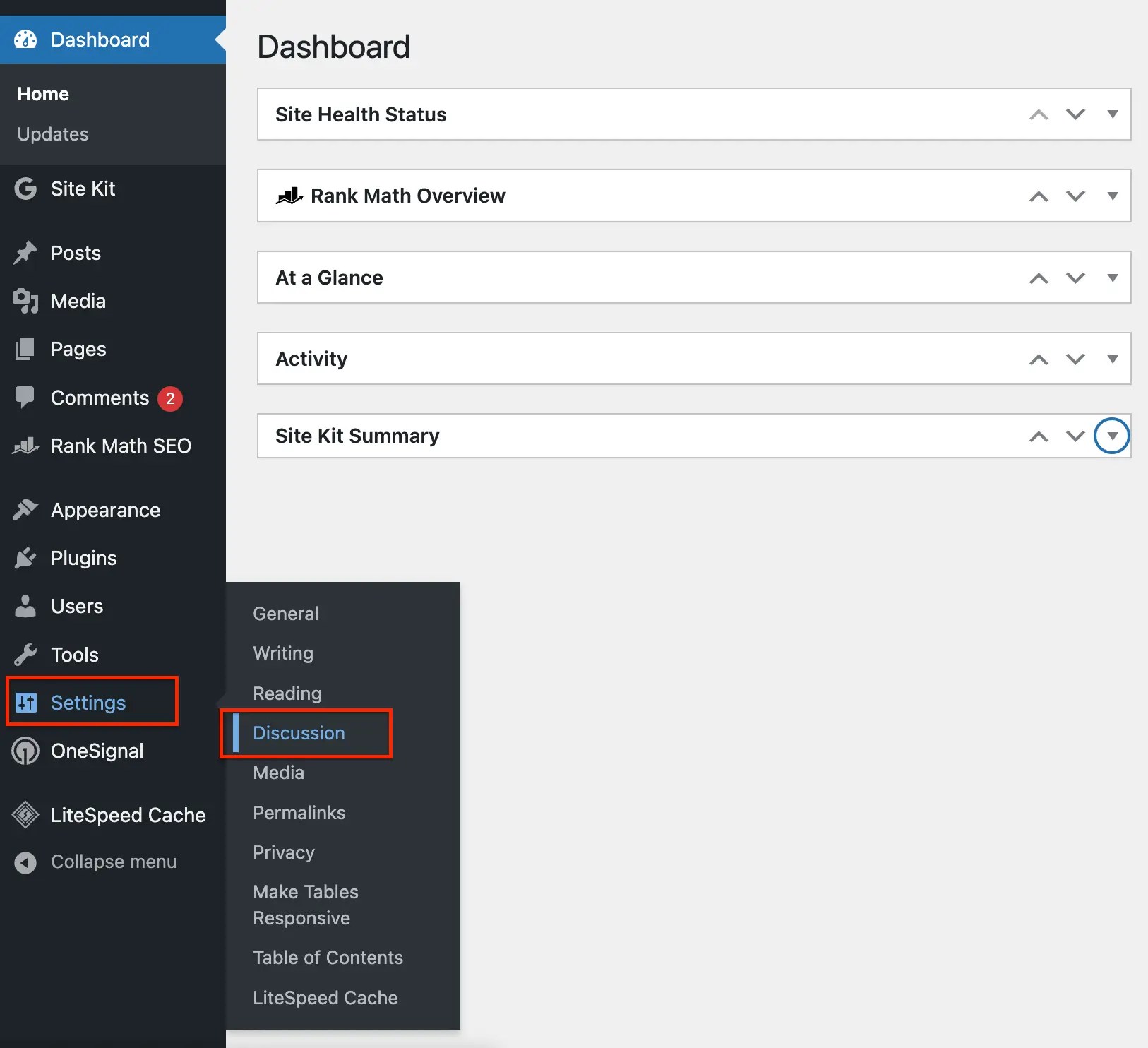
2. Go to Settings > Discussion:
- On the left-hand side of the dashboard, hover over Settings and select Discussion. As you can see on the below screenshot.
3. Disable Pingbacks and Trackbacks Globally:

- In the Default article settings section, uncheck the box that says Allow link notifications from other blogs (pingbacks and trackbacks) on new articles.
- This will disable pingbacks and trackbacks for any new posts you publish.
4. Save Changes
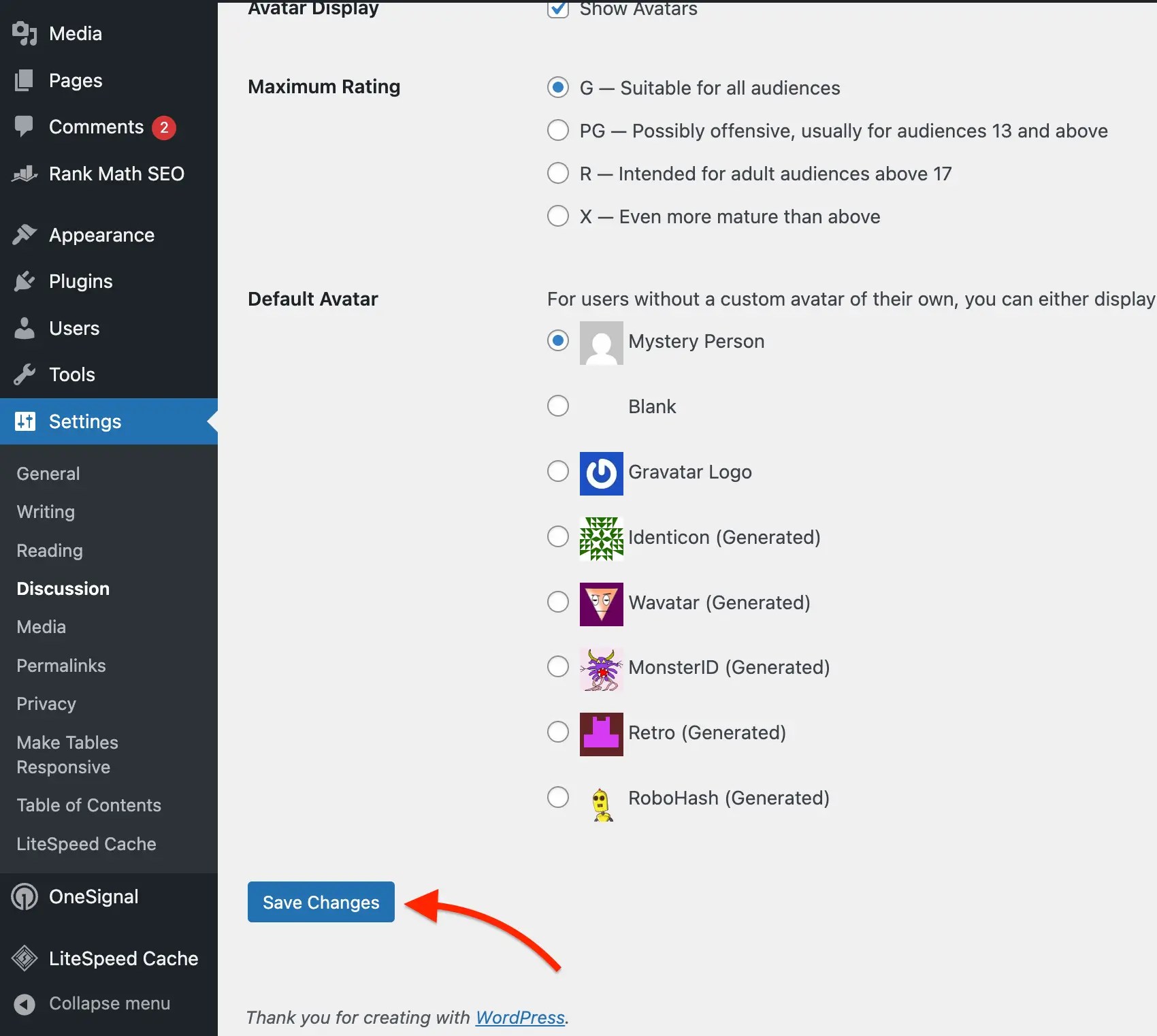
- After unchecking the box, scroll to the bottom of the page and click Save Changes.
Remember: This method only disables pingbacks and trackbacks for new posts. If you want to disable them for existing content, you will need to follow a few extra steps.
Disable Pingbacks and Trackbacks on Individual Posts
If you want to disable pingbacks and trackbacks for specific posts, WordPress also allows you to manage this on a post-by-post basis.
1. Edit a Post:
- Go to Posts > All Posts in your dashboard and choose the post you want to modify.
2. Go to Discussion Section:
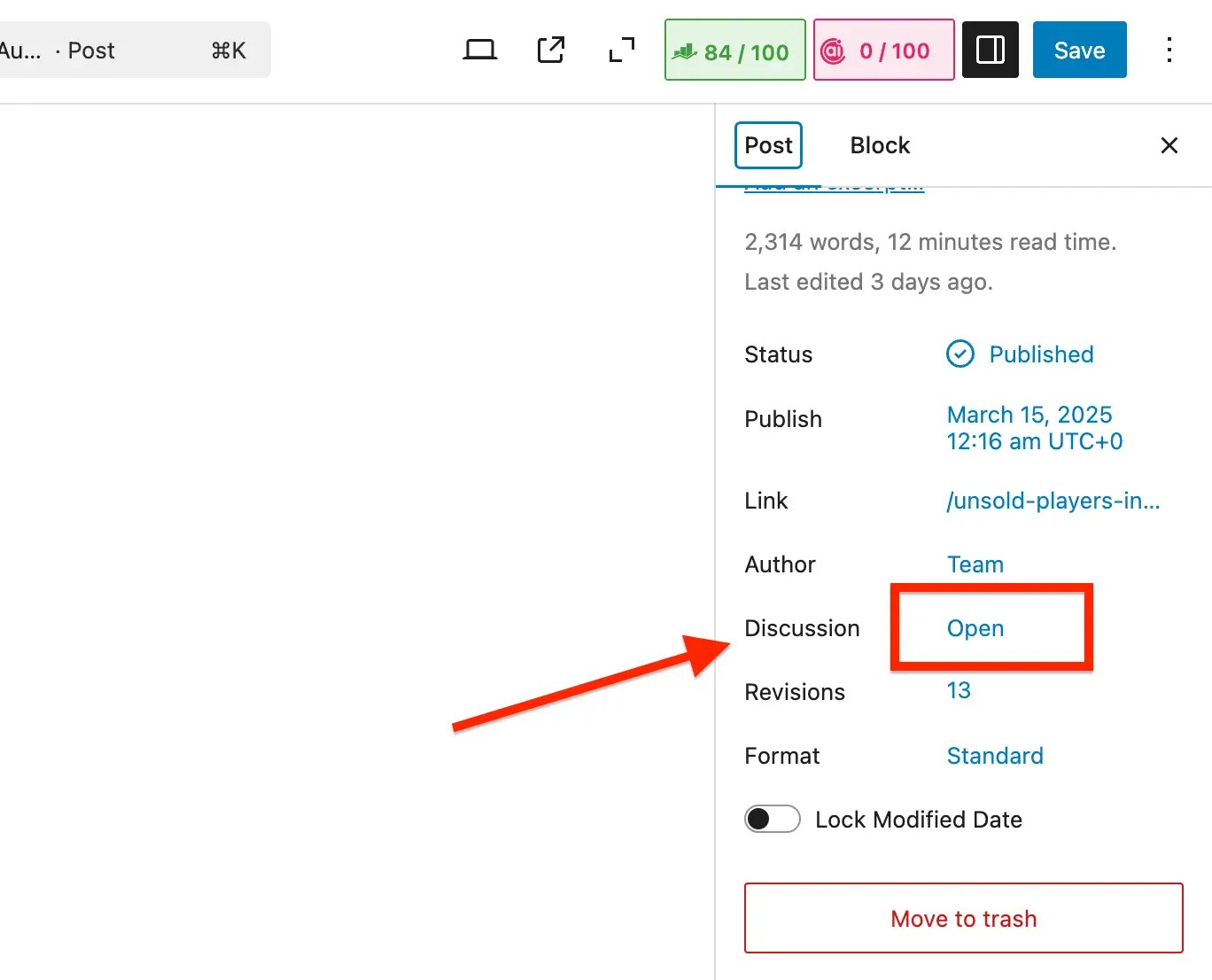
- On the Right Section of the post, you will see an option for the Discussion section, click here. (if you don’t see it, make sure the Discussion box is checked in the Screen Options at the top of the page).
3. Uncheck the Trackbacks and Pingbacks Option:
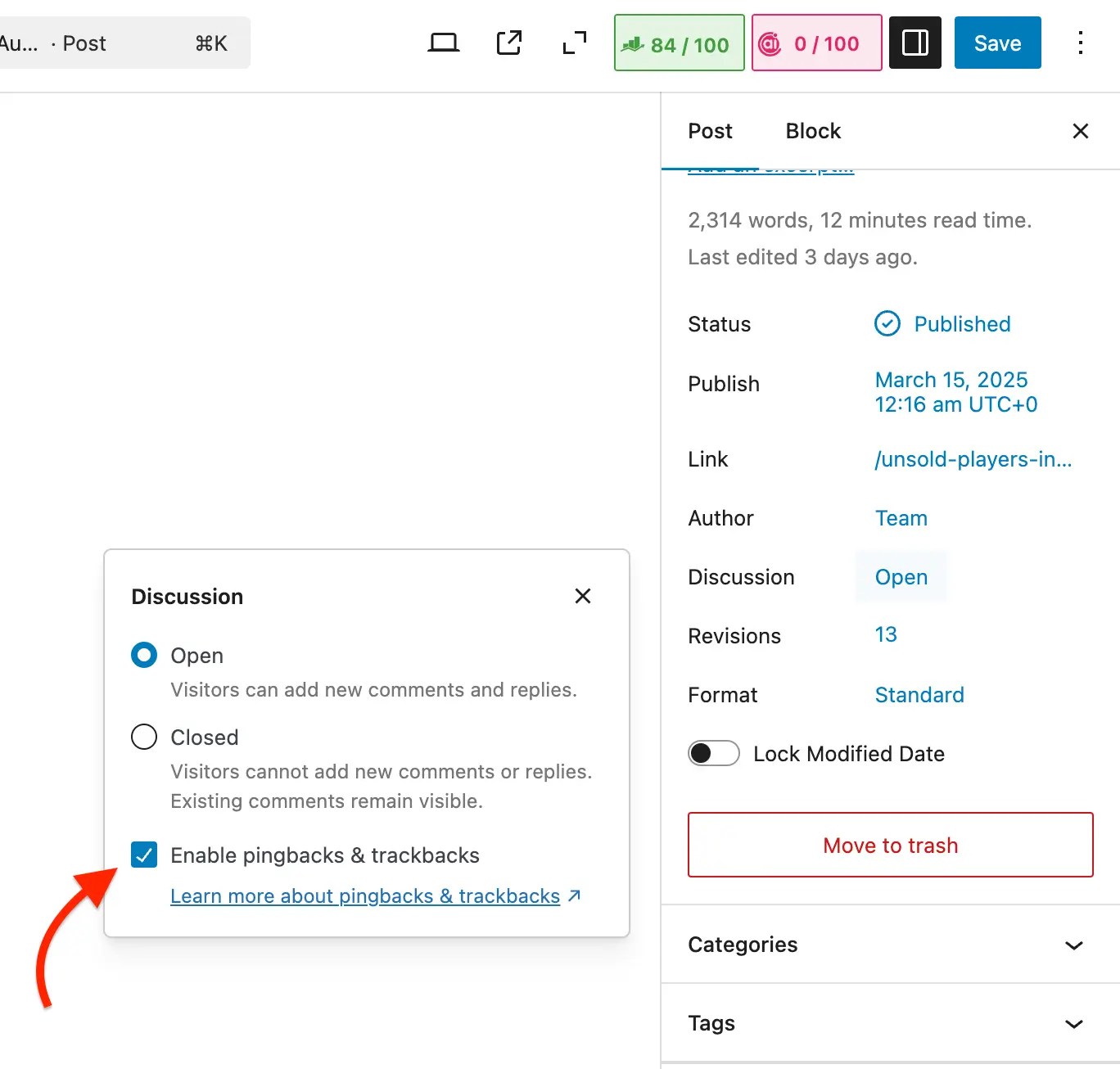
- You will see two options: Allow trackbacks and pingbacks on this page. Uncheck this box to disable pingbacks and trackbacks for that specific post.
4. Update the Post:
- Don’t forget to click Update to save your changes.
This method is also good if you only want to disable pingbacks and trackbacks for a few posts but not for your entire site.
Disable Pingbacks and Trackbacks via Code
If you prefer a more advanced method or if you have custom requirements, you can disable pingbacks and trackbacks by adding a bit of code to your theme’s functions.php file.
1. Access Your Theme’s Functions File:
- Go to Appearance > Theme Editor and locate the
functions.phpfile.
2. Add the Following Code:
// Disable trackbacks and pingbacks
remove_action('wp_head', 'wp_pingback_url');
remove_action('wp_head', 'rsd_link');
This code will remove the pingback and trackback URLs from your site’s head section.
Once you add the code, click Update File to save your changes.
Be careful when editing your functions.php file, as incorrect changes can break your site. It’s always a good idea to back up your website before making any changes to your theme files.
Why Disable Pingbacks and Trackbacks in WordPress?
While pingbacks and trackbacks were originally designed to increase interaction and promote engagement, many WordPress users find them more problematic than helpful.
Here are several reasons why you might consider disabling them on your site:
1. Spam Issues
One of the most common reasons for disabling pingbacks and trackbacks is spam. Pingbacks can be used by malicious actors to create spammy backlinks to their own websites.
These backlinks might lead to irrelevant, low-quality, or harmful websites.
Trackbacks, while less common today, can also be exploited by spammers to get their links on your site, often leading to a higher chance of being blacklisted by search engines or harming your site’s reputation.
2. Security Risks
Both pingbacks and trackbacks can introduce security vulnerabilities to your website.
Malicious users may use them to execute a Denial-of-Service (DoS) attack, where a server overloads due to an excess number of requests. This can lead to performance issues, downtime, and potential site crashes.
Additionally, pingbacks and trackbacks can sometimes be used to exploit vulnerabilities in plugins, themes, or WordPress itself. Disabling them can help reduce the attack surface of your website.
3. Performance Issues
Handling pingbacks and trackbacks takes up resources. If you receive a lot of pingbacks, particularly from spammy or irrelevant sources, it can slow down your website’s performance.
Each pingback is a request that needs to be processed and stored, potentially causing database bloat.
If you’re running a large website or one with high traffic, the performance overhead can become significant.
4. Less Need for Engagement
Many website owners find that pingbacks and trackbacks aren’t essential for their goals.
For example, if you’re not actively looking for ways to get notified when someone links to your posts or engages with external content, these features may not be necessary.
Final Words
Disabling pingbacks and trackbacks on your WordPress site can provide significant benefits, particularly in terms of security, performance, and user experience.
While these features were originally designed to foster engagement and interaction among bloggers, they often lead to more issues than advantages in today’s digital landscape.
Spam, security vulnerabilities, and performance slowdowns are common problems associated with these features.
By following the simple steps outlined in this guide, you can easily disable them, streamlining your website’s operations and reducing the risk of unwanted disruptions.
Whether you choose to disable them globally, on individual posts, or through code, taking control of these settings will help safeguard your site and ensure that your WordPress experience is as smooth and secure as possible.
More to read:


