
Overview ➣ This guide walks you through creating a Christmas Gifts Store website using WordPress. It explains how to set up a domain, hosting, and theme, along with installing essential plugins. You’ll also learn key SEO and marketing tips to attract customers and boost holiday sales.
The most wonderful time of the year is here! Christmas is all about spreading joy, love, and gifts.
If you ever thought about opening your own Christmas gift store, now is the time to do it!
Whether you are looking to create handmade ornaments, design festive hampers, craft greeting cards, or sell holiday decor, the best way to reach more customers and grow your business is to start an online store.
In this comprehensive guide, we will walk you through the process of Setting Up a Christmas Gifts Store Website with WordPress and the Christmas Gifts Store Template by ThemeHunk – for non-coders.
Why Create a Christmas Gifts Store Website?
As the festive season approaches, Christmas, eCommerce continues to boom with shoppers seeking unique and thoughtful gifts for their loved ones. You have the opportunity to:
- Display your holiday-themed products in a visually appealing manner.
- Maintain total control of the branding and prices in your store.
- Conduct holiday-themed promotions, discounts, and flash sales.
- 24/7 online presence that boosts your sales even while you sleep.
With WordPress and WooCommerce, you can build your online store quickly, and in a couple of hours, you can be selling consistently.
Why Choose WordPress for Your Christmas Store?
WordPress is among the most favored and simple platforms for creating websites. It suits both beginners and professionals (non-professionals) as it is flexible, inexpensive, and full of features.
Here are some reasons WordPress is the best for your Christmas gift store:
Quick Setup: No coding knowledge is needed.
Customizable: You can choose from thousands of themes/plugins.
SEO Friendly: Make your store rank above others on Google.
WooCommerce Integration: Sell on an online shop – it can be easily done.
Mobile Responsive: The store will look good on any screen size.
When you also use WordPress with a good, ready-made template, like ThemeHunk’s Christmas Gifts Store Template, you will create an excellent festive design that is practical and pretty.
About the Christmas Gifts Store Template by ThemeHunk
Christmas Gifts Store Template is a stunning, fully responsive WordPress theme designed especially for holiday and seasonal gift shops. It comes with pre-built layouts, flexible options, and a cheerful design that captures the Christmas spirit.
Key Features:
- Multiple Shop Layouts: Choose from floating carts, side carts, and dropdown carts for a smooth shopping experience.
- Product Variation Swatches: Show different colors, patterns, and sizes beautifully.
- Advanced Product Search: Customers can search by category, SKU, or attributes to find gifts easily.
- Responsive Design: Looks perfect on mobiles, tablets, and desktops.
- Compatible with Elementor: Create custom pages with drag-and-drop ease.
- Multiple Checkout Designs: Choose from one-column, two-column, or step-based checkout layouts.
- SEO & Speed Optimized: Ensures fast loading times and better visibility in search engines.
- Festive Design Elements: Holiday colors, elegant typography, and clean layouts that attract buyers.
This template is also compatible with all major plugins, ensuring your website runs smoothly and securely.
Step-by-Step Guide to Building Your Christmas Gifts Store
Choose a Domain Name
The initial step in creating a Christmas Gifts Store Website is to choose and purchase your domain name. The domain name is the address of your website on the web – it’s what people will enter into their web browser to access the store.
For example, our website’s domain name is “Themehunk.com”. You can purchase a domain name from many reputable domain name registrars: these are companies that will assist you with registering, renewing, and managing your domain name each year.
When choosing a name, it is often wise to choose something short, easy to remember, and related to Christmas or gifts, such as christmasgiftstore.com or merrygiftshub.com.
Here are some of the best and least expensive domain registrars where you may purchase your Christmas store domain:
| S.No | Domain Registrar | Starting Price | Ratings |
| 1 | Namecheap.com | $0.99 | ★★★★★ |
| 2 | Name.com | $9.99 | ★★★★ |
| 3 | Hostinger | $0.99 | ★★★★★ |
Once you have your domain, you’re ready to move on to the next step hosting your website.
Hosting Website
After getting your domain name, the next step is to purchase web hosting, the service that stores your website files and makes your store accessible online.
Choosing a reliable hosting provider is very important. A good hosting service ensures fast loading speed, high uptime, and strong security, all of which are crucial during the holiday season when your Christmas gift sales are high.
Below are some of the best and fastest hosting providers for your WordPress Christmas Gifts Store:
| S.No | Hosting | Basic Plans | Ratings |
|---|---|---|---|
| 1 | Cloudways | $14.00/mo* | ★★★★★ |
| 2 | SiteGround | $6.99/mo* | ★★★★☆ |
| 3 | Bluehost | $3.95/mo* | ★★★★★ |
| 4 | Kinsta | $35.00/mo* | ★★★★★ |
| 5 | A2 Hosting | $2.99/mo* | ★★★★☆ |
| 6 | InMotion | $6.99/mo* | ★★★★☆ |
| 7 | DreamHost | $2.59/mo* | ★★★★☆ |
| 8 | GoDaddy | $6.99/mo* | ★★★☆☆ |
When selecting a hosting provider, don’t just focus on the cheapest plan choose one that provides good speed, support, and reliability, especially during traffic surges around Christmas shopping days.
For beginners, we recommend getting both Domain and Hosting from the same provider, as it makes setup easier and saves time.
You can easily create your website using Cloudways Hosting it’s beginner-friendly, secure, and works great with the Christmas Gifts Template from ThemeHunk.
If you purchase your domain and hosting from the same service provider, you’ll usually get the option for a one-click WordPress installation, making the setup process much easier.
Now, let’s move ahead and install WordPress for your Christmas Gifts Store website.
For this guide, we’ll be using GoDaddy to buy the domain and hosting. However, you can choose any provider that fits your budget and requirements.
Follow the simple steps below to buy and host your website with GoDaddy:
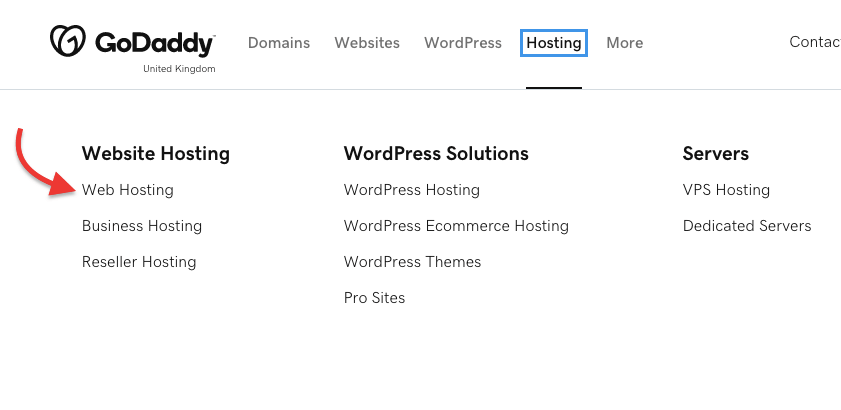
- Go to GoDaddy.com and click on Hosting. From the drop-down menu, you will see an option for Web Hosting. Click on that option, as you can see in the screenshot below.
- Now, choose a hosting plan that suits your needs. We recommend selecting the Economy Plan, as it offers great value and includes a free domain for 12 months.
- Once you’ve selected the plan, click on the “Add to Cart” button to proceed, as shown in the screenshot below.

- Next, click on the “Continue” button to move forward, as shown in the screenshot below.

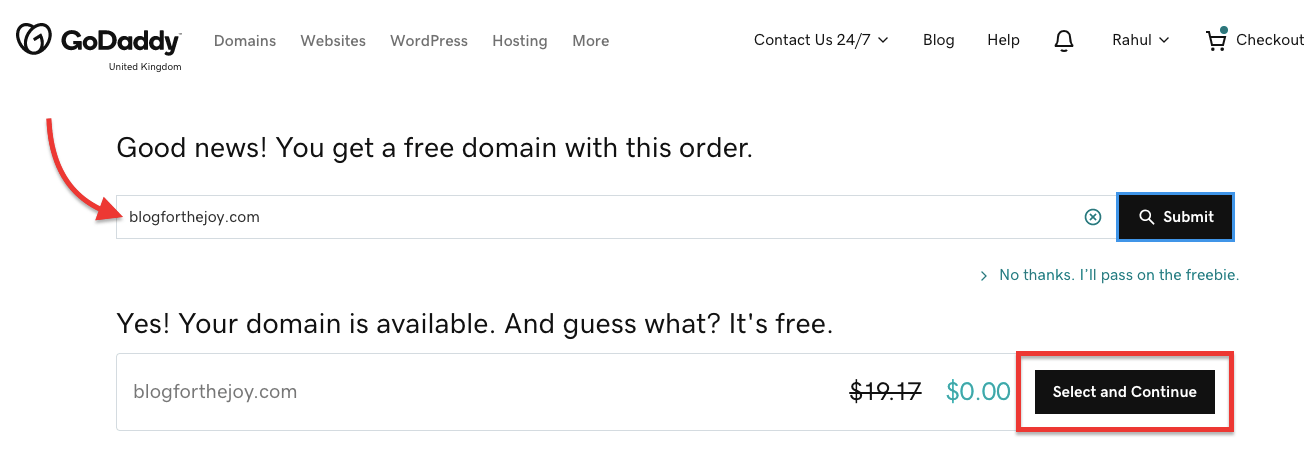
- Now it’s time to claim your free domain. In the domain search bar, type the name you’d like for your website. For example, we searched for blogforthejoy.com, and it was available.
- If your chosen domain name is available, you’ll see the “Select and Continue” option. Simply click on “Select” and then “Continue” to proceed, as shown in the screenshot below.
- Now it’s time to proceed to checkout. Once you’ve selected your hosting plan and domain name, simply move ahead and complete your purchase using one of the available payment options.

- After completing the payment, your domain and hosting will be activated, and you’ll be all set to create your first WordPress website or blog.
Install and Set Up WordPress
After purchasing your domain and hosting, the next step is to install WordPress on your website.
Follow the steps below to easily set up WordPress and start building your site.
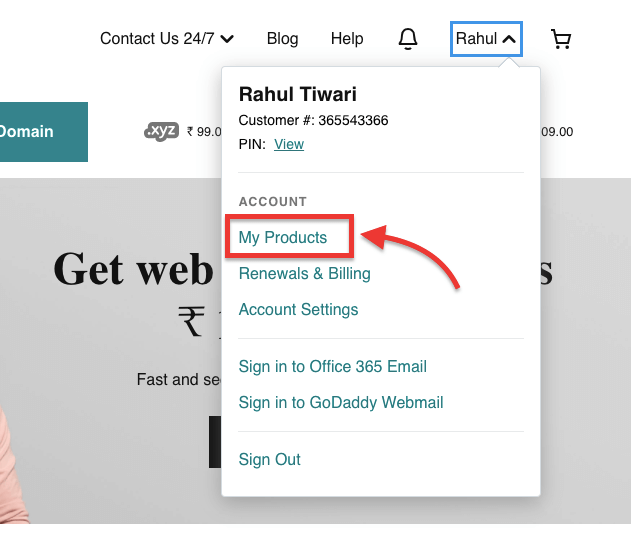
- To install WordPress, First Sign in to your GoDaddy account and click on the My Products option, as shown in the screenshot below.
- In the All Products and Services section, locate the Web Hosting option. You’ll find a “Set Up” button next to it. Click on that button to begin the setup process, as shown in the screenshot below.

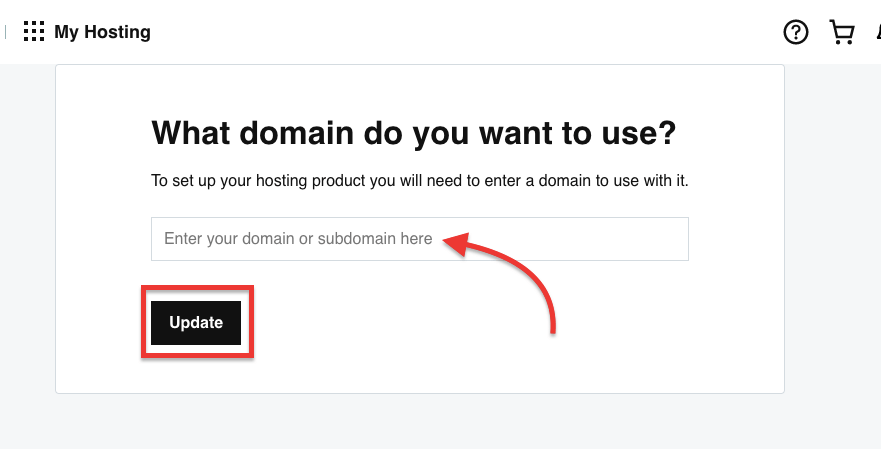
- To set up your hosting, you’ll need to connect your domain.
- In the search bar, enter the domain name you purchased with your hosting plan, then click on the “Update” button to continue.
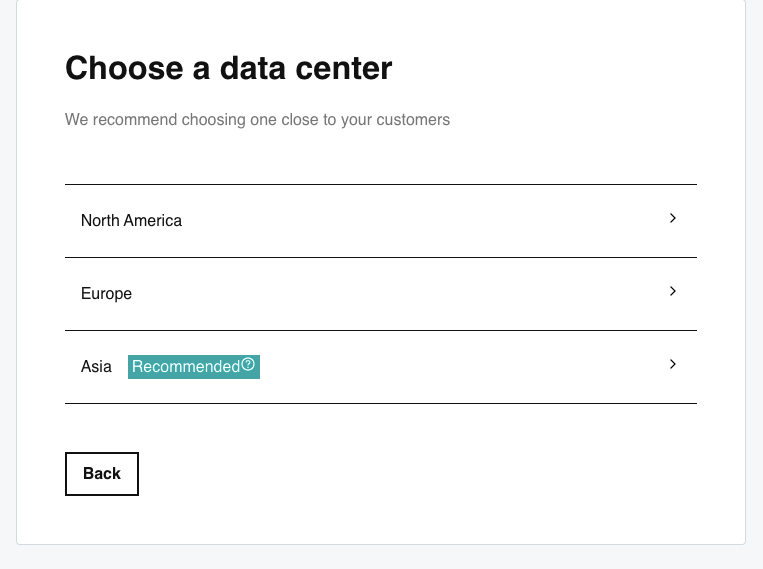
- Next, you’ll need to select a data center for your hosting.
- Choose a location that’s closest to your region for better website speed and performance. GoDaddy will also recommend the nearest data center based on your location.
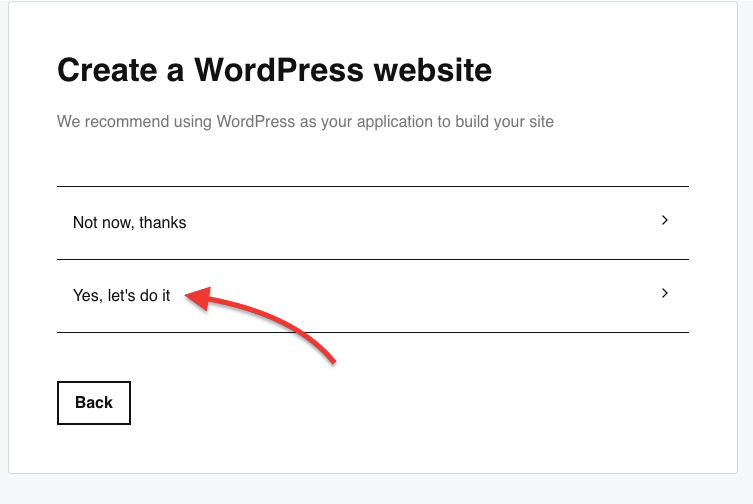
By default, GoDaddy will suggest WordPress as the application to build your website. Click on the “Yes, let’s do it” option to proceed.
- Now it’s time to set up your WordPress admin account.
- Choose a Username and Password for your website. Enter the Username, Password, and Confirm Password, then click on the “Next” button to continue.

- Once your WordPress account is set up, you’ll see a message saying “Onboarding completed successfully”, as shown in the screenshot below.
- Next, click on the “Go to Dashboard” button to access your WordPress dashboard.

You will be redirected to a new page. Here, locate the “Websites” section and click on the “Install Application” button.
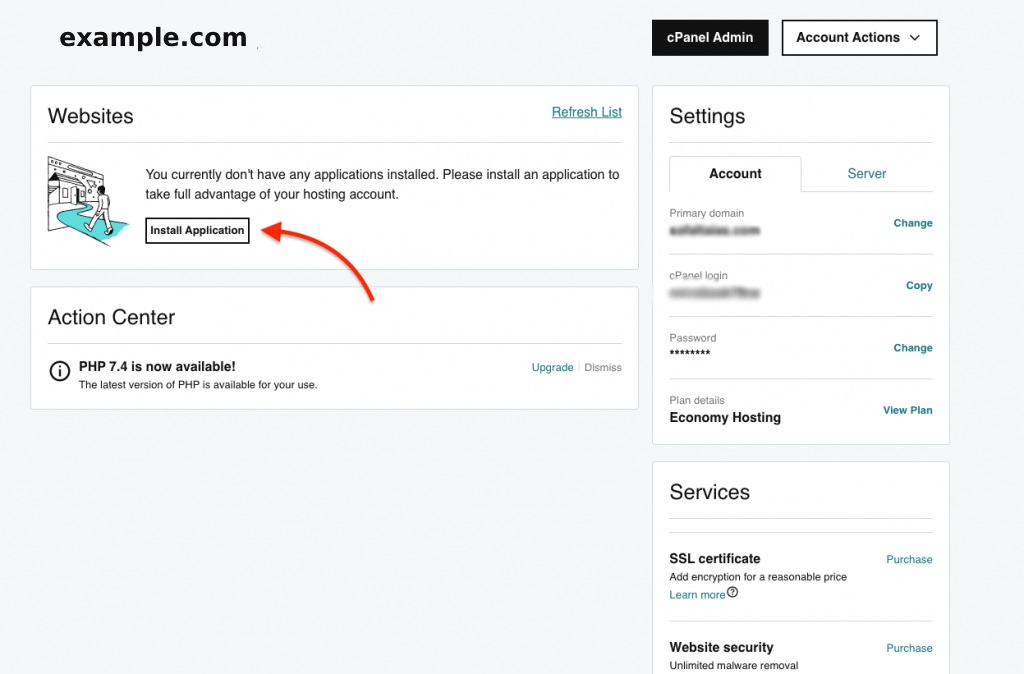
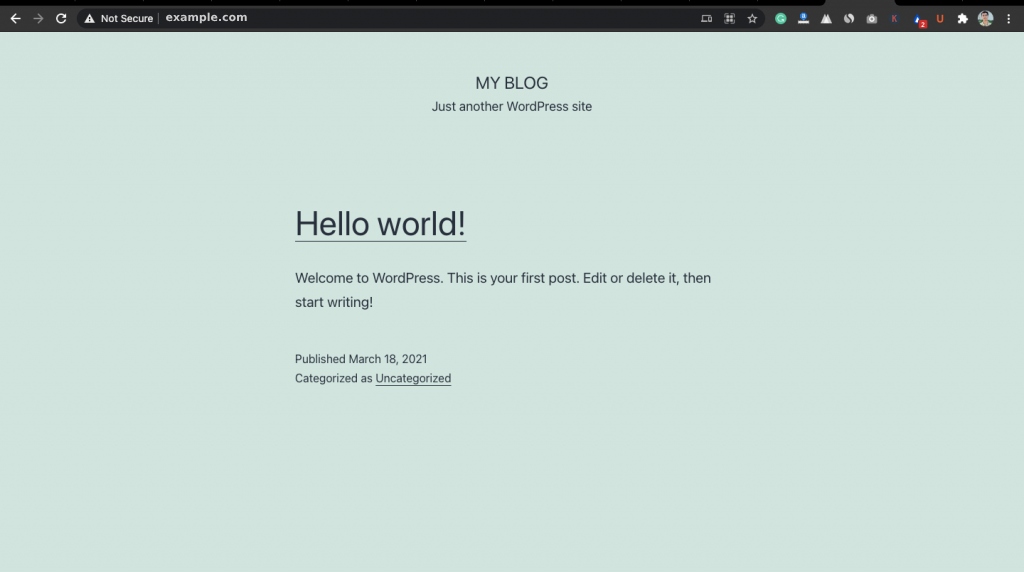
After clicking on “Install Application,” you will be redirected to your website, as shown in the screenshot below.
- Next, open the Admin Dashboard of your website.
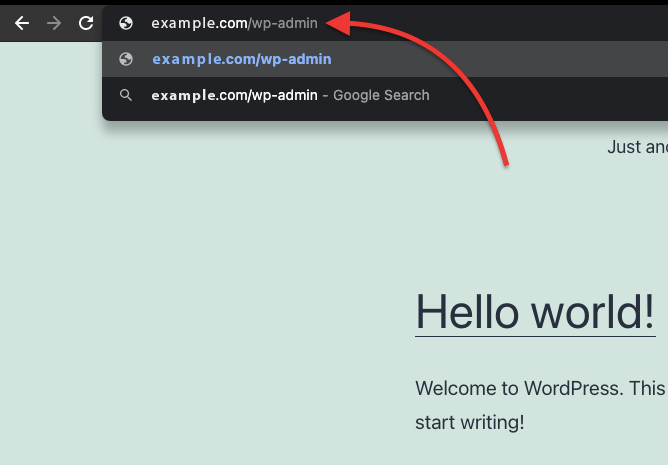
- To access the WordPress dashboard, simply add /wp-admin at the end of your website URL where WordPress is installed. For example:
example.com/wp-admin
Replace example.com with your own domain name, as shown in the screenshot below.
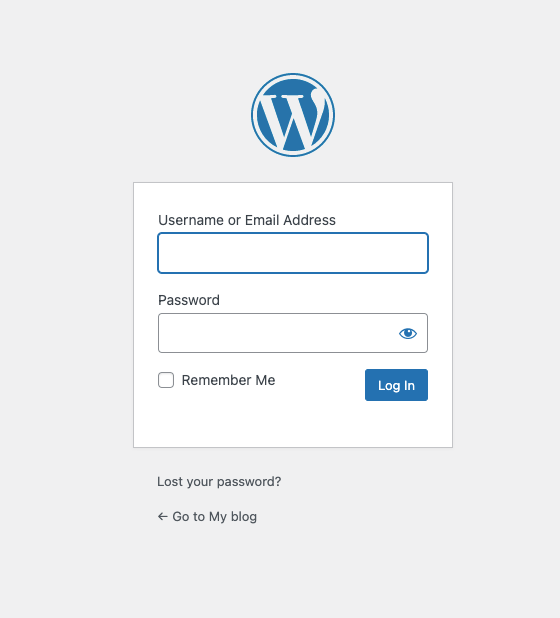
- Now, you’ll be taken to the Login page.
- Enter the Username or Email Address and Password you created during the WordPress installation, then click on the “Login” button to access your dashboard.
- Next, you’ll be prompted to choose a starter template for your new website.
- If you want, you can select and apply a template. Otherwise, click on “Exit to WordPress Dashboard” located at the top left corner, as shown in the screenshot below.

After exiting, you will be taken to the WordPress Dashboard Admin panel. From here, you can customize your website and make any changes or updates as needed.
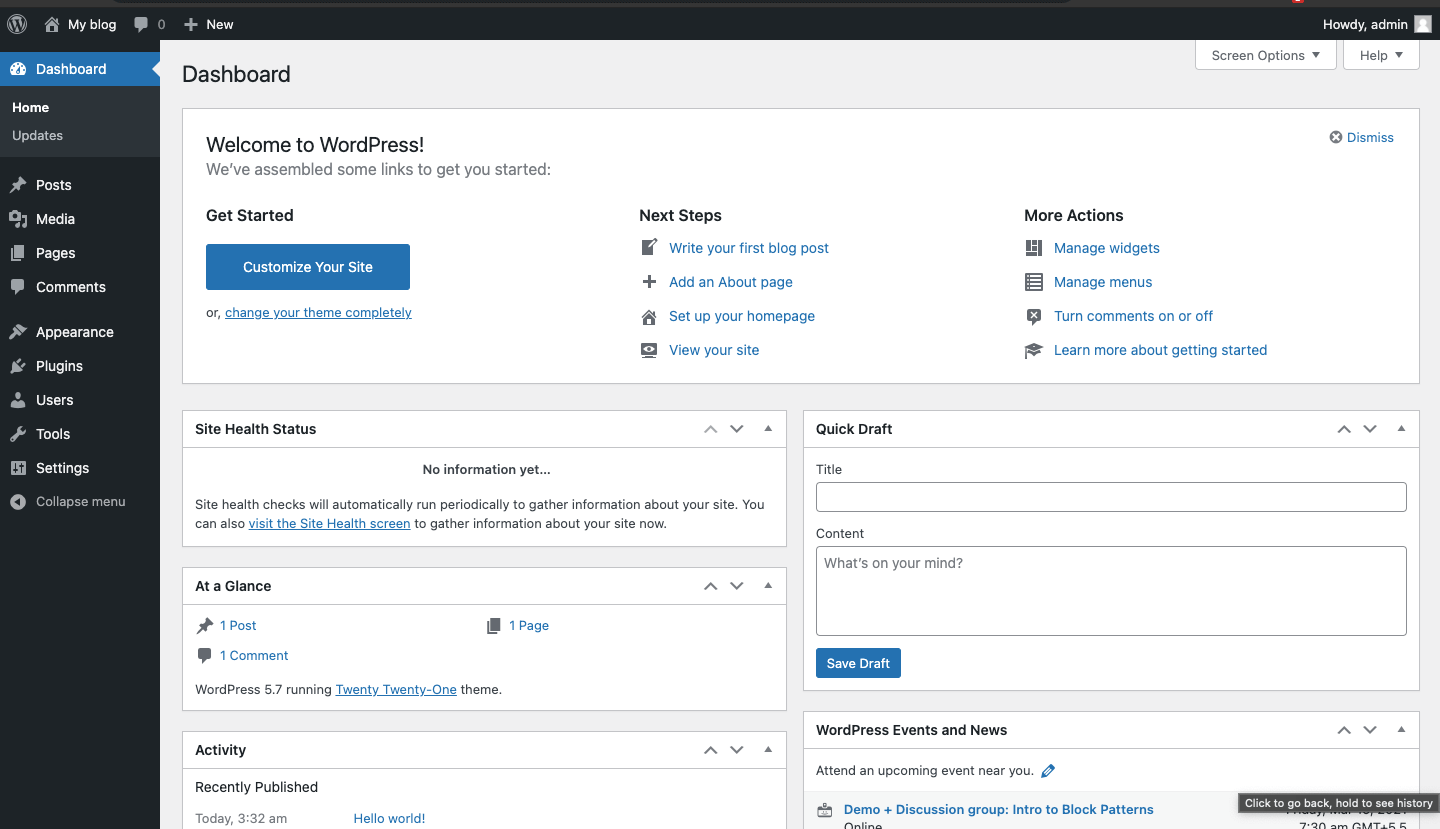
Once WordPress is installed, you’re ready to customize your website’s appearance and make it truly your own. To get started, you’ll need to install a suitable WordPress theme and add some essential plugins. Let’s see how to do that.
Step 4: Choose a WordPress Theme
It’s time to customize your Christmas Gifts Store website by installing a beautiful and festive WordPress theme.
Follow the steps below to install a theme for your site:
- Go to Dashboard > Appearance > Themes, as shown in the screenshot below.

- Next, click on the Add New button, as shown in the screenshot below.

- From here, you can browse and install any theme you like. You can also use the search bar to find a specific theme that suits your website style.
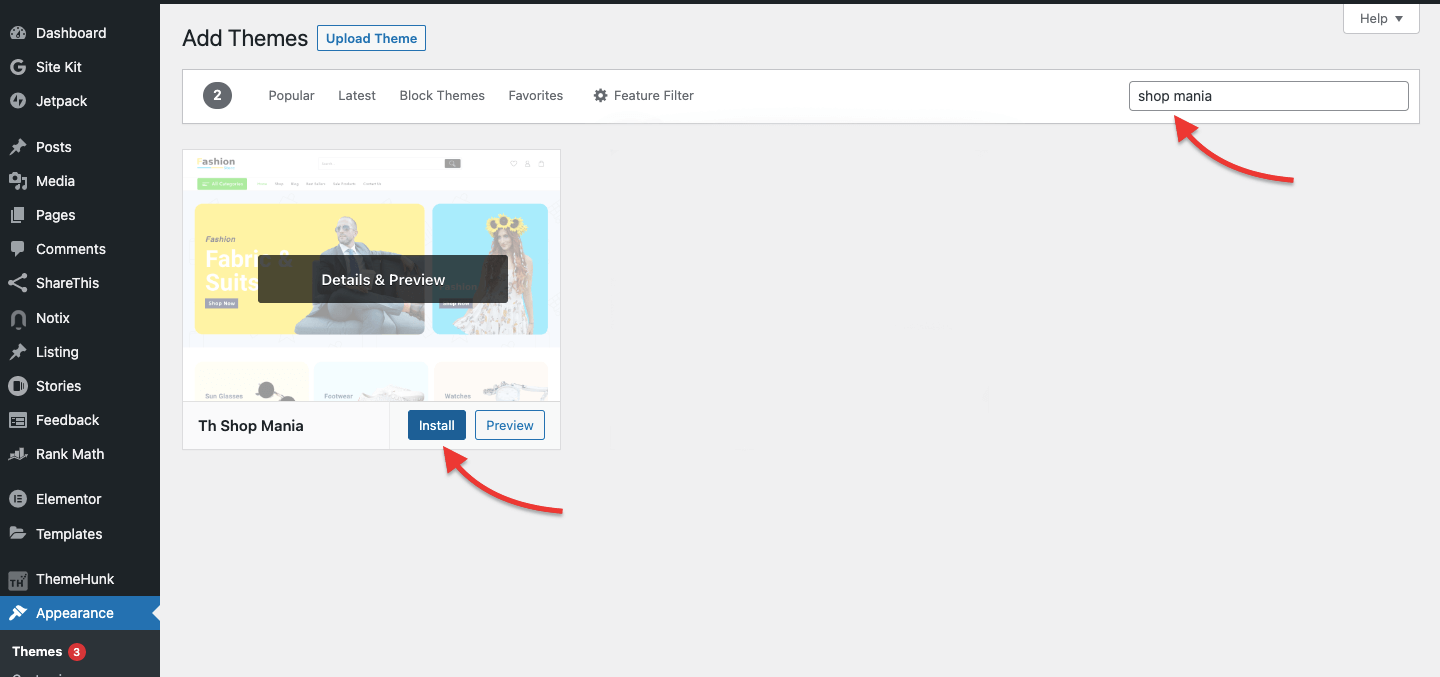
- Search for the Shop Mania Theme, and once it appears, click on the “Install” button. After installation, click on “Activate” to apply the theme, as shown in the screenshot above.

- Next, install the recommended plugins for your theme. Make sure to install and activate all of them to ensure your website runs smoothly and all features work properly.

After installing the recommended plugins, it’s time to import the Christmas Gifts Store demo.
You can easily download and import the demo content from the Starter Templates section to quickly set up your website.
How to Import the Demo Template
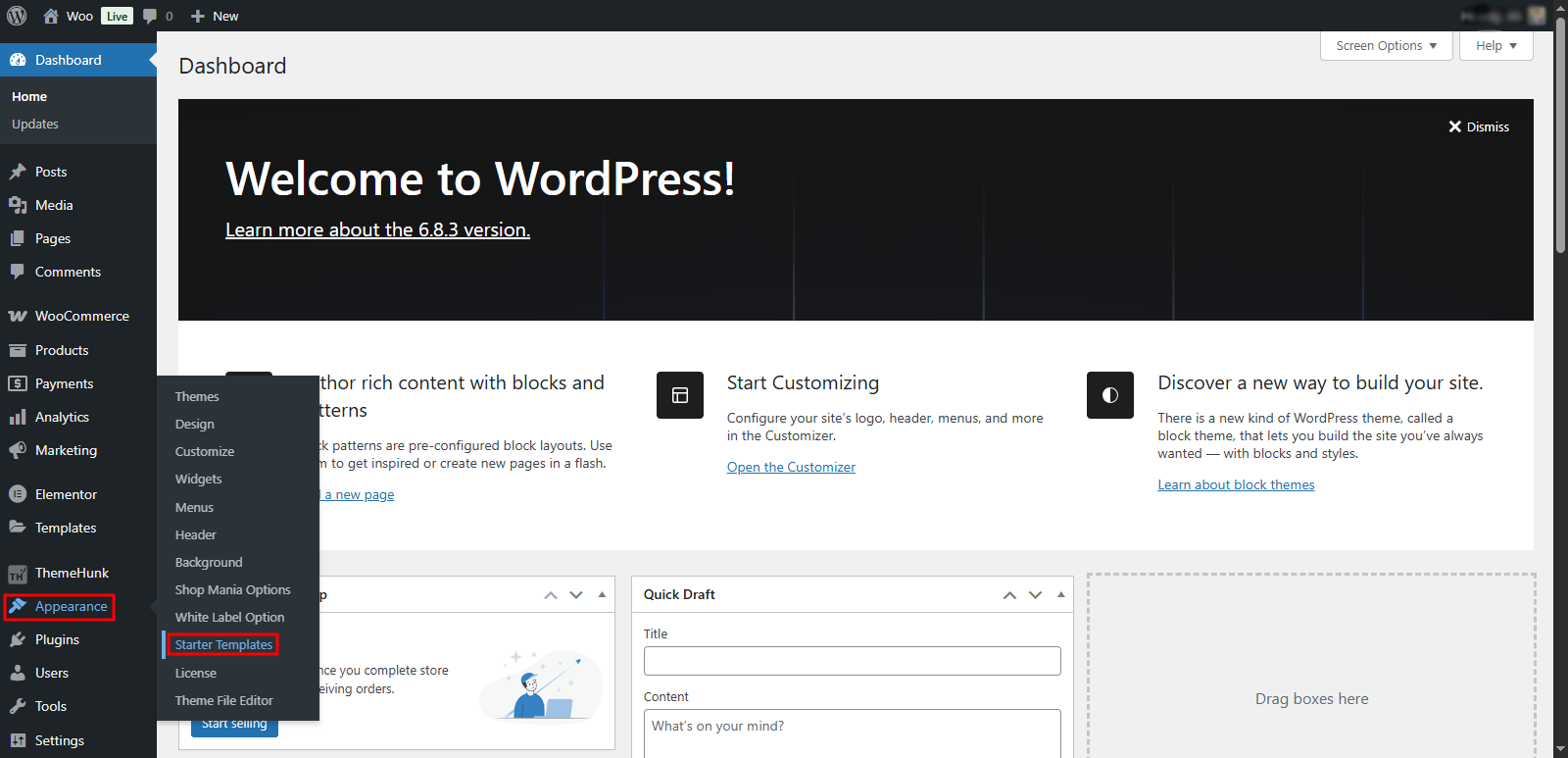
- Go to your WordPress Dashboard → Appearance → Starter Templates
- The “Ready to Import Websites” screen appears, offering an option to click the “View All Starter Sites” button.
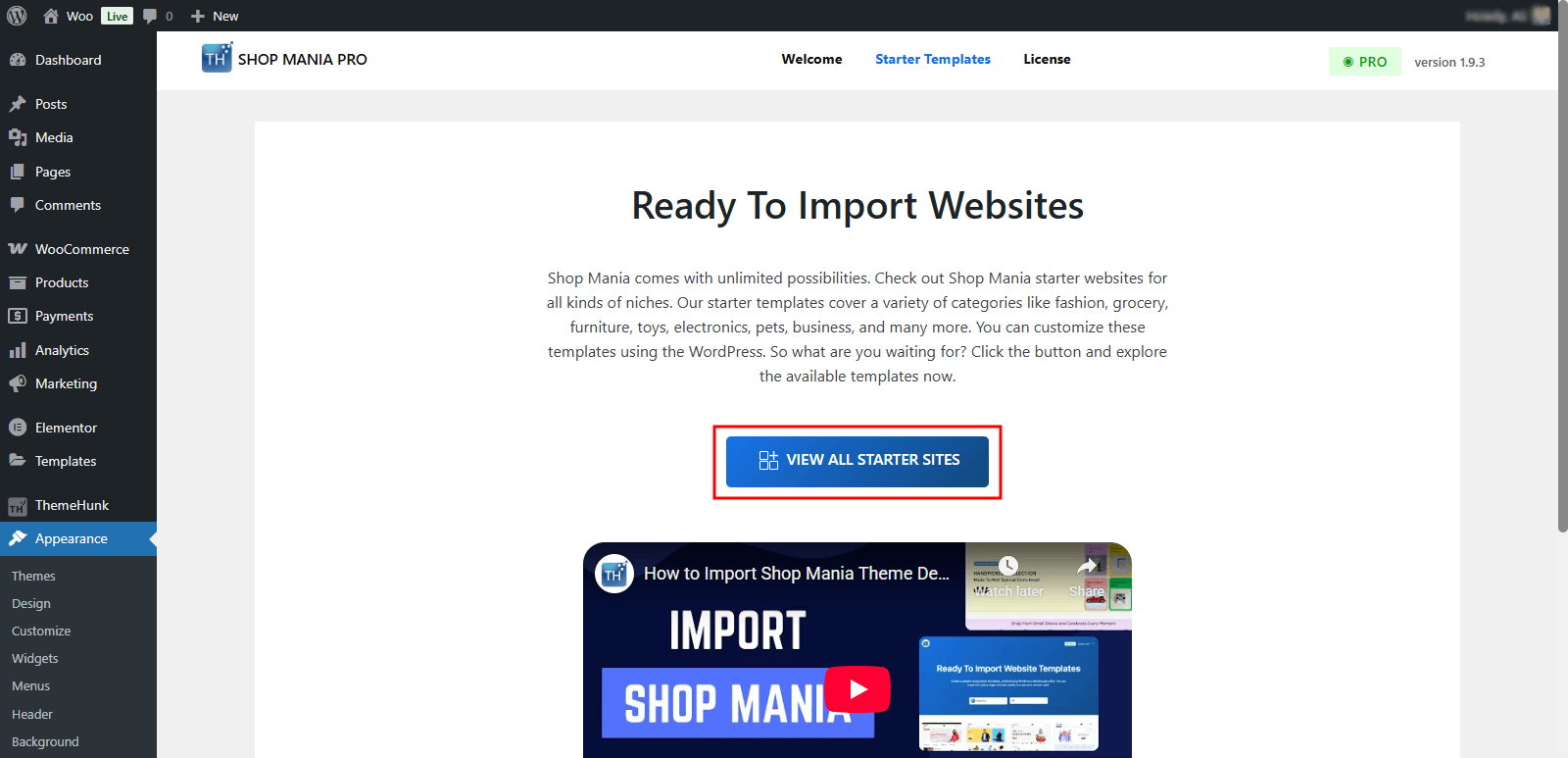
From this section, you can explore and import pre-designed demo templates to quickly set up your website layout.
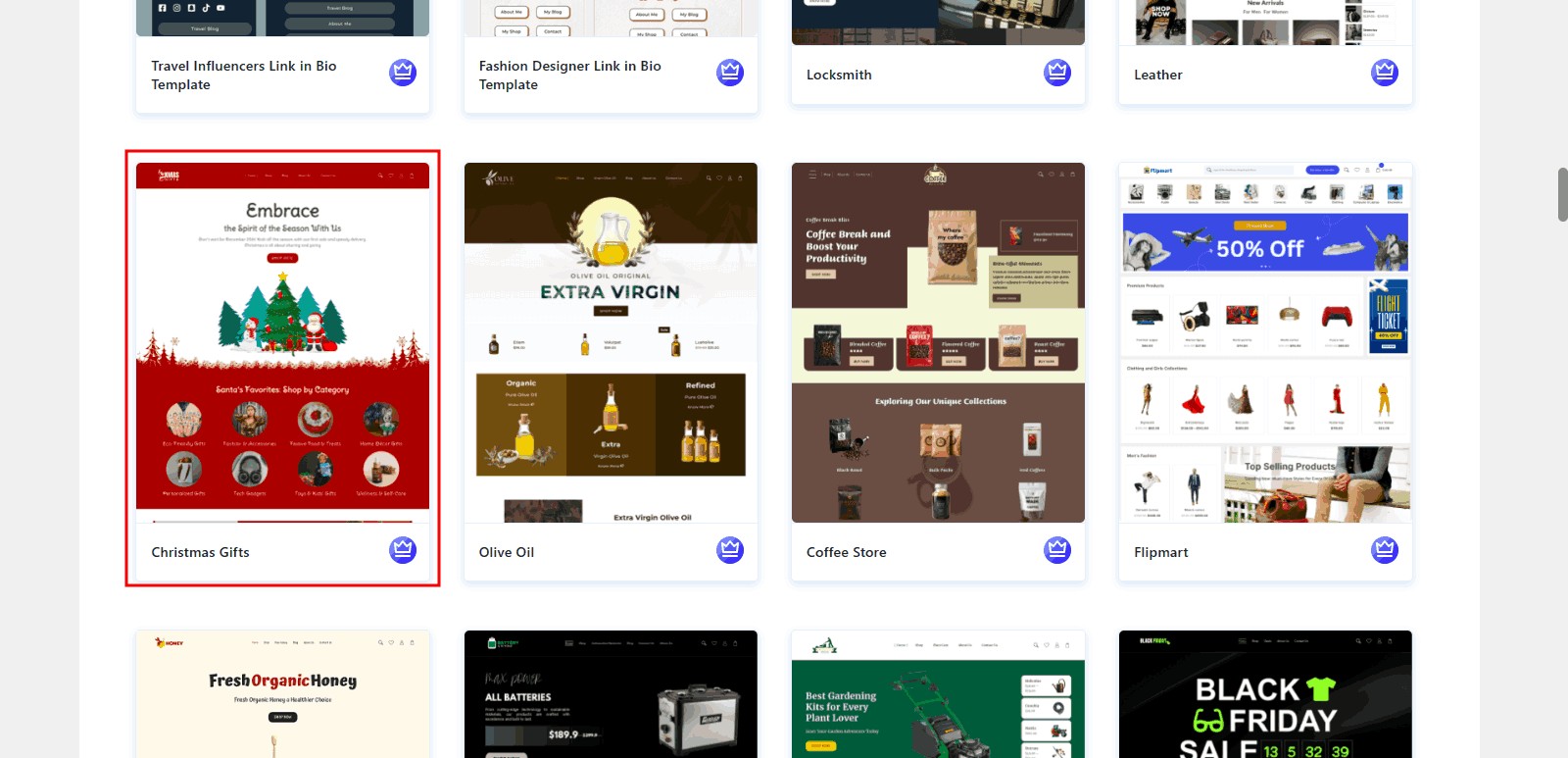
Now, you’ll see all the templates available in Shop Mania.
Use the available filters to locate the Christmas Gifts Store template and click on it to proceed.
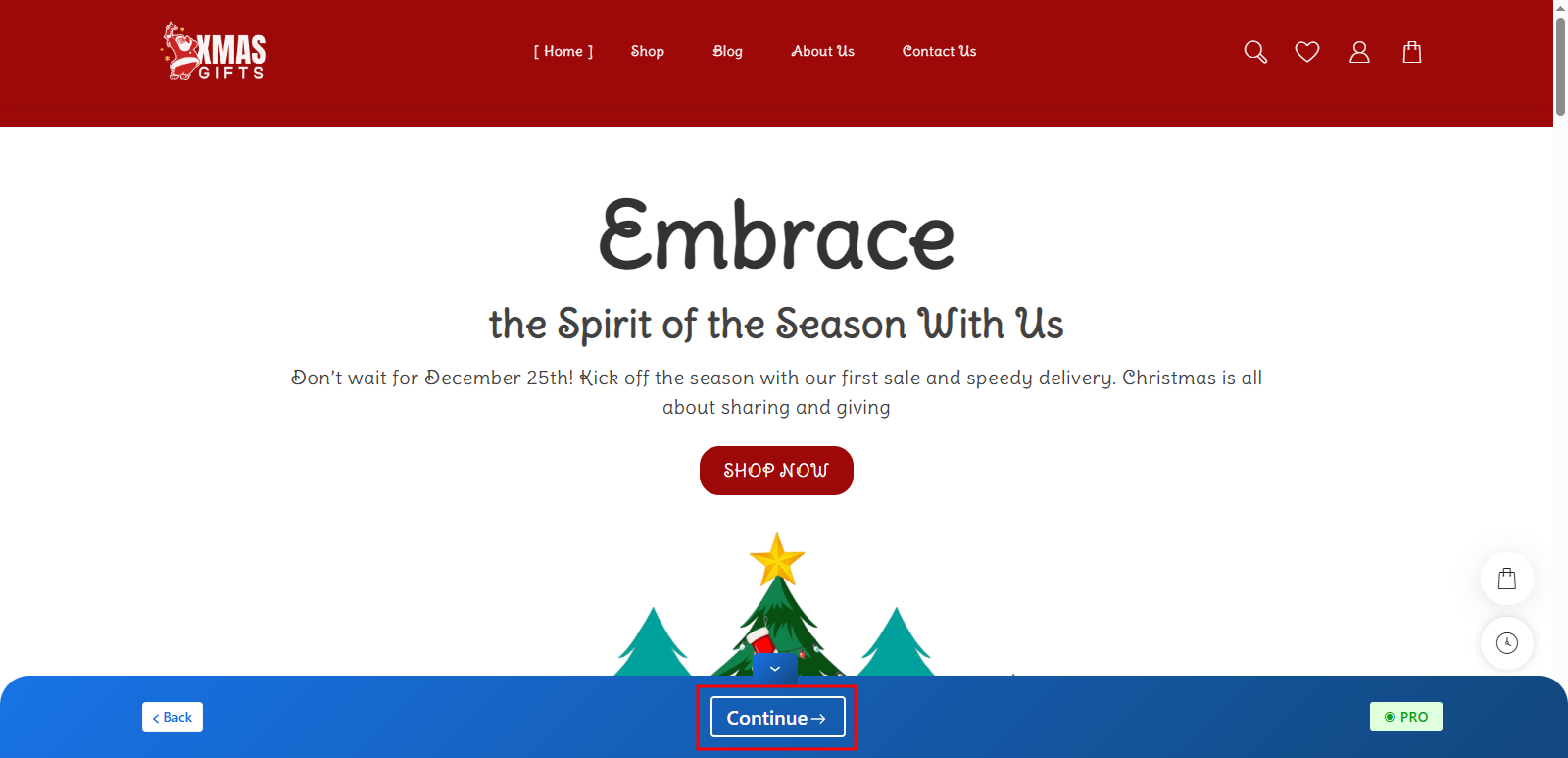
You can now preview your full website. When you’re happy with it, click ‘Continue’ to proceed.

Wait for the import process to complete.
Note: Avoid closing the page while it’s still loading to prevent any interruptions.
Once the import is finished, you can begin customizing your site by clicking ‘Customize’ or preview it live by selecting ‘View Website‘.
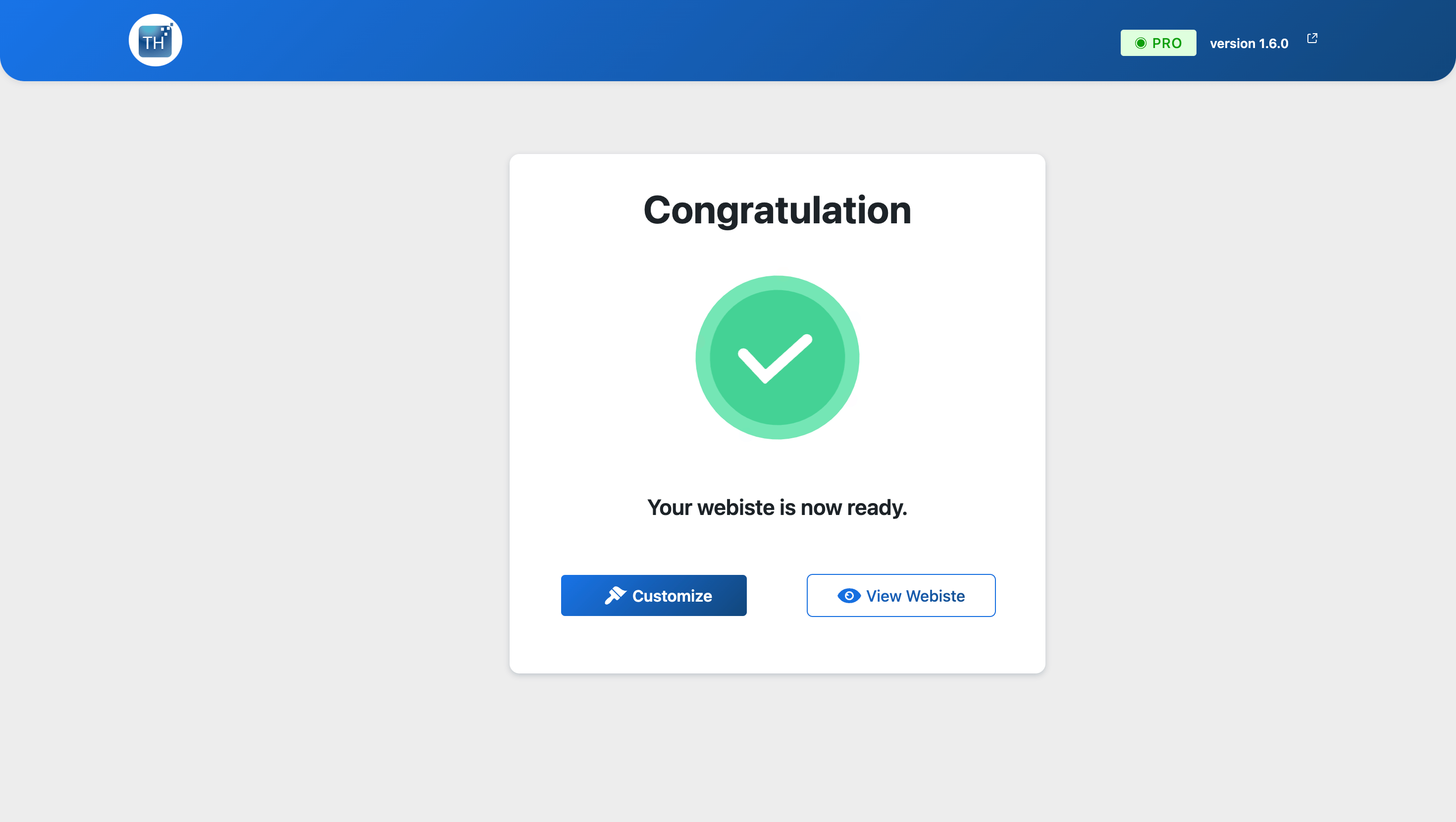
Your Christmas Gifts Store Website is ready!
You can now view your beautifully designed site live and see it in action.
How to Edit the Imported Template
- Go to your homepage and click “Edit with Elementor.”
- Use the drag-and-drop tools to change text, images, and layout.
- Adjust colors, fonts, and sections to match your brand and give it a unique feel.

Go to Pages → All Pages, and open any page with Elementor.
Replace demo content with your products, logo, and festive offers.
Simply follow these steps to customise your website effortlessly using Elementor’s drag-and-drop builder.
Turn your creative ideas into reality with ease!
- The installation and setup of the premium version of the Christmas Gifts Store Website Template using the Shop Mania Theme.
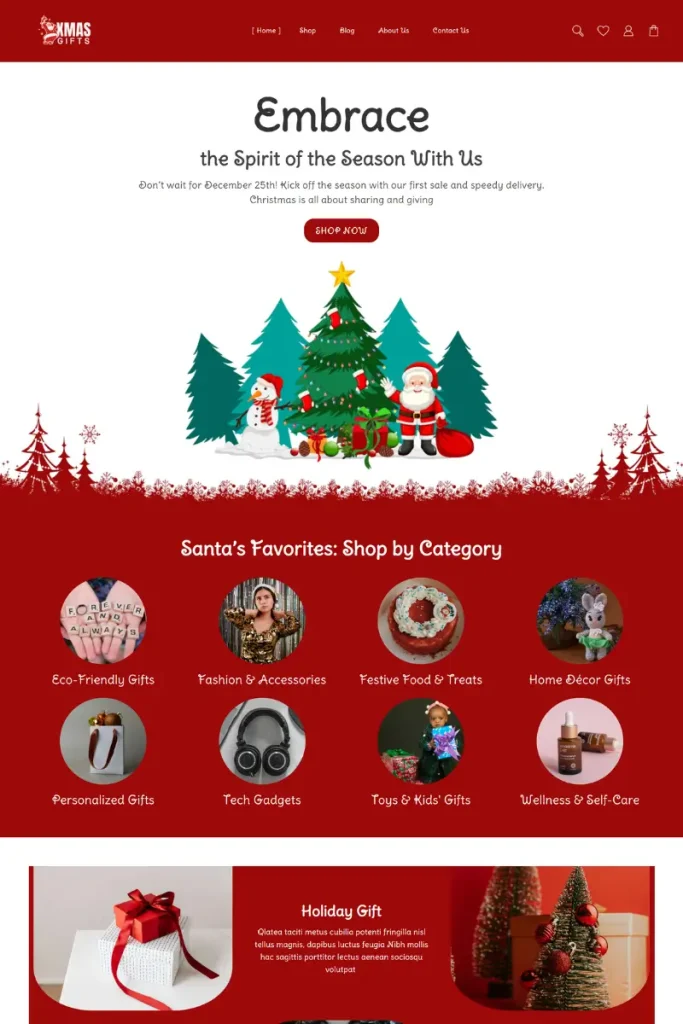
We recommend using the Shop Mania Theme to create your Christmas Gifts Store website.
Shop Mania is a modern, responsive, and fully customizable WordPress theme that seamlessly integrates with popular page builders, including Elementor, Brizy, Beaver Builder, and more.
Add Christmas Gift Products
Now comes the fun part: adding your festive products.
Go to Products → Add New, and fill out details like:
- Product Name: (e.g., “Christmas Gift Hamper for Kids”)
- Description: Write a short and catchy description.
- Product Image: Use high-quality, bright, and festive images.
- Price: Add both regular and sale prices.
- Category: Organize gifts.
Pro Tip:
Offer discounts or bundle deals, everyone loves a Christmas sale.
The ThemeHunk template allows you to display products in grids, sliders, or featured sections. You can also highlight Hot Deals or Trending Gifts on your homepage.
Customize Your Website
The beauty of WordPress is that you can personalize everything easily.
Use Elementor or the built-in Customizer to:
- Change your color scheme to red, green, and gold.
- Add a festive banner or slider on the homepage.
- Highlight your best offers and featured products.
- Include sections like Top Christmas Gifts, Best Sellers, and Gift Ideas for Him/Her.
- Add a countdown timer to build excitement for special deals.
You can also include testimonials or customer reviews to build trust.
After Setting Up Your Website: Focus on SEO and Marketing
Once your Christmas Gifts Store website is fully set up, the next step is to focus on SEO and marketing. Along with promoting your website, make sure your products are high-quality to attract and retain customers.
SEO (Search Engine Optimization)
SEO is crucial for driving organic traffic to your website from search engines like Google and Bing. By optimizing your site, you increase its chances of appearing in search results when customers look for Christmas gifts online.
On WordPress, you can use SEO plugins to make this process easier. Some of the best options are:
- Rank Math – user-friendly, feature-rich, and great for beginners.
- Yoast SEO – one of the most popular SEO plugins, helping with on-page optimization and readability.
By using these tools, you can optimize your pages, products, and blog posts to rank higher in search results and reach more potential customers.
Marketing
Marketing is essential to attract visitors and convert them into loyal customers. One of the most effective strategies is email marketing.
You can build an email list of potential customers using methods like:
- Free subscriptions
- Blog sign-ups
- Special coupons and offers
Plugins like Lead Form Builder can help you create and manage your email list efficiently. This plugin offers features such as:
- Drag-and-drop form creation
- Unlimited lead export
- Mailchimp integration
- SMTP mail configuration
- Form import/export
With a strong email list, you can send personalized holiday offers, product updates, and festive promotions to keep your customers engaged and increase your Christmas sales.
This is how you can create a Christmas Gifts Store Website using WordPress.
We hope you’ve now learned how to install and set up the Shop Mania theme for your website.
Below, we’ve listed some of the best lightweight, fast, and responsive WordPress themes that can help you design a stunning Christmas Gifts Store website.
FAQ:-
Q: Which WordPress theme is best for a Christmas Gifts Store website?
Ans: The Christmas Gifts Theme by ThemeHunk or Shop Mania Theme is ideal. Both are lightweight, responsive, and compatible with Elementor and WooCommerce for smooth customization and eCommerce setup.
Q: Who can create a Christmas gift store website?
Ans: Anyone can create a Christmas gift store website, whether you’re a small business owner, crafter, or entrepreneur looking to sell festive products online.
Q: Can I create a Christmas gift website without coding knowledge?
Ans: Yes, you can easily create a Christmas gift store using WordPress and WooCommerce without writing any code. Drag-and-drop builders like Elementor make it super simple.
Q: How can I promote my Christmas gift store online?
Ans: You can promote your store through SEO, email marketing, and social media ads. Sending festive offers and newsletters is a great way to attract more buyers.
Final Thoughts
Creating a Christmas Gifts Store Website with WordPress is simpler than you might have believed, especially with the ready-to-use Christmas Gifts Store Template by ThemeHunk.
With a fully designed layout and WooCommerce support, you should have no issues consuming your time creating a professional Christmas store.
This holiday season, don’t just shop for beautiful gifts, but sell your very own gifts online.
Share happiness through gift giving and growing your online business website for Christmas with a responsive and beautiful WordPress store.
If you found this article helpful, feel free to share it with others. Have questions? Drop them in the comments, and we’ll be happy to help. Thanks for reading.
Please Subscribe to our YouTube Channel, we also upload great content there, and also Do Follow us on Facebook and Twitter.
Read more articles:-


