
Have you ever done online shopping? When one sees the products and gets confused, the best option left is comparison.
But have you ever thought about how the functionality of comparison is added to a website? In this blog, we will see how we can add Product Compare in Woocommerce for free.
Product Comparison is used to differentiate two or more products from each other. Product Comparison varies products, and the user gets to know which product they have to choose.
Product Compare functionality helps to increase the reliability of the user to a website as it enhances the user’s surfing experience.
You will find the Product Compare functionality in almost all types of ecommerce websites.
Let’s see how we can add Product Compare in Woocommerce.
What Is Product Compare in WooCommerce?
Products Compare, as its name signifies, is used to compare two or more products using Price, Rating, SKU, Availability, and other elements.
Similarities and differences can be filtered to remove unwanted fields. There are lots of other features we will discuss now.
How To Add Product Compare In Woocommerce?
We will use Th Product Compare plugin here. It is available for free and offers various features.
You can add product compare functionality in both types of themes, i.e., classic and block. So whichever theme you use, this blog will be helpful for you.
In this method, we will be using the Shop Mania theme. It is designed for ecommerce sites, so it provides lots of premade templates. It can be used to create almost all types of websites.
Let’s get started,
Step 1) Go to the WordPress Dashboard
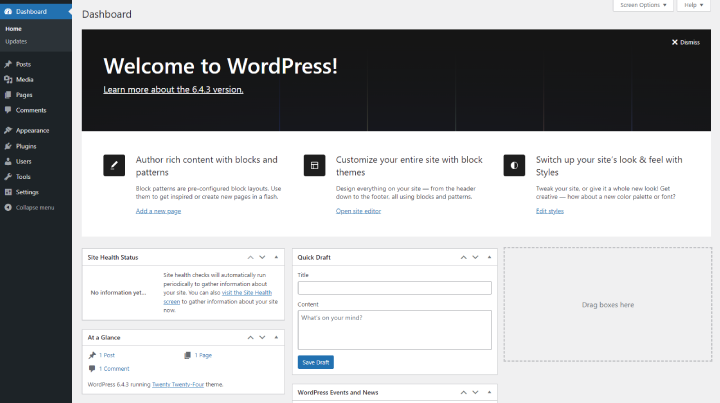
Open your WordPress Dashboard.
Step 2) Navigate to plugins and click on Add New Plugin

Find Plugins in the menu and click on Add New Plugins. This will get you to the WordPress plugins page, where you can install new plugins free of cost.
Step 3) Go to the Search box and Search TH Product Compare
Go to the Search box and search TH Product Compare. Click on Install Now to install the plugin (as shown in the above image). You can also download the plugin from wordpress.org as well.
Step 4) Activate The Plugin

Click on Activate once the plugin is installed.
The ThemeHunk has come in the Menu and Product Compare can be seen in it
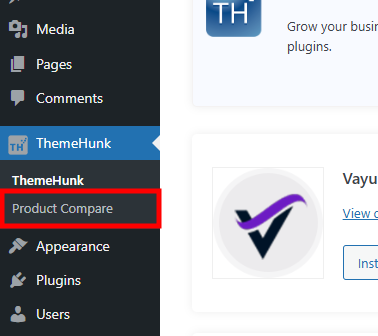
After activation, the ThemeHunk will appear in the Menu. In the ThemeHunk, there you will find Product Compare. Click on Product Compare to see the settings.
The Compare Button has automatically come to the Site.
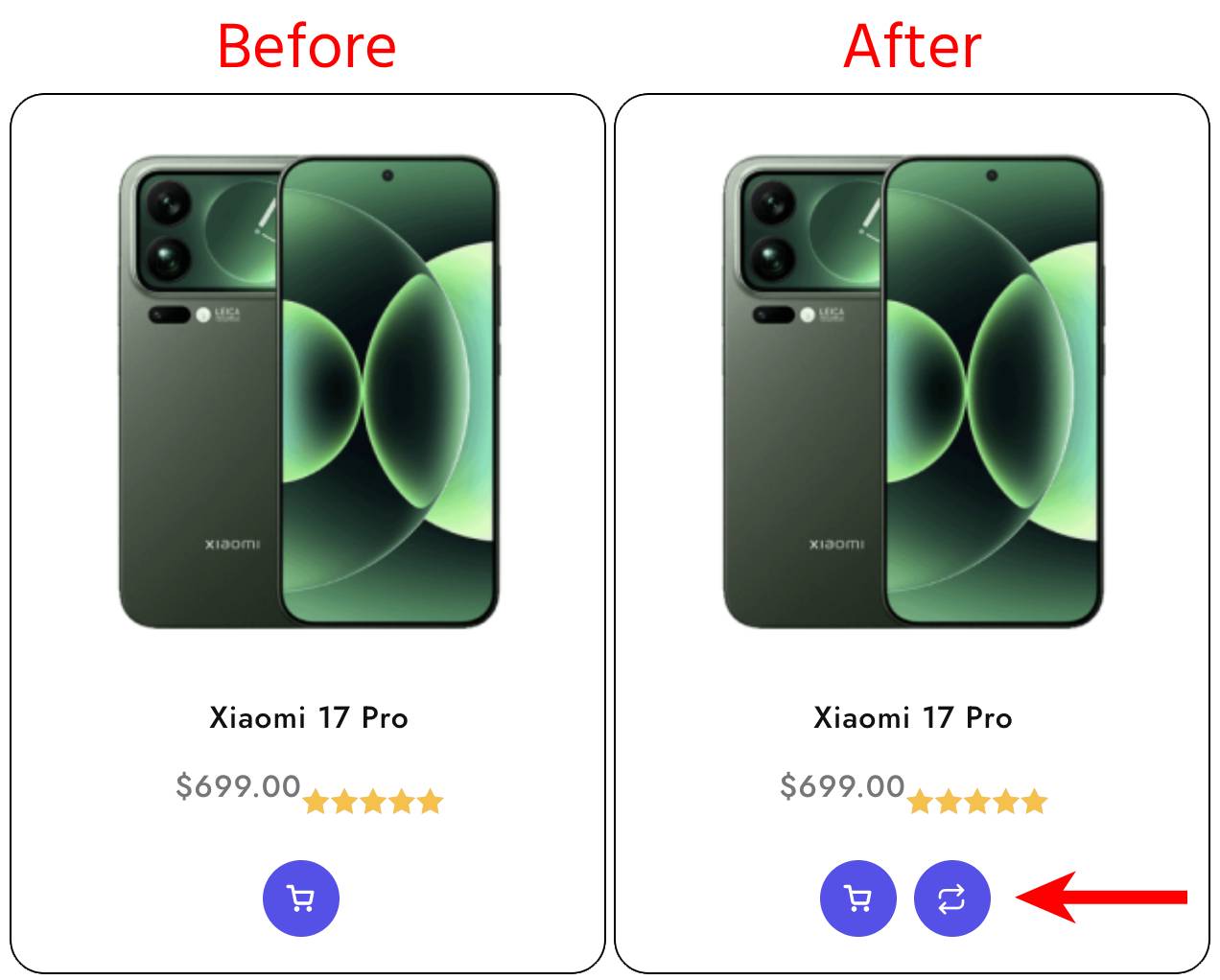
With the activation of the plugin, the compare button will be added to the site’s pages automatically. As the plugin is activated, the Compare button already come to your product.
So that’s it. This is how the Product Compare button can be put on within a few steps.
This is how you can compare products
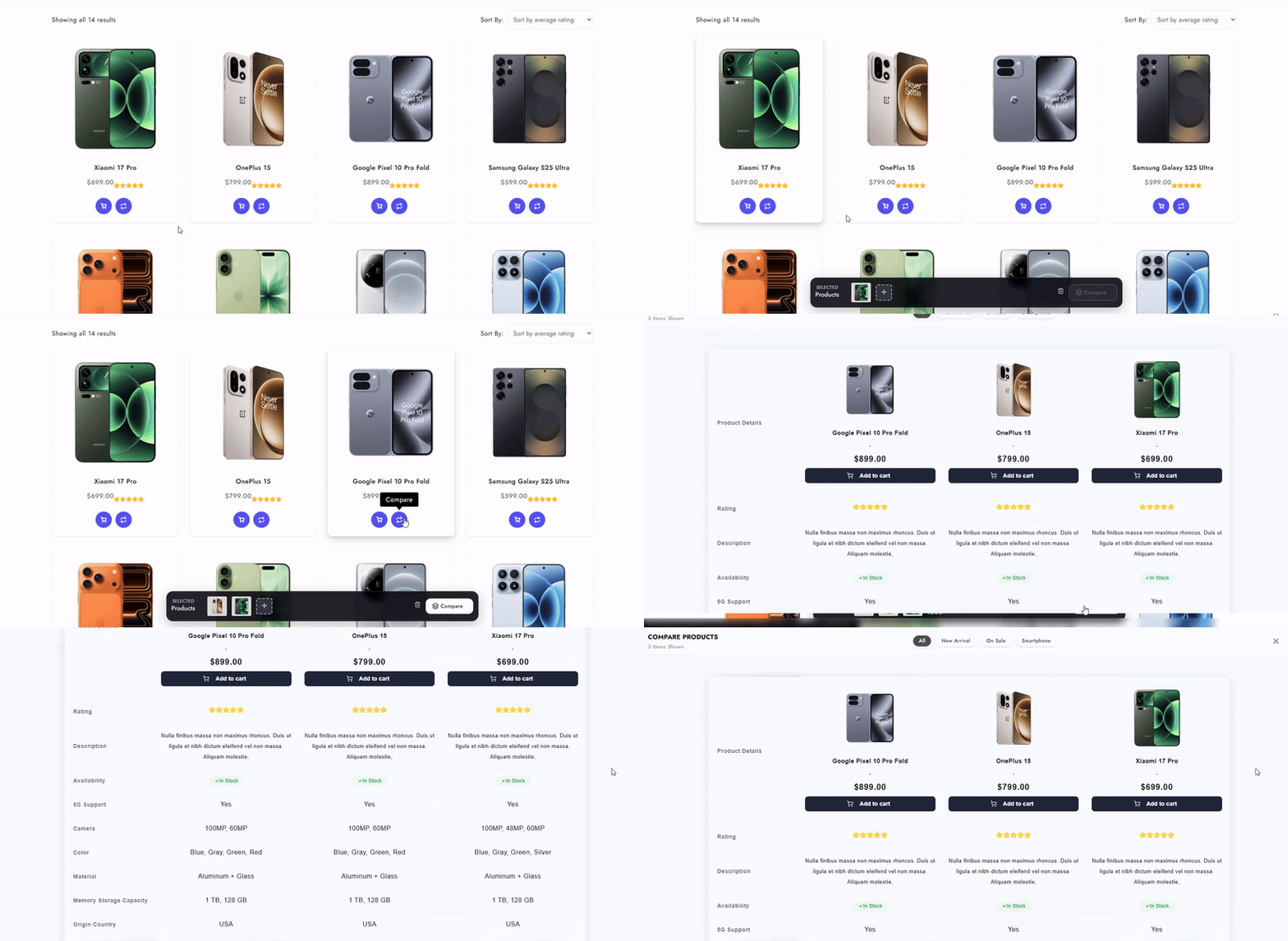
This is how your Product Comparison tabel will appear after setting up.

Let’s see some of the features of the plugin.
The Basic Settings
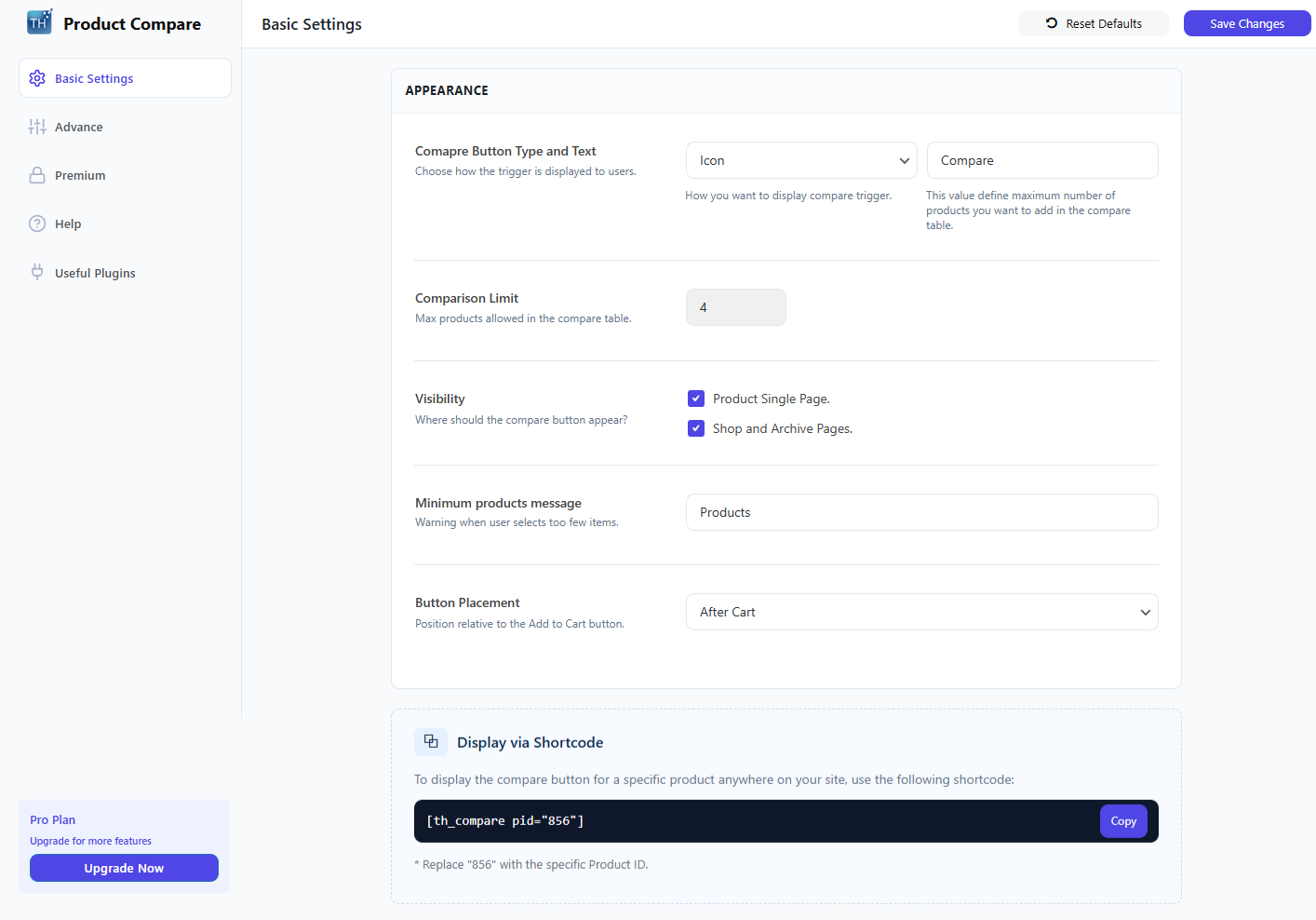
Here, you can control the Appearance of the comparison.
- Compare Button Type and Text – Here, you get one box, where you can choose what to show for the call to action. Two options are available: Icon and Text (available in Pro). From the second box, you can enter the text that you want to show.
- Comparison Limit – This is the limit upto which you can put the products into the Comparison Table. If the limit is 4, then a total of 4 products can be compared at once.
- Visibility – This lets you choose where you want to show the compare button. You can untick if you don’t want to show the compare button.
- Minimum Products Message – You can write any message here for customers. For example, Please select min 2 products.
- Button Placement – Set where you want to add the Compare button, before or after the Add to Cart button.
- Display via Shortcode – You can paste this shortcode anywhere on the page, replacing the number with the Prodduct Id of the product that you want to show in compare.
Advanced settings are given to show the fields

- Table Fields – Here, mark the fields you want to show and leave if not.
- Sticky Rows – You can repeat the Price and Add to Cart fields at the end of the table.
You can also rearrange the field, this feature is available in the Pro version.
Premium Features
- Ordering of Fields
- Custom Shortcode Generator of Products
- Styling with Colors
- Automated Comparison Table
- Single Product Page Compare Setting
Some more excellent features are available in the pro version. Let’s have an eye on them too. You can upgrade the plugin to Pro for exciting features.
You can also watch this video tutorial.
In this video, we have covered everything you need to know about Th Product Compare plugin from installation.
FAQ
Q. What is the significance of having Product Compare on the site?
Ans. Having Product Compare can enhance the users’ experience. If the user wants to compare the product then this functionality is gonna help you.
How to add the Compare button to the site?
Ans. It is so easy to add the compare button to the site. Just install the Th Product Compare plugin and activate it. After activation, the button will automatically come to the Shop page and the Single page.
Conclusion
You just witnessed adding the product Comparison to the site.
Without the product compare functionality, the users have to click on various products and see their elements to compare them.
But this has made the task so easy that users only have to select the products and compare them on a single page.
You can use this plugin. There are some more product compare plugins that you can use on your site.
I hope this blog will help you. Still, if you have any queries or suggestions, then let me know in the comment section.
You can subscribe to our YouTube Channel, we also upload great content there, also Do Follow us on Facebook and Twitter.
See Also


