
Overview ➣ Google Tag Manager is used to manage tags that are used to track websites without changing the core code. It is seamlessly integrated with Google Analytics, Google Ads, Facebook Pixels, Linked In, etc. Tracking is done by setting tags, triggers, and variables.
Google Tag Manager (GTM) is a free tool from Google that allows marketers and webmasters to manage and deploy marketing tags (like tracking pixels, analytics tags, and others) on their website or mobile app.
Instead of manually editing the website’s code every time you want to add or update a tag, you can use GTM (Google Tag Manager) to implement and manage tags through an easy-to-use web interface.
Google Tag Manager has simplified things, like you can add tags easily. Since it helps to deploy the marketing tags, marketers often use it.
Benefits of Using GTM (Google Tag Manager)
Let’s see some benefits of using the Google Tag Manager,
- No Code Changes – You don’t need to change your website’s code whenever you want to add or update a tag.
- Easy to Manage – All your tags are managed in one central interface.
- Speed – GTM can speed up tag deployment and ensure accurate tracking.
- Version Control—GTM tracks different versions of your container, making it easy to revert changes if necessary.
By the way, it benefits a lot of ecommerce sites, as you can track the users and increase the sales with a proper strategy.
How To Set up GTM Into WordPress Website (With WordPress Plugin)
Let’s see how we can set up the Google Tag Manager in the WordPress dashboard
Step 1) Open your WordPress Dashboard

Log in to your WordPress dashboard.
Step 2) Go to Plugins and click on Add New Plugin

In the menu, search for Plugins, hover your cursor on it, and click on Add New Plugin.
Step 3) Go to the Search Bar and search for Google Site Kit
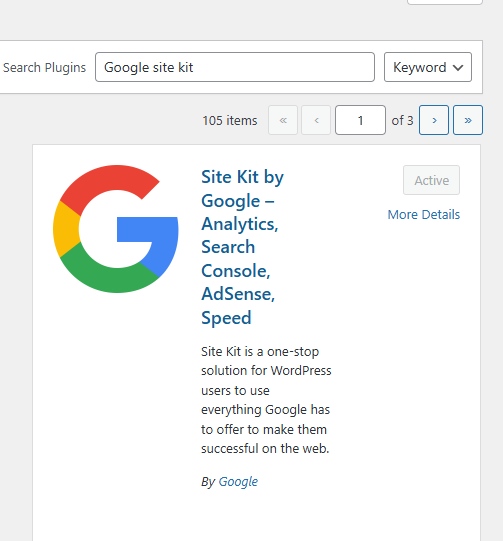
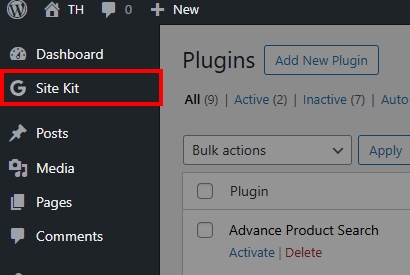
After this, install & Activate the plugin. After installation, you can see the Site Key as a menu in the Dashboard.
Step 4) Click on Site Kit
Step 5) Click on Sign in with Google

Here, we need to log in to Google to connect your account.
Proceed with your Gmail account

Choose the Gmail account and proceed.
After completing the process, Click on Go to my Dashboard

After this, you will redirected to the dashboard.
Step 6) Click on Setting on the Site Key
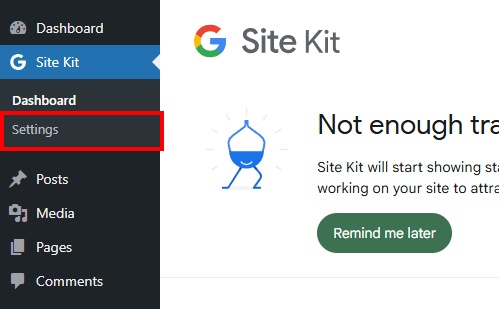
Step 7) Click on the middle section ‘Connect More Services’

On this page, the services that are connected to your account will appear. To see more services, click on Connect More Services.
Step 8) Click on Tag Manager
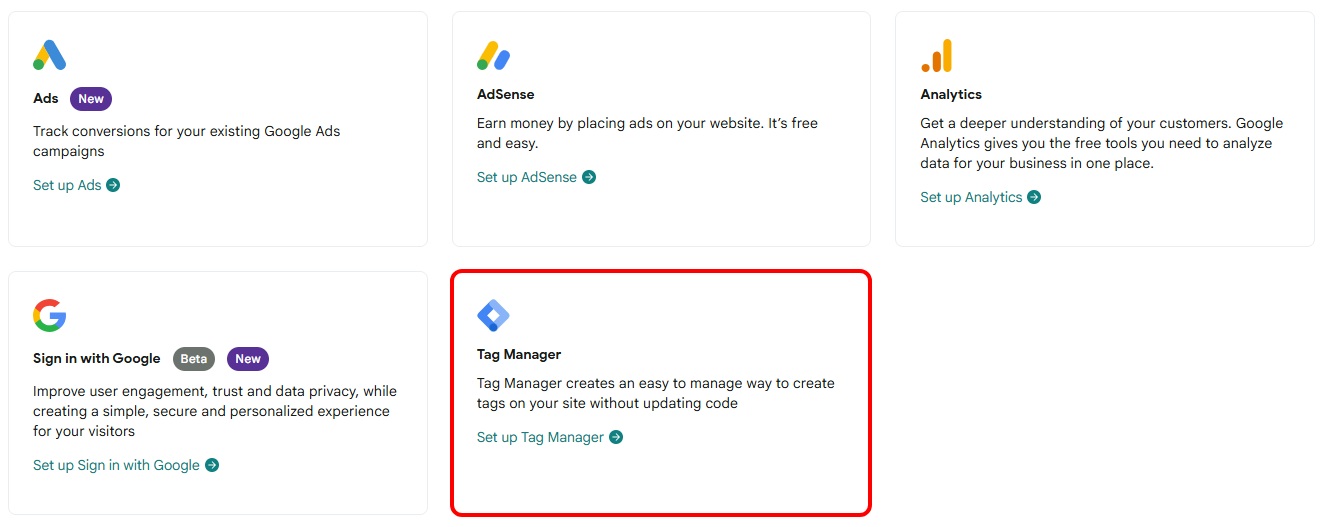
Here, you will see many services. Click on the service you want to start. Here we have to set up the Tag Manager, so click on Tag Manager.
Step 9) Click on Create an account
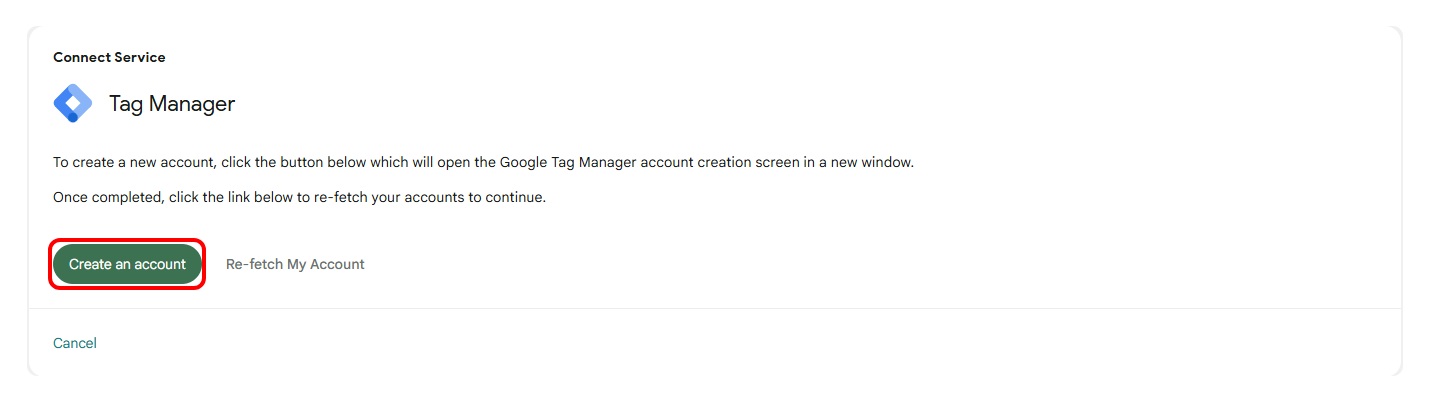
To initiate the setup, we need to create an account first.
Step 10) Fill in the details and click on Continue
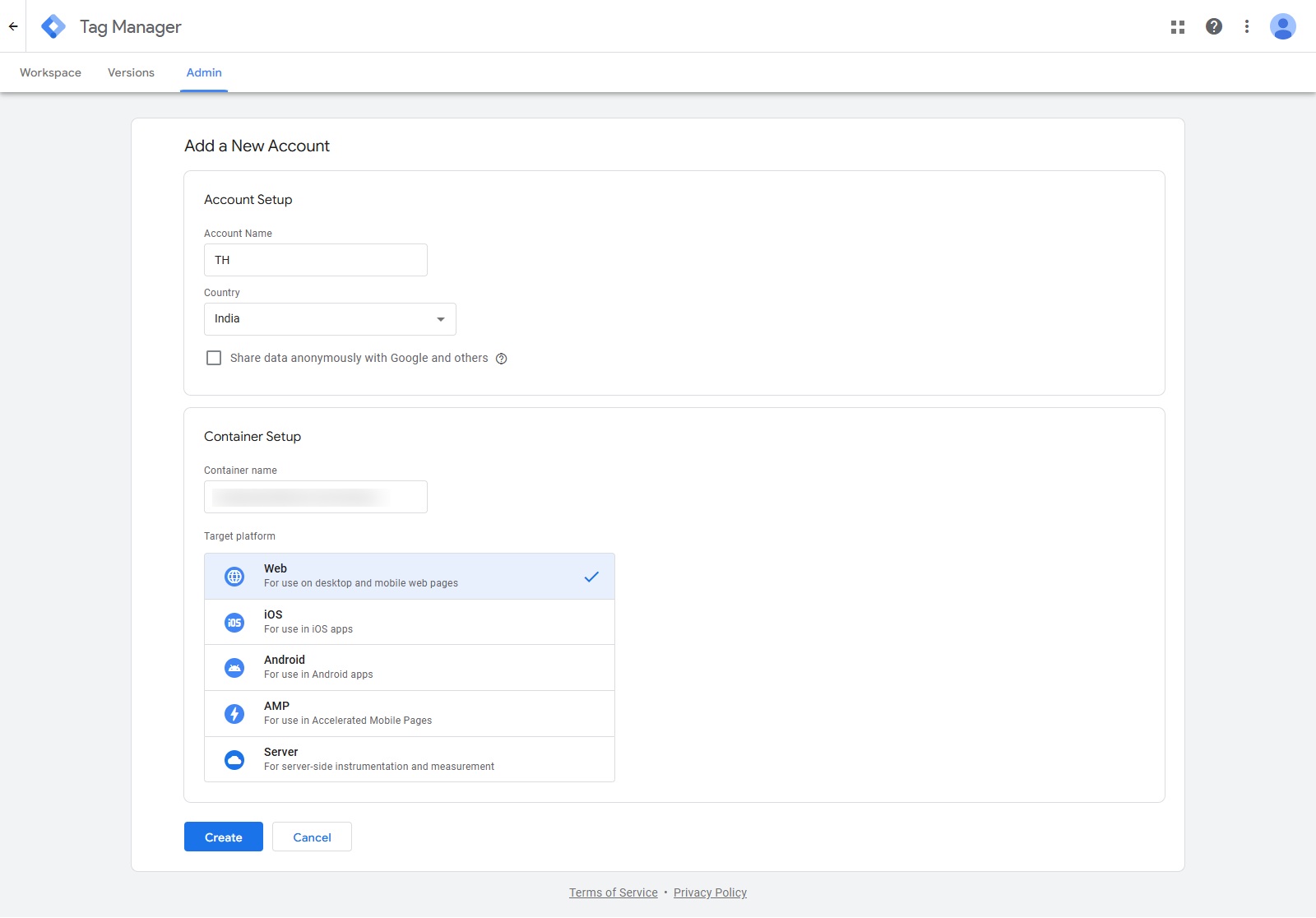
Enter your details and set up the Tag Manager.
After clicking on Create, a box will pop up where you will see two codes
Copy the codes and paste them into <head> and <body> tags

Paste at the respective places.


After pasting the codes, update the files. Come back to codes and close the box.
Step 11) Click on Submit
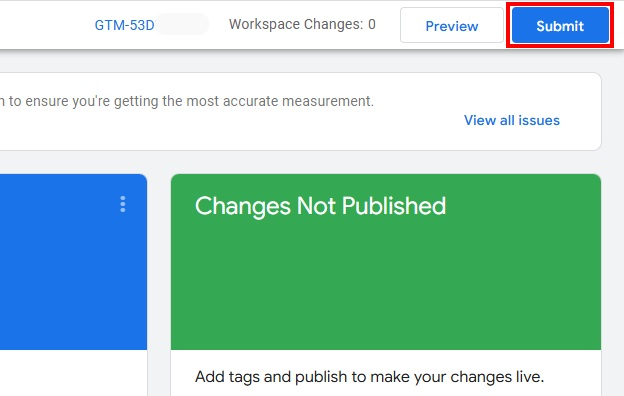
Step 12) Click on Triggers

On this page, you will see some menus, click on Triggers.
Step 13) Create Trigger
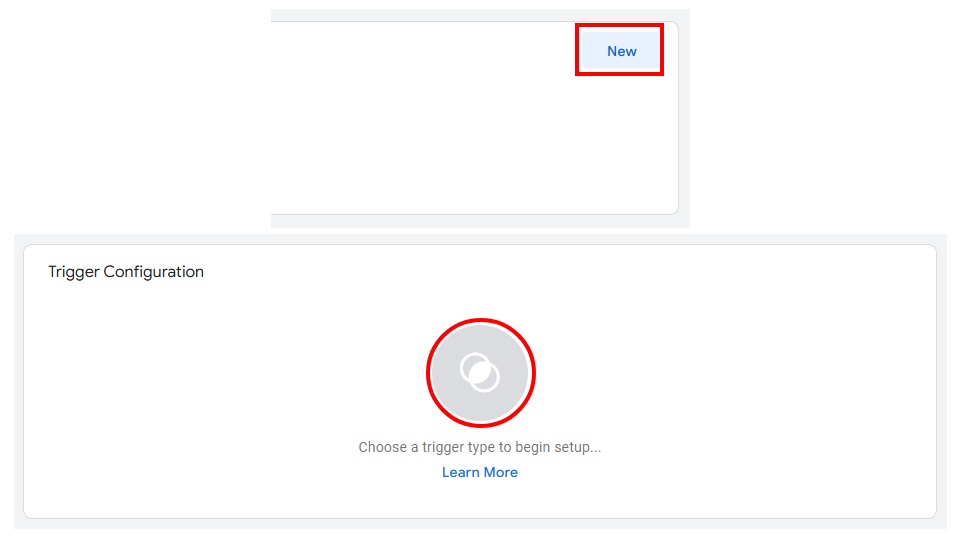
Follow the procedure shown in the picture and create a Trigger.
Step 14) Select the ‘Just Links’ and proceed
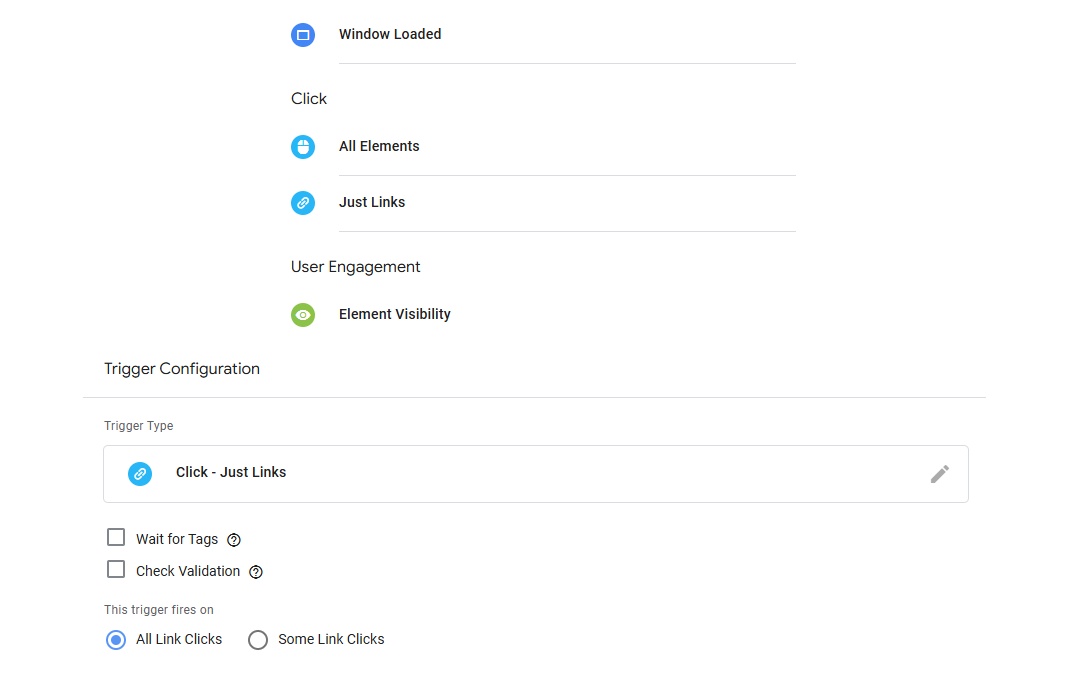
If you want to track a few links, you can select the Some Liks Clicks. And save the Trigger.
Step 15) Click on Tags
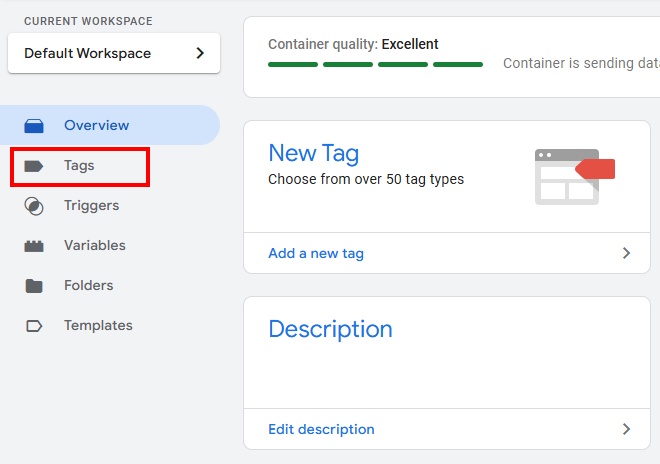
Now come back to the Homepage and click on Tags.
Step 16) Create a Tag
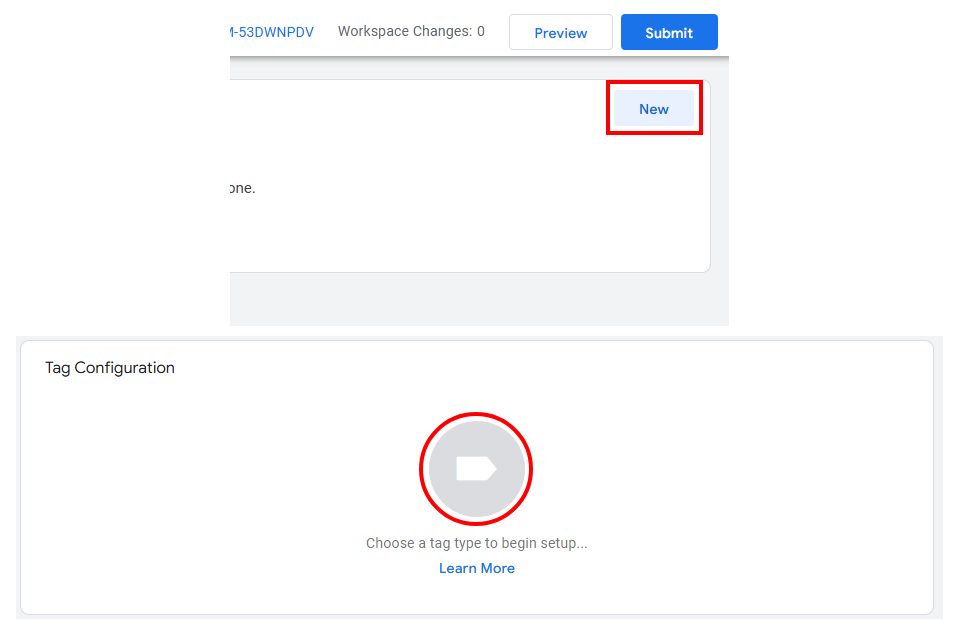
Follow the same steps and create a Tag, but some more operations are there.
We are going to create an Event so search for the Event and select the Google Analytics Event.

You need to enter the Measurement ID that you will find from Data Stream from Analytics. Then click on Triggers and select the Trigger we just created.
Save the page and come back.
Step 17) Click on Preview.
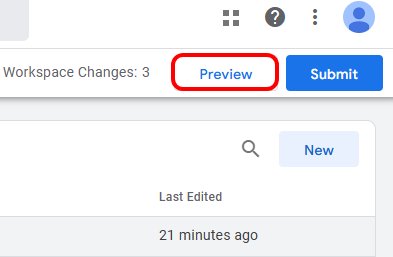

Connect your Site to the Tag Manager.
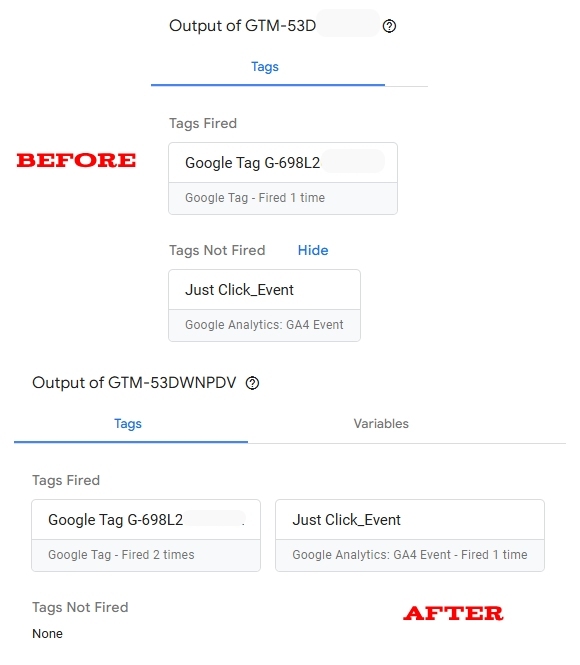
First, you will see the Tag as Not Fired. But after the activity on the site, it will show as Fired.
This is how you can track the links and other activities with the help of Tags and Triggers in Google Tag Manager.
But to see the full Analytics, we need to set up the Analytics.
Step 18) Open your WordPress Dashboard and go to Site Kit Settings
Step 19) Go to Connect More Services and click on Analytics

Step 20) Fill in the details and click on Create Account
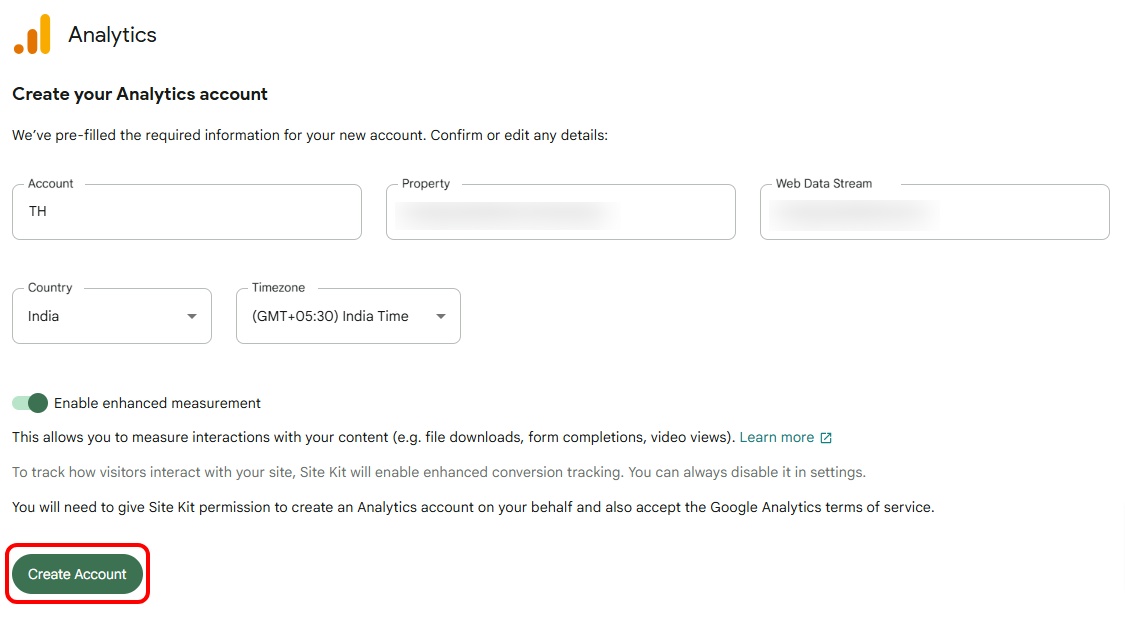
Set up the Analytics and click on ‘See full details in Analytics
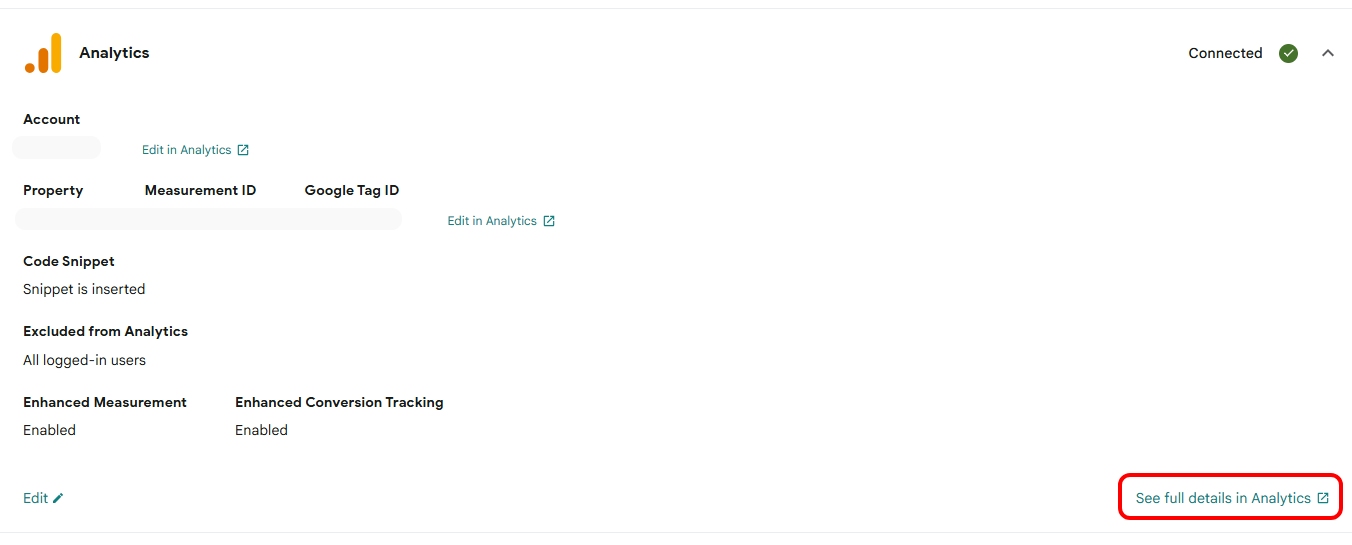
After setting up the Analytics, you will get some IDs including Measurement ID and Google Tag ID that you will need in various Tag Manager operations.
On this page, you will see the whole Analytics of your site

So this is how you can set up the Google Tag Manager and track various activities.
FAQ
Q. Can I integrate Adsense with Site Kit?
Ans. Of course, the AdSense can also be integrated with the Google Site Kit. The process starts from the same page where we started to set up the Tag Manager and Analytics.
Q. What else can be integrated with Google Site Kit?
Ans. It can be integrated with Facebook, Linked In, Adobe Analytics, Twitter, Shopify, WordPress, Joomla, Hubspot, Type Forms, Optimizely, and many more.
Conclusion
So we learned to set up the Google Tag Manager. The Google Tag Manager is used to do many works, we only saw some of them.
It can be used for Facebook ads, Linked In insights, etc, without the need for technical skills.
GTM is also used to track link clicks, page views, form submissions, scroll depth, etc. Without changing the code, this tracking can be done.
After setting up the Analytics, you can keep an eye on the site reports. You can see the users, where they are from, which page they visit, and many other things.
I hope this blog will help you. Still, if you have any queries or suggestions, then let me know in the comment section.
You can subscribe to our YouTube Channel, where we also upload great content. Also, Do Follow us on Facebook and Twitter.
Discover More Articles


