
Are you interested in learning how to set up a new WooCommerce store? You’ve come to the right place.
Setting up a new WooCommerce store can be an exciting venture for any aspiring e-commerce entrepreneur.
WooCommerce, a powerful and flexible plugin for WordPress, offers a wealth of features and customization options that make it a popular choice for online stores.
Here’s a step-by-step guide to help you set up your WooCommerce store and get your products to market quickly and efficiently.

What is WooCommerce and why should I use it for my online store?
WooCommerce is a popular plugin for WordPress that allows you to create and manage an online store.
It provides a user-friendly interface for setting up products, managing orders, and customizing the design of your store.
WooCommerce is a great choice for online stores because it is highly customizable, scalable, and integrates seamlessly with WordPress.
Additionally, WooCommerce offers a wide range of extensions and plugins to enhance the functionality of your store.
How to Set Up a New WooCommerce Store
Step 1: Theme Installation
Select a Woocommerce-compatible theme that suits your Woocommerce store well.
I’m selecting the TH Shop Mania theme for reference. You can install this great theme for your online store using the link below.

Search for the theme here.

Install the Theme.

Click the “Active” button after installation.
Step 2: Demo import
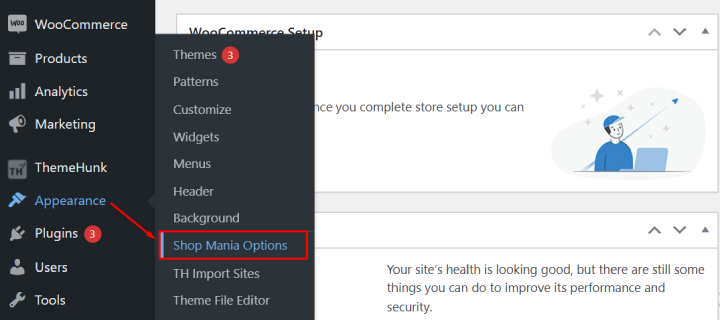
Go to Appearance and select Shop Mania options.

Find starter templates and click the ‘Import Demo’ button.

Please choose a template or demo that you like.
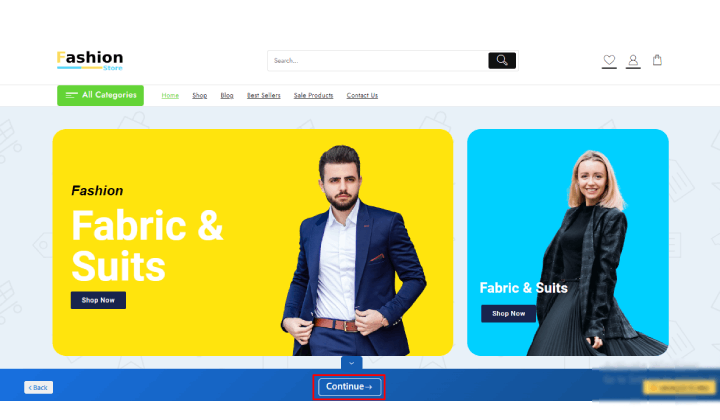
After selecting the template, click on “Continue.”
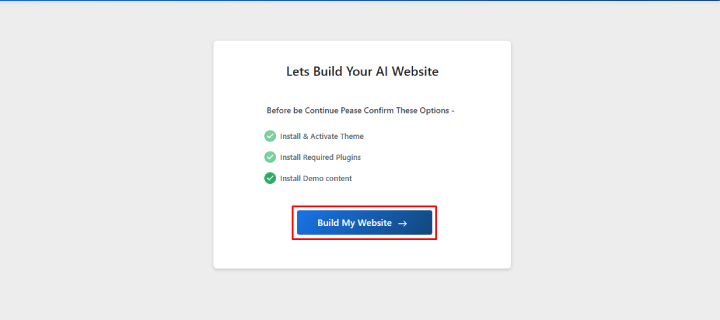
Click on Build my Website
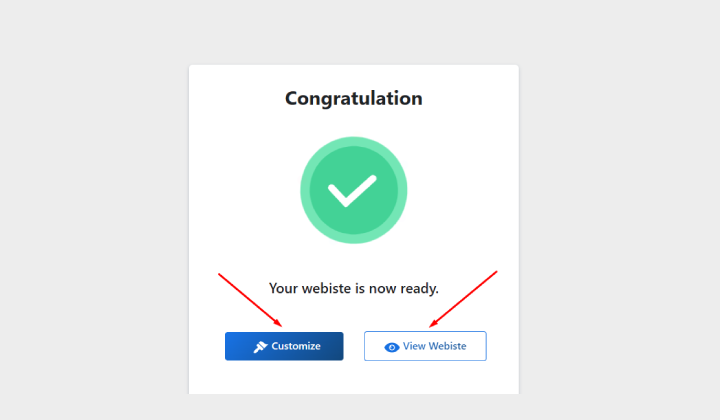
To customize, click the “Customize” button; to preview, click “View Website.”

Woocommerce Settings

woocommerce settings like:
Home
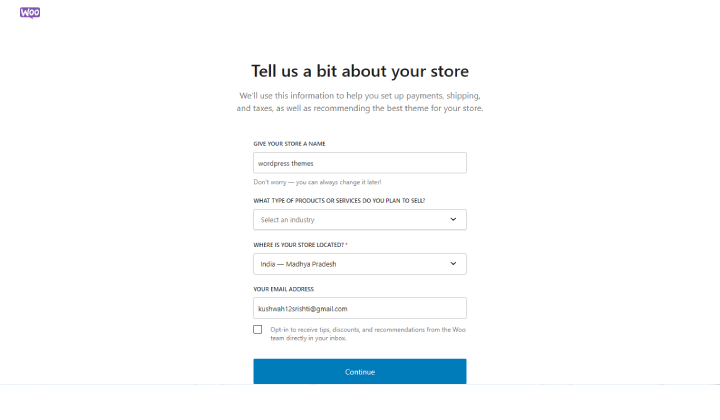
The Home setting refers to the homepage of your online store. This is the first page that visitors will see when they land on your website.
Orders

WooCommerce focuses on managing orders, promoting a product comparison plugin, and offering tools to enhance online stores. It highlights the importance of order management, the benefits of effective product comparison, and the availability of third-party integrations to streamline store operations.
Customers

Highlight the importance of customer experience in online shopping. WooCommerce aims to empower customers with the information they need to make informed product choices, reducing confusion and enhancing their overall shopping experience.
Reports
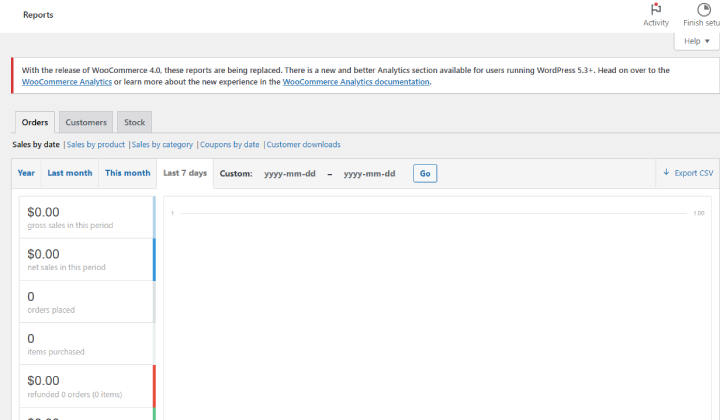
Emphasize the importance of utilizing official documentation, community forums, and support channels to resolve issues and seek help.
The document also highlights the use of system status reports to diagnose potential problems and encourages users to report bugs through GitHub issues.
Extensions
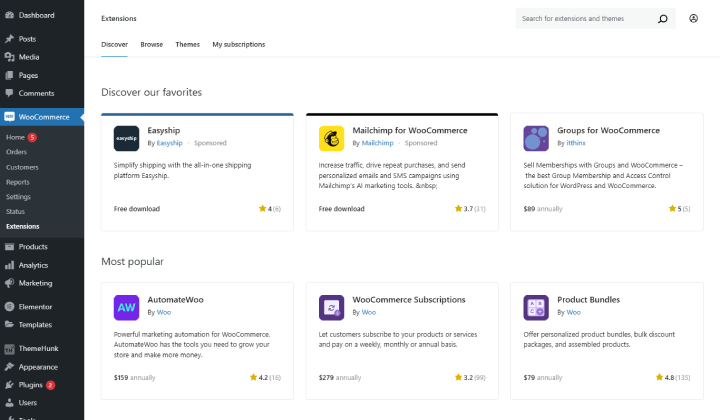
WooCommerce extensions enhance online store functionality by enabling Membership Management, Marketing Automation, and Payment Processing.
These tools help create memberships, automate marketing, and process payments, improving the e-commerce experience for customers.
Step 3: Add Products
Your store is now ready for products! Here’s how to add them:
Navigate to Products > Add New in the WordPress dashboard.

Product Details: Enter your product name, description, and category. Add images and set a price.
Product Data: Under the “Product Data” section, provide more information like inventory, shipping details, and attributes.
Publish: Once everything is completed, click Publish to add the product to your store.
Refer to this guide for step-by-step instructions on how to add products.
Step 4: Increase the Functionality Of the Woocommerce Store
Some functionalities are very important for a good store
like All in one Woo cart, Product Compare, Variations swatches, contact form, etc.
- Themehunk Advance Search Pro -The TH Advance Product Search plugin is an AJAX search tool for WooCommerce, offering results for Products, Posts, and Pages.
- Th All in one Woo cart – Enhance site with a Floating Cart for instant updates and removals, showing Cart directly for improved shopping experience.
- Th Product Compare Pro – Responsive plugin for easy product comparison through interactive tables, enhancing engagement and conversions.
- Th Variations swatches Pro – Improve WooCommerce product options with attractive variation swatches for images, colors, and sizes.
- Lead form builder – Build endless contact forms with Lead Form Builder Pro, works with all page builders for smooth lead generation.
Visit the ThemeHunk website or the official WooCommerce plugin marketplace to explore more plugins and find the ones that best suit the needs of your online store.
Step 5: Customize Your Store
Make your store unique by customizing its appearance:
Go to Appearance > Themes and select a theme that suits your brand. WooCommerce-compatible themes are recommended.

Customize: Use the WordPress customizer to adjust your theme’s colors, fonts, and layout.
Plugins: Enhance your store’s functionality with SEO, marketing, and analytics plugins.
Step 6: Set Up Essential Pages
Ensure your store has the necessary pages:

Shop Page: This is where all your products will be displayed.
Cart Page: Customers can review their selections before checkout.
Checkout Page: The page where customers complete their purchases.
My Account Page: A dashboard for customers to view their orders and account details.
Themes typically come with pre-set pages, but if not, you can easily create additional pages to suit your requirements.
Refer to this guide for further assistance.

Step 7: Test Your Store
Before going live, test your store to ensure everything works smoothly:
Place Test Orders: Go through the purchasing process to spot any issues.
Check Emails: Make sure order confirmation and other emails are sent correctly.
Mobile-Friendly: Verify your store looks good and works well on mobile devices.
Step 8: Launch Your Store
With everything set up and tested, you’re ready to launch:
Announce Your Launch: Use social media, email newsletters, and other channels to announce your store.
Monitor and Improve: Keep an eye on your store’s performance and make adjustments as needed.
Your Woocommerce store is ready.

FAQ
Que: Do I need to have a WordPress website to use WooCommerce?
Ans: Yes, WooCommerce is a plugin for WordPress, so you will need to have a WordPress website up and running before you can install and use WooCommerce.
Que: Can I add custom features or functionality to my WooCommerce store?
Ans: Yes, WooCommerce is customizable and supports extensions and plugins that can add various features and functionalities to your store, such as additional payment gateways, shipping methods, product variations, and more.
Conclusion
Setting up a new WooCommerce store involves several steps, but with careful planning and execution, you can create a successful online business.
From choosing the right hosting provider and domain to customizing your theme and adding products, each step is crucial in building a professional and user-friendly store.
Utilize WooCommerce’s flexibility and diverse plugins to customize your store for a superior shopping experience.
If you find this article helpful, Feel free to share this blog post with your fellow WordPress enthusiasts, and let us know in the comments if you have any questions or additional tips!
We will help you solve your problem. Thanks for reading this blog.
Please Subscribe to our YouTube Channel, we also upload great content there Do Follow us on Instagram and Twitter.
Read more:


