
Black Friday is one of the biggest shopping events of the year that presents a golden opportunity for businesses to attract customers and maximize their sales.
Building a dedicated WordPress website designed specifically for Black Friday can help you stand out and capture more attention.
A dedicated Black Friday website can help you take full advantage of this event, enhancing your sales and customer engagement.
Creating a high-quality, effective Black Friday website is simple with WordPress. Thanks to its customizable themes, robust plugins, and intuitive design, you can easily build a site that perfectly suits your brand, even without technical expertise.
Whether you need to design eye-catching landing pages or integrate eCommerce features for smooth transactions, WordPress provides all the tools you need to start effortlessly.
Plan Your Website Objectives for the Black Friday Sale
Before launching your Black Friday website, it’s important to clearly define your goals.
- Target Audience: Identify your target audience by understanding who your shoppers are and understanding their preferences. This will help you create a shopping experience that suits their needs and interests.
- Products and Deals: Decide which products will be discounted and how you’ll present these deals to attract customers during the sale event.
- Website Features: Consider adding features like a countdown timer, live chat, or pop-ups for time-sensitive offers to enhance customer engagement. Also use clear menus and categories to help customers find product easily.
Proper planning ensures your Black Friday website meets your business goals, creating a seamless experience that drives sales.
Build a Black Friday WordPress in 6 Steps
Here are the simple steps we’ll follow to build a stunning and responsive Black Friday website using WordPress.
- Choose Domain
- Host Website
- Setup and Install WordPress
- Select WordPress Theme
- Install Useful Plugins
- SEO & Marketing
Let’s explore the step-by-step process of creating a Black Friday website on WordPress in detail.
Step 1: Choose the Domain
The first thing you need to start building a website is a domain name. Begin by selecting and purchasing a domain name for your site.
A domain name represents your website’s identity or location online. For example, our website’s domain name is “Themehunk.com“. Here are some tips to help you choose the right one:
- Identify Your Brand and Niche
- Keep It Short and Simple
- Use relevant keywords
- Avoid numbers and hyphens
- Make it unique and brandable
- Consider your target audience
- Check for domain availability
- Choose the right extension (TLD)
- Think Long-Term
There are many affordable domain name providers where you can buy a suitable domain for your website.
Below are some of the best and cheapest domain name providers you can consider.
| S.No | Domain Registrar | Starting Price |
|---|---|---|
| 1 | Namecheap.com | $0.98 |
| 2 | Name.com | $9.99 |
| 3 | Hostinger | $0.99 |
| 4 | BigRock | $ 1.98 |
Step 2: Host Website
Once you’ve bought a domain, you’ll need web hosting to store your website’s files and make them available online. Web hosting providers offer servers where your website content is stored.
Depending on your website’s traffic and resource requirements, you can choose from different hosting types like shared, VPS, or dedicated hosting.
Fast loading speeds and uptime are crucial during high-traffic events like Black Friday. Some recommended WordPress hosting providers are:
| Hosting | More | Basic Plans | Ratings |
|---|---|---|---|
| Pressable | Visit | $20.83/mo* | |
| Kinsta | Visit | $35/mo* | |
| Cloudways | Visit | $8.40/mo* | |
| Hostinger | Visit | $1.95/mo* | |
| Siteground | Visit | $2.99/mo* | |
| Bluehost | Visit | $2.95/mo* | |
| Godaddy | Visit | $8.99/mo* |
Ensure your hosting plan includes SSL certificates for secure transactions.
If you purchase both your domain and hosting from the same provider, you’ll typically receive benefits like one-click WordPress installation, making it easier to set up your website.
Step 3: Setup and Install WordPress
We’re going to buy and domain and hosting from Godaddy, for creating a website. You can go with any other domain and hosting provider as per your budget and requirements.
Follow the below steps to buy and host the website with GoDaddy.
- Go to Godaddy.com and click on Hosting, from the drop-down menu you will see an option of Web Hosting, click on that option. as you can see in the screenshot below.

Now select a Hosting plan, we suggest you buy the Economy plan, which includes a free domain for 12 months. Click on the Add to Cart button as shown in the screenshot below.

Now Click on the Continue button, as shown in the screenshot below.

- Now it’s time to collect your free domain. In the Domain search bar search for the name, a domain name for your website, as we have searched for blogforthejoy.com, and it’s available.
- If the domain you have searched, is available then you can see a Select and Continue option, as shown in the given screenshot. Click on the Select and Continue button

Now, it’s time for checkout. After choosing the hosting and domain for your website, you have to checkout with available payment methods.

After the payment, you will get your domain and hosting, and now you are ready to create your first WordPress blog or website.
Install and Setup WordPress
After buying the Domain and Hosting for your website, now it’s time to install WordPress. for installing WordPress on your website follow the given steps.
- To Install WordPress, First Sign in to your Godaddy Account and Click on the My Products option, as shown in the screenshot below.

- Now under the All Products and Services section, you will see an option of Web Hosting, here you will see another option of Set Up as shown in the screenshot below. Click on the Set Up button.

Now to Set Up your hosting product you will need to enter a domain to use with it, on the search bar enter the domain name, that you have purchased along with hosting. and click on the Update button.

- Now you have to choose a data center for your Hosting, as per your location or region you have to select a data center, also GoDaddy will recommend you to choose the closest data center.

- By default, Godaddy will recommend you use WordPress as your application to build your website. Click on the Yes, let’s do it an option.

- Now you have to Set up your WordPress admin account. Choose a Username and Password for your WordPress website. Enter a Username, Password, Confirm the Password, then click on the Next button.

- After that, your WordPress account is set up, and after that, you will see a message, that “onboarding completed successfully” as you can see in the screenshot below. Now click on the Go to Dashboard button.

- You will be redirected to a new page. here you will see a Websites option in which you have to click on the Install Application button.

- When you click on Install Application you will be redirected to your website. just like you can see in the screenshot below.

- Now you have to open the Admin Dashboard of your website. To access the WordPress dashboard you simply need to add /wp-admin to the end of the URL where you installed WordPress. For example:-
example.com/wp-admin
Replace example.com with Your Domain name as you can see in the screenshot below.

- Now you will see a Login page. Type the username and password you used when you installed your WordPress.
- Enter the Username or Email Address and Password then click on the login Button.

- Now you will be asked to choose a starter template for your new website. If you want to add any template then you can add it, or click on the Exit to WordPress Dashboard that you will find on the top left side. as shown in the screenshot below.

- After Exiting, you will be redirected to the WordPress Dashboard Admin panel. from here you can customize your Website, and make changes to your website.

Once WordPress is set up, you’re ready to customize your WordPress blog’s appearance to make it your own and start blogging, you need to Install a good WordPress Theme and some useful Plugins. let’s know how to do it.
Step 4: Select WordPress Theme
Now it’s time to customize your website. Let’s choose and install a stunning theme. Follow the instructions below to install a theme for your site.
- To Install the Theme, go to Dashboard > Appearance > Themes, as you can see in the screenshot below.
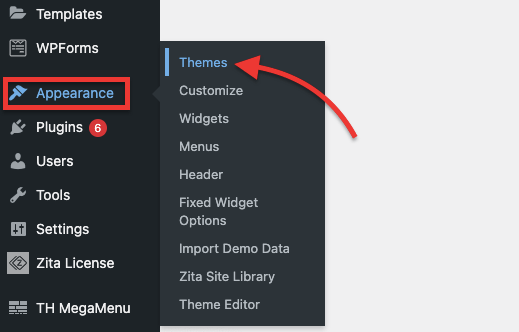
- Now from here, you can install any theme, that you like. you can also search for a theme from the search bar.
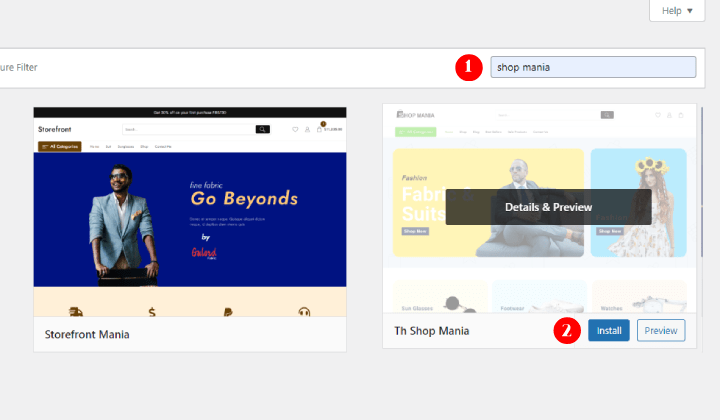
We suggest you install the Shop Mania Theme to create a Black Friday website. Let’s see how it is done.
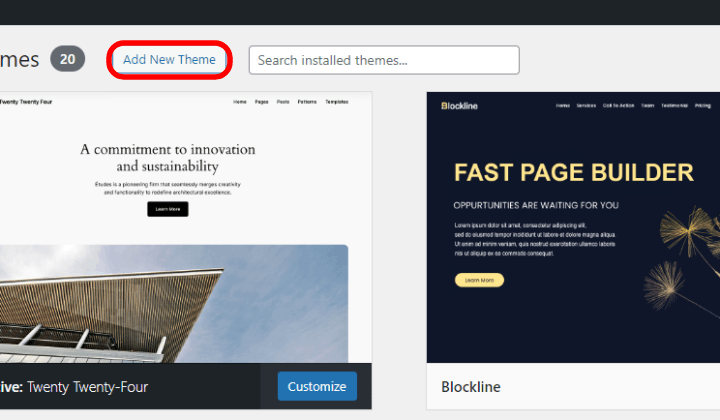
- Click on Add New Theme in the top right corner.
- Go to Search Bar and search Shop Mania
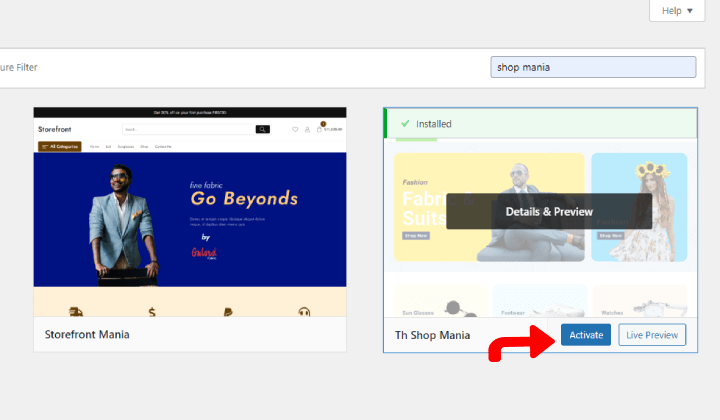
- Click on the Install button. After installation, click on Activate.
- Go to Appearance and click on Shop Mania Options

As the theme template is premium we need to upgrade the theme.
- Click on Get Pro button
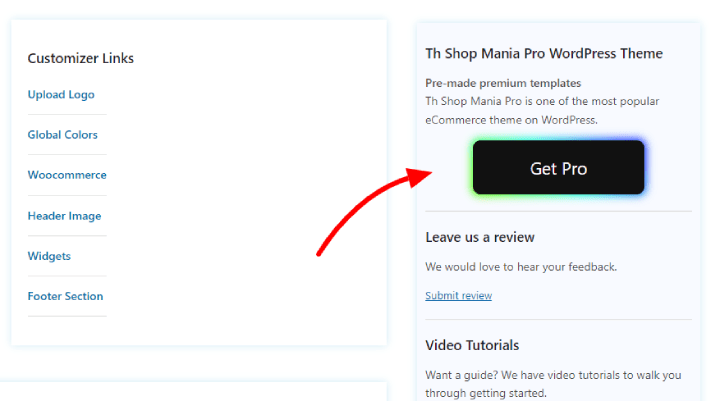
You will land at the Shop Mania page, and scroll down to the pricing.
- Choose your plan and click on Buy Now

- Fill in all the details and click on Next

After all, you will see the member’s area dashboard.
- Click on Shop Mania Pro Plugin and install the plugin

Now open your dashboard again.
- Go to Plugins and click on Add New Plugin

- Click on Upload Plugin in the top right corner
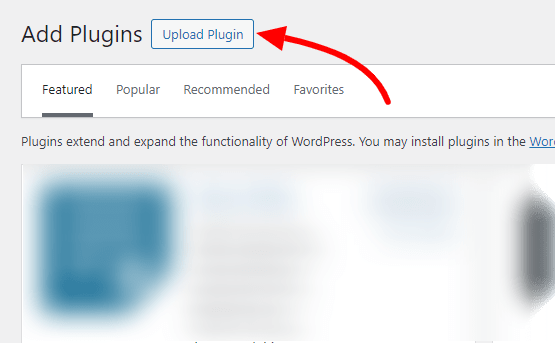
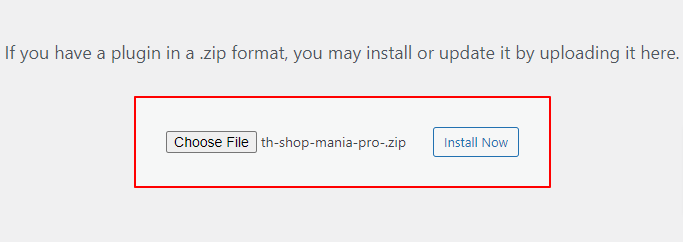
- Upload the Shop Mania Pro plugin here, and click on Install Now
- Click on Activate
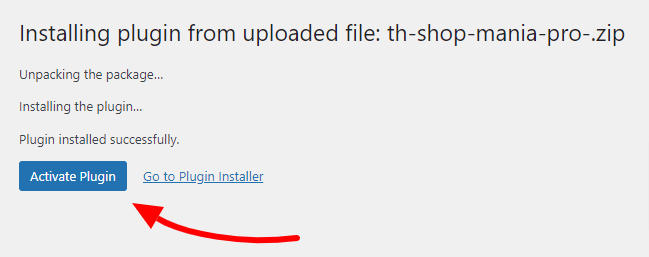
The Shop Mania Pro has come in the installed plugins
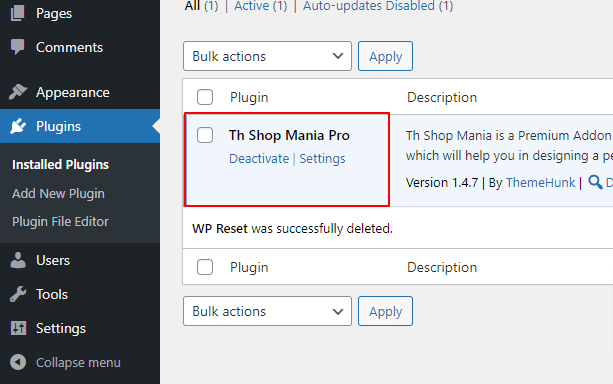
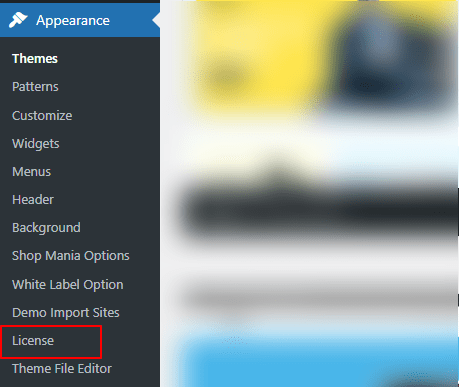
- Go to Appearance and click on License
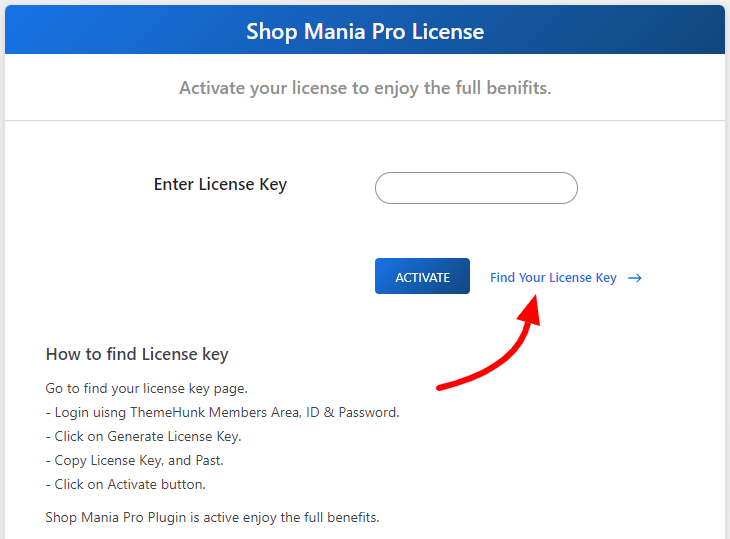
- Click on Find My License Key
- Login using the Member’s area ID and password
- Login using the Member’s area ID and password

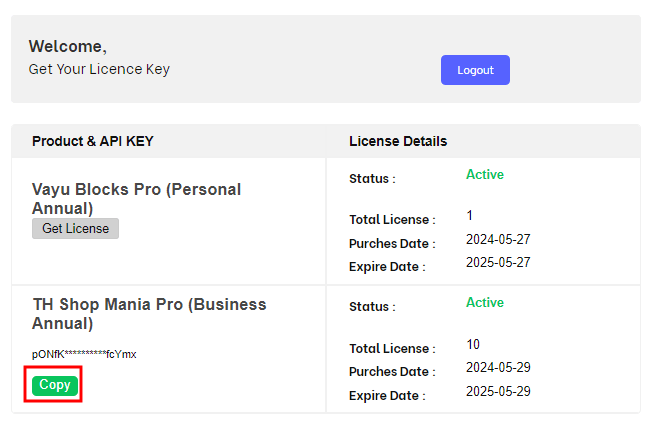
- Click on Copy to copy the license key
- Paste the License Key into the box and click on Activate

You can also Watch the below video to learn more about how to activate the license key of Shop Mania.
- Upon activation, the template page will open as shown below

- Scroll down and search Black Friday Theme Template

- Click on Continue

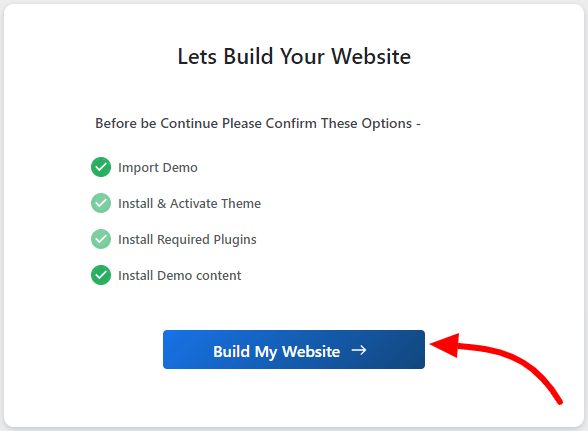
- Click on Build My Website
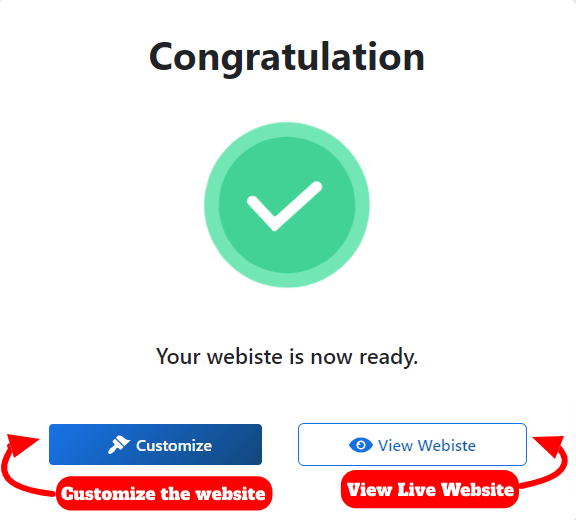
- Click on Customize to Customize the website
- Customize the website with a Page Builder

- The Website is ready
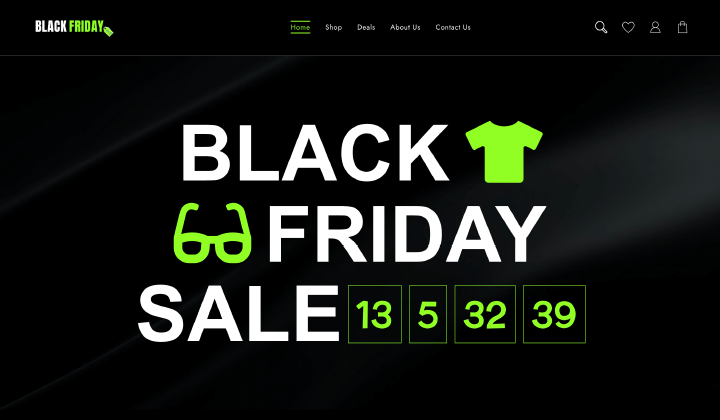
So now we hope you learned about installing and setting up the Shop Mania theme for your website.
Step 5: Install Useful Plugins
After the selection of a Theme, we recommend you install some useful plugins to supercharge your website.
- Website Builder– For creating beautiful landing pages so that users can get attention and take action. Ai Website Builder can help you to design a beautiful website. (eg. Elementor & Block Editor)
- Analytics– Analytics is a tool that offers an easy and free way to track and analyze visitors to your website. (eg. Sitekit)
- SEO Plugin– Doing SEO may be hard for some website owners. But it can be easy for them with some plugins and tools. (eg. RankMath and Yoast)
- Cache Plugin– If you want to optimize your WordPress website you can use cache plugins to speed up your website.
- Cart Plugin– You can use WordPress shopping cart plugins to add some extra functionality to your WooCommerce Store.
There are various more useful WooCommerce plugins you can install to extend the functionality of your website.
Step 6: SEO & Marketing
Once your website is set up, the next step is to focus on SEO and marketing. In addition to improving your website’s SEO, it’s equally important to maintain high-quality products to ensure customer satisfaction and drive sales.
SEO
SEO plays an important role in any new or old website. If you want to get organic traffic from various search engines like Google and Bing. You need to do some SEO work on your website.
In WordPress, you can install SEO plugins to do SEO. There are various SEO plugins you can use. We recommend you use Rank Math or Yoast plugin for doing SEO on your website.
Local SEO– Your website serves both online and local customers. Implementing local SEO ensures people in your city or nearby area can discover your site and store.
Marketing
There are various Cheap Email Marketing Service providers from which you can start creating an Email list of your potential customers.
How you can build an effective Email list? So there are various ways of collecting Emails like Free subscriptions, blogging, coupons, etc.
You can use plugins like Lead Form Builder to create an effective email list. This Plugin comes with features like Form export & import, Unlimited lead export, Mailchimp addon, SMTP mail configuration, and drag-and-drop field ordering.
Important Marketing Tips
- Optimize for mobile: Make sure your website is optimized for mobile devices to ensure that customers can easily browse and purchase from your site on the go.
- Optimize your website for search engines: Use keywords related to the your website niche and your location in your website’s content and meta tags to improve your search engine rankings.
- Use high-quality images: Showcase your products with high-quality images to give customers a clear idea of what they’re buying.
- Create a blog: Use a blog to share tips and information about your products, promotions, and deals.
- Offer a sale or promotion: Create urgency by offering limited-time sales or promotions during Black Friday, encouraging customers to make quick purchases before the deals expire.
- Use social media: Use social media platforms like YouTube, Facebook, Instagram, and Pinterest to showcase your products deals, connect with customers, and drive traffic to your website.
- Make it easy to buy: Make the buying process as easy as possible by providing detailed product information, multiple payment options, and fast and reliable shipping.
Conclusion
We hope this article provides you with all the essential information you need to create a Black Friday website.
If you find this article helpful, do share it with your friends. If you have any questions regarding this, do not hesitate to comment below. We will help you to solve your problem. Thanks for reading this blog.
Please Subscribe to our YouTube Channel. We also upload great content there and also Do Follow us on Facebook and Twitter.
Explore More Articles-


