
Adding a Custom Search Bar, here, means adding a search bar wherever you want irrespective of theme.
However, a search bar is not only for searching for products but also for product categories, posts, pages, etc.
With a custom Search Bar, you can control the search bar as you want. We will see so many customization settings with the search bar in this blog.
Moreover, the search bar is mostly seen on the header, but in fact, it can be set up in any place. It is possible with a custom Search Bar.
What Is Meant By A Custom Search Bar & Its Features?
A Custom Search Bar is said to be custom because of the flexibility it offers.
There are various ways to set a search bar. It can be put using a short code, block inserter, or widget. Additionally, it can be customized as per website owner’s preference.
Features :
- Quick Product Discovery
- Enhanced Users’ Experience
- Provides Analytics
- Convenience to Mobile Users
Why Custom Search Bar Is Needed When It Comes With Premade Templates
When you import a theme template, you get a search bar by default but there may be some limitations.
There may not be the functionality of Live Search, single search scope, limited customization, etc.
But if you consider a plugin that is featureful and lets users customize endlessly, you can enhance the users’ experience to the max.
What We Need In This Blog
To add a custom Search Bar to the Woocommerce website we will need a theme and a plugin.
The theme we need should be compatible with woocommerce, so we are taking Shop Mania.
We will be using TH Advance Search.
How To Add A Custom Search Bar To WooCommerce
For the custom search bar, we need TH Advance Search.
This is our site now, without a header.
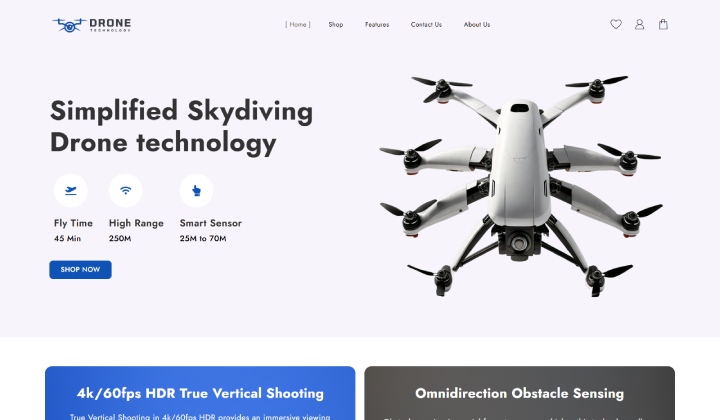
Step 1) Open the WordPress dashboard

Login to your WordPress website and open your dashboard.
Step 2) Go to Plugins and click on Add New Plugin

To add a new plugin, hover your cursor on Plugins and click on Add New Plugin.
Step 3) Go to the Search Bar and Search For Advanced WordPress Search Plugin
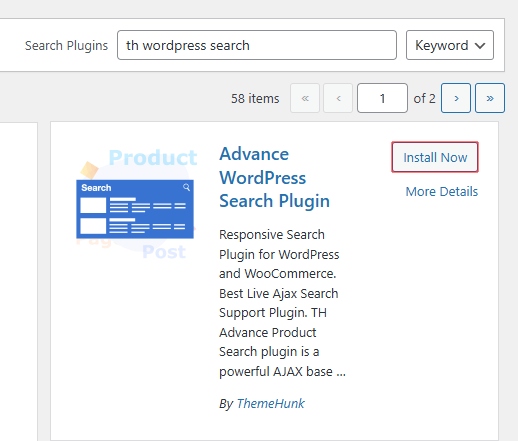
Go to search bar and search for Advance WordPress Search Plugin. Find this plugin and click on Install Now button. After Installation, click on Activate.
If you have the pro version, then you have to upload the plugin. See how it is done.
Step 3) Click on Upload Plugin
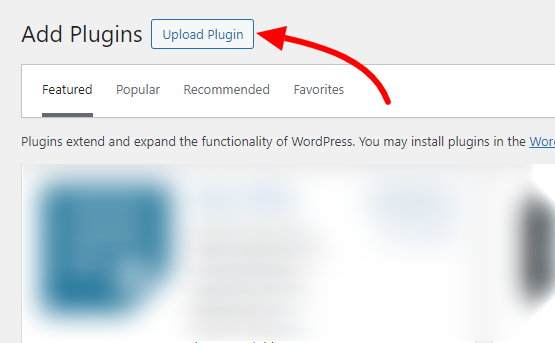
On the top left corner, you can find the Upload Plugin button. Click on it.
Step 4) Upload, Install, and Activate the plugin

After activation, you can see the plugin in the installed plugins list.
After activation, the search bar is automatically placed on the header.

It is automatically placed on the header but if you want to place it somewhere else. But if want to place it somewhere else or show a full search bar rather than an icon, then its header layouts can help you.
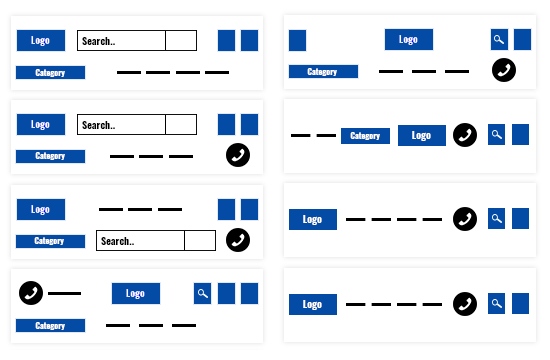
But still, if you want to add the Search Bar somewhere else, say a particular page, then there are some ways that help to do so.
All the methods are discussed in this blog.
But, This is not over, by default you can only search for posts when you look into the settings you will see options that allow you to search for pages and posts also.

If the Post is selected, only posts are shown in the search bar. See the example below.

Likewise, it works the same for the page. Using a single word, related searches show.
Additionally, you can search for categories along with the search type, which means product category with product type and post category with post type. When you write search something and both are searched in the search bar then both show.
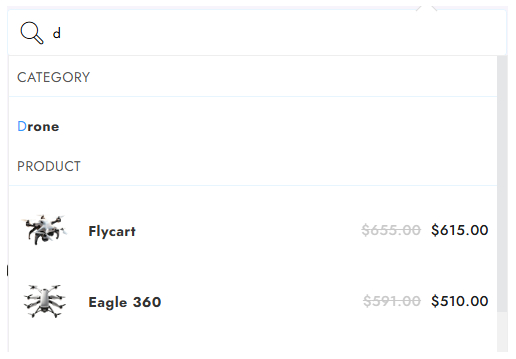
In the above picture, when I wrote ‘d’, the category is shown, I,e, Drone, and the same word is also mentioned in the products somewhere so 2 products are shown.
In this plugin, you can control every single thing from text to loader. Not only this you can customize each section of the Search Bar.
You can match your website’s color combinations with the search bar.

All these options are available in the Free Version. If you want to explore more and use the full power of this plugin you can go for the premium version.
In the pro version, you can enjoy the voice search, autocomplete, color customization, etc features.
FAQ
Q. How is the search bar significant for an eCommerce website?
Ans. When users land on an ecommerce website to find any product, they simply go to the search box and type the name. This is the most convenient way to search for a product as it saves time and effort. When you insert multiple functionalities into the Search Bar, it increases the users’ experience, convenience, and reliability.
Q. On which type of websites can I set the Search Type as Post?
Ans. It is mainly designed for blogging websites where there are lots of blogs and users want to search for a specific one, then it can search for it and go to the bog.
Conclusion
So, we have seen adding a custom search Bar to woocommerce. It ultimately helps to boost sales as it directly impacts the website’s impression.
The TH Advance Search is not only for woocommerce but can be used on any website where users need to find across the site whether it is an article, blog, news, etc.
We have also seen not only use but how can be use its customization options as the Th Advance Search is a flexible plugin.
I hope this blog will help you. Still, if you have any queries or suggestions then let me know in the comment section.
You can Subscribe to our YouTube Channel, we also upload great content there, also Do Follow us on Facebook and Twitter.
Discover More Articles


